
Finding and navigating the client list
Open the client list from the top menu: Clients → Client Profile.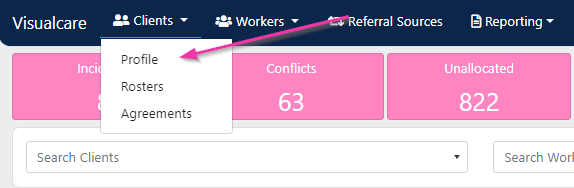
Customising columns
Select the Column Chooser to add or remove columns from the list.

Searching for a client
Use the search bar in the top right corner to search across the current data set. Enter a name or other search term and matching records are highlighted.

Filtering and grouping
Filter a column by selecting the filter icon on the right of the column header. Choose the values you want to display and click OK.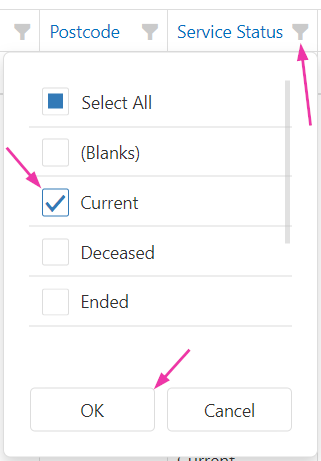

Exporting to Excel
Export the current data set to Excel by clicking the Excel icon.
Adding a new client
To create a new client, click Add Client and enter the required details.
Client profile overview
Once a client is created, their profile contains tabs and summary information at the top of the screen, with additional tabs and detailed subsections below.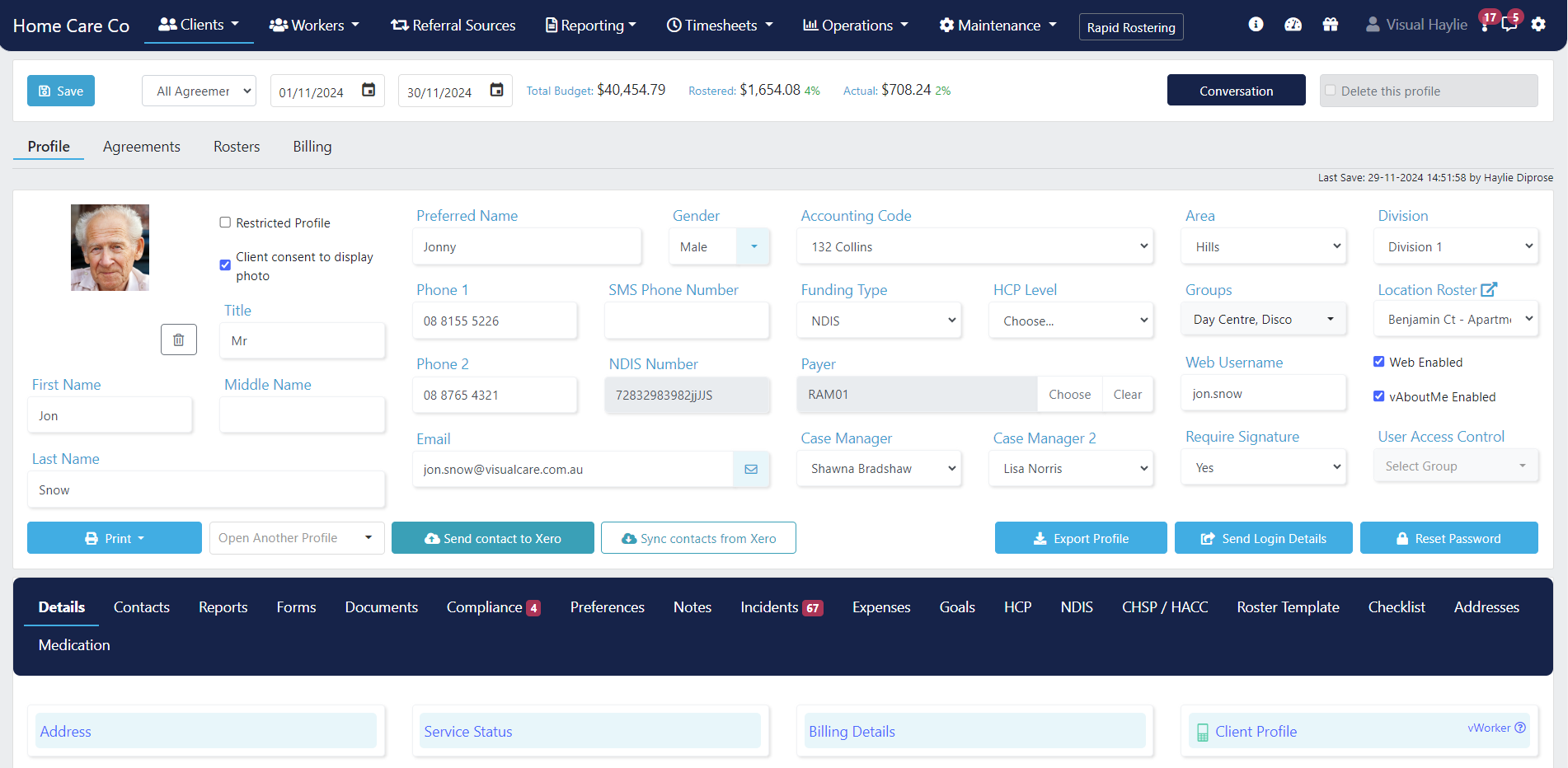
Customisable fields
Several fields on the profile are customisable for your organisation:Setting up a Home Care Package client
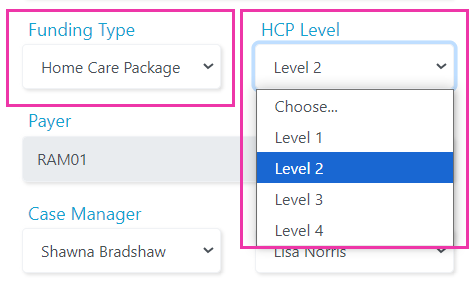
When creating a client who receives Home Care Package (HCP) funding, update these fields on the profile page:- Funding Type - set to Home Care Package
- HCP Level - select the package level from the drop-down (this flows to the HCP statement when you create the first period)
Details tab
The Details tab contains multiple expandable sub-categories. Click on a label to open, view, or edit the fields, and click again to close.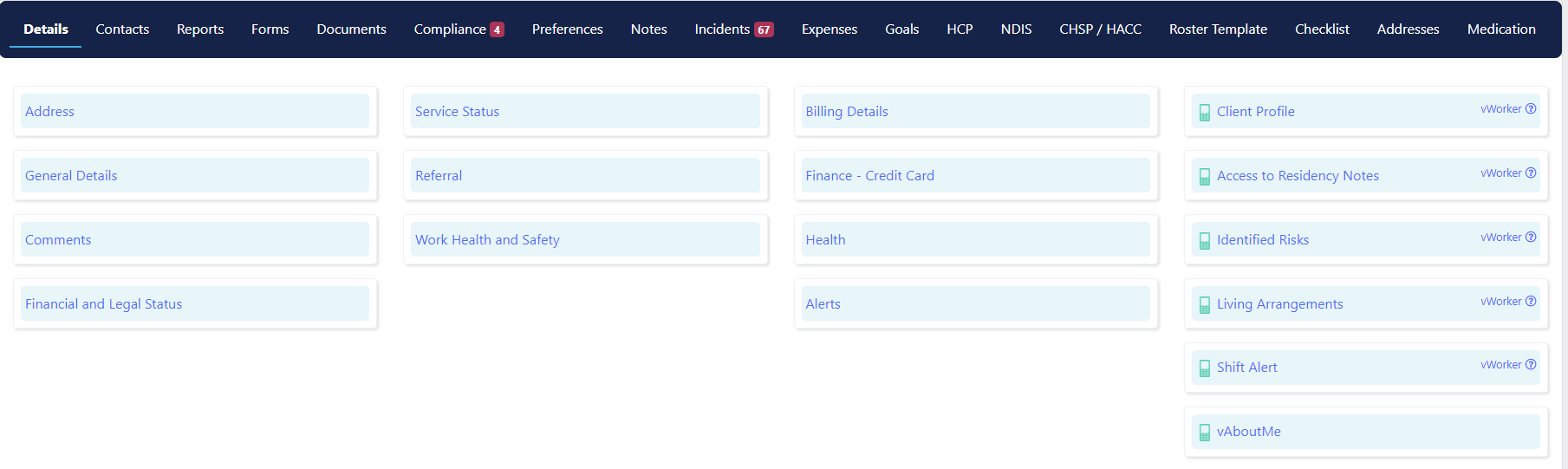
Address
Enter the client’s home address here. If the client has a key code or gate code, enter it in the Key Code field. Use Search Address to auto-populate the full address, or Search Suburb or Postcode to fill the Suburb, State, and Postcode fields.General details
Contains fields including age, languages, LGBTIQ+, culturally and linguistically diverse (CALD) status, Aboriginal and Torres Strait Islander status, and identification numbers linked to different funding sources.Comments
Add any additional comments to include on the client profile.Financial and legal status
Record financial guardianship or legal information, as well as any applicable Legal Orders.Service status
Select Current from the Status drop-down if the client is active, or choose an alternative status where needed. This section also includes service start, end, and review dates. If the client no longer needs services, two actions are available:- Delete shifts from date - removes shifts from the client roster after a selected date, with the option of marking rosters as completed
- Remove from chat groups - removes the client from all message groups within the vAboutMe mobile app
Referral
Record referring agency details here.Work health and safety
Select any occupational health and safety (OH&S) issues related to the client or their living arrangements.Billing details
Enter billing preferences and contact information.Health
Record health-related information including vaccine status, weight, height, disabilities, medical conditions, mobility, and medication details.Alerts
- Alert Note - add profile notes about the client. Tick Popup in profile to display these when the profile opens.
- Roster Note - add roster-specific notes. Tick Popup in roster to display these when the roster opens.
Client profile (Vworker)
Add general information that workers need to know about this client. Notes entered here appear in the Vworker app for the worker to view before their shift.Access to residency notes (Vworker)
Instructions on how to access the client’s residence. These notes appear in the Vworker app before the worker’s shift.Identified risks (Vworker)
Highlight any risks relating to the client or their property. These notes appear in the Vworker app before the worker’s shift.Living arrangements (Vworker)
Relevant information about the client’s living arrangements, visible to workers in the Vworker app.Shift alert (Vworker)
Important information that pops up when a worker opens the client shift in the Vworker mobile app. Use this for critical details the worker needs immediately.vAboutMe
Customise vAboutMe features for the selected client by ticking or unticking access to each feature.Addresses tab
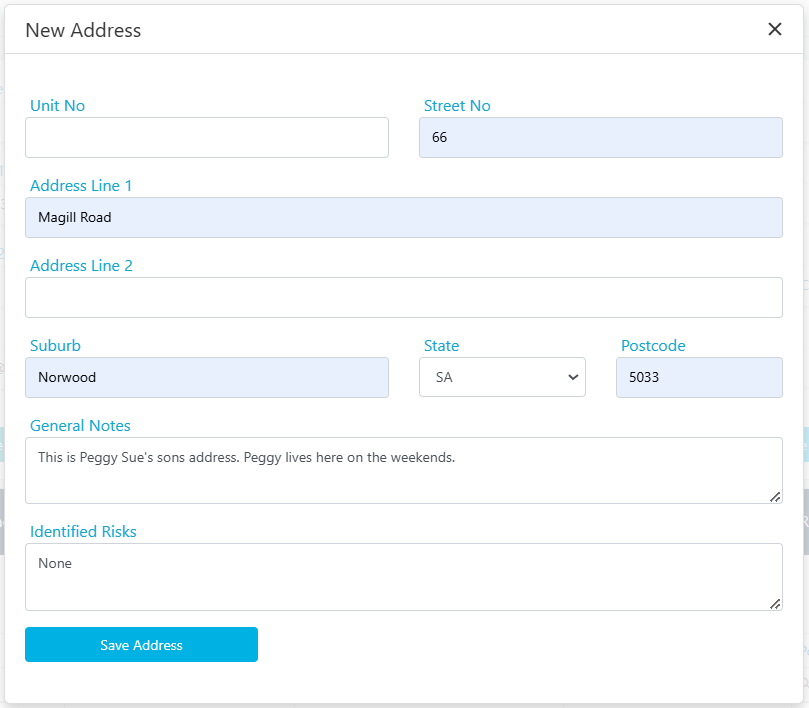
The Addresses tab stores additional client addresses (separate from the home address in the Details tab). These addresses flow through to Transport Runs as alternate pick-up or drop-off destinations. To add an address, navigate to Client Profile → Addresses tab and click Add Address.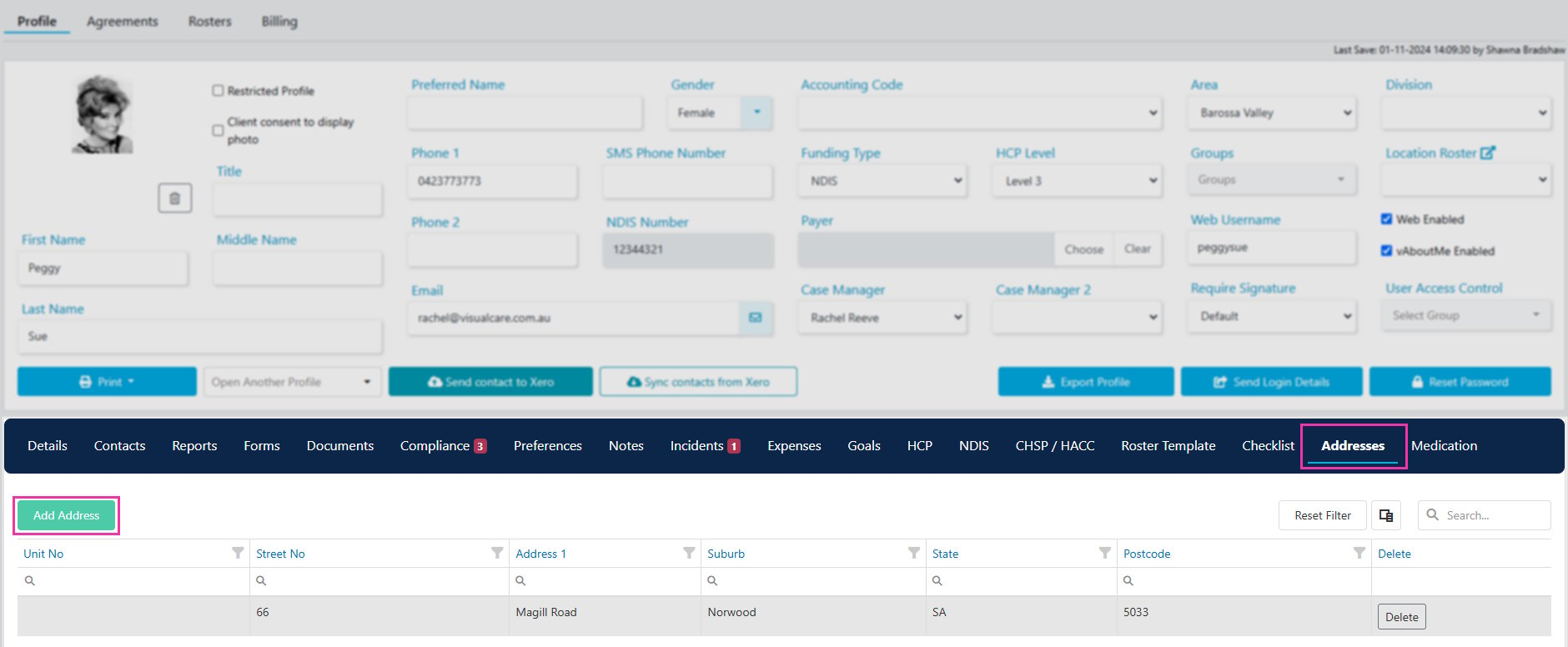

Contacts tab
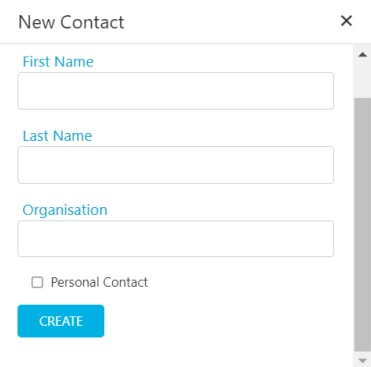
The Contacts tab stores people associated with the client, such as family members, carers, or other contacts. Click Add new contact to create a new contact or select from existing contacts.
Enabling vAboutMe access
To give a client access to the vAboutMe mobile app, complete these fields in the client profile and click Save:- Email - the client’s email address
- Web Username - the client’s email address is recommended (avoid spaces)
- Web Enabled - tick this box
- vAboutMe Enabled - tick this box

Running into issues?
See Client management troubleshooting for common errors and fixes.Related articles
Creating agreements for rostering
Set up agreements to enable rostering for a client
Compliance configuration
Configure compliance items for client profiles
vAboutMe app access
Set up client access to the vAboutMe mobile app
Import CSV
Import multiple client, worker, or expense records from a CSV file