
Uploading a document
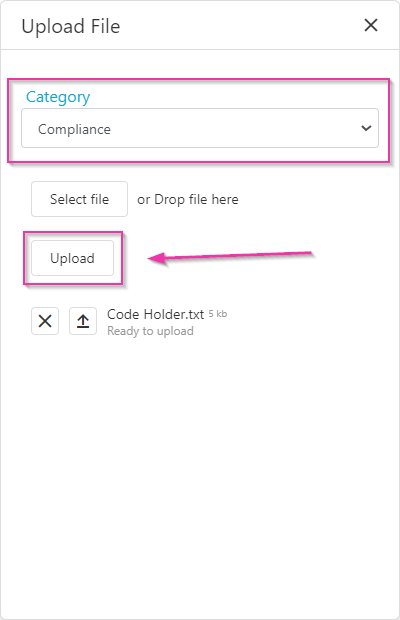
Open the client profile and navigate to the Documents tab. Click Upload File and locate the file, or drag and drop the file into the indicated area.
Managing documents
Once uploaded, the document appears in the client documents list with these options:Making a document visible to all clients in vAboutMe
To share a document with all clients through the vAboutMe app, upload it through Maintenance rather than through an individual client profile.1
Go to Maintenance → Documents
Navigate to Maintenance → Documents and upload the file.
2
Open the document's settings
Click Manage on the uploaded file.
3
Set visibility
Under Visibility to Client, change the setting to Visible.
4
Save
Click Save. The document now appears in the vAboutMe app for all clients.
Documents uploaded through a client profile are only visible to that individual client. Use Maintenance → Documents when you want a document available to all clients organisation-wide.
Running into issues?
See Client management troubleshooting for common errors and fixes.Related articles
Notes and tasks
Manage notes and follow-up tasks on client profiles
Creating a client profile
Set up the client profile that holds documents