
Creating a new transport run
1
Open transport runs
Go to Operations → Transport Runs.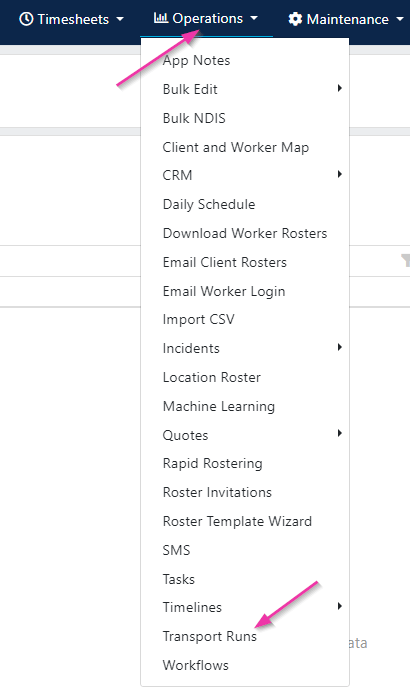
2
Create the run
Click Create New Roster. Enter a relevant name in the Reference field, select a date for the run, and click Add Run.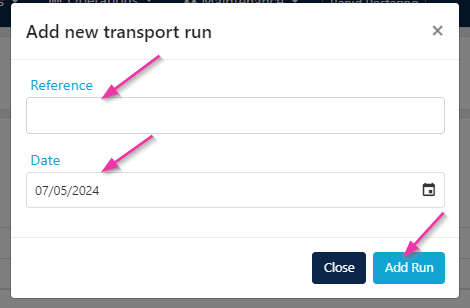
3
Add run details
Once the run is created, add additional information at the top of the page:
Click Save to save the changes.
Adding drops
Drops are the individual stops within a transport run. Each drop can have multiple clients.1
Add a drop
Click Add Drop and add relevant notes for the driver.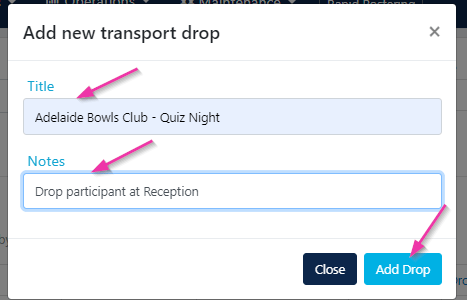
2
Add clients to the drop
Click Add Client to Drop, fill in the relevant fields, and click Add Client.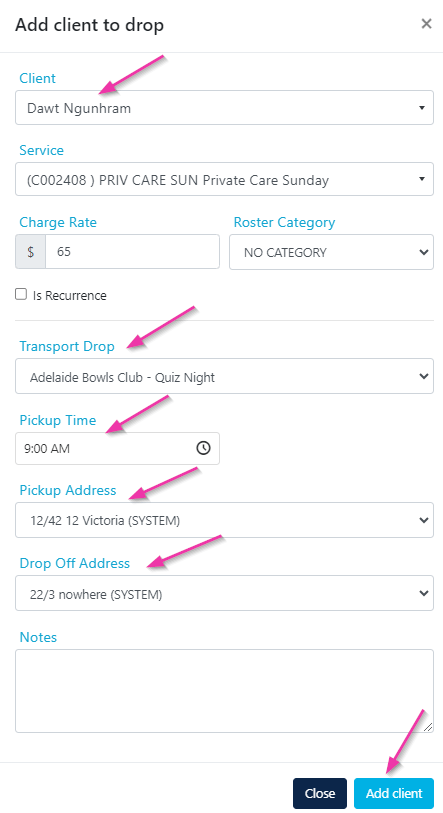
Managing clients on a drop
Once clients are added to a drop, you can manage them using the options available:
- Edit - update client details for this drop, make changes and click Save
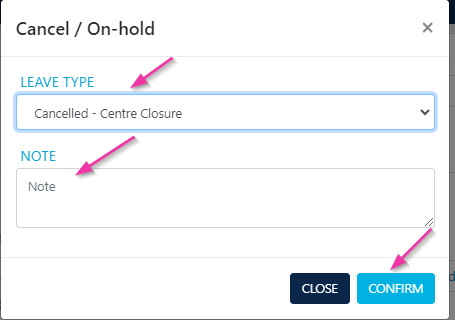
- Add On Hold - if a client is unavailable, mark them as on hold by selecting a Leave Type and adding notes
- Delete - remove the client from the drop entirely
Adding workers to the run
Multiple workers can be added to a transport run alongside the driver. Click Add Worker, tick the workers to be added, and click Add Selected Workers.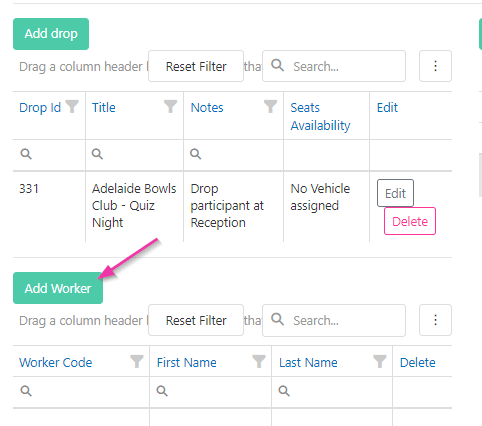
Transport run report
Once all drops have been created and clients are added in the correct order, click Run Report in the top right corner to generate the transport run report. If a customised Word tag template has been added to your database, use the Export to Word feature to export the report in your customised format.
Running into issues?
See Scheduling troubleshooting for common errors and fixes.Related articles
Vehicle rostering
Set up vehicles and assign them to shifts
Group activity rostering
Roster group activities using location rosters
Client and worker map
View client and worker locations on a map