
Where notes come from
Notes are created in several ways:- From the Vworker mobile app
- From within the client Notes tab
- From within the roster area
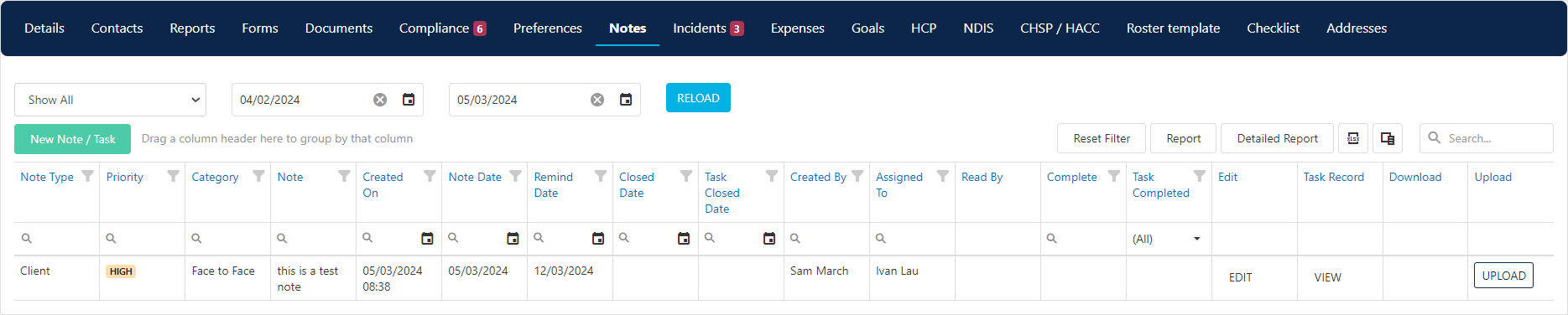
Managing a note
If a note needs follow-up, open it and set the parameters: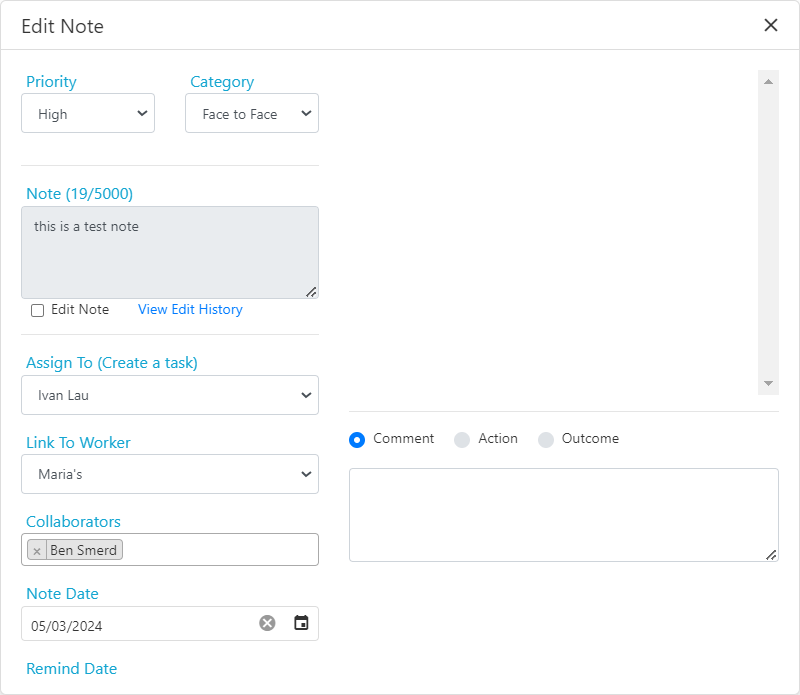
Deleting a note
Deleting notes is controlled by the Ability to delete note permission in User Group Security, under the Clients section. If your user group has the permission, open the Column Chooser on the notes table, drag in the Delete column, and use it to delete the note. If not, ask someone in the Administration user group to delete the note or enable the permission.App notes
Notes created in the Vworker app are pushed to the App Notes area of VCore, where office users manage them. The App Notes KPI tile on the Home Dashboard shows the number of unread notes needing action. The count increases when new notes arrive and decreases once notes are marked as read.
Filtering and searching
Use the filters at the top of the screen to search for specific notes:
Customise the page further using the column chooser, search button, column grouping, or column filters.

Marking notes as read
If no action is needed, click Mark As Read. The note is timestamped, the user name is recorded, and the KPI tile count decreases.
Actioning a note
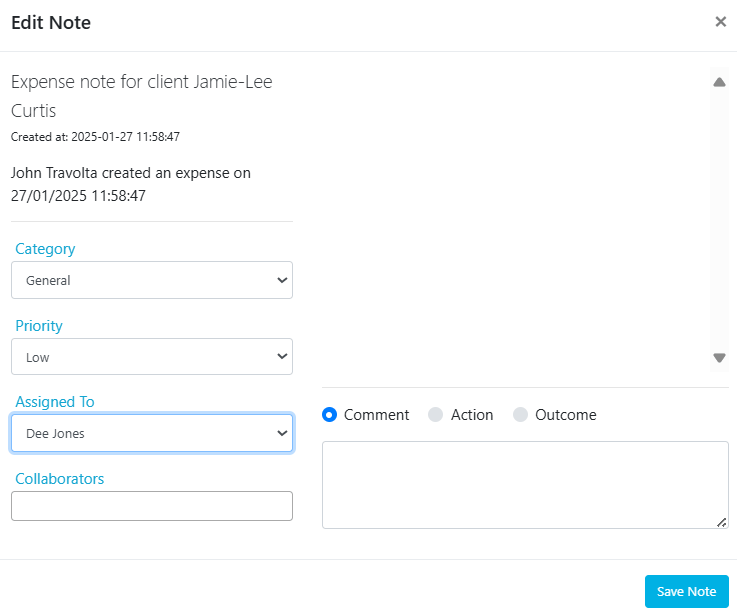
For notes needing action, mark as read then use the Edit button to manage the response. To update only the Category and Priority, select them and save.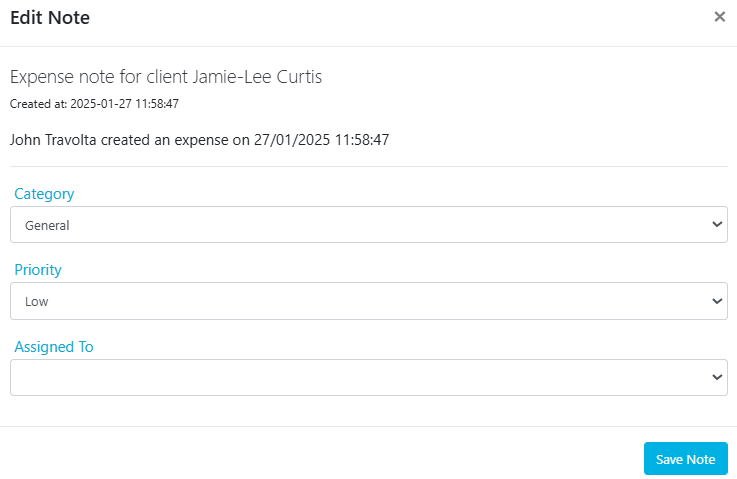
Running into issues?
See Client management troubleshooting for common errors and fixes.Related articles
Progress notes
Record detailed progress notes for clients
Checklists
Create shift checklists for workers
Document storage
Upload and manage documents on the client profile