
Reports available from the client profile
The Reports tab within a client profile provides reports specific to that client.Funding and operational balances
This table reports on the client’s budget as set up in the Agreement tab. It draws on client roster and confirmed timesheet data.
Totals display at the bottom of the table.
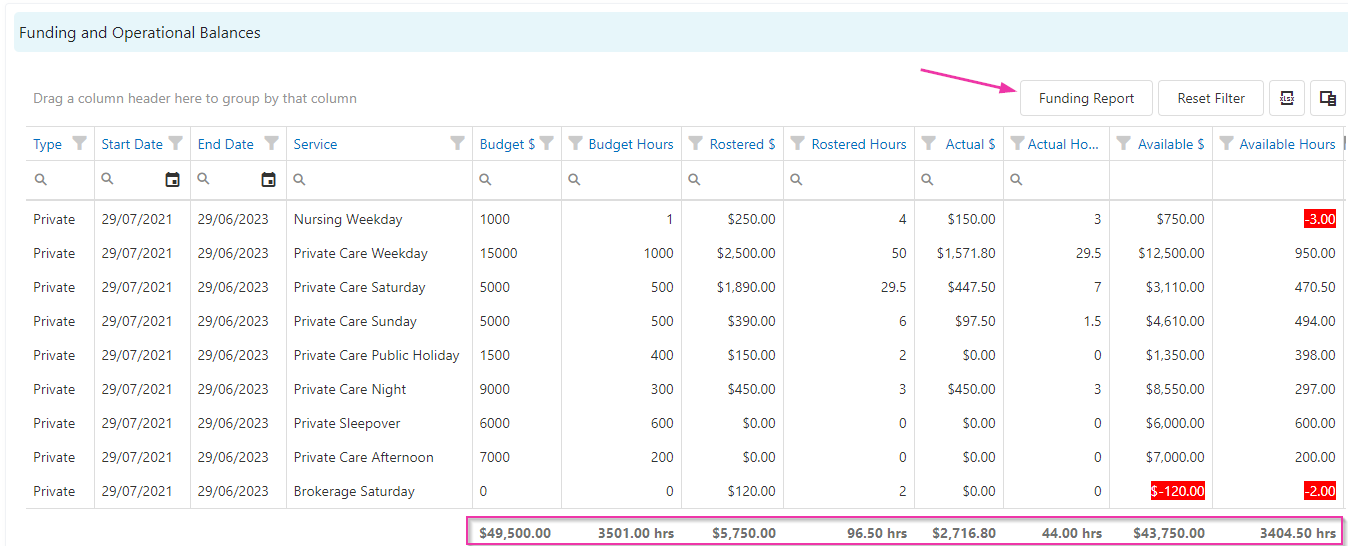
Funding report
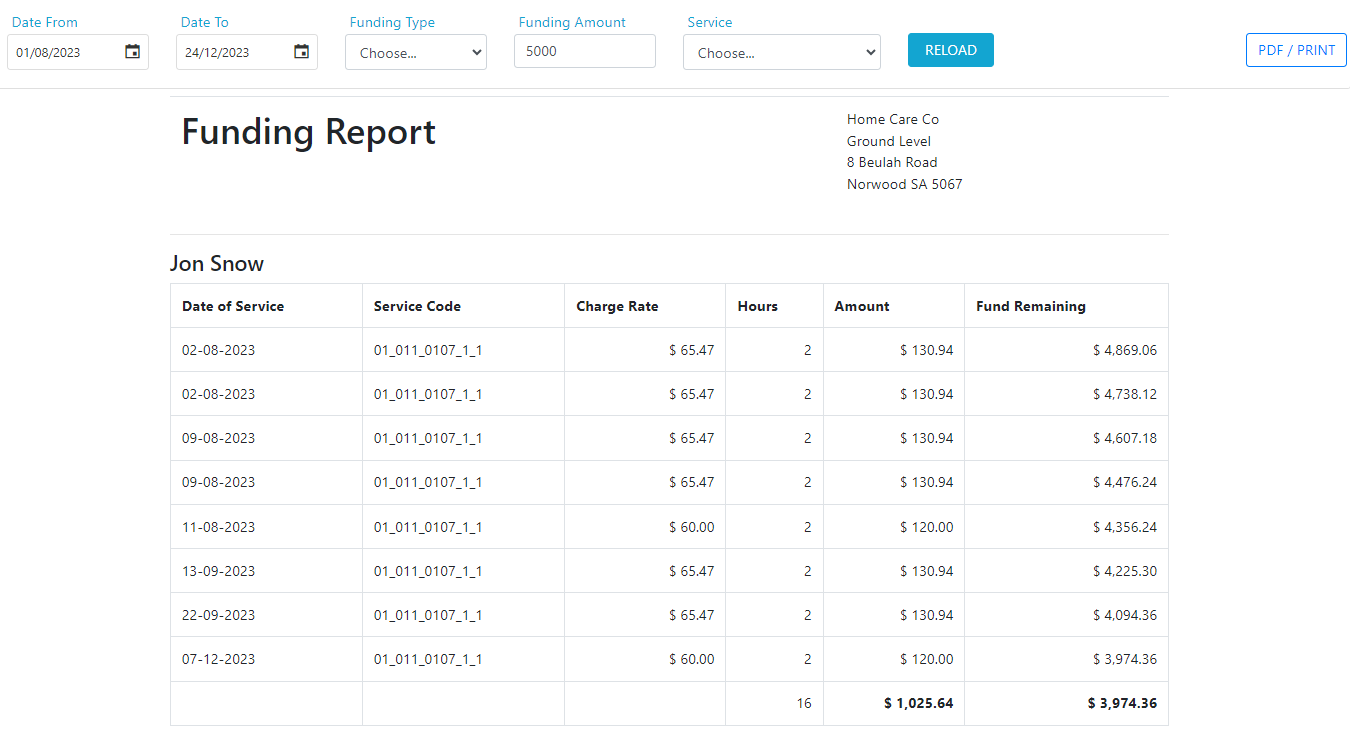
To run a funding breakdown report from the client profile:- Click Funding Report
- Select the date range
- Choose a funding type (leave blank to include all)
- Enter the funding amount
- Choose a specific service or leave on all services
- Click Reload to generate the report
Reports available from the reporting module
The following reports are available under Reports → Client Reports.Running into issues?
See General troubleshooting for common errors and fixes.Related articles
Creating a client profile
Set up new client records in Visualcare
Managing client compliance
Track and manage client compliance items
Worker reports
Run reports on worker data
Rosters and timesheets reports
Report on rostering and timesheet data