
Adding notes and photos
Workers can add progress notes during a shift by selecting Add Note / Photo from the More menu within the shift. These notes provide a formal record of the shift and are time-stamped, date-stamped and name-stamped. They flow through to the electronic client file in VCore. Photos can be added where applicable, for example to document wound care or a client performing an activity.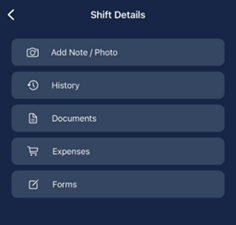
Workers can add notes after the shift has been completed by going back into the shift and clicking Add Notes. Notes can be added until midnight on the day of the shift.
Viewing client notes
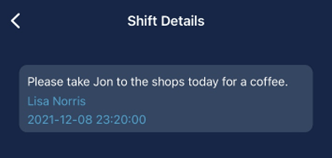
Workers can view notes relating to the client by tapping Notes at the bottom of the shift screen. These notes contain specific details about the shift or the client.
Viewing shift history
Tap History from the More menu to review historical notes about the client.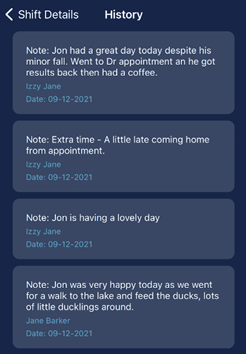
Additional shift features
Workers can access these additional features from the More menu within a shift:
Running into issues?
See Timesheet troubleshooting for common errors and fixes.Related articles
Vworker: Clocking in and out
How workers start and complete shifts through the app
Vworker: Menu overview
Overview of all features available in the Vworker app menu
Vworker: Location roster shifts
How workers view and manage location roster shifts in the app