
Worker home page
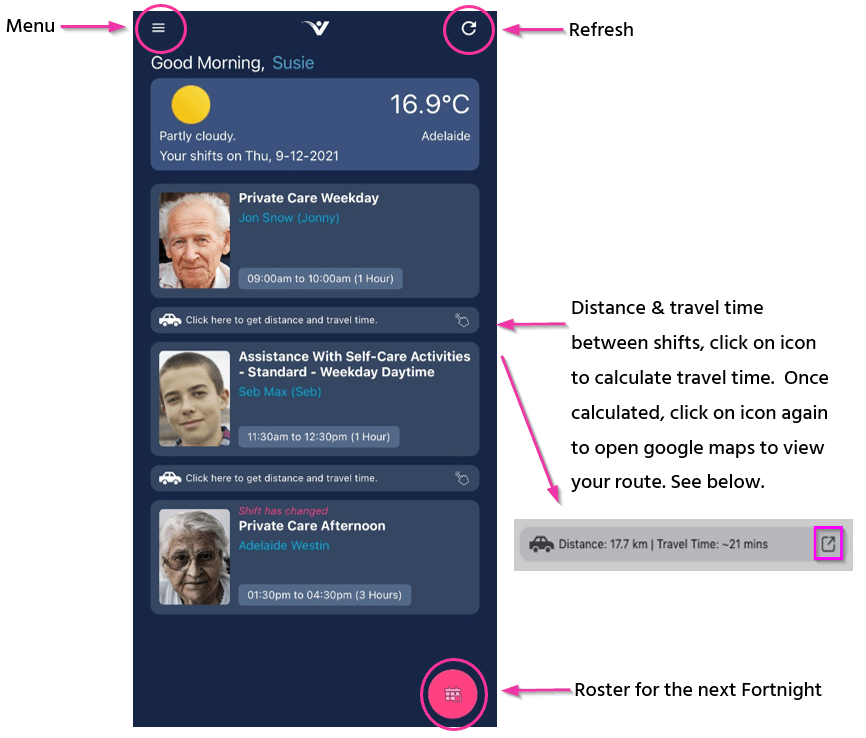
When workers open the Vworker app, the home page shows:- Weather forecast for their location
- List of shifts scheduled for the day
- Distance between shifts
- Access to the menu, refresh button and fortnightly roster
Shift details
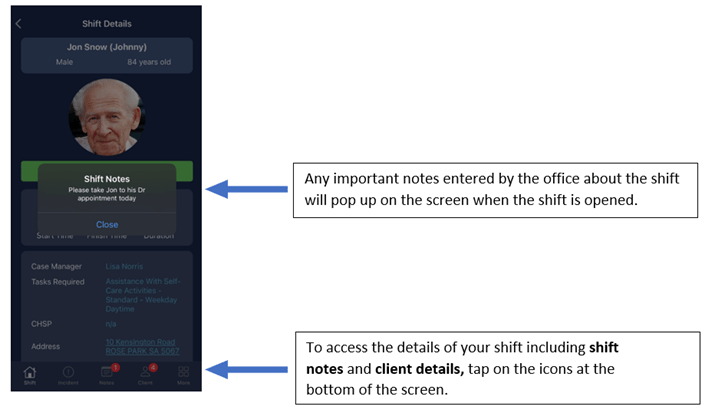
Workers tap on a shift to view full details including client information, times and available actions.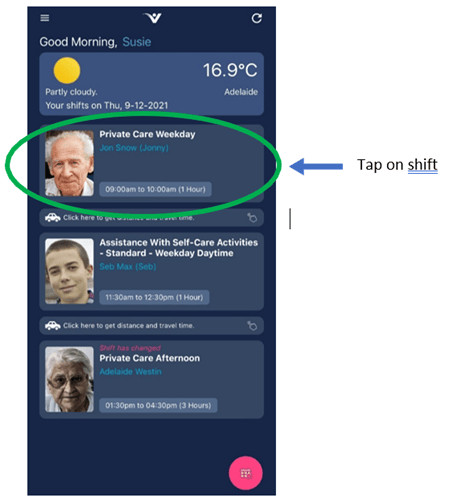
Goals
Workers view client goals within the shift. Tapping a goal opens it so the worker adds a note or uploads an image, taken with the phone camera or chosen from the gallery.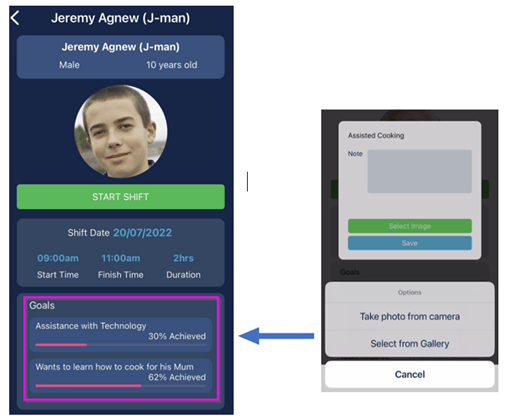
Map
Tapping the client address under the shift details opens directions to the address in Google Maps.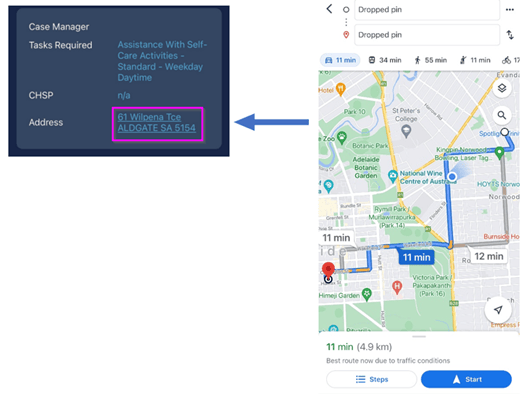
Checklist
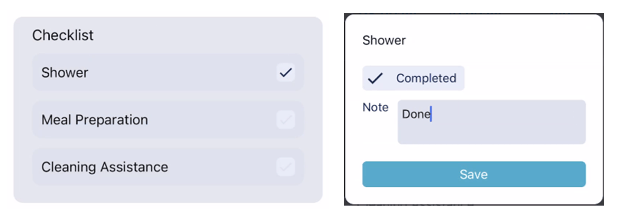
If there is a checklist for the client shift, the checklist and all its items appear on the shift home page.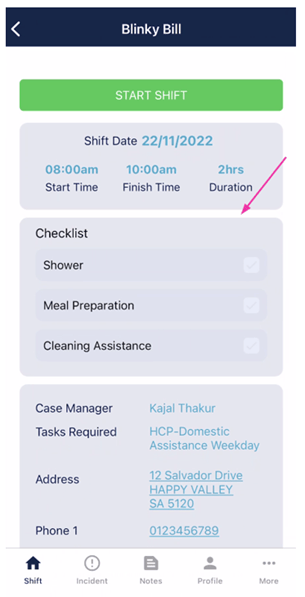
Starting a shift
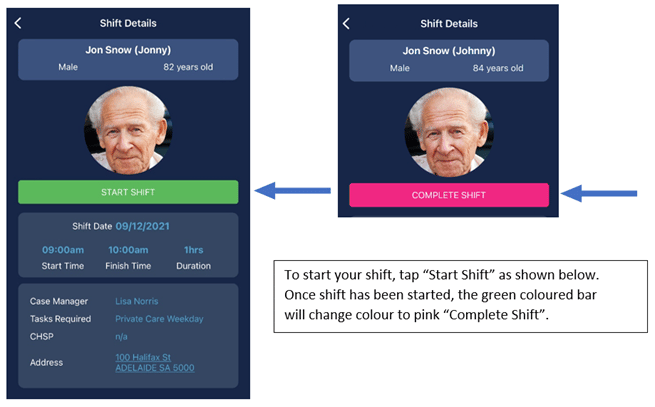
When the worker taps Start Shift, the app records the time and location. If your organisation uses start forms, the worker completes the form before continuing with the shift.Completing a shift
1
Worker taps Complete Shift
When the shift is finished, the worker taps Complete Shift.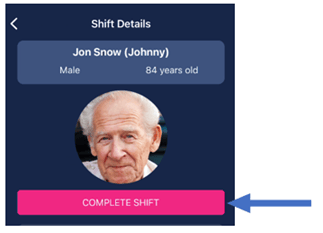
2
Worker enters completion details
The app prompts the worker to enter details about the shift, including any changes to the shift, travel notes and completion notes.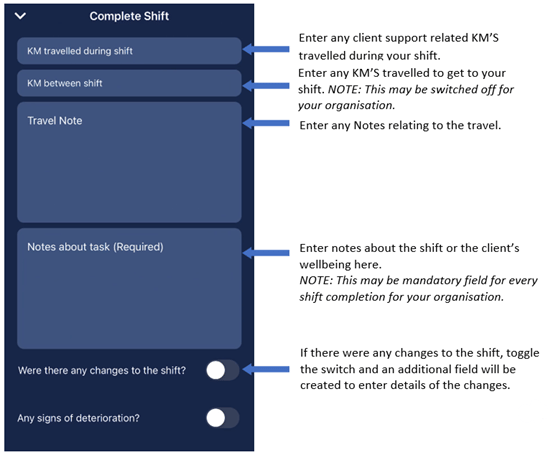
3
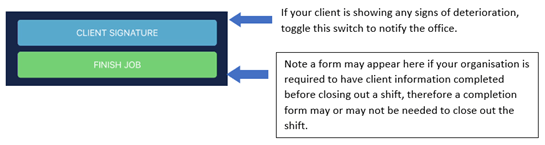
Worker completes the completion form (if configured)
If you’ve configured a completion form, the worker fills it in at this point. Completion forms can be linked to client divisions so different client types get different forms.
Setting up completion forms in VCore
Setting up completion forms in VCore
Link completion forms to client divisions in Maintenance → Divisions in VCore. Select the form template from the Template drop-down and click Save. In Vworker, the specified completion form opens when the worker completes the shift.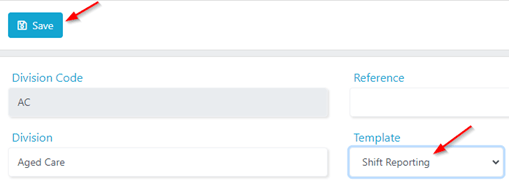
Workers can add notes after the shift has been completed by going back into the shift and clicking Add Notes. Notes can be added until midnight on the day of the shift.
Kilometres on location shifts
Location shifts are rostered to a site rather than an individual client. Workers can record kilometres against a specific client at that location during the shift by going to Profile from the menu, finding the client in the list, and tapping Add KM. Correcting kilometres applied to the wrong place: If kilometres were accidentally recorded against the location instead of the client, fix them in VCore:- Go to Timesheets → Timesheets - Location
- Select the Clients or Workers tab
- Scroll to the Timesheets section
- Find the entry and edit the KMs column
- Click Save Changes
Enabling adhoc shifts
Adhoc shifts let workers create unscheduled shifts in the app. To enable this:- Open the worker’s profile in VCore and go to the Finance tab
- Under Worker Type, select Contractor or Service Provider
- Go to Settings → Mobile App and select the relevant adhoc shift option
- Click Save
Offline mode
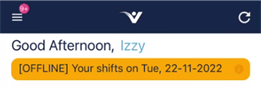
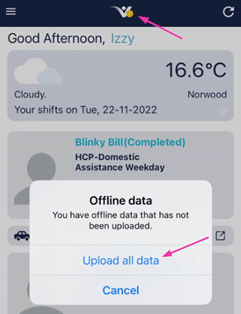
Workers can use Vworker in offline mode when they have no internet access. In offline mode, workers can:- Review client details (internet access is needed to update this information before going offline)
- Read client detail notes and shift alert notes
- Start a shift
- Complete a shift and add completion notes
- Complete checklists
Running into issues?
See Timesheet troubleshooting for common errors and fixes.Related articles
Vworker: Logging in
Download and log in to the Vworker app
Vworker: Progress notes
How workers add notes, photos and view client information during shifts
Manual confirmation
Manually confirm timesheets when workers haven’t used the app
Vworker: Menu overview
Overview of all features available in the Vworker app menu
Vworker: Location roster shifts
How workers view and manage location roster shifts in the app