
Viewing the map
Go to Operations → Client and Worker Map.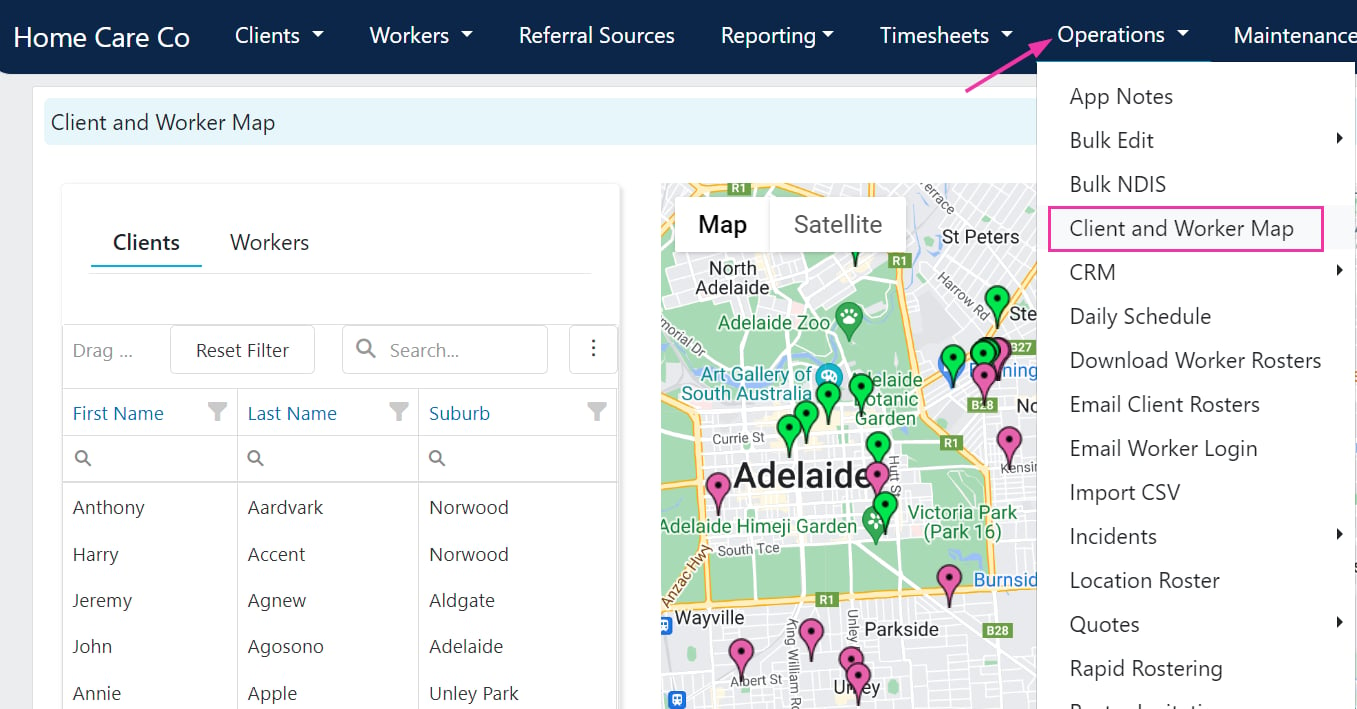
Map markers
- Green pins - worker addresses
- Pink pins - client addresses
The map shows residential addresses only and does not display live locations. An address needs to be set up on the client or worker profile for it to appear on the map.
Using the map for rostering
The map is useful for:- Identifying which workers live closest to a client
- Planning rosters to minimise travel time between shifts
- Reviewing geographic coverage across your service area
Running into issues?
See Scheduling troubleshooting for common errors and fixes.Related articles
Worker select button
Use the select button to filter workers by distance and availability
Vehicle rostering
Assign vehicles to client roster shifts
Timeline views
View and manage rosters across workers and clients