
What you can edit
After a timesheet has been confirmed, you can change the following fields:- Service
- Start and end time
- Charge rate and pay rate
- Variations (time added or deducted)
Instructions
1
Open the worker's timesheets
Go to Timesheets → Timesheets, find the worker, and click Edit to open their timesheet view.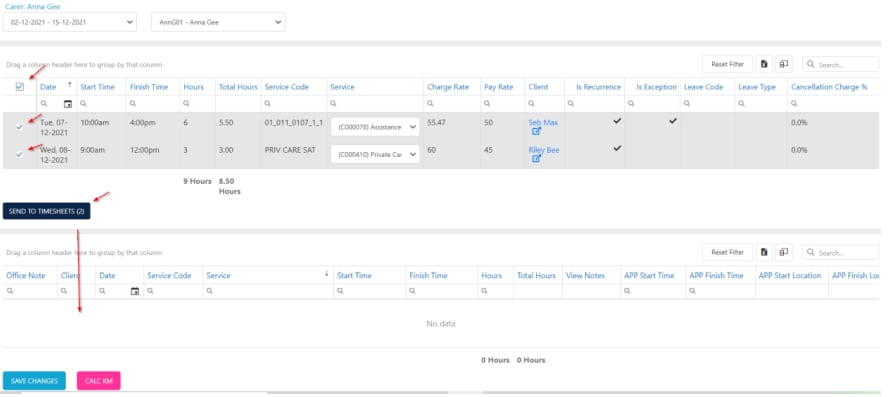
2
Edit shift details
In the bottom section (confirmed timesheets), update the fields you need to change. You can adjust the service, start time, end time, charge rate, or pay rate directly in the grid.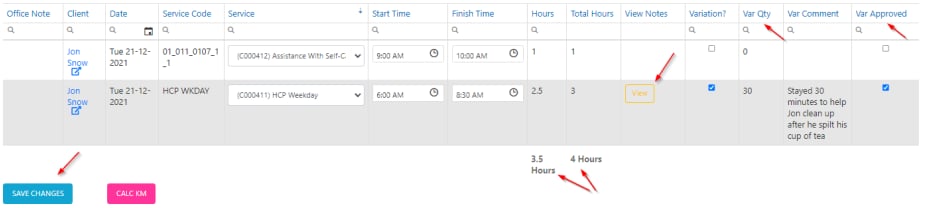
3
Handle variations
If a worker toggled on “were there any changes to the shift” at the end of their shift in Vworker, the note is highlighted in yellow and flows through to the variation comment. To process a variation:
- The Variation tick box is automatically ticked when a change was highlighted
- Add the quantity in minutes (for example, 30 for 30 minutes; this value is positive to add time, or negative to deduct time)
- The Var comment flows through from the worker’s app
- Tick the box to approve the variation
4
Review shift notes
If a worker sent through issue notes by toggling in the Vworker app that there were shift changes, click the View button to review. When there are changes, the View notes button is highlighted orange.The notes include the completion note and any travel notes.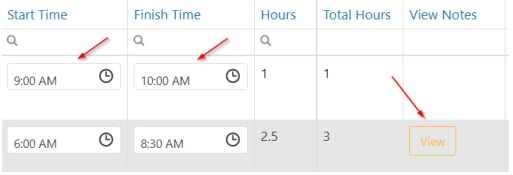
5
Check app start and finish data
Review the APP columns to see when the worker pressed start and finish in the Vworker app. You can also open the link to view a pinpoint on Google Maps showing where they were when they pressed start and finish.
6
Save your changes
Click Save Changes to save any changes you’ve made.
Locking timesheets
Locking prevents further changes to confirmed timesheets for invoicing, payroll, or National Disability Insurance Scheme (NDIS) purposes.1
Open Data Export
Go to Timesheets → Data Export.
2
Select the records to lock
Select the relevant timesheet records from the list.
3
Lock the records
Click Lock Transactions and choose from Lock Invoicing, Lock Payroll, or Lock NDIS.
If the Lock Transactions button isn’t visible, it’s a user group permission issue. Ask your admin to enable it under User Group Security → Lock Transactions.
Running into issues?
See Timesheet troubleshooting for common errors and fixes.Related articles
View by worker
View timesheets grouped by worker with confirmation status
Manual confirmation
Manually confirm timesheets when workers haven’t used the Vworker app
Variation approval
Review and approve timesheet variations
Travel time and kilometres
View and manage travel time and kilometre records