
Viewing compliance items
Open the client profile and navigate to the Compliance tab. All compliance items assigned to the client are listed here, linked by the client’s funding type.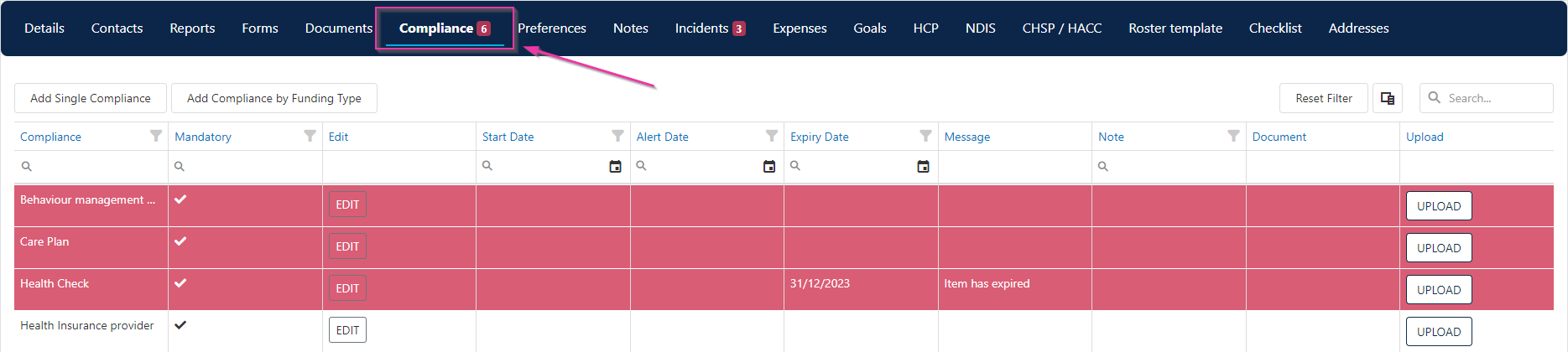
Editing a compliance item
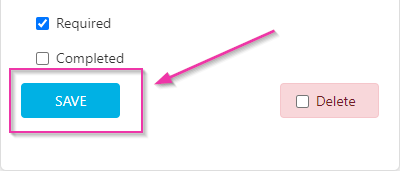
Click the Edit button on any compliance item to update its details, including dates, status, and any attached documentation.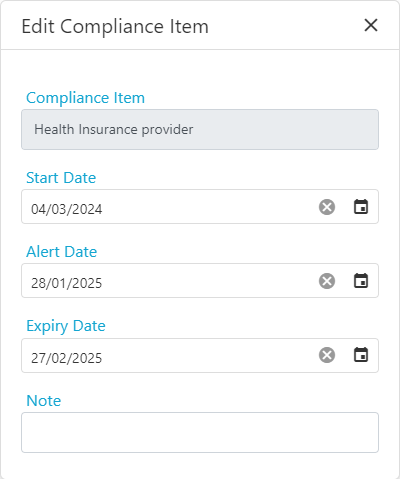
Compliance status indicators
Compliance items show their current status based on expiry and warning dates:- Items approaching expiry display a warning based on the configured warning days
- Overdue mandatory items flag the client as non-compliant
- Completed items show a green status
Running into issues?
See Client management troubleshooting for common errors and fixes.Related articles
Compliance configuration
Set up compliance items and link to funding types
Required compliance items
Configure compliance items and templates
Creating a client profile
Set up a new client profile