
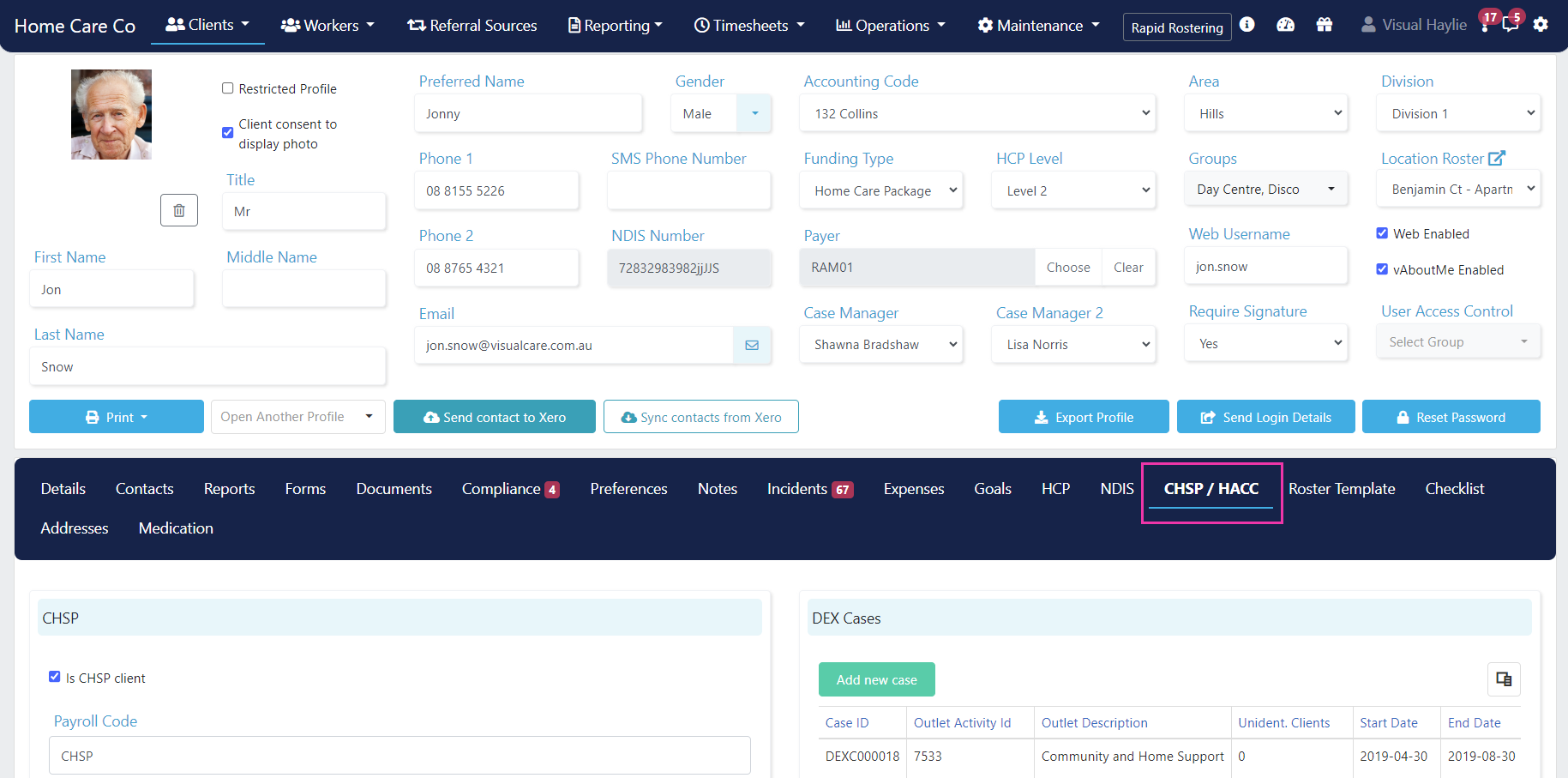
CHSP setup
For a CHSP client, several fields need correct information to enable funding claims via DEX. First, ensure the client profile Funding Type drop-down is set to CHSP. Under the CHSP/HACC tab, in the CHSP and DEX sections:- Tick Is a CHSP client
- Tick Is a DEX client
- Ensure CHSP is selected under DEX
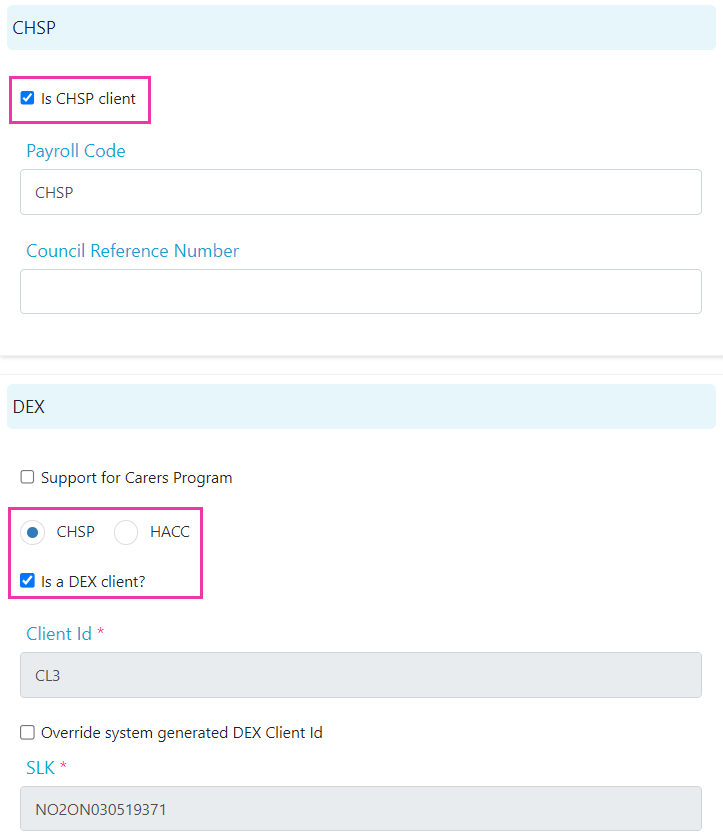
DEX configuration
In the DEX section, update the relevant drop-down fields, tick boxes, and text fields. Click Save when done.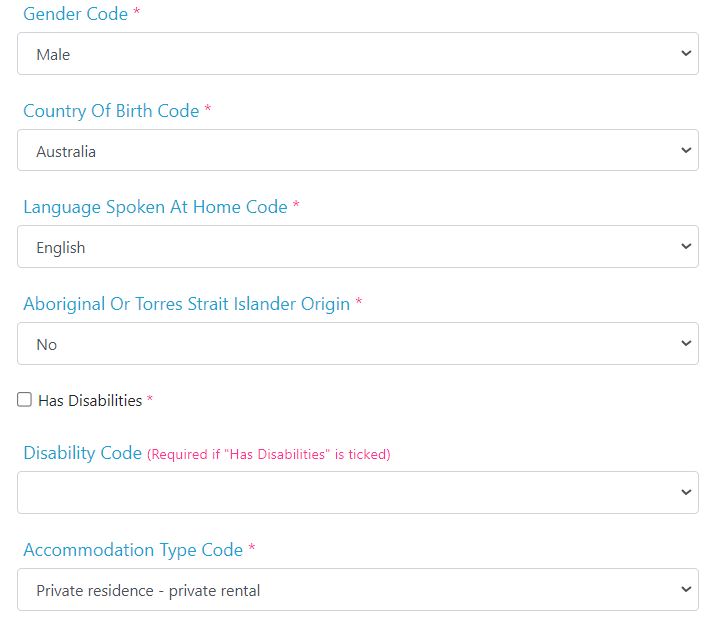
DEX cases
Add the client’s DEX case under the DEX Cases section by clicking Add New Case.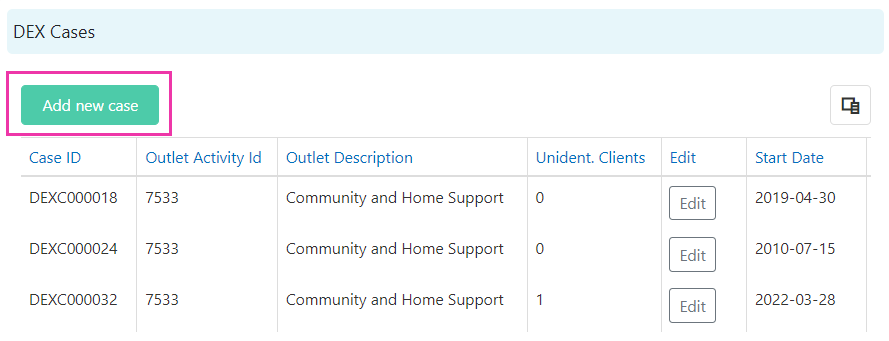
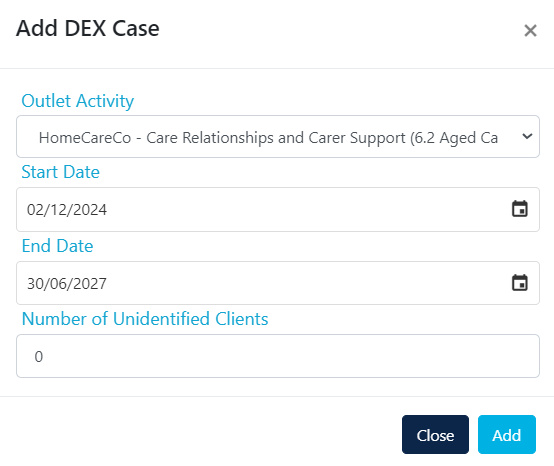
If no outlet activity is available in the drop-down, your database may not be set up for DEX export. Contact support@visualcare.com.au for assistance.
Next steps for CHSP
After configuring the CHSP/HACC tab, create the client agreement. See CHSP agreements for details. CHSP data export is found under Timesheets → Data Export in VCore.HACC and SCP setup
For HACC or SCP services to export successfully from VCore, complete these prerequisites:- The HACC Agency ID is set up under Settings → Company Info (or under Maintenance → Areas if you have multiple IDs)
- The applicable service type and category are applied to HACC and SCP services in Maintenance → Services
- In the client profile, select HACC from the Funding Type drop-down
DEX for HACC
Open the CHSP/HACC tab and select the HACC option in the DEX section. Visualcare generates the client’s SLK code automatically.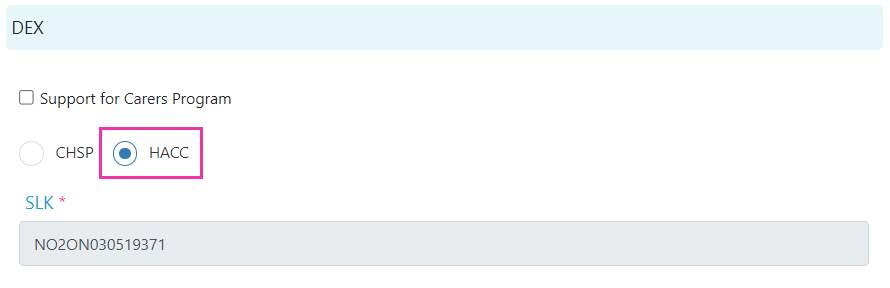
Carer setup
If the client has a carer, set them up as a contact under the Client Profile → Contacts tab. From the CHSP/HACC tab, once the contact is selected and the profile is saved, click the icon beside Carer to edit and complete relevant HACC fields within the contact profile. You also have access to the contact profile by clicking the contact name under the Contacts tab or by navigating to Maintenance → Contacts.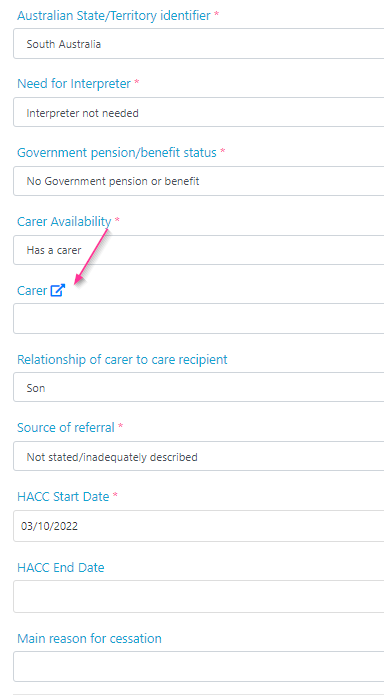
SCP configuration
Tick the Support for Carers Program box if the client is eligible for SCP funding. If the client has funding for both SCP and CHSP, keep CHSP selected. You do not need to switch it to HACC. The relevant HACC SCP questions appear alongside the CHSP fields in the DEX section.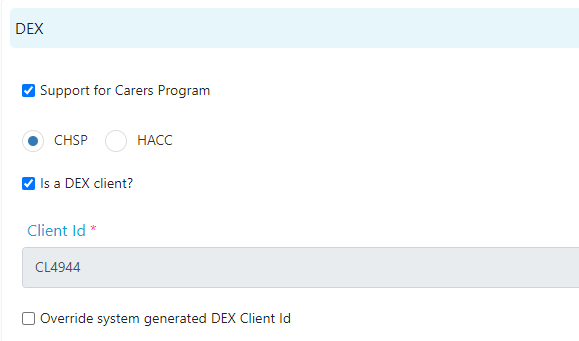
Next steps for HACC and SCP
After configuring the CHSP/HACC tab, create the client agreement. See Creating agreements for rostering for details. HACC and SCP data export is found under Timesheets → Data Export in VCore.Running into issues?
See Client management troubleshooting for common errors and fixes.Related articles
CHSP agreements
Configure CHSP-specific agreement settings
Creating a client profile
Set up the client profile before configuring funding