
Setting up vBroker
Creating the broker profile in VCore
Before a broker can access the portal, you need to set up their worker profile in VCore.1
Create the worker profile
Set up the worker/broker profile with the following required fields: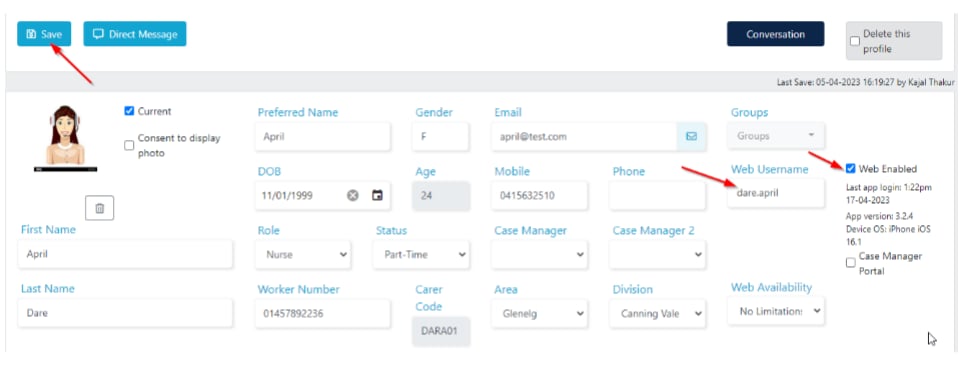
- First and last name
- Tick Web Enabled and add a username
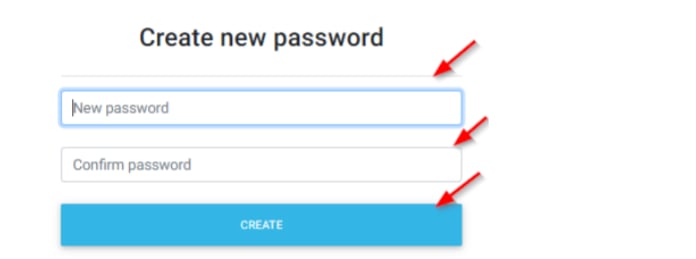
- Save the profile and send login details to the worker/provider
2
Set the worker type to broker
In the worker profile, go to the Finance tab and set the worker type to Broker.
Portal settings in VCore
vBroker settings are managed in VCore under Settings → Portals → vBroker. The Broker Alert setting enables email notifications to be sent to one or more email addresses for the following events:- If Unable to Fill is selected on a shift in vBroker, an email notification is sent
- If an incident has been lodged for any client through the portal, an email notification is sent (ensure the “Email case manager/office when workers submit an incident form” notification is also set up under Settings → Mobile App → Email)
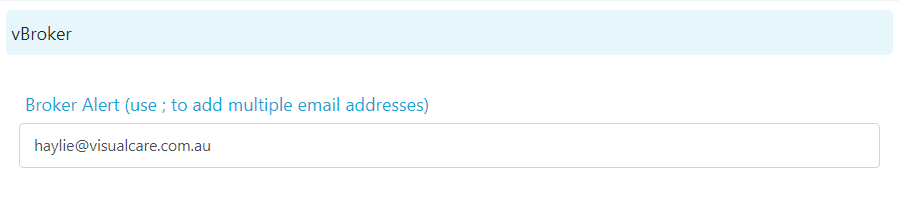
If no email is set up in the Broker Alert field, email alerts go to the case manager assigned in the client profile in VCore. If there is no case manager assigned, alerts are sent to the company email set up in Settings → Company Info.
Logging in to vBroker
Brokers access the portal at broker.visualcare.com.au. To log in, brokers need: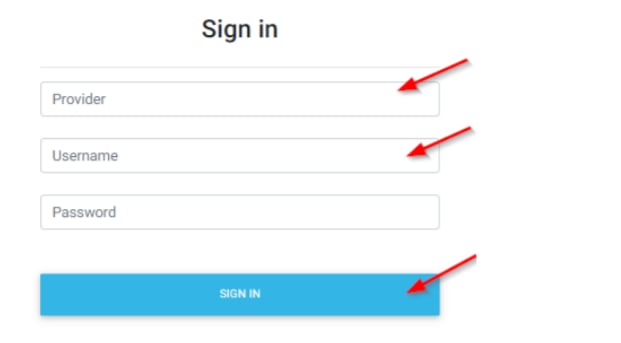
Home page
When the broker logs in, they see all shifts that have been assigned to them. The date range filter allows them to view shifts within a specific period.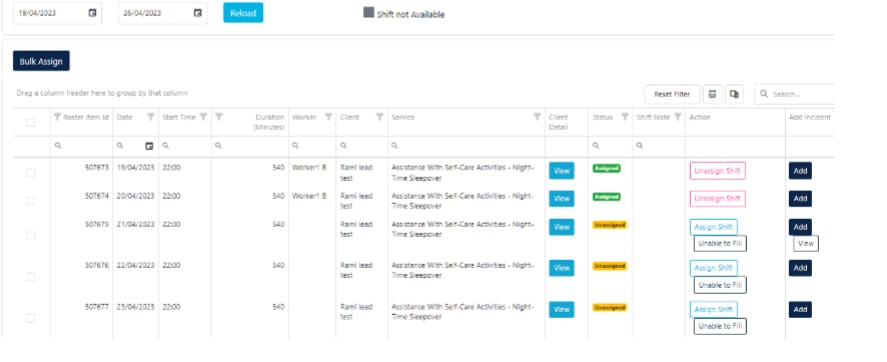
Assign shift
Assign shift
This is where the broker selects the worker who will attend the shift. A list of their worker profiles appears. Highlight the worker and select Assign Worker.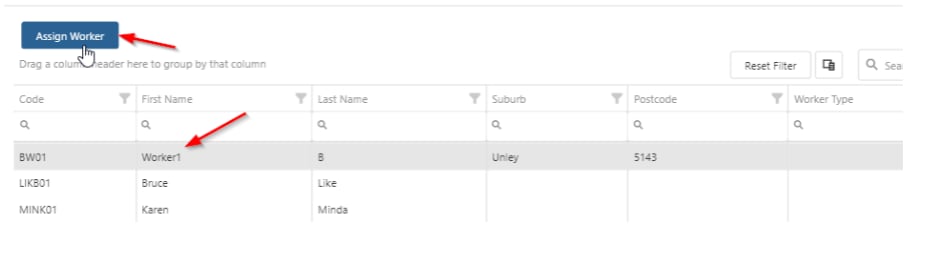
Bulk assign
Bulk assign
The broker can assign multiple shifts at once by selecting the shifts from the left-hand side and clicking Bulk Assign.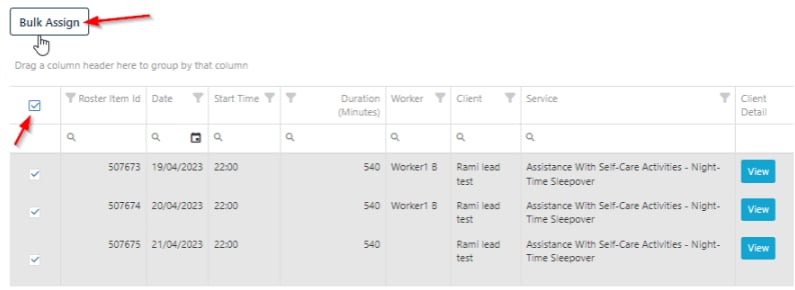
Complete shift
Complete shift
Once the service has passed, the broker clicks Complete Shift and adds completion notes. This confirms the service and flows through to the VCore database. Completing shifts from vBroker confirms services in timesheets. Any completion notes or incidents flow to VCore under the relevant App Notes KPIs and save to the client profile.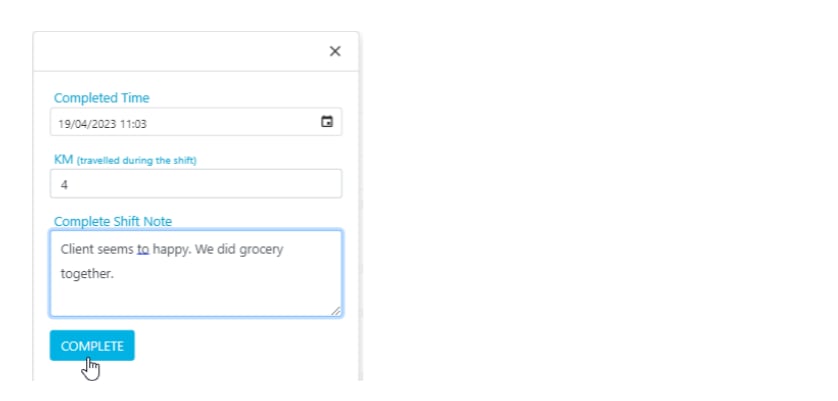
View client details
View client details
The broker can view relevant client details including any alerts under the View button. This includes client contact information such as address, date of birth, phone, case managers, and any details in the alert fields with the green mobile icon.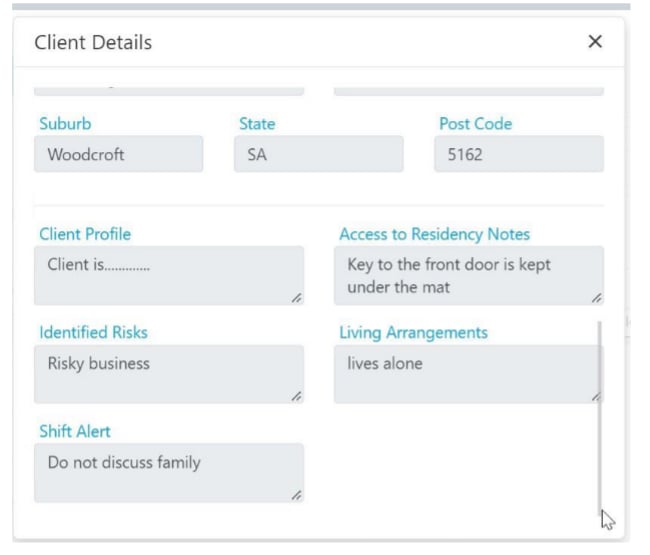
Add incident
Add incident
If an incident occurred during the shift, the broker clicks Add and fills out the incident form. Once the form is complete, they can click View to review it.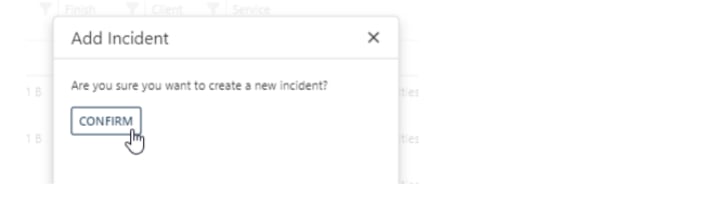
Unable to fill
Unable to fill
If the broker cannot fill the shift, clicking this button sends an email alert to the email address set up in VCore.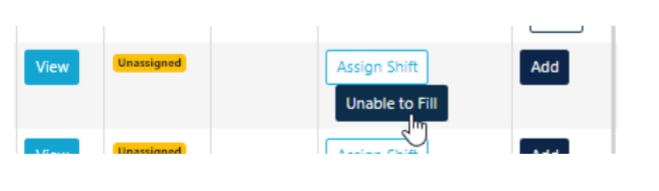
This status means the shift is no longer needed. The shift has been cancelled or put on leave in VCore, so the broker does not need to cover it.
Workers tab
Brokers manage their own worker profiles within the vBroker portal. Select Worker at the top of the screen and click Add Worker.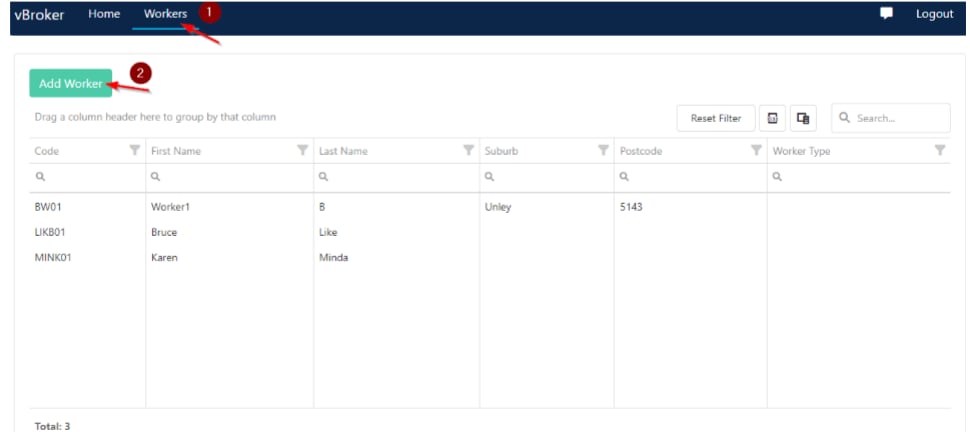
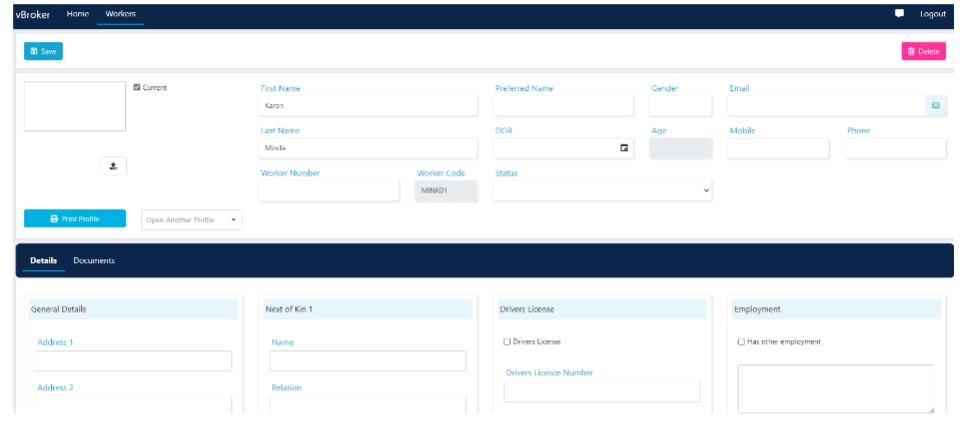
Messaging
Brokers can send instant messages to VCore through the message icon in the top right-hand corner.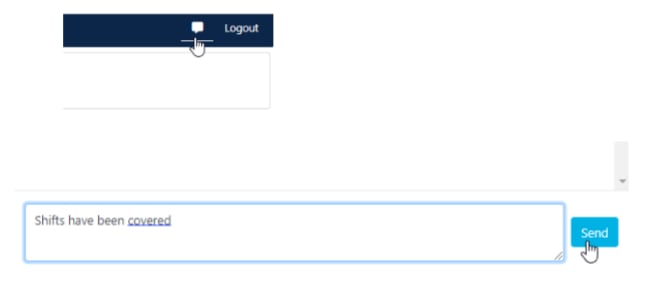
Notifications
The email set up in VCore under Settings → Portals → vBroker receives email alerts when:- A shift has not been assigned within 24 hours of the shift start time (emailed every hour)
- A shift is marked as Unassigned within 24 hours of the shift and is included in the hourly unassigned email alert
- An incident has been lodged for any client through the portal (ensure the notification is set up correctly under Settings → Mobile App)
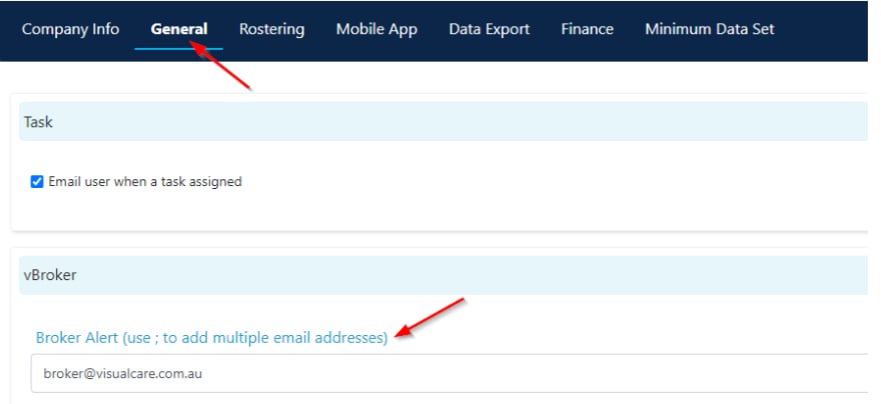
If no email is set up in the vBroker settings, email alerts go to the case manager assigned in the client profile in VCore. If there is no case manager assigned to the client profile, alerts are sent to the company email set up in Settings → Company Info.
Running into issues?
See General troubleshooting for common errors and fixes.Related articles
vOnboard
The worker onboarding portal
vAssessment
The assessment portal for workers conducting client assessments
vGo
The mobile app for office users managing shifts on the go
Creating a worker profile
Setting up a new worker in VCore