
What clients can do with vAboutMe
- View rostered services, times, and assigned support workers
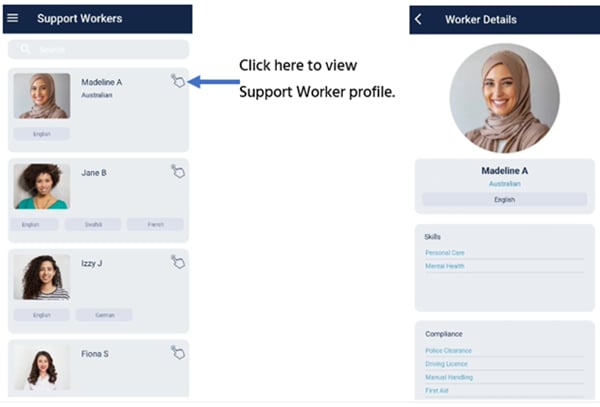
- See photos and backgrounds of assigned support workers
- Rate support workers on individual shifts
- Send feedback (compliments, complaints, and suggestions) directly to the office
- Access important documents
- Communicate with VCore users via messaging
- Request changes or new services
- Receive reminders for upcoming shifts and appointments
- View funding levels and budget breakdowns
- View and sign off on quotes
- Send expenses and receipts for processing
Setting up vAboutMe
Enabling client access in VCore
To give clients access to the vAboutMe app, enable them within their client profile on VCore. For detailed instructions, see vAboutMe app access.App installation
The client needs one of the following operating systems installed on their device:
Download vAboutMe from the App Store (for iPhone) or Google Play (for Android). Search for “vAboutMe” and select Install.

Logging in
Open vAboutMe by tapping the icon on the phone home screen. Once logged in, the app stays logged in.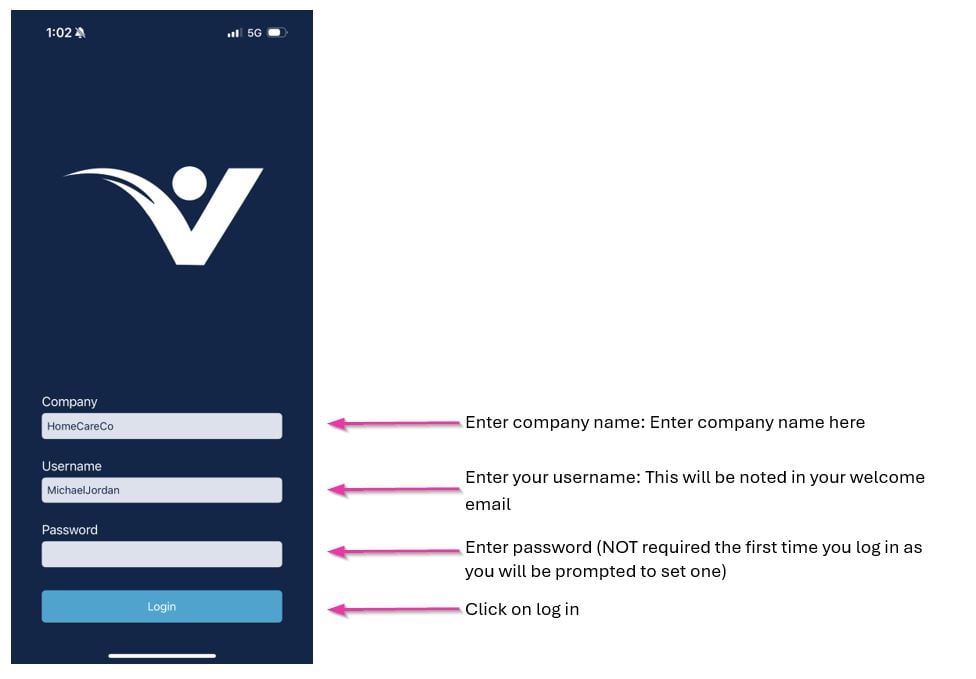
Home page
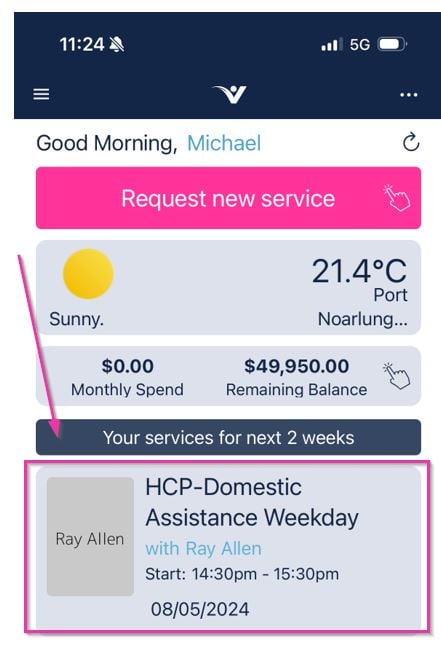
The home page displays an overview of the client’s upcoming services and quick-access features.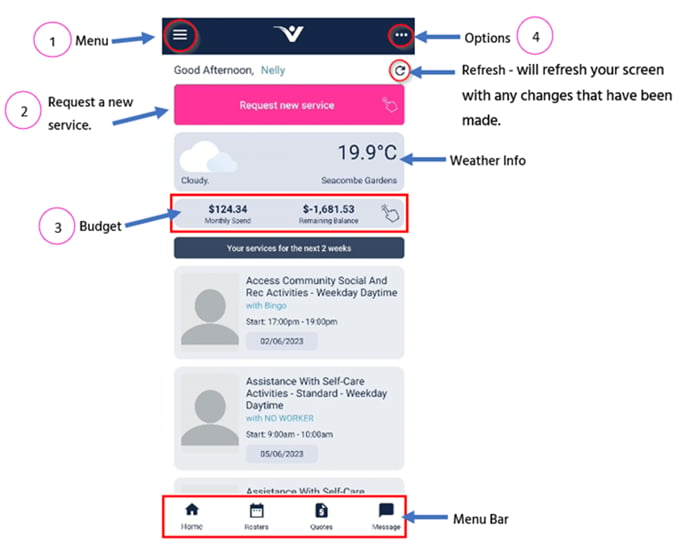
Menu
The menu gives clients access to all available features. The options visible here depend on your vAboutMe settings in VCore.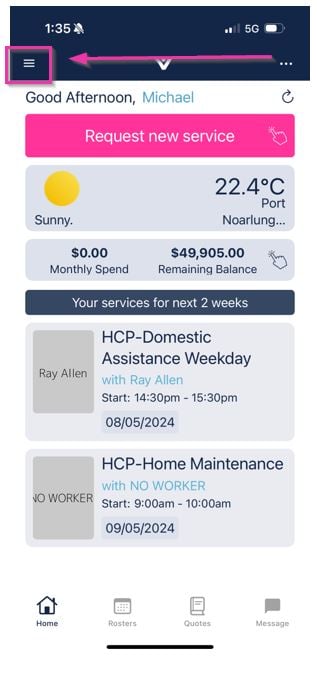
Home
This button returns to the home page.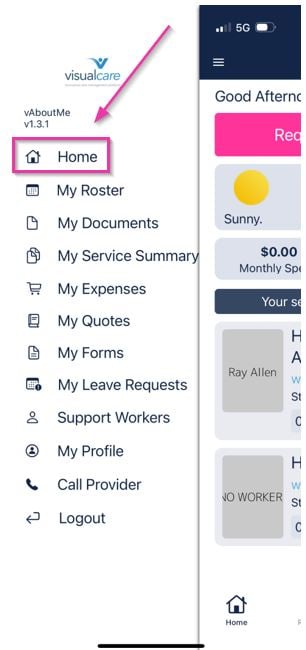
My roster
Clients can view their upcoming shifts and scroll to select different days.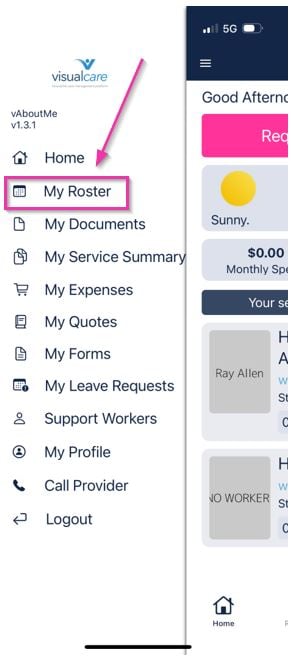
Rate your session
Rate your session
When a service has been completed, clients can give feedback by tapping Rate this shift. This allows them to give a star rating and add comments, which are submitted to the office.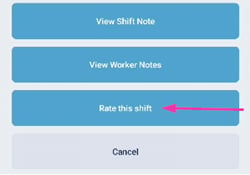
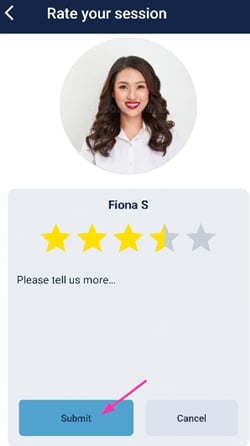
View notes
View notes
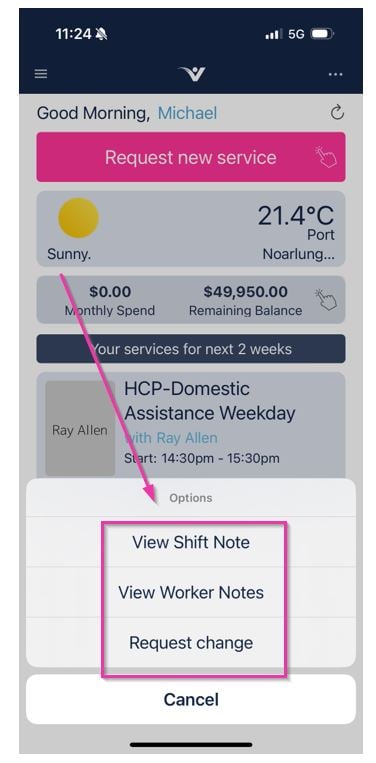
Clients can view shift notes and worker notes once a shift has been completed. This feature is controlled in VCore under Settings → Mobile App → vAboutMe via the Show worker notes and Show shift notes options.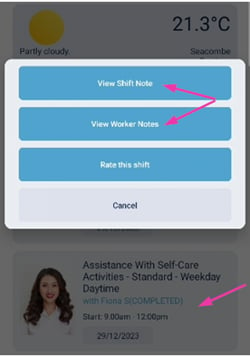
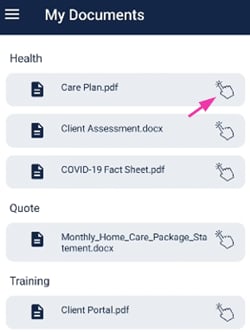
My documents
Clients can view any documents that have been uploaded to their profile and set as visible to the client.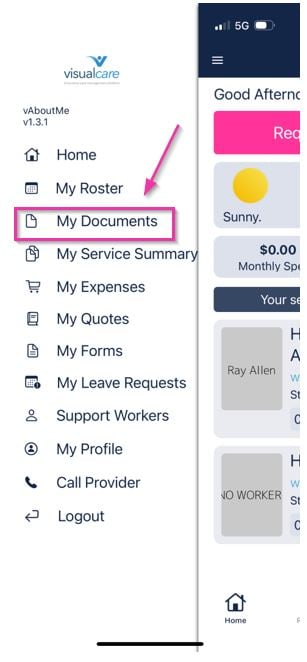
My service summary
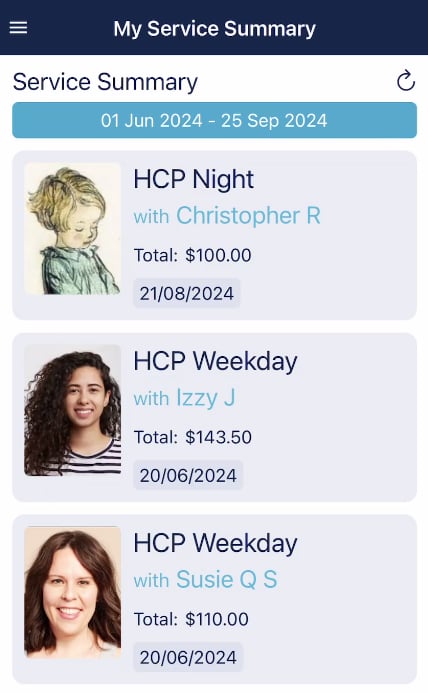
This shows clients their service summary for the past week. It’s based on completed or confirmed shifts and displays the total dollar amount charged for each service, if financial information is set to show.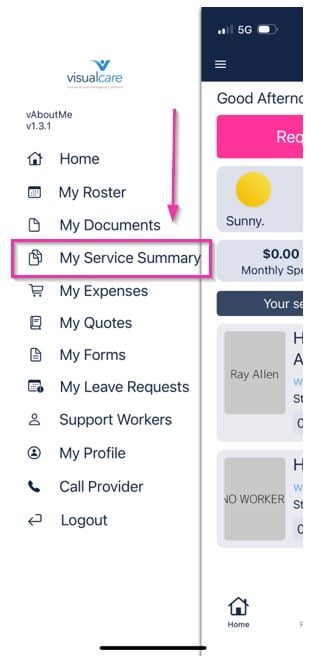
My expenses
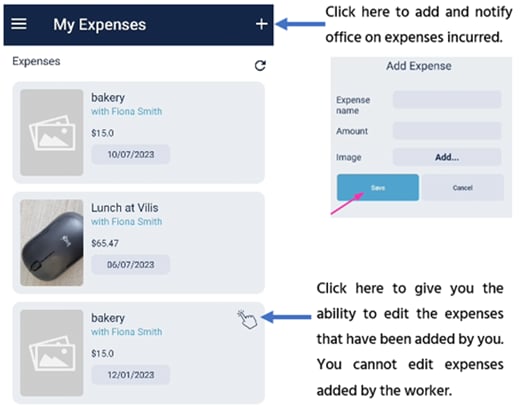
Clients can add expenses and view the list of expenses added by workers.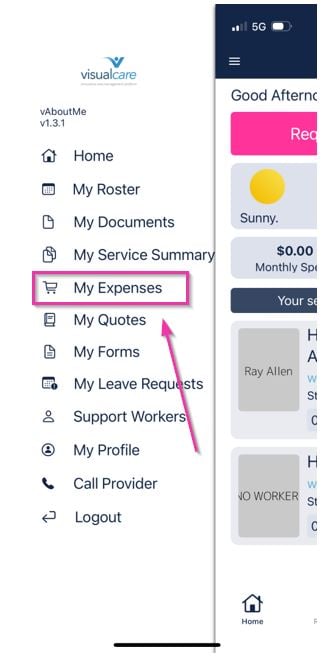
My quotes
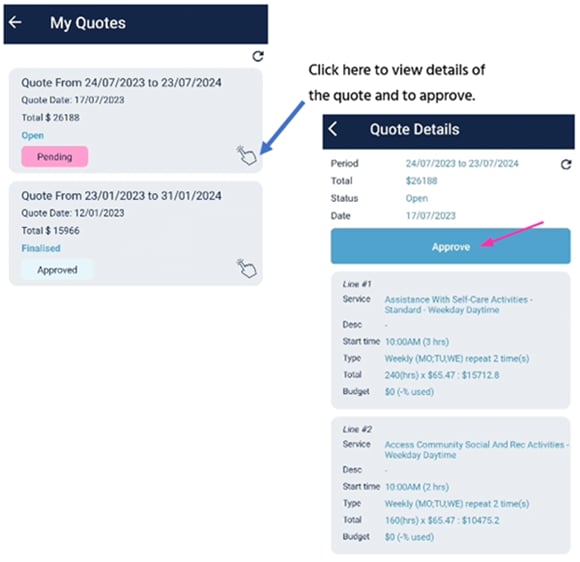
Here clients can view any quotes that have been marked as visible to them. They can click to view the full quote and then approve and sign it.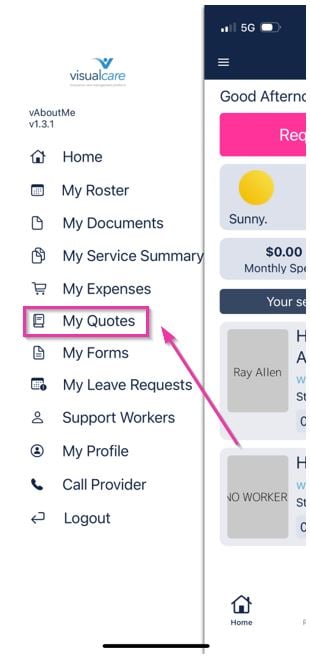

My forms
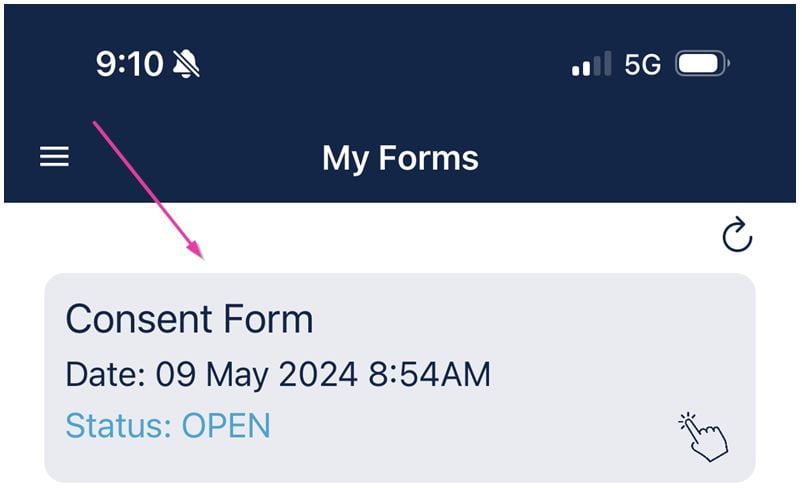
Clients can view any forms that have been created in VCore. These forms can be filled in and signed from the app.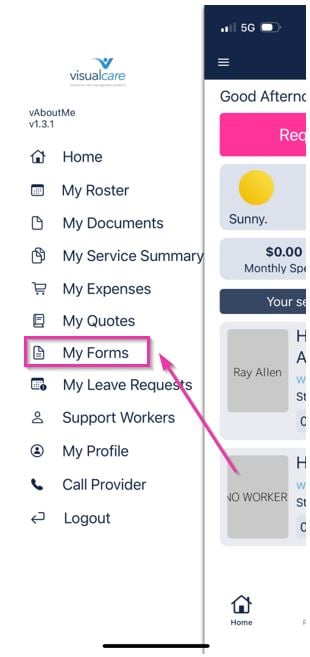
Support workers
If preferred workers are set up in the client profile, they appear here. The support worker profile includes their language, skills, compliance, and training.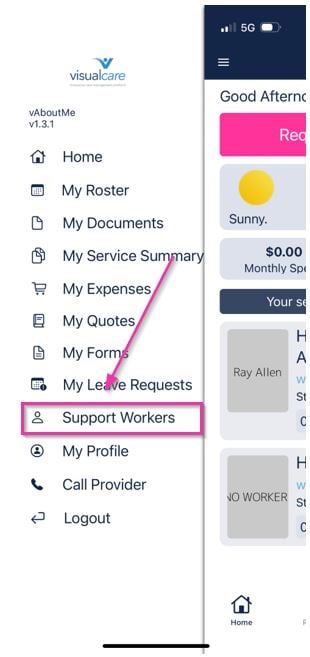
My profile
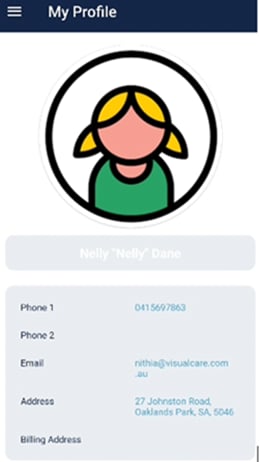
Clients can view their profile including their profile picture, email address, contact number, address, and billing address.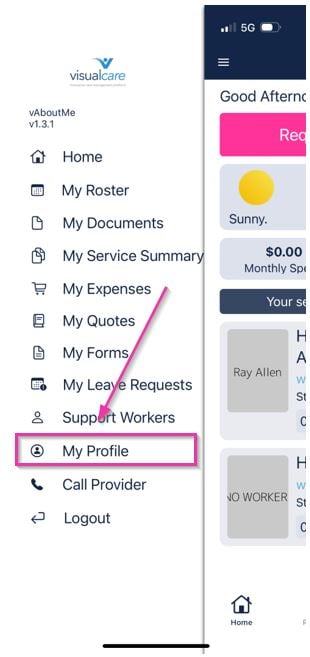
Call provider
Clients can call the office number set up in general settings directly from the app.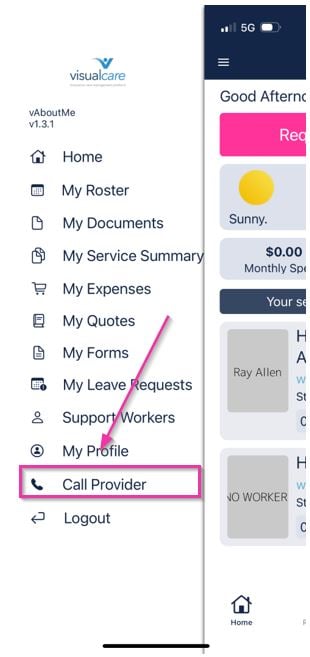
Logout
To log out of the vAboutMe app, select the Logout button at the bottom of the menu tab.
Budget
Clients can tap on their budget to view a breakdown of their budget versus spend.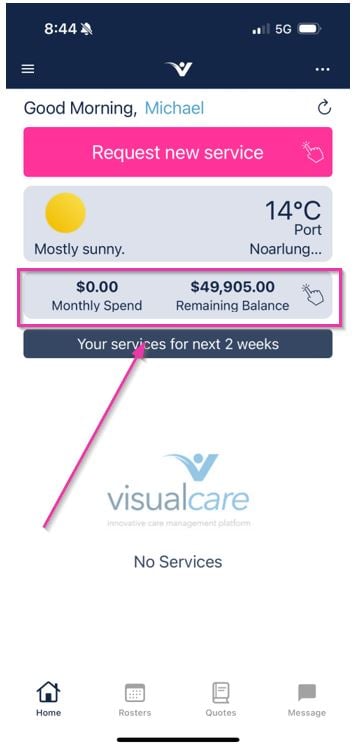
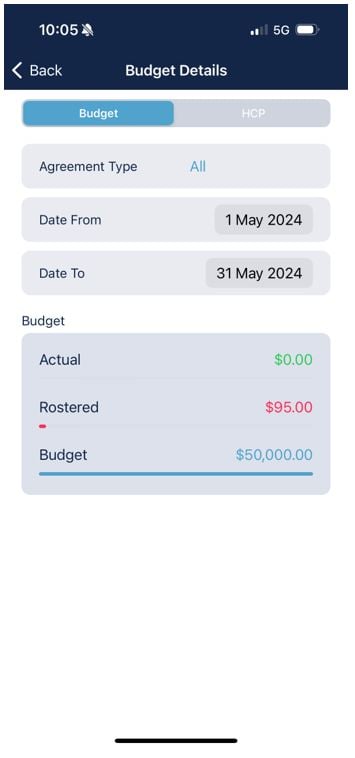
Options menu
Select the options menu to access private messages, group messages, feedback, weather display preferences, and dark mode.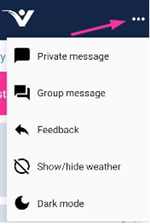
Feedback
Clients can send a thank you or compliment, complaint, or suggestion/feedback to the office. Select from the tick box, fill in the necessary information with any comments, and tap Send Feedback.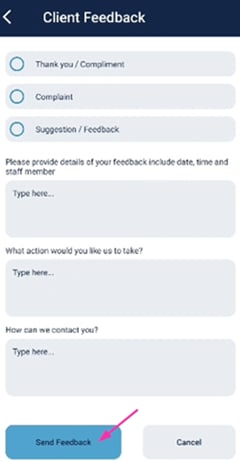
Requesting new services
Clients can request a new service directly from the vAboutMe home page by tapping Request new service.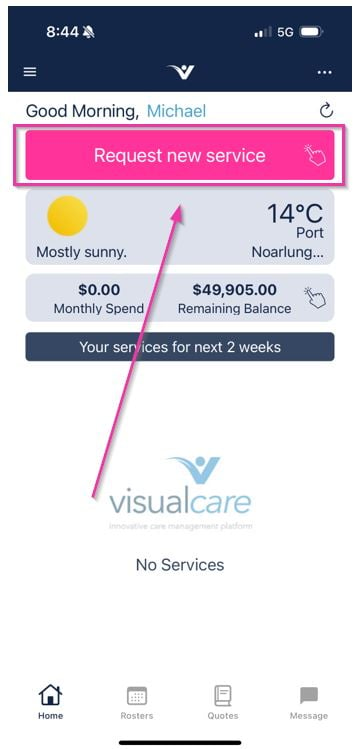
1
Select the shift time
Choose the start and finish time for the shift.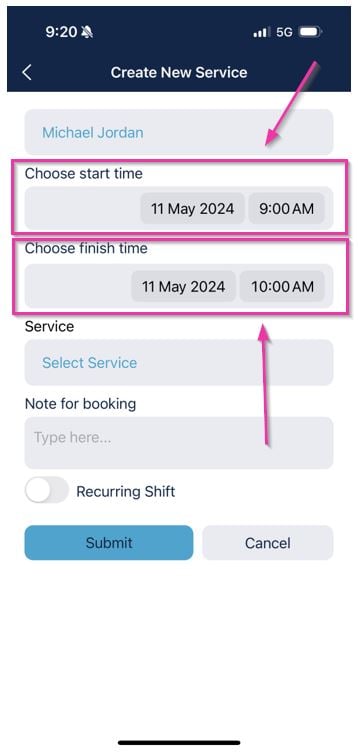
2
Choose the service type
Select the service type required. Use the Note for booking window to enter any details about the shift.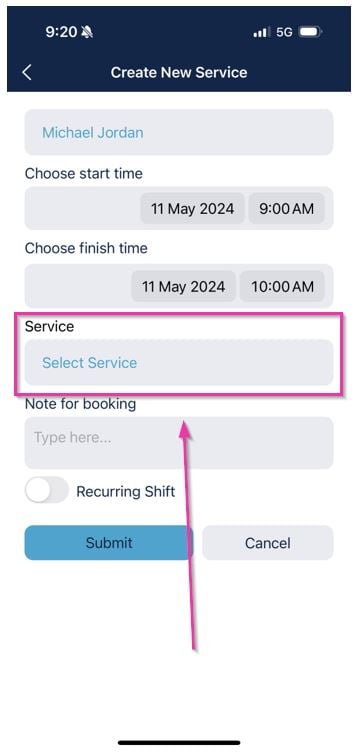
3
Set recurrence (optional)
If the client wants this to be a recurring shift, toggle Recurring shift on.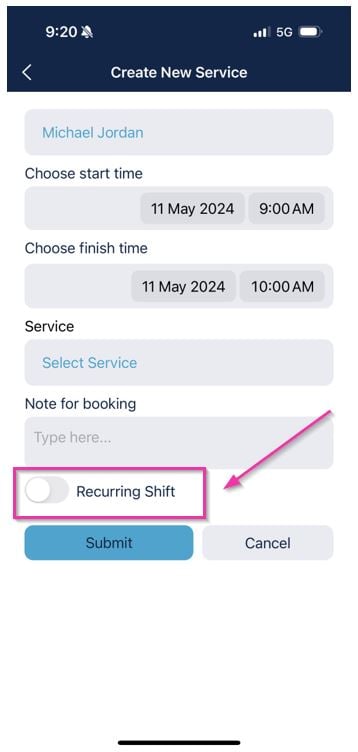
4
Submit the request
Tap Submit to send the shift request to the office. The shift appears in the client roster, and the office needs to assign a worker or cancel/edit the shift.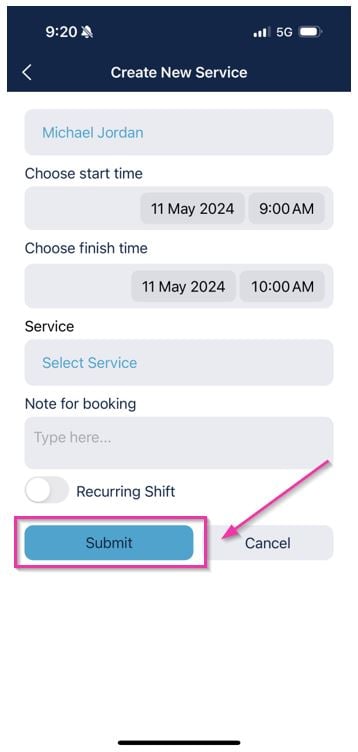
vAboutMe settings in VCore
vAboutMe settings are managed in VCore under Settings → Mobile App → vAboutMe. Settings changed here apply to all vAboutMe users. You can also individually adjust settings in the client profile, or in a contact profile linked to a client and enabled for vAboutMe.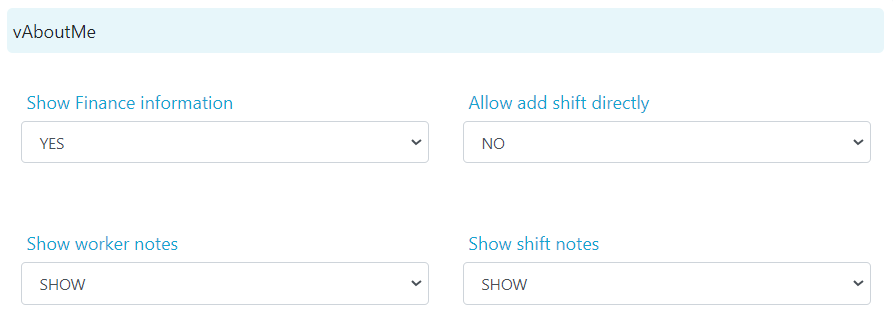
Show/hide features
You can toggle the following features on or off for clients:Feature toggles
Feature toggles
Show Features
- Request New Service
- View Budget Details
- Access My Roster
- Access My Documents
- Access My Service Summary
- Access My Expenses
- Add/Edit My Expenses
- Access My Quotes
- Access My Forms
- Access My Leave Requests
- Access Support Workers
- Access My Profile
- Access Call Provider
- Access Messaging
- Access Feedback
- Ability To Sign
- Show Worker’s Compliance
- Show Worker’s Skill
- Show Worker’s Training
- Ability to Rate Worker
Roster display settings
You can customise how many days of future and past shifts appear on the home and roster pages by entering the number of days in the relevant fields.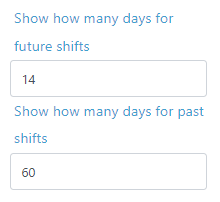
Running into issues?
See General troubleshooting for common errors and fixes.Related articles
vAboutMe app access
Enabling vAboutMe access in client profiles
Creating a client profile
Setting up a new client in VCore
vGo
The mobile app for office users managing shifts on the go
vOnboard
The worker onboarding portal