
Emailing client rosters
1
Open the email page
Go to Operations → Email Client Rosters.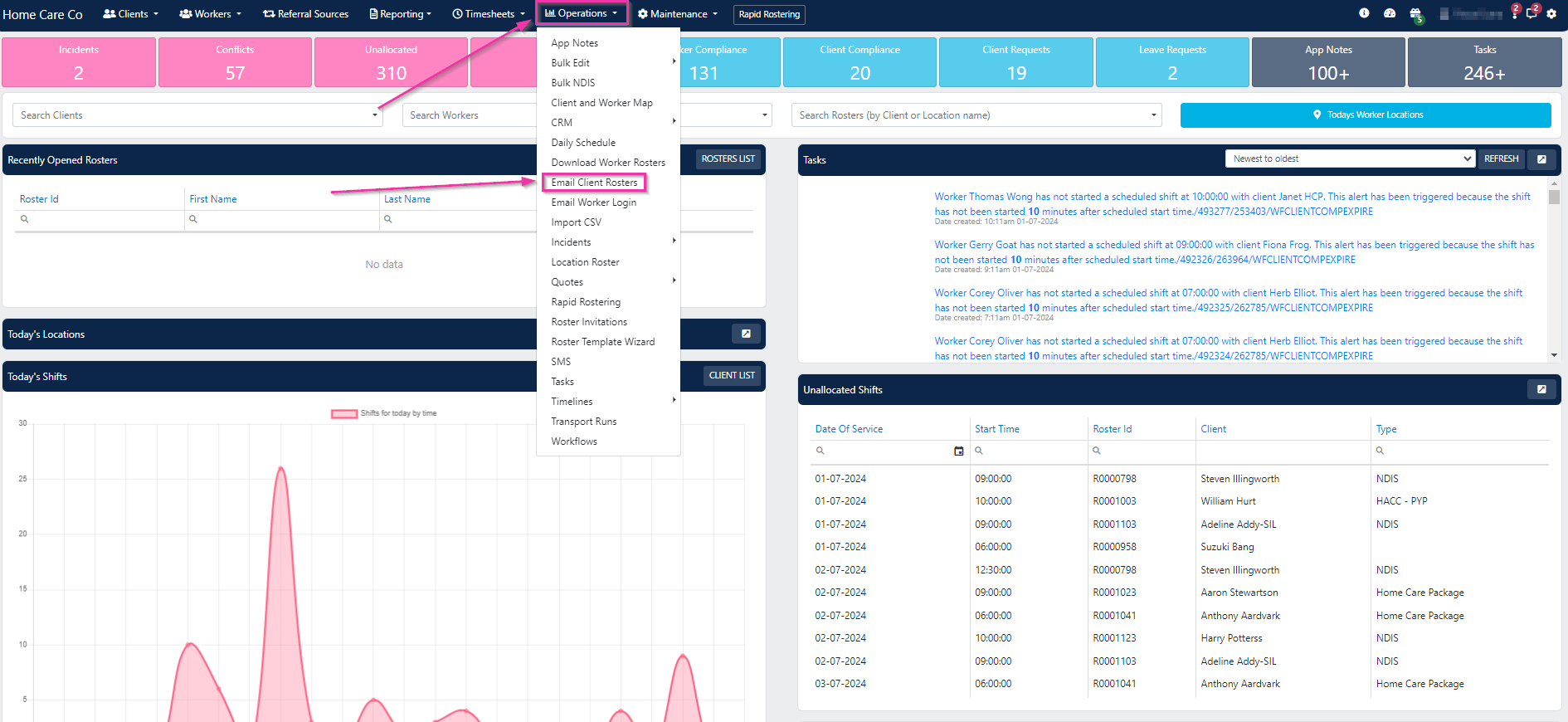
2
Select clients
All current clients appear in the list. Use the column filters to narrow down the list, then tick the clients you want to send rosters to. Use Select All to send to all active clients.Click Email Roster.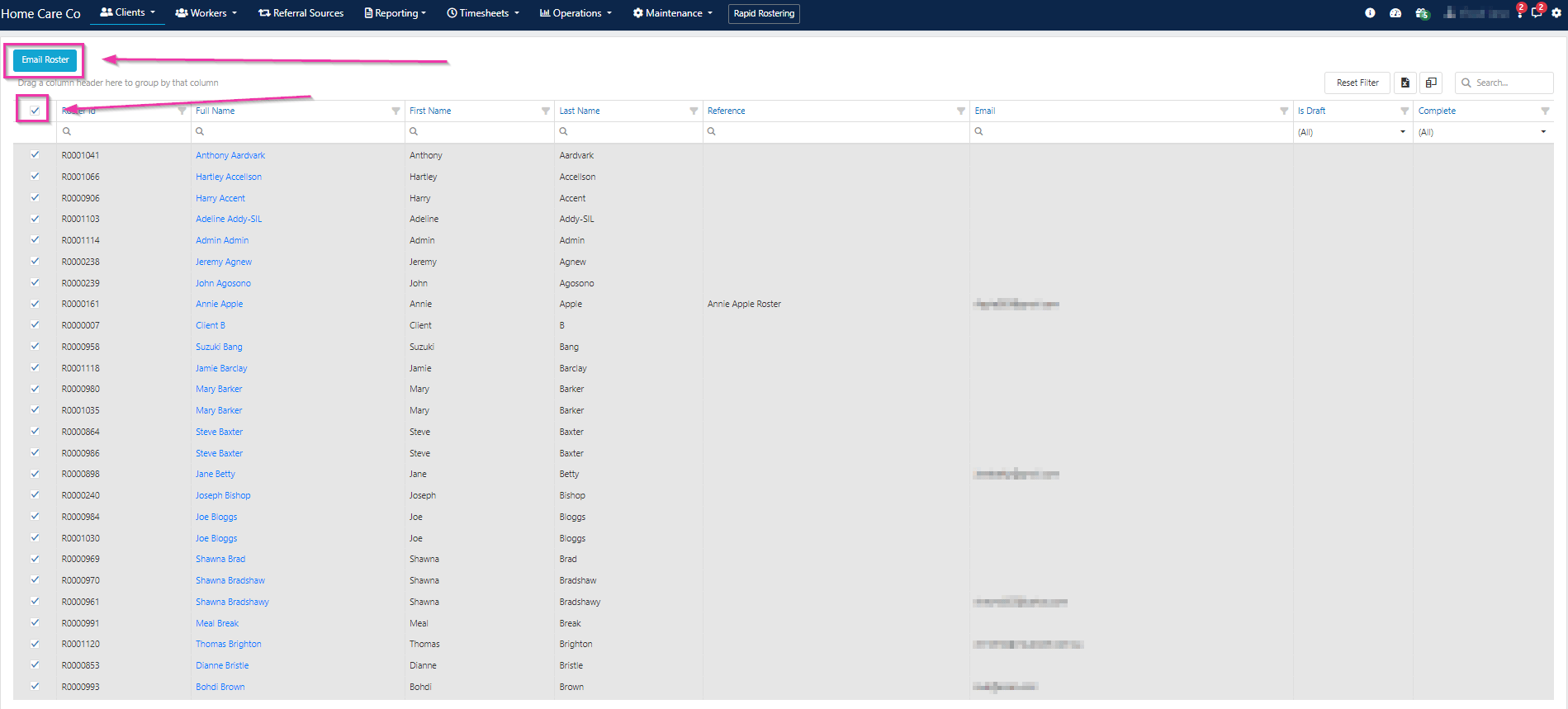
3
Configure email details
In the confirmation dialogue, set the following: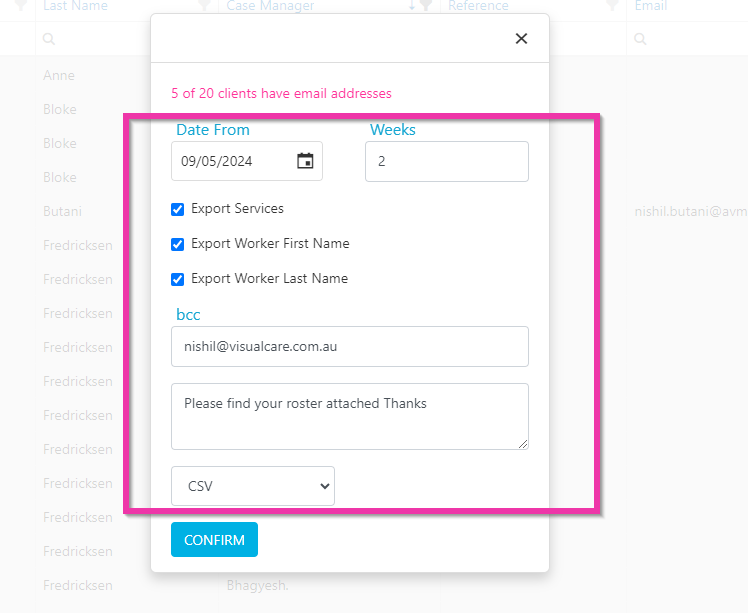
4
Review email count
The system shows how many of the selected clients have an email address on their profile. Only clients with an email address can receive the roster.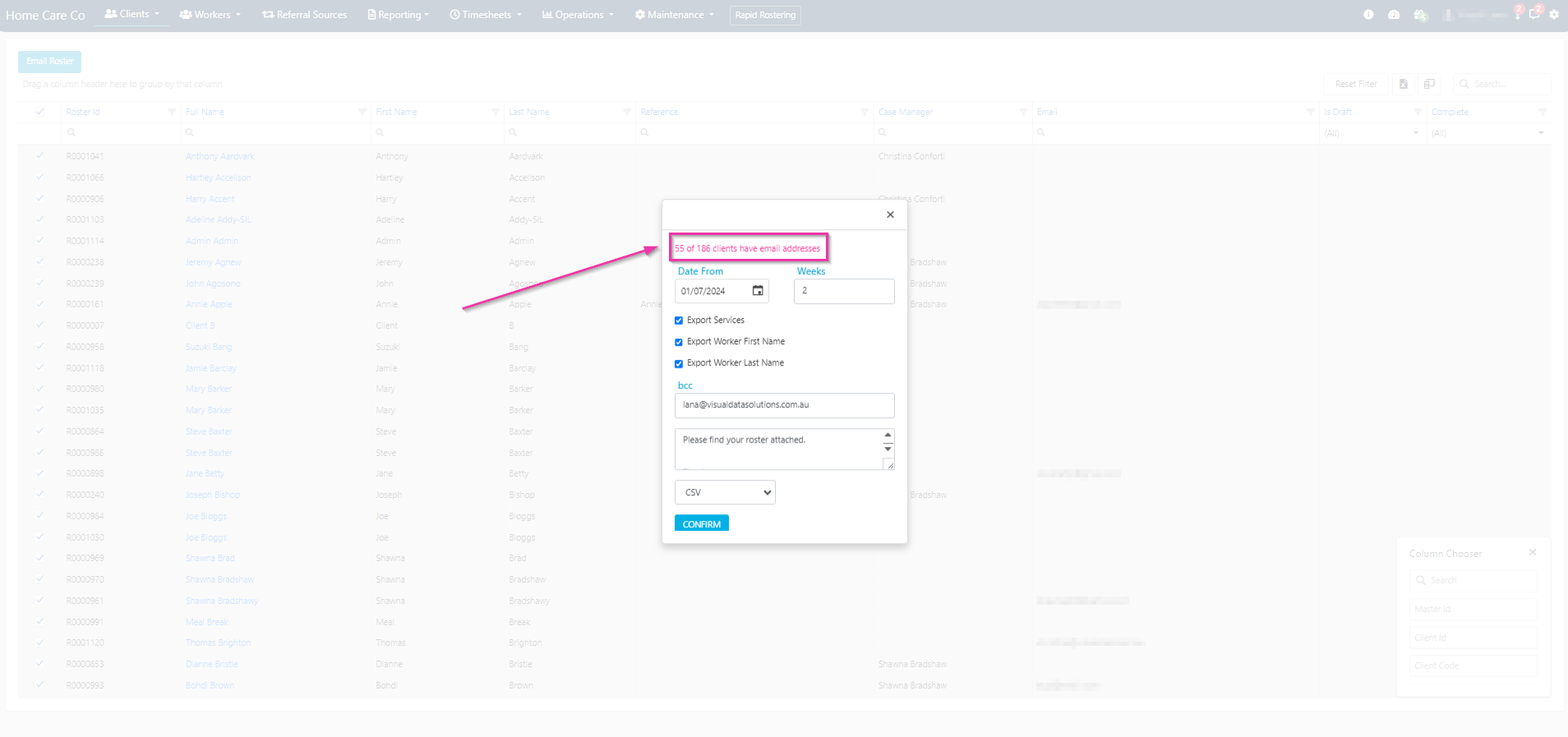
5
Send
Click Confirm to send the client rosters.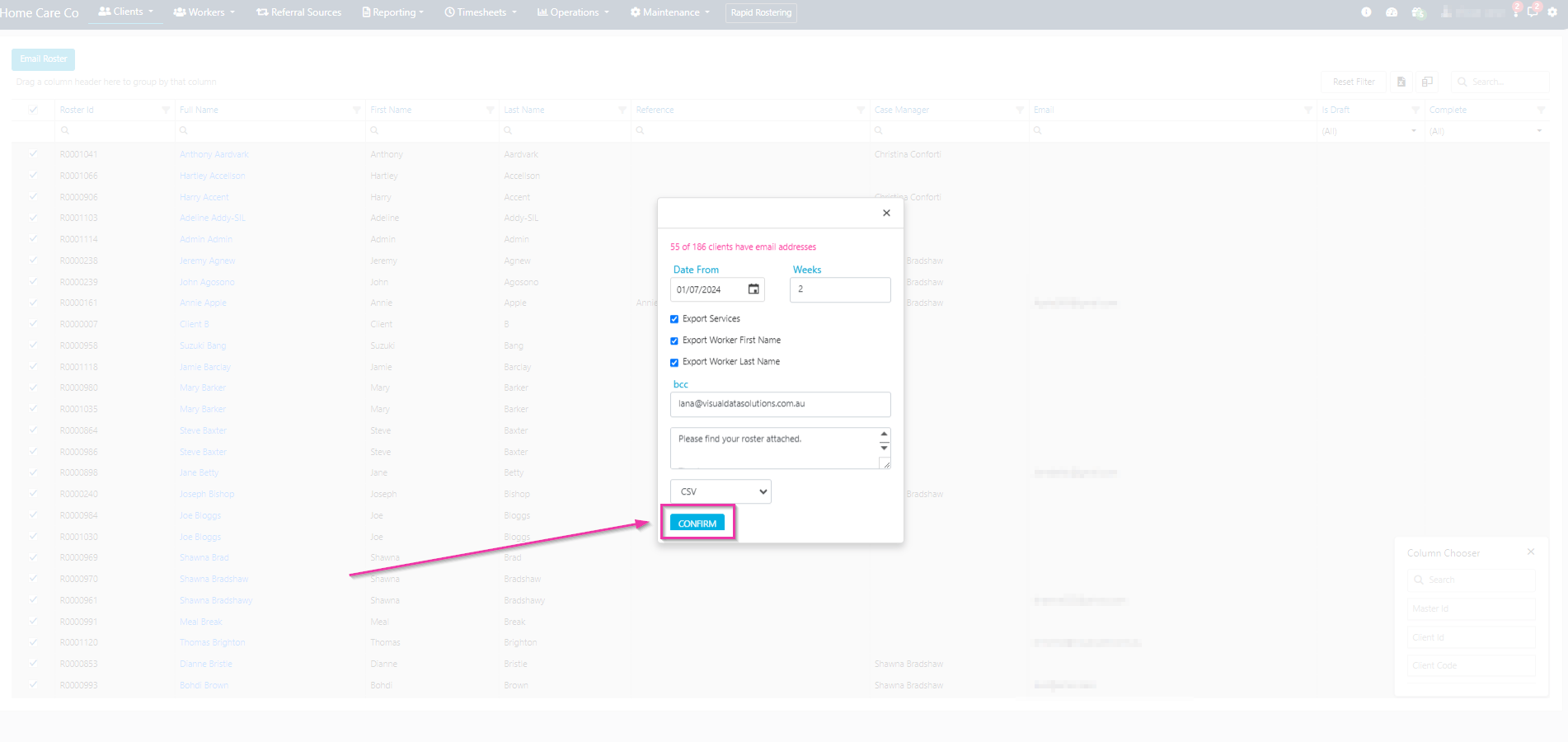
The default email message can be configured in Settings → Rostering → Display → Default Email Message. This message is used whenever you send a client their roster via email.
Running into issues?
See Scheduling troubleshooting for common errors and fixes.Related articles
Download worker rosters
Bulk download worker rosters as PDF or Excel
Rostering configuration
Configure default email message and other settings