
Custom layout settings
Custom layout settings control which funding types and features are visible across VCore for all users. Navigate to Settings → Custom Layout.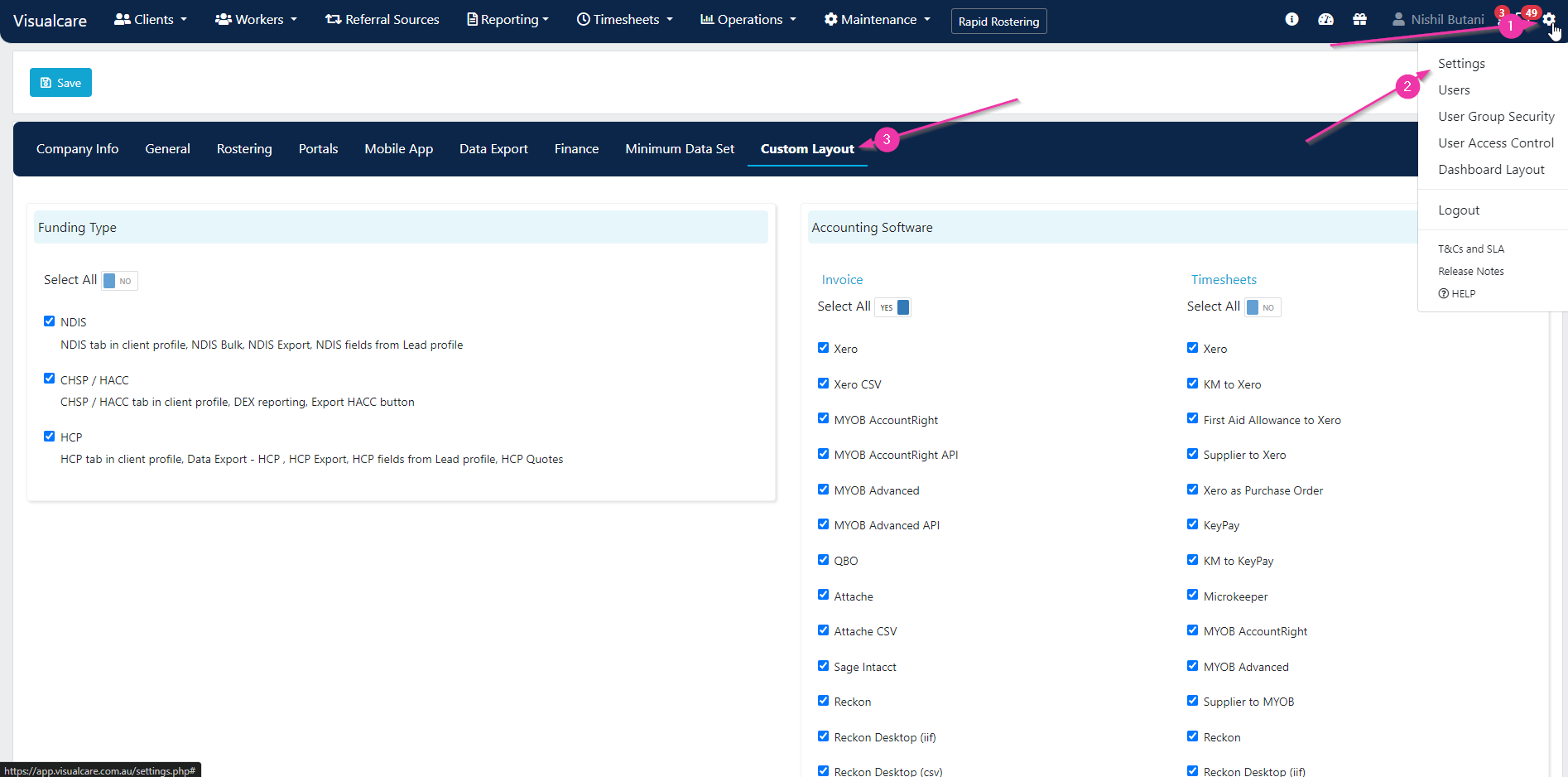
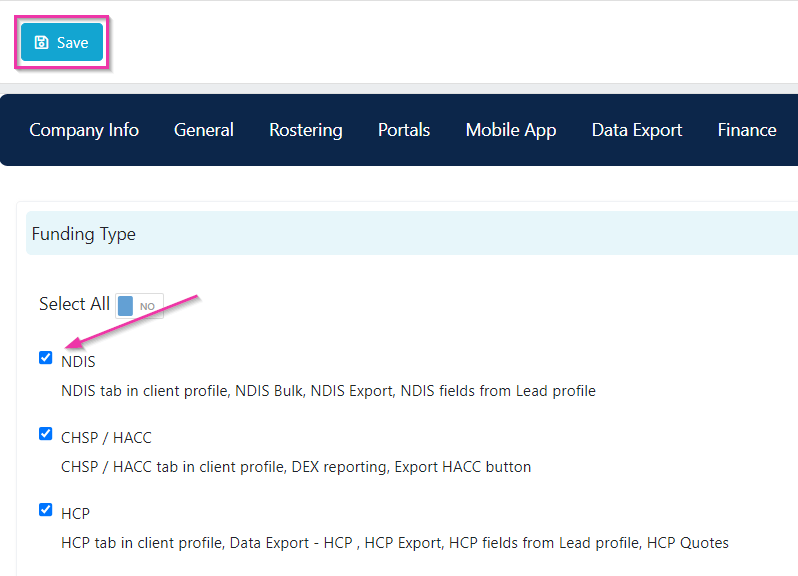
Funding types
Select which funding types you want to display in VCore:- NDIS
- CHSP/HACC
- HCP (now transitioning to Support at Home)
Accounting software
Select your accounting software from the drop-down. This determines what appears on the data export page when exporting invoices and timesheets.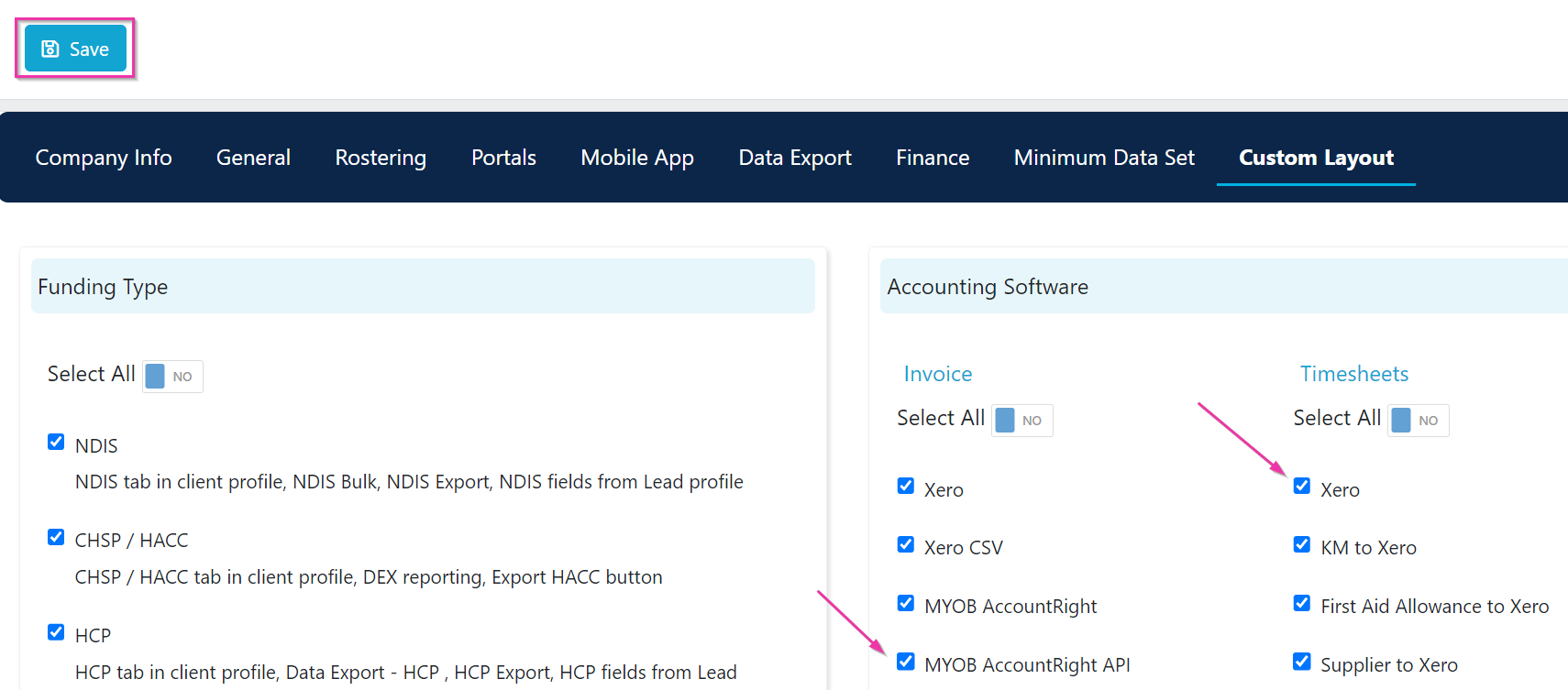
Company information and government IDs
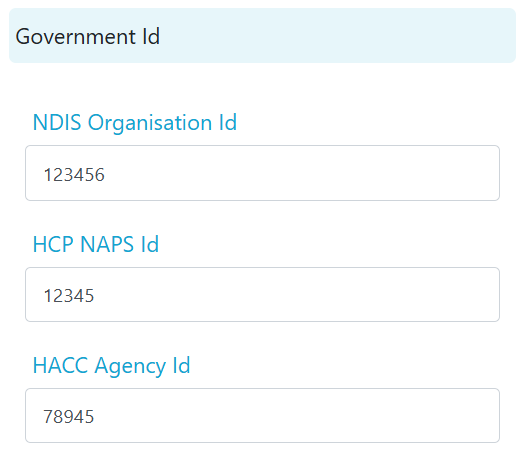
Your organisation’s government identifiers are set under Settings → Company Info. These link directly to the claiming functionality for different funding sources.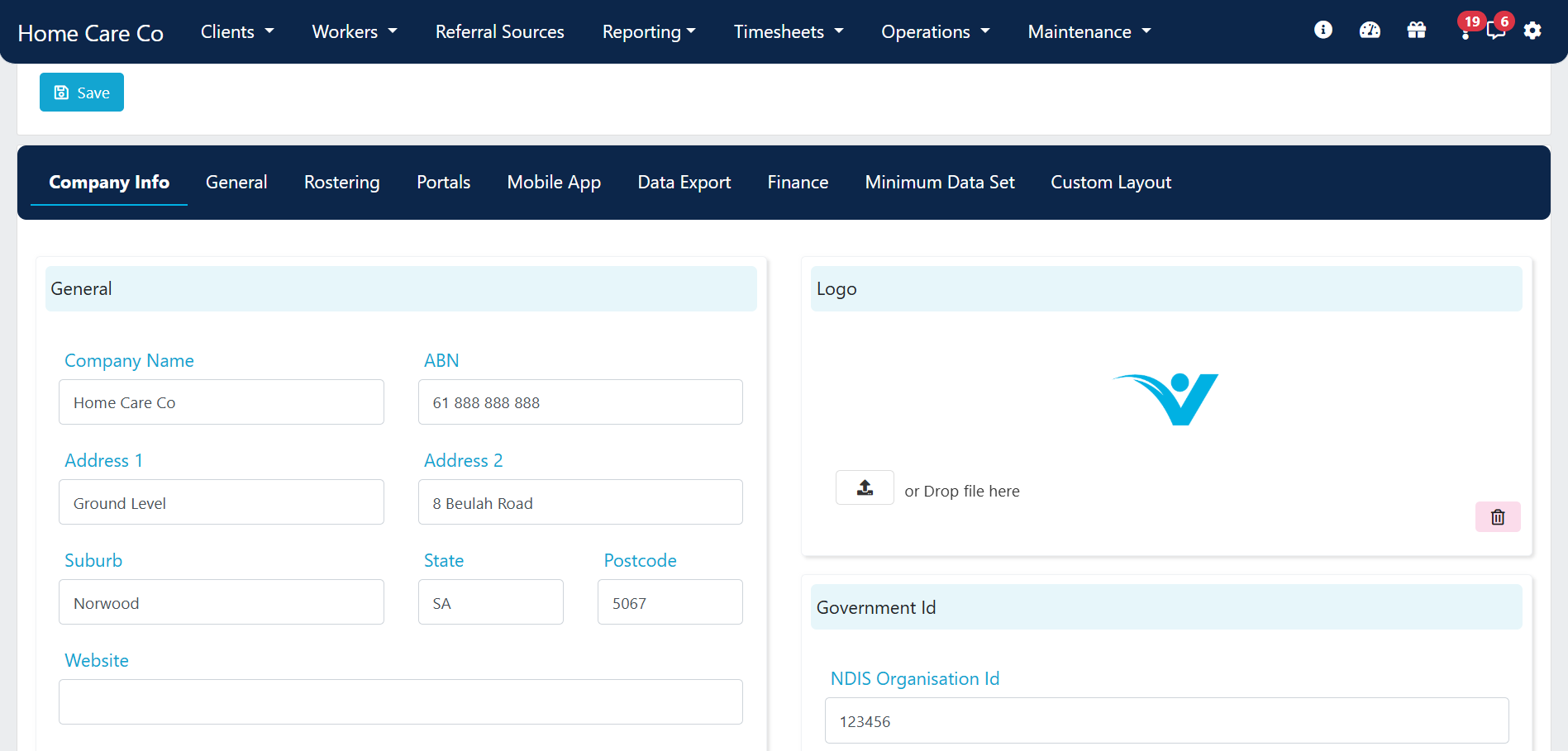
- Business address
- ABN
- Phone number
- Company logo
- Time zone
Government ID fields
General settings related to operations
Several settings in Settings → General affect operational features across VCore.Task email notifications
To have all VCore users receive an email when a task is assigned to them, tick Email user when a task assigned and click Save.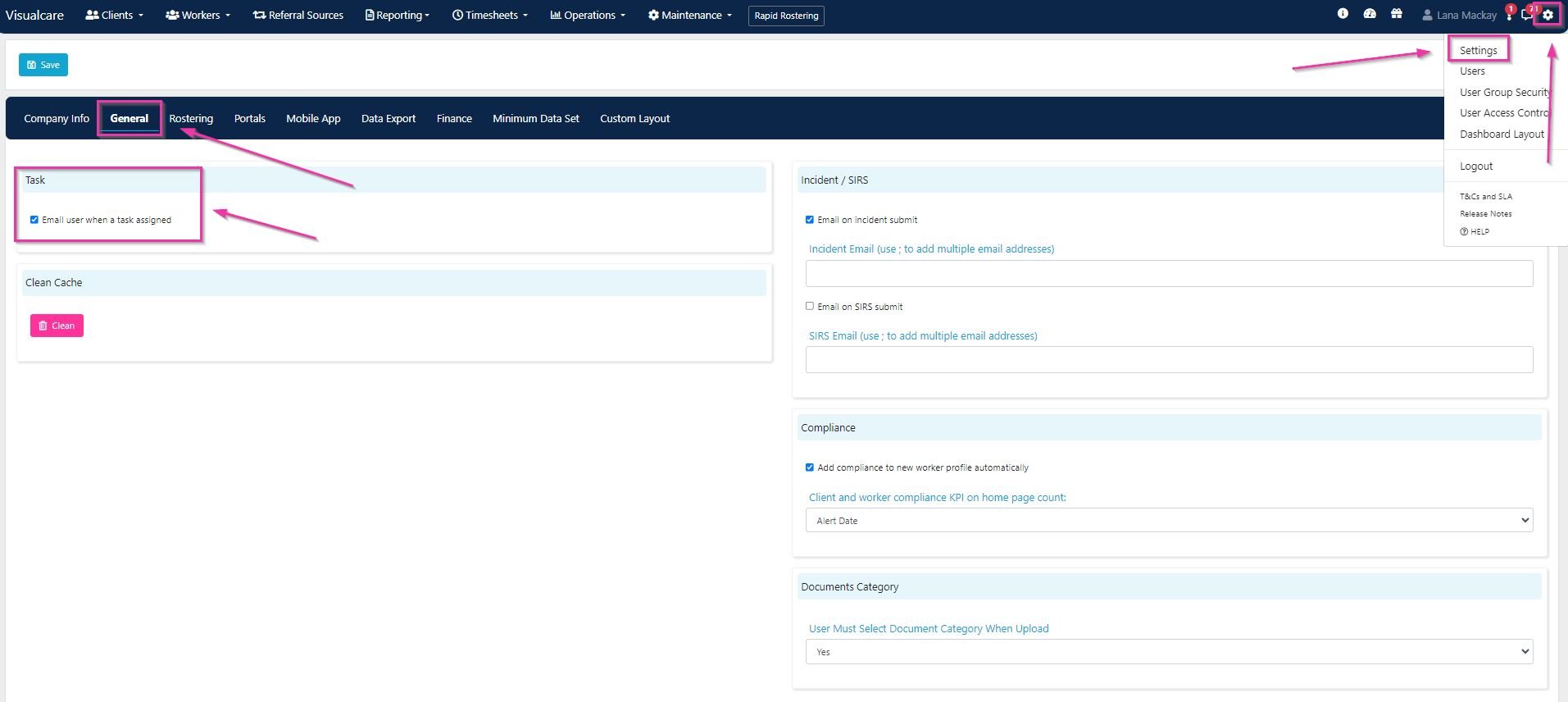
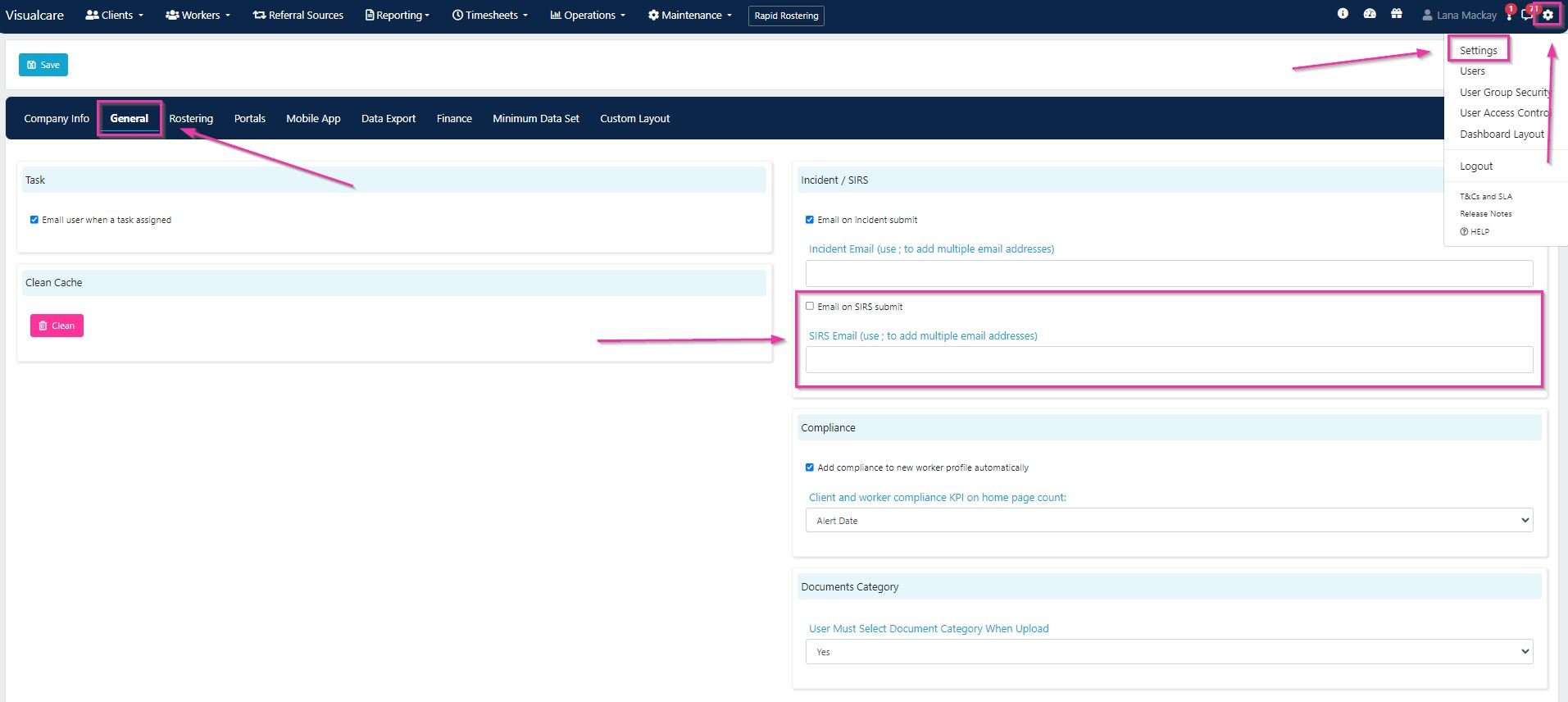
Incident and SIRS notifications
To notify specific employees by email when an incident report is submitted, add their email address under the incident section and tick Email on incident submit. Use a semicolon (;) to separate multiple email addresses.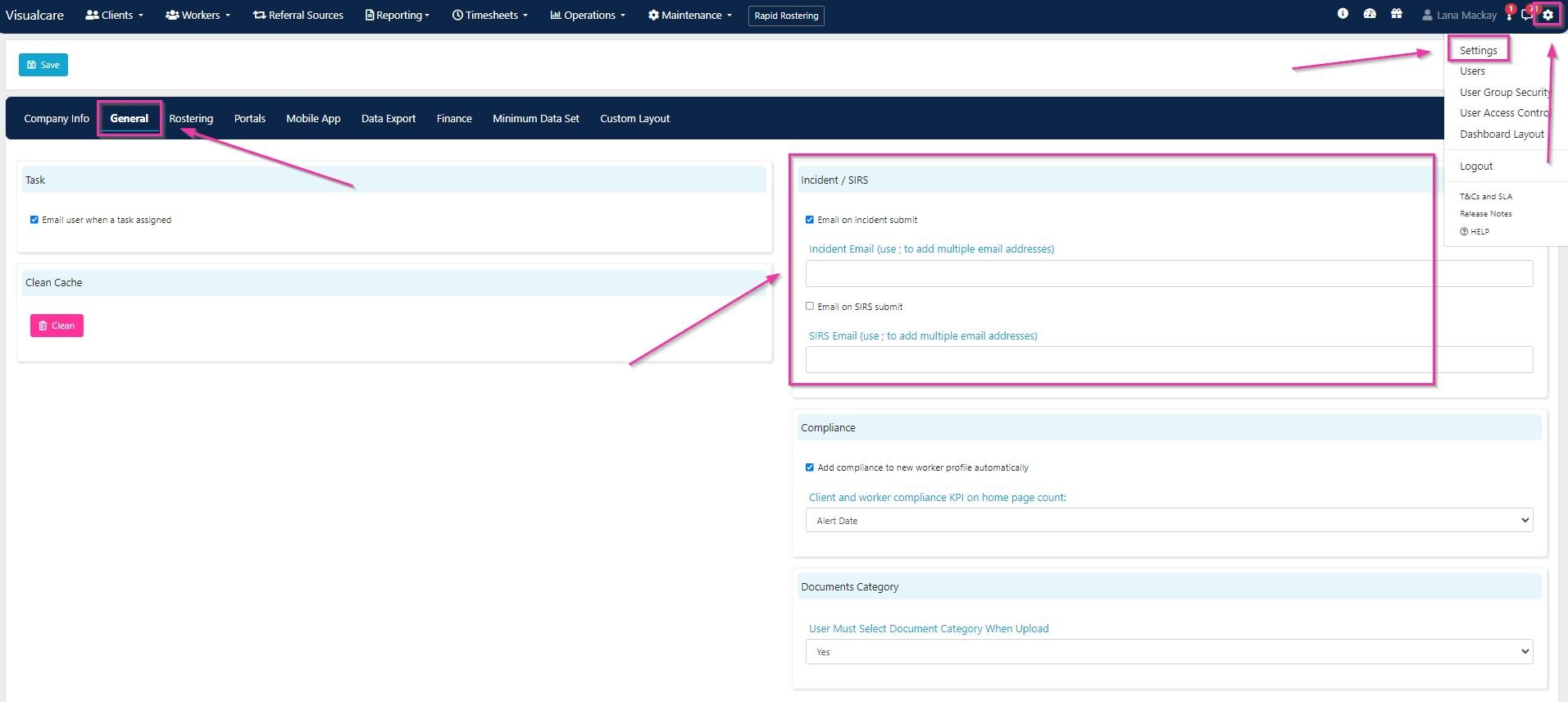
Compliance settings
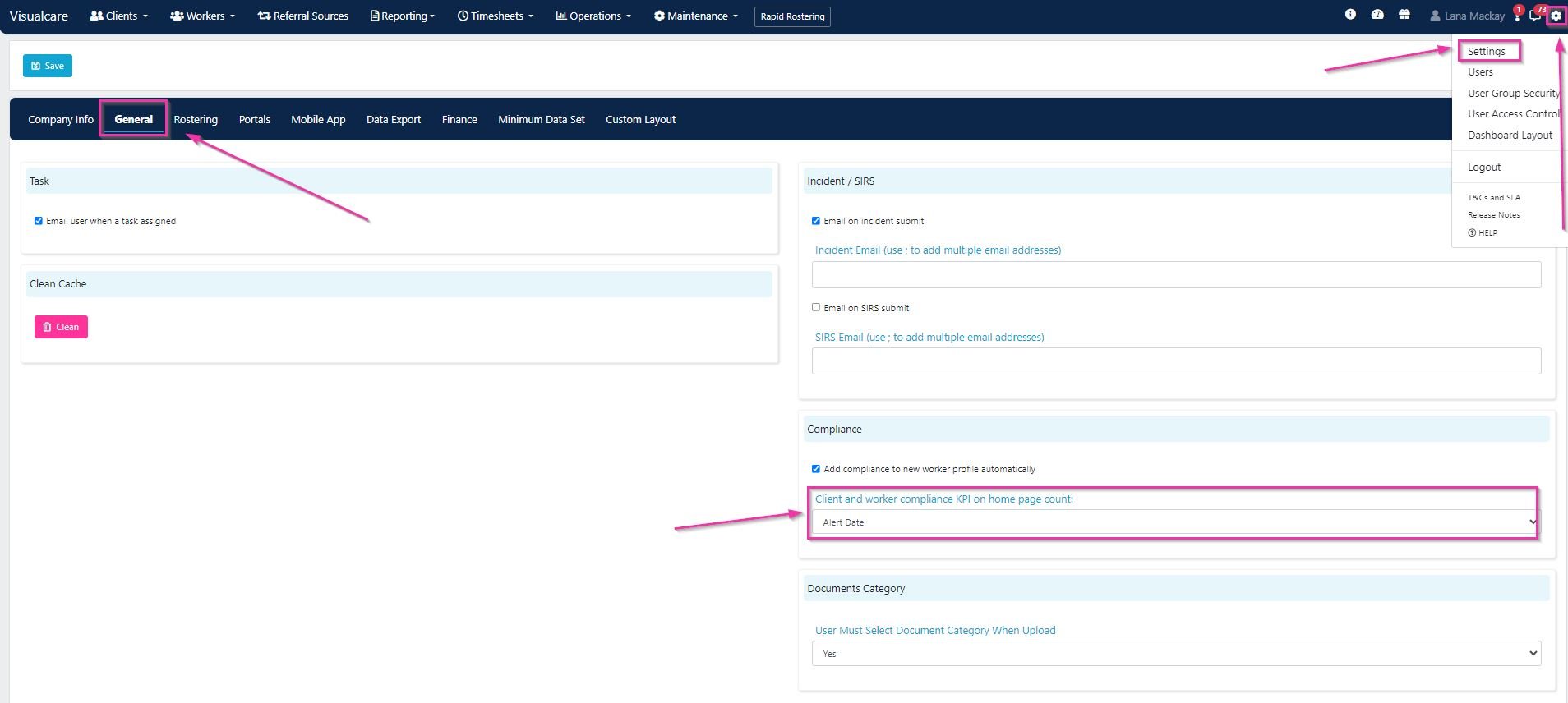
To automatically add compliance items to new worker profiles, tick Add compliance to new worker profile automatically.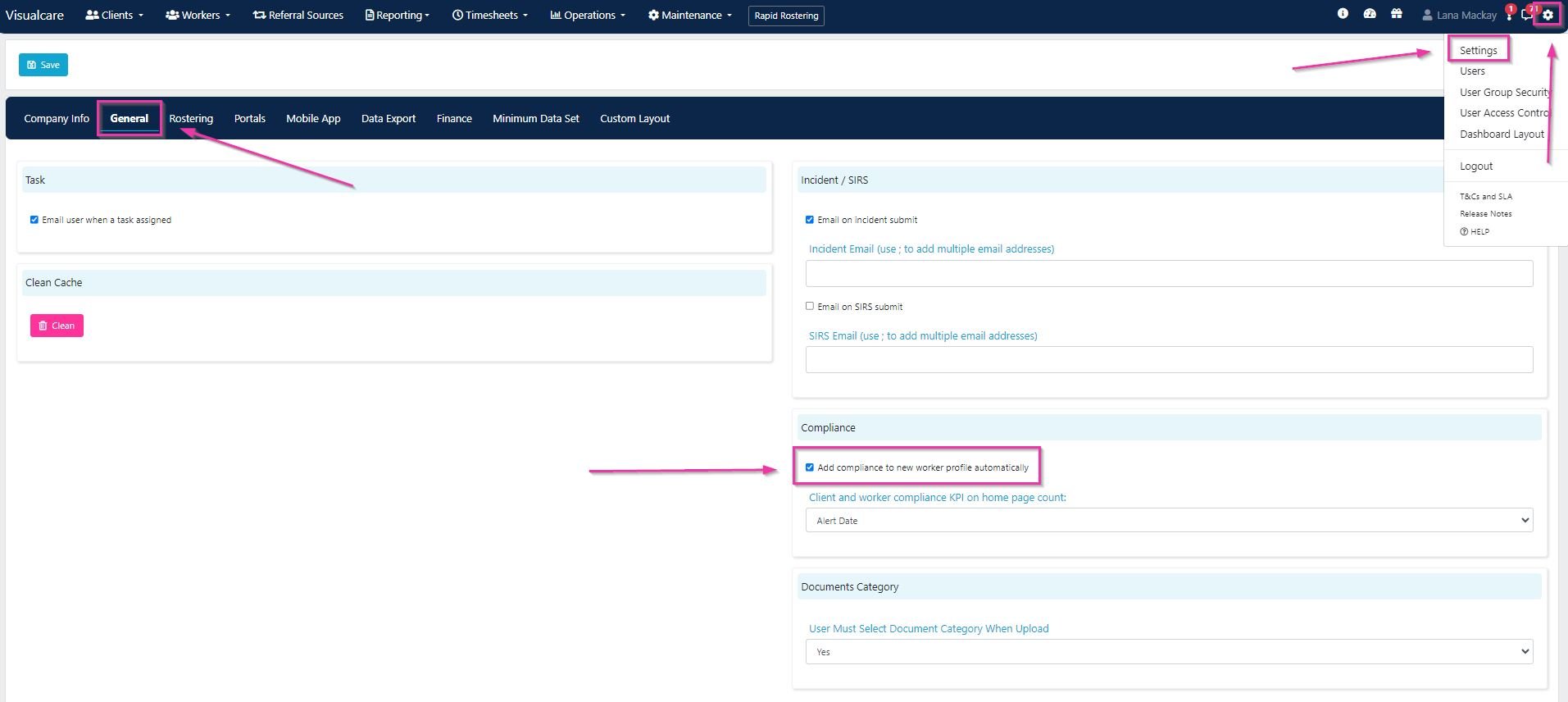
Document category requirement
To require users to select a document category when uploading documents, set User Must Select Document Category When Upload to Yes.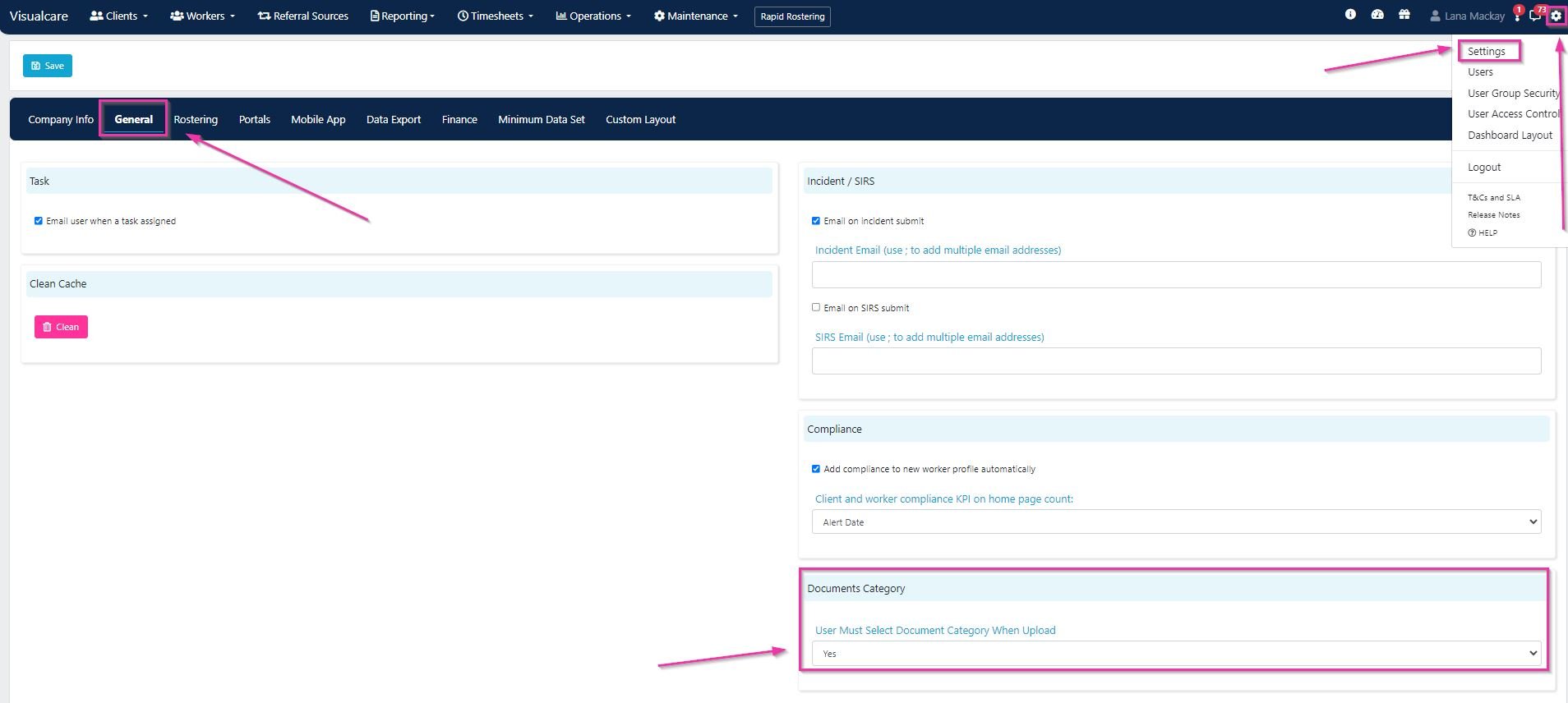
Support at Home (SAH) transition
The Support at Home Program is the Australian Government’s funding model that replaced Home Care Packages (HCP) from 1 November 2025. The Commonwealth Home Support Programme (CHSP) will transition in 2027.Key differences: HCP vs SAH
SAH funding structure
Budget types
Budget types
Short-term pathways
Short-term pathways
SAH service types
SAH service types
Care management
10% of the ongoing budget is automatically allocated to care management. The Care Management Pool (CMP) is quarantined for care coordination activities delivered by care partners.SAH migration dashboard
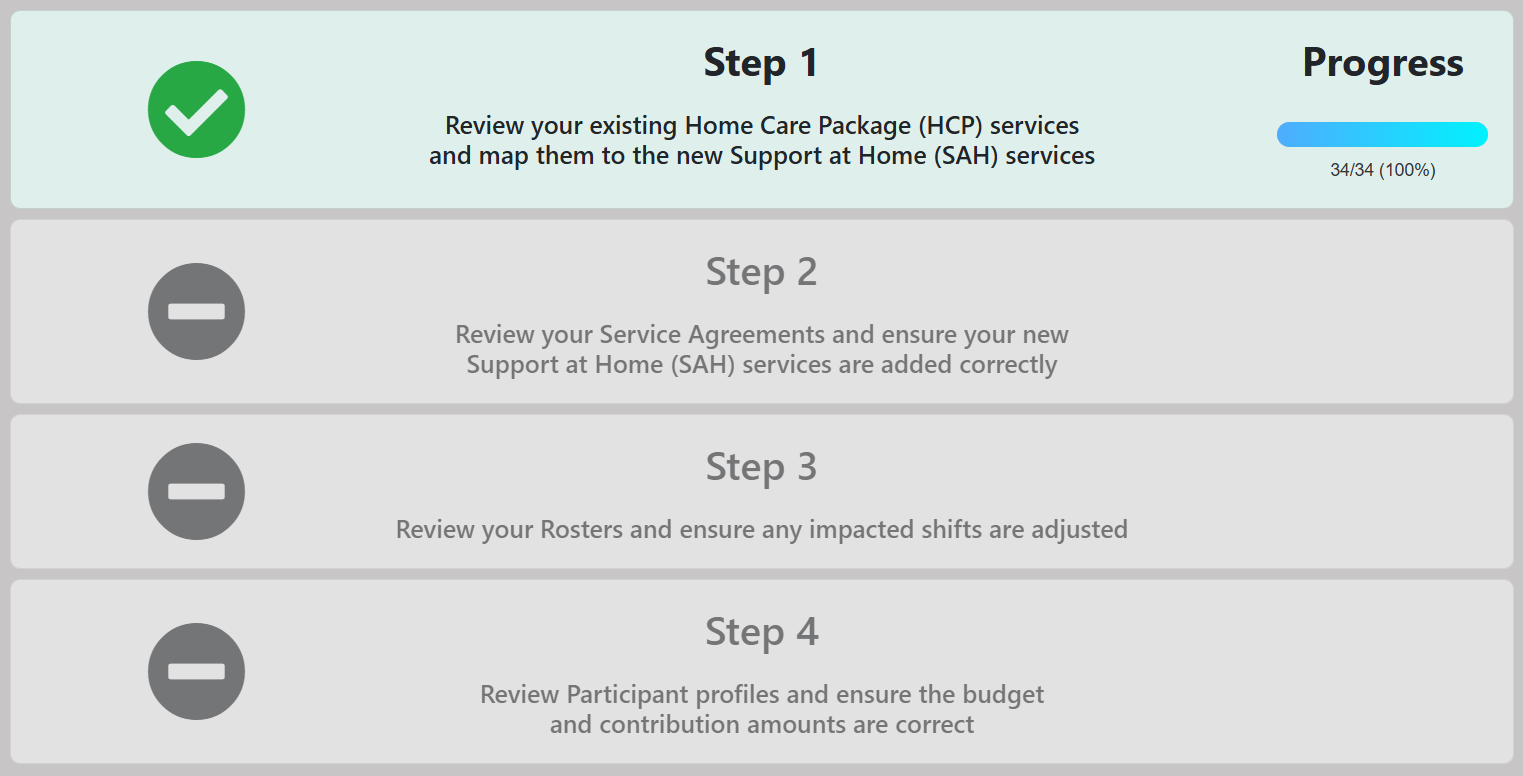
The SAH migration dashboard helps you transition from HCP to SAH services. Access it from Operations → SAH Dashboard.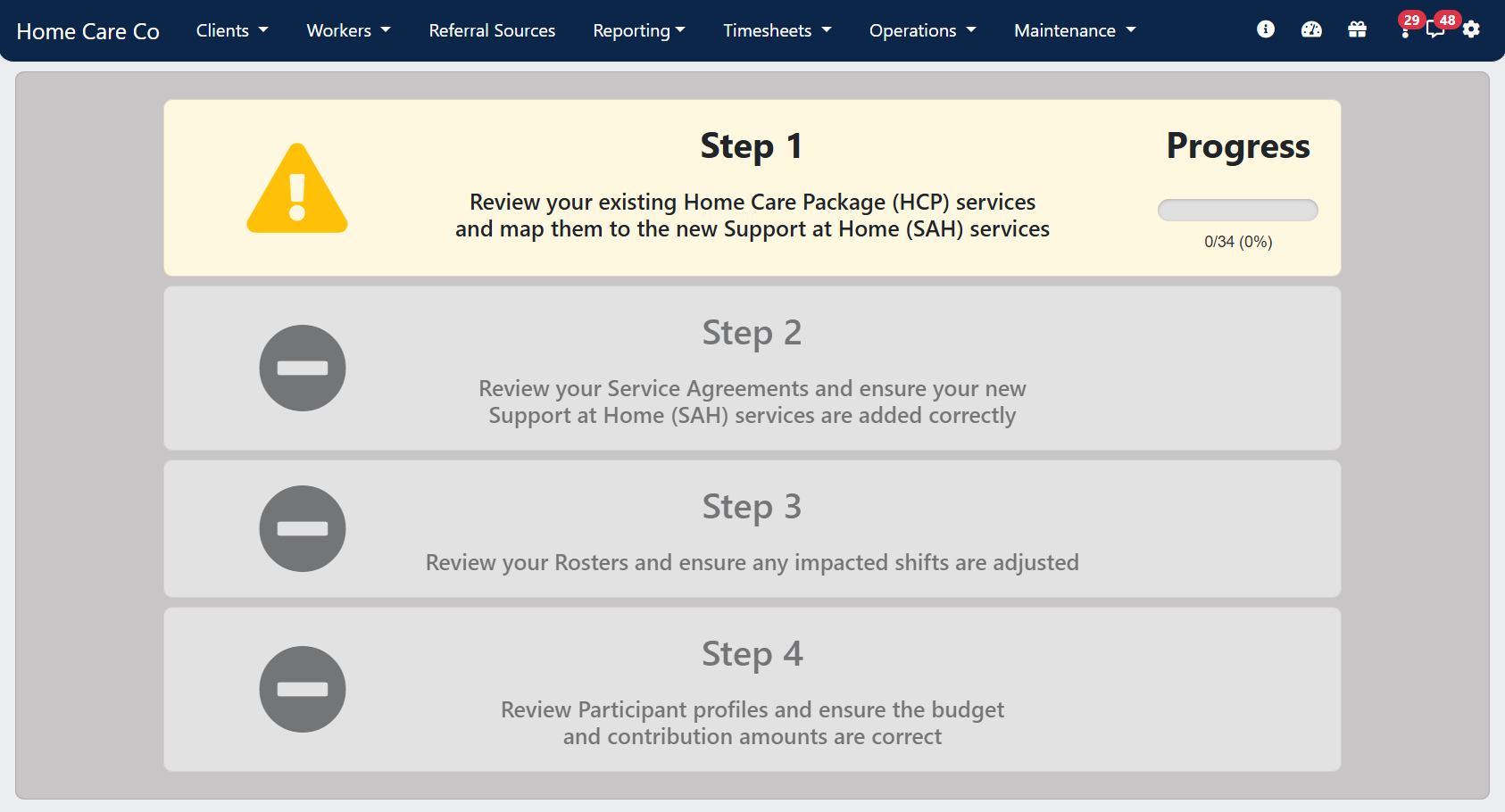
Step 1 (Services) is only available to users who have security permissions to access the Maintenance → Services page.
Step 1: Service migration
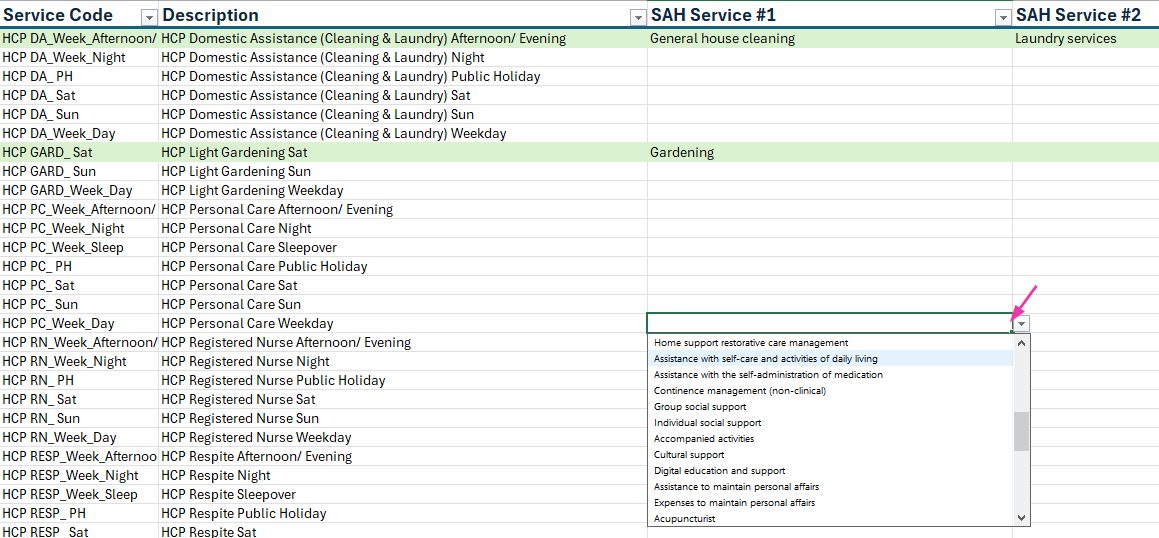
Map your existing HCP services to the new SAH services from the government-defined service list. This page lists existing services with the Home Care Package service type. Work through the list and select the applicable SAH service for each HCP service.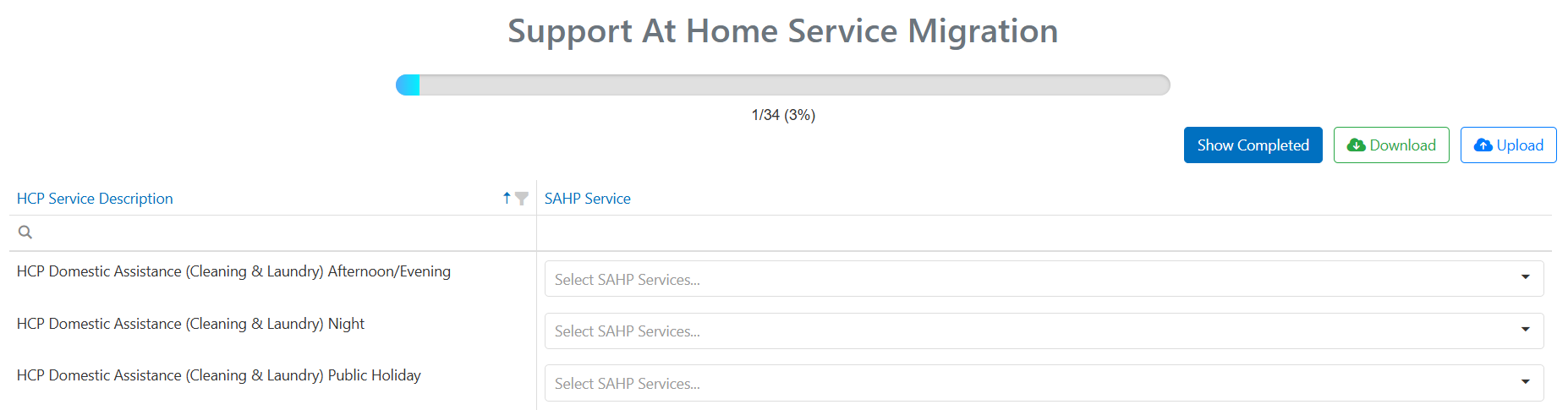
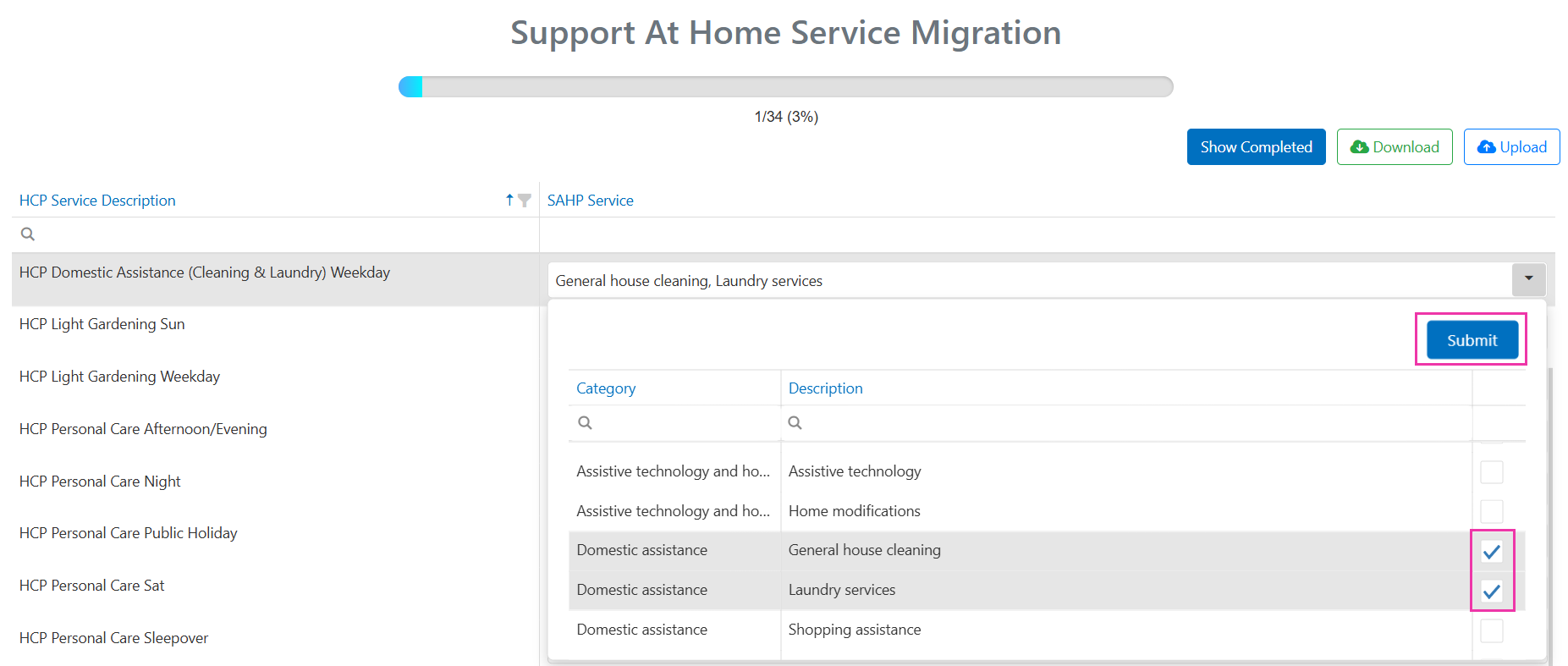
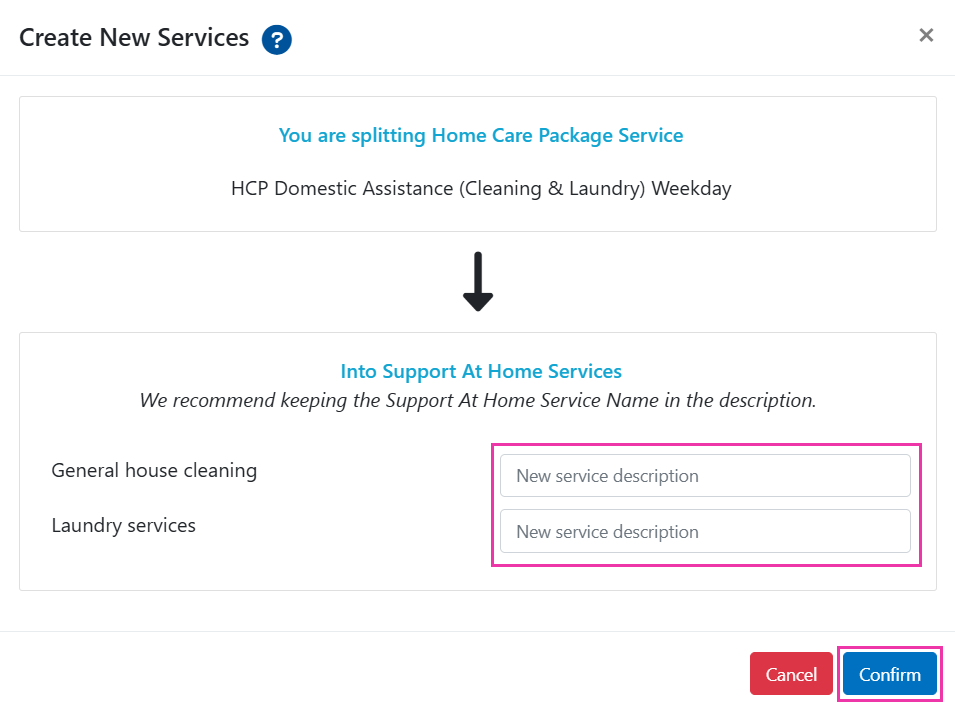
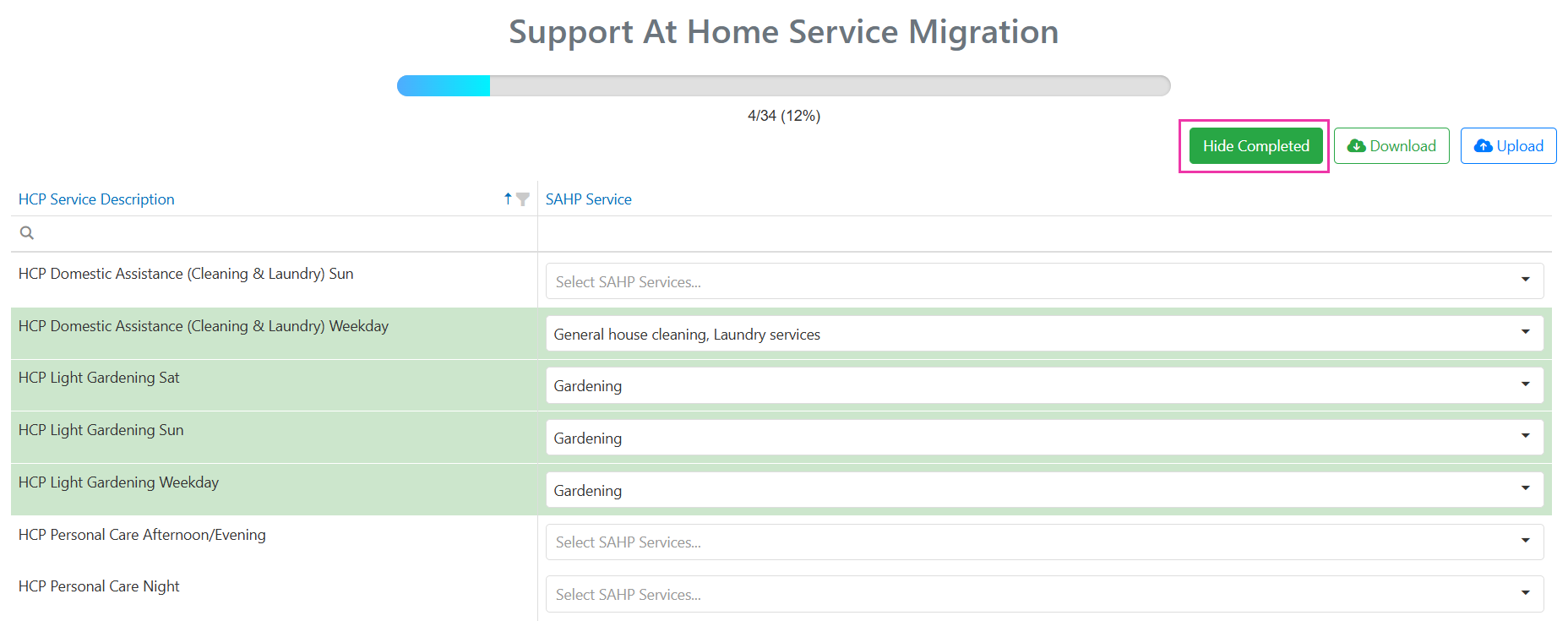
Step 2: Agreement migration
The tool clones HCP agreements and creates new SAH agreements:- HCP agreements with the Home Care Package funding type are cloned and end-dated
- A new SAH agreement begins with the appropriate start date
- A care management service is created and added to the new agreement
If a participant has been approved for Assistive Technology-Home Modifications, Short Term Restorative Care, or End of Life Care, these need to be set up as separate agreements. Where a care management service has been added, you may need to add additional information (charge rate, accounting code) under Maintenance → Services.
Step 3: Roster migration
The roster step transfers all shifts from the transition date forward, updating services on shifts from the old HCP agreement to the new SAH agreement as mapped in the previous steps.Where services need to be split for accurate SAH claiming (for example, splitting “Domestic Assistance” into separate house cleaning and laundry activities), additional roster customisation is needed manually. If existing HCP agreements end before the transition date, new SAH agreements and rosters need to be created separately.
Step 4: Participant profiles
This step handles participant profile updates for the SAH transition.Transition considerations
Before you start
Before you start
- Finalise HCP claims - for transitioned HCP participants, SAH claiming cannot be processed until all HCP claims have been finalised
- Provider registration - ensure your organisation is registered for the SAH service categories you provide
- Accounting software - update your customer list, service items, and accounting codes in preparation for split invoicing
During transition
During transition
- Service mapping - take time to correctly map HCP services to SAH equivalents
- Agreement review - review new SAH agreements before activating
- Staff training - ensure care partners understand the new care management tracking requirements
- Form updates - if using JotForms with HCP information, contact Visualcare support to request updates for SAH
Grandfathered participants
Grandfathered participants
Participants receiving HCP on or before 12 September 2024 have protected contribution rules. All participants move to SAH claiming through Visualcare. There is no option to remain in the old HCP system, but transitional rules apply.
CHSP migration
As of 1 July 2025, Stage 1 of the Support at Home reform is in effect for all CHSP providers. A new CHSP service list has replaced the old services, and DEX rejects any activity reported using outdated codes for services from 1 July.What changed
All CHSP services now use new service types and program activities. CHSP services delivered from 1 July 2025 need to be mapped to the new codes before July data is lodged in August. Legacy codes that can no longer be used:- ATSI Health Worker (ID 29)
- Hydrotherapy (ID 105)
- Nursing (ID 58)
- Ongoing Allied Health and Therapy Services (ID 34)
- Other Allied Health and Therapy Services (ID 35)
- Restorative Care Services (ID 39)
- Other Goods and Equipment (ID 48)
Running the CHSP migration wizard
1
Request new program activity approval
Request approval for new program activities in the DEX portal before running the migration in Visualcare.
2
Launch the CHSP migration wizard
Click the Migrate button from the banner at the top of your screen in Visualcare.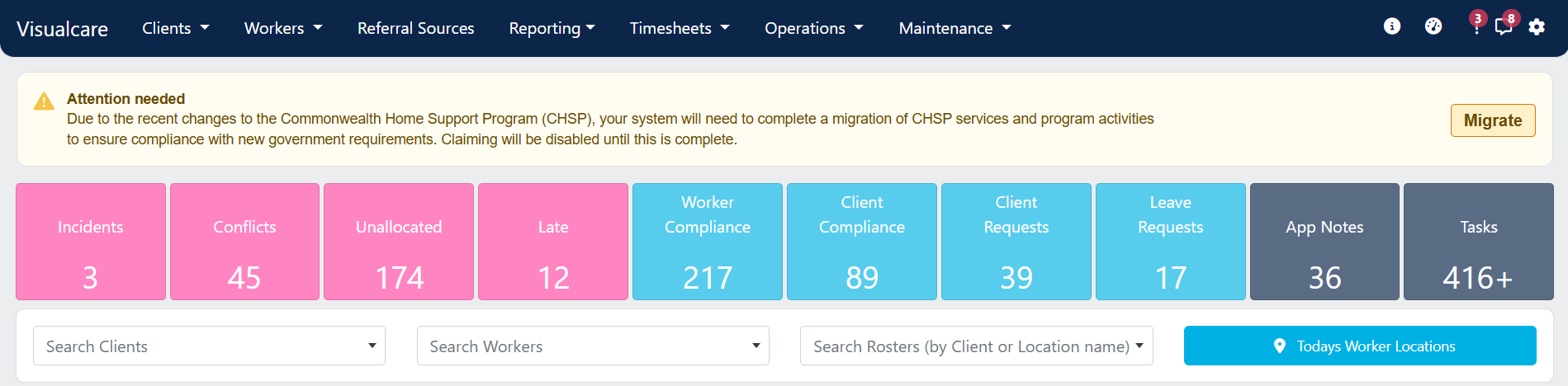
3
Upload your organisation data file
Drag and drop your .XML file, or click Upload a file to select it. The wizard checks the file before upload and flags any required actions.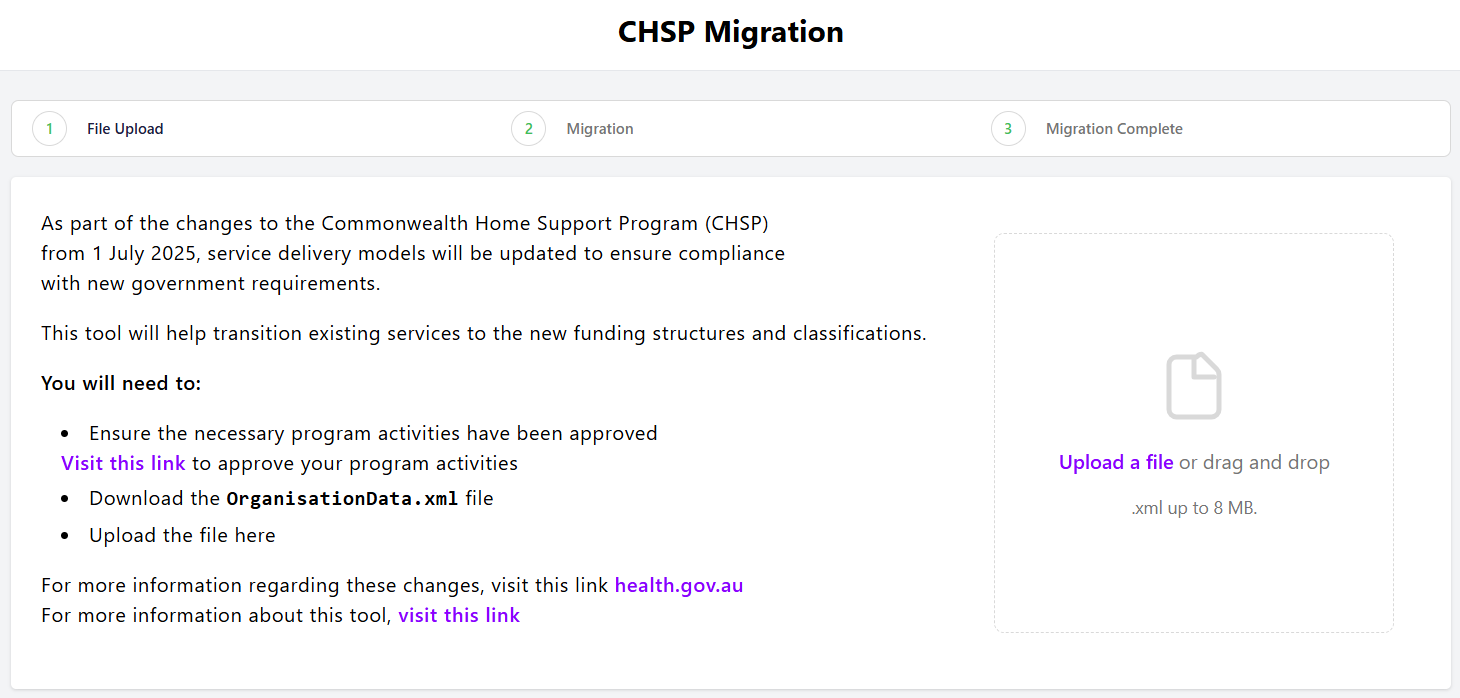
4
Start migration
Click Start Migration. The tool matches old service types to the new CHSP services, updates DEX Case and Activity fields on agreements, rosters, and timesheets, and creates new DEX cases for approved program activities.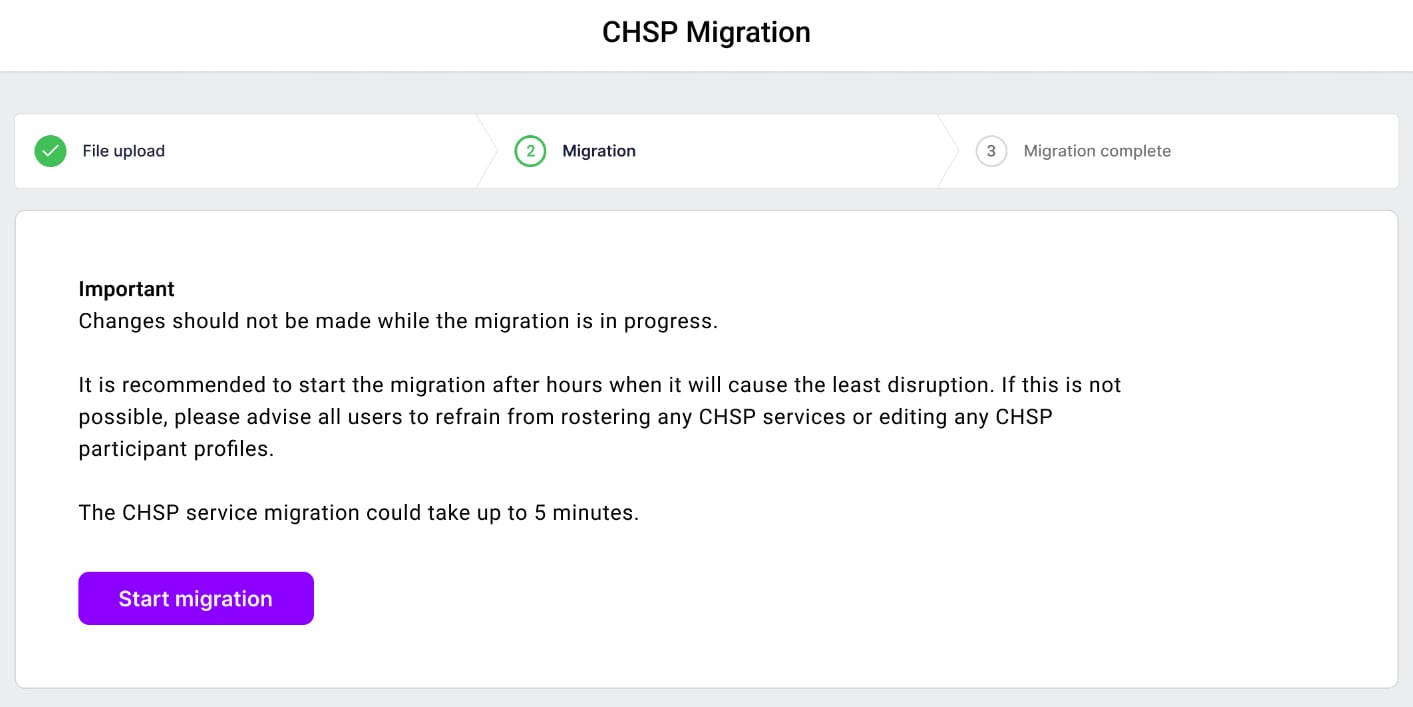
CHSP migration troubleshooting
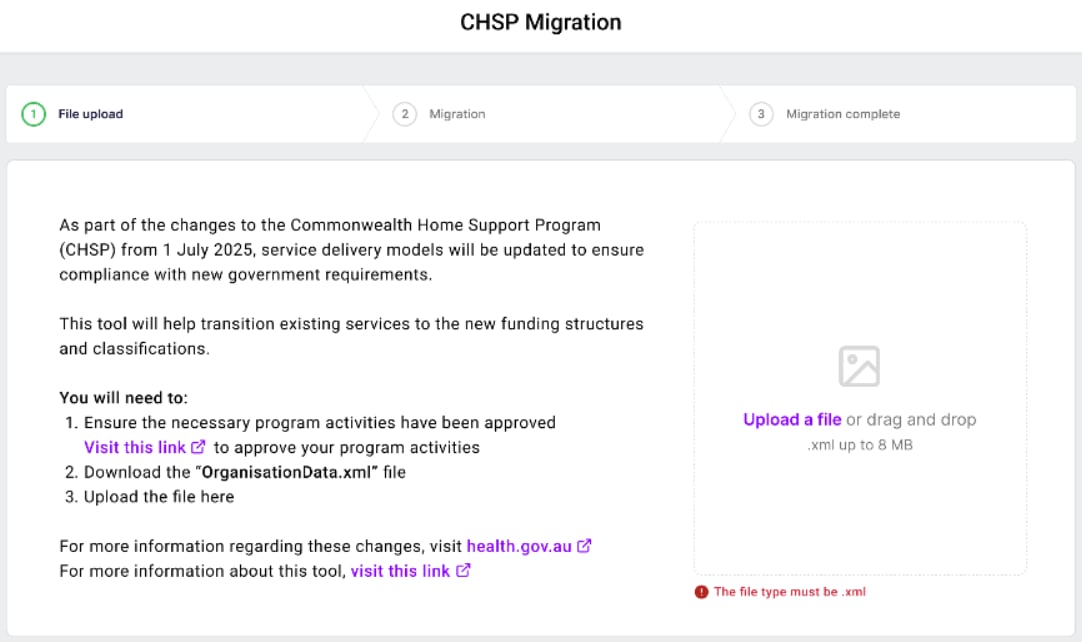
File upload - user input error
File upload - user input error
When this occurs:
- The incorrect file format is uploaded (for example, .csv or .pdf)
- A file with incorrect structure or content is uploaded
-
Download the OrganisationData.xml file from the DEX portal and try uploading again
File upload - backend error
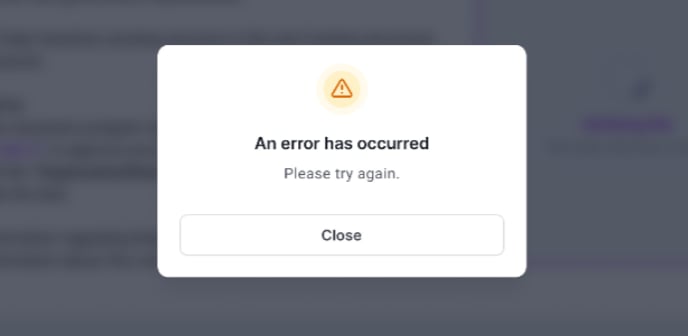
File upload - backend error
When this occurs:
- A backend error occurs due to system processing issues (rare)
- Try the upload again
-
If the error persists, contact support@visualcare.com.au
Unable to migrate (failure)
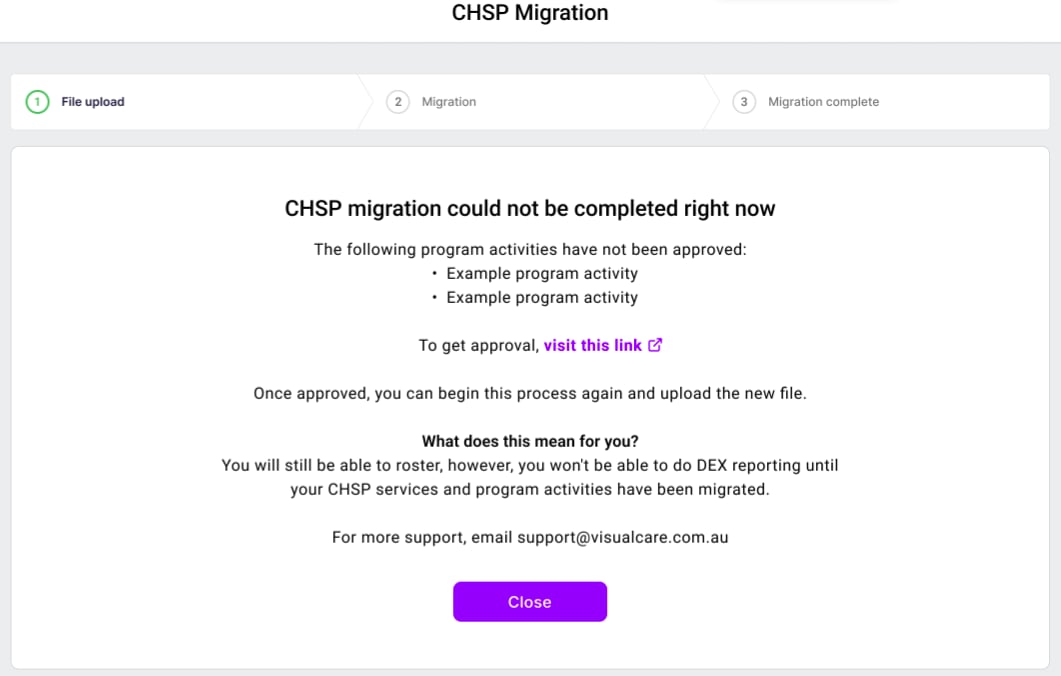
Unable to migrate (failure)
When this occurs:
- The provider has previously delivered services that have not been approved in the current OrganisationData file
- These activities cannot be mapped and prevent the migration from completing
- Review the instructions on the screen
- Use the DEX portal to request approval for the missing activities
-
Once approved, re-upload the updated OrganisationData file and re-run the migration
SAH glossary
Key terms
Key terms
Running into issues?
See General troubleshooting for common errors and fixes.Related articles
Service management
Set up and manage services, charge rates, and pay rates
Import CSV
Import records in bulk using CSV files
Editing drop-down lists
Manage areas, payers, and other configuration lists