
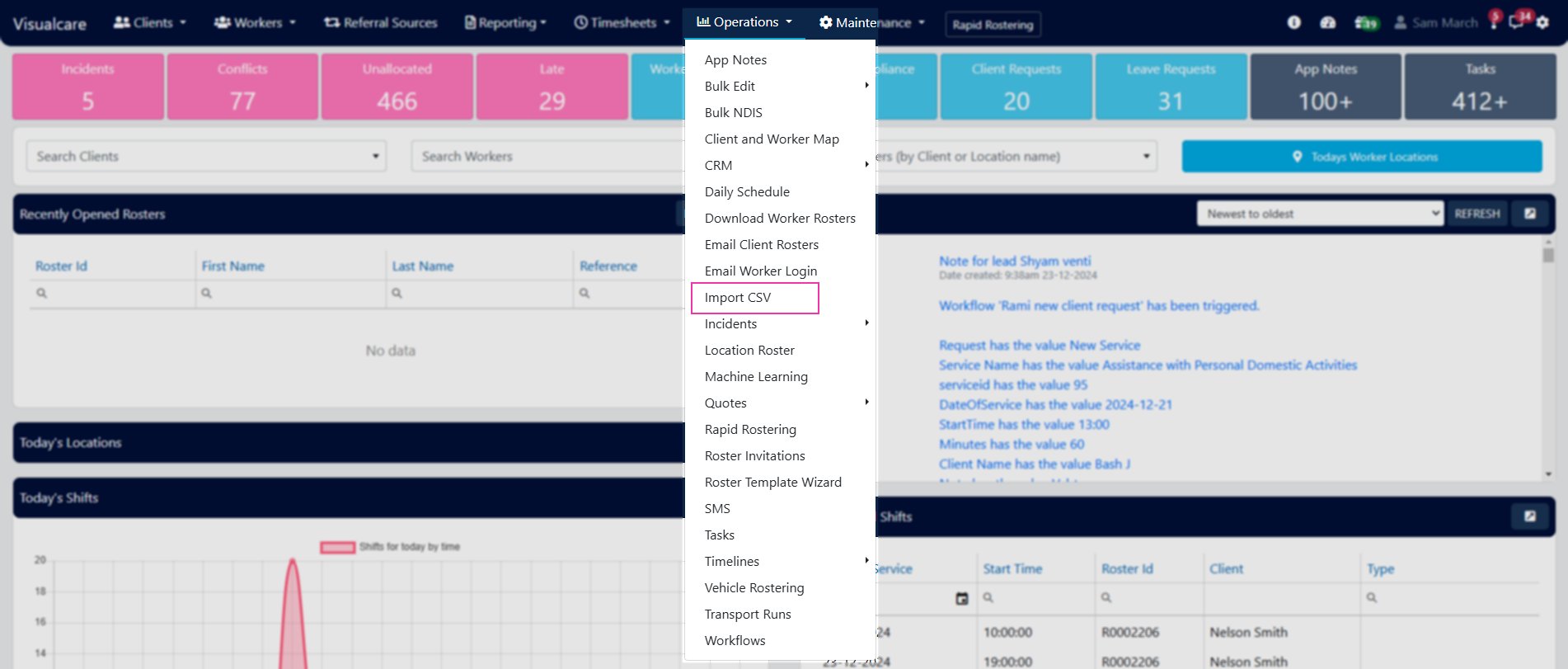
Instructions
1
Select the record type
Choose from the drop-down: Clients, Workers, or Expenses.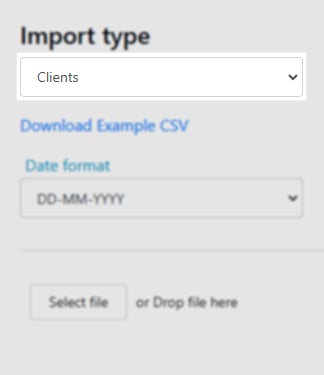
2
Download the example CSV
Click Download Example CSV to get a file with the correct column formatting. Edit the CSV externally with your data.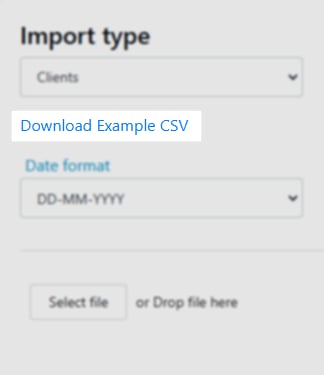
3
Upload your CSV
Select the Date Format that matches the format used in your CSV file. Click Select file, choose your CSV, and click Upload.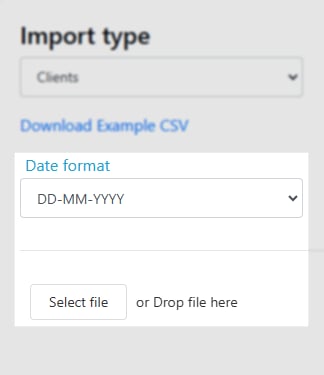
4
Map the columns
Match the Columns in Database to the Columns in uploaded file. Once all columns are mapped, click Preview Import.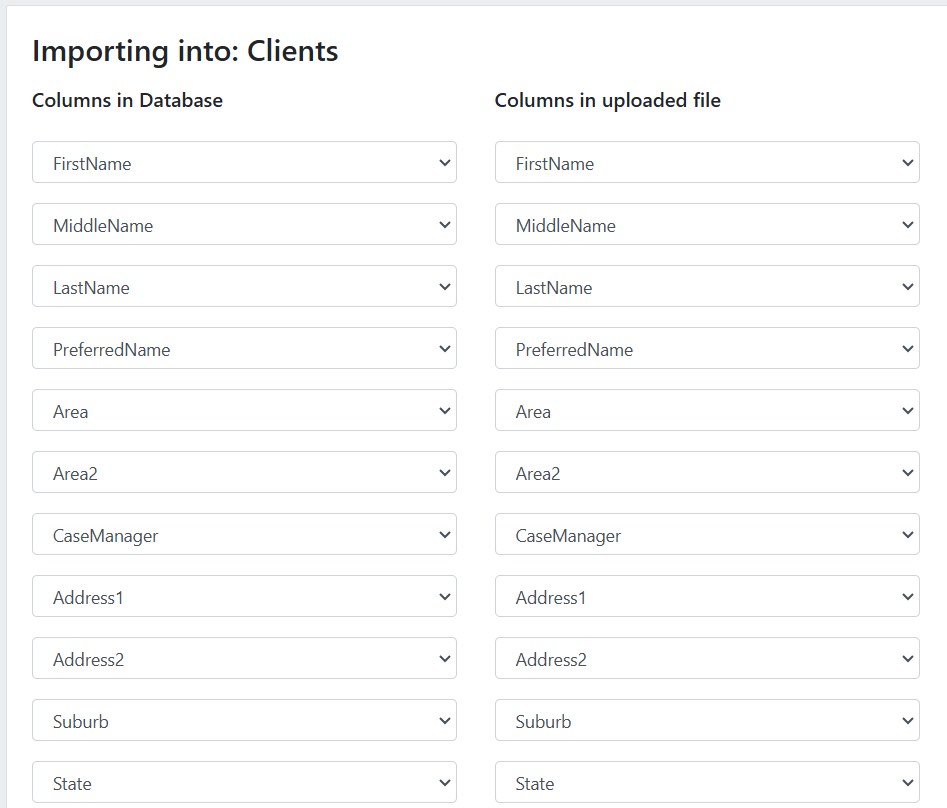
If bulk importing HCP expenses, ensure the Agreement and Client Number columns in the CSV match the clients’ HCP agreement and client number on their profile.
5
Preview and process
Review the preview of records that are about to be created. Click Process Import to create the records.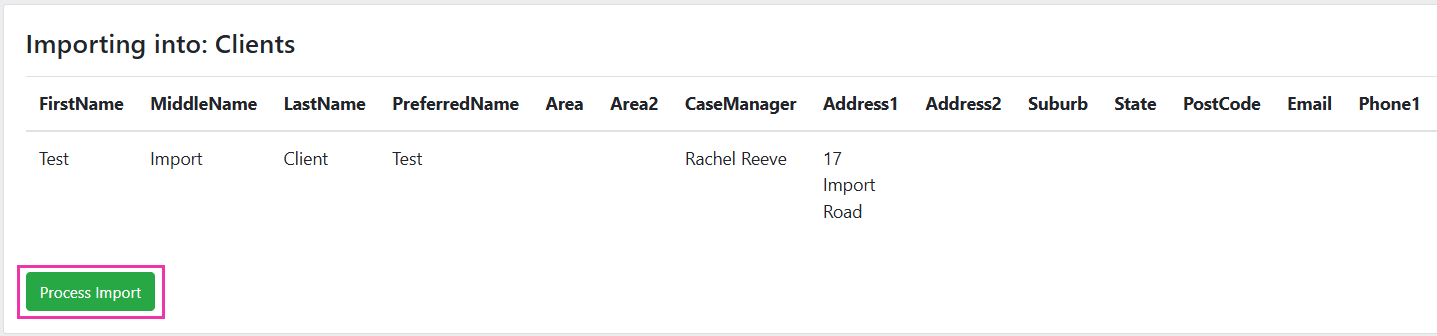
6
Review results
The summary shows the number of records sent and how many were successfully created. Click Back to Import to import another CSV file.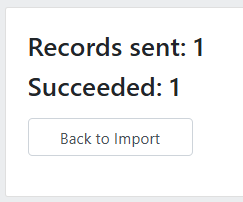
Importing services via CSV
The All Services page has two CSV options for bulk service management:- Export CSV - downloads the full list of existing services including their Service ID
- Download CSV Template - downloads a blank template for creating new services only. This template does not include a Service ID column
After importing an updated CSV with new charge or pay rates, apply the rate changes by navigating to Maintenance → Services → click Update Charge Rates or Update Pay Rates → select Current Service Selected or All Services.
Running into issues?
See General troubleshooting for common errors and fixes.Related articles
Bulk edit tools
Edit multiple client or worker records at once
Service management
Manage services, charge rates, and pay rates