
How tasks work
Tasks are an extension of the notes functionality. Any note becomes a task when you assign it to an office user using the Assign To (Create a task) drop-down.Tasks can only be assigned to office users, not workers.
Instructions
1
Create or open a note
Navigate to the relevant client or worker profile and open the notes section, or create a new note.
2
Assign the task
Select a user from the Assign To (Create a task) drop-down list. This converts the note into a task and assigns it to the selected user.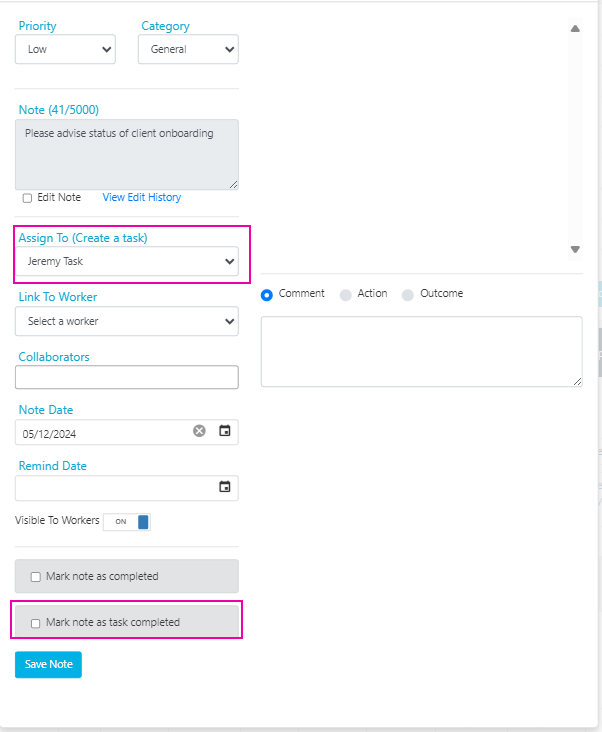
3
Set task details
Optionally set the Priority (Low, Medium, High, or Urgent), Remind Date, and any other relevant details.
4
Save the task
Click Save Changes. The assigned user receives an automated email notification if this option is enabled in Settings → General → Tasks.
Other ways tasks are created
Tasks aren’t only created manually. They can also be generated automatically:Running into issues?
See General troubleshooting for common errors and fixes.Related articles
Managing tasks
Find, filter, and manage your tasks
Bulk edit tools
Edit multiple client or worker records at once