
Types of kilometres
KMs for transport
Transport kilometres are recorded by the worker through the mobile app or manually entered in the timesheets area. The column header in timesheets is KM. These kilometres are:- Charged to the client as part of the invoice export
- Reimbursed to the worker as part of the payroll export
KMs between visits
Kilometres between visits are automatically calculated based on the client’s address and the time between shifts. These settings are configured in the Settings → Finance → Kilometre section. These kilometres are:- Paid to the worker as a reimbursement
- Not charged to the client
Exporting kilometres
KM export for invoicing (charge to client)
To export kilometres charged to clients, use the Export KMs option under Export Invoices on the Data Export page. This exports the KM data between shifts that are invoiced to the next client.KM export for payroll (reimburse to worker)
After you’ve exported timesheets, approved them, and started a pay run in your payroll software, export kilometres from the same Data Export page by clicking Export Timesheets → Export KMs. The process follows the same steps as the standard timesheet export.The KM Pay Type in your Xero settings (Settings → Data Export → Xero) needs to match how your KM pay codes are set up in Xero. Select pay item if the codes are Ordinary Time Earnings, or reimbursement if they’re reimbursements.
Reviewing timesheets and KM data
Once all timesheets have been confirmed, create a Timesheet Report and Timesheet Summary to review the data before exporting.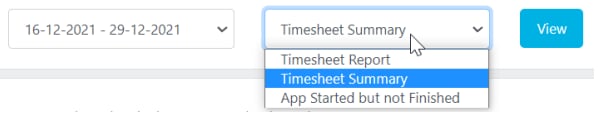
How Calculate KM works
When you click Calc KM, Visualcare uses the Google Maps API to find the quickest route between two addresses. The first time a pair of addresses is calculated, the distance is saved in the database and reused for all future lookups between those same addresses. This means subsequent calculations are instant and don’t call the Google Maps API again.The KM option in client agreements does not currently enforce limits or trigger alerts. It is a placeholder field and does not affect KM calculations or export behaviour.
KM charge rate showing as $0 on timesheets
If the KM charge rate on a timesheet saves as 0 by design. The export always uses the rate from Settings regardless of the value stored on the timesheet. If you want to see the KM charge rate on the timesheet for reporting purposes, change the setting to store the rate directly on the timesheet. Either way, the exported amount uses the correct rate from Settings.KMs and award interpretation
The Broken Shift Threshold setting in Settings → Data Export → Award Interpreter affects how travel time is calculated between shifts:- When Use threshold to fill travel time is set to Yes, the system fills the entire gap with travel time if the gap is equal to or less than the threshold amount
- When set to No, travel time is filled using data from the Google Maps API
Configuring KM between visits settings
Before using Calc KM, set up the kilometres between visits options in Settings → Finance → Kilometre section:
Once configured, navigate to Worker Timesheets or All Timesheets and click Calc KM. Google Maps calculates the distance between consecutive shifts. The first shift of the day is skipped. Click Save Changes to apply. The KM between values are then included in the next data export.
Running into issues?
See Finance troubleshooting for common errors and fixes.Related articles
Exporting payroll data
Step-by-step guide to exporting timesheet data to your payroll software
Billing to accounting software
Export invoices to your accounting platform
Award interpretation and pay rules
How Visualcare interprets awards and calculates pay conditions
Claiming and invoicing overview
Overview of all billing and export options in Visualcare