> ## Documentation Index
> Fetch the complete documentation index at: https://help.visualcare.com.au/llms.txt
> Use this file to discover all available pages before exploring further.
# Offboarding a worker
> How to offboard a worker and remove them from active rostering in Visualcare
When a worker leaves your organisation, you need to update their profile so they no longer appear in rostering selection or active worker lists. This process involves recording an end date and marking them as no longer current.
## What you'll need
* Access to the worker's profile in VCore
* The worker's end date
## Instructions
Go to **Workers** → **Profile** and search for the worker. Double-click to open their profile.
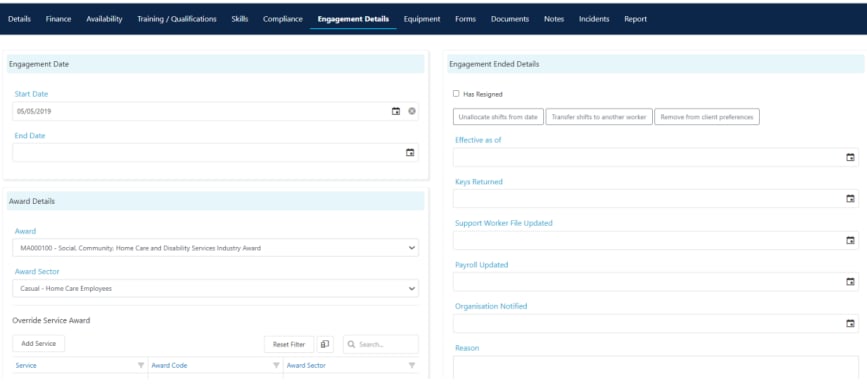
Navigate to the **Engagement Details** tab in the lower section of the screen. Enter the worker's **End Date** in the engagement details.
 In the worker profile header, untick the **Current** box. This removes the worker from rostering selection lists.
Once **Current** is unticked and saved, the worker no longer appears when selecting workers for shifts. Make sure all their remaining shifts have been reallocated before completing this step.
Click **Save** at the top of the profile to apply the changes.
Before completing the offboarding, review the following:
* **Shifts** - check for any allocated future shifts and reallocate them to other workers
* **Leave requests** - resolve any pending leave requests
* **Compliance items** - note the status of compliance items for your records
* **Documents** - download any documents you need to retain separately
* **Mobile app access** - the worker's Vworker and vOnboard access is tied to their profile. Once marked as not current, they lose access to scheduled shifts, though you may also want to untick **Web Enabled** for additional security
Offboarded workers remain in the system for historical reporting and record-keeping. They are simply excluded from active rostering and selection lists.
## Revoking app access
When a worker leaves, untick the following options on their profile to remove all system and app access:
| Setting | What it controls |
| ---------------------- | ------------------------------------------------------------------- |
| **Current** | Removes the worker from rostering selection and active worker lists |
| **Web-enabled** | Removes access to the VCore web interface |
| **vAssessment portal** | Removes access to the vAssessment portal |
| **vOnboard portal** | Removes access to the vOnboard portal |
Open the worker's profile, untick each of the above options, and click **Save**.
## Running into issues?
See [Worker management troubleshooting](/troubleshooting/general) for common errors and fixes.
## Related articles
Manage worker engagement and award details
Set up a new worker in Visualcare
Manage worker leave requests
In the worker profile header, untick the **Current** box. This removes the worker from rostering selection lists.
Once **Current** is unticked and saved, the worker no longer appears when selecting workers for shifts. Make sure all their remaining shifts have been reallocated before completing this step.
Click **Save** at the top of the profile to apply the changes.
Before completing the offboarding, review the following:
* **Shifts** - check for any allocated future shifts and reallocate them to other workers
* **Leave requests** - resolve any pending leave requests
* **Compliance items** - note the status of compliance items for your records
* **Documents** - download any documents you need to retain separately
* **Mobile app access** - the worker's Vworker and vOnboard access is tied to their profile. Once marked as not current, they lose access to scheduled shifts, though you may also want to untick **Web Enabled** for additional security
Offboarded workers remain in the system for historical reporting and record-keeping. They are simply excluded from active rostering and selection lists.
## Revoking app access
When a worker leaves, untick the following options on their profile to remove all system and app access:
| Setting | What it controls |
| ---------------------- | ------------------------------------------------------------------- |
| **Current** | Removes the worker from rostering selection and active worker lists |
| **Web-enabled** | Removes access to the VCore web interface |
| **vAssessment portal** | Removes access to the vAssessment portal |
| **vOnboard portal** | Removes access to the vOnboard portal |
Open the worker's profile, untick each of the above options, and click **Save**.
## Running into issues?
See [Worker management troubleshooting](/troubleshooting/general) for common errors and fixes.
## Related articles
Manage worker engagement and award details
Set up a new worker in Visualcare
Manage worker leave requests