> ## Documentation Index
> Fetch the complete documentation index at: https://help.visualcare.com.au/llms.txt
> Use this file to discover all available pages before exploring further.
# Managing worker compliance
> Track and manage compliance items on a worker profile in Visualcare
The compliance tab on a worker profile shows all compliance items assigned to that worker. From here you manage start dates, track expiry dates, and monitor compliance status day to day.
## Viewing compliance items
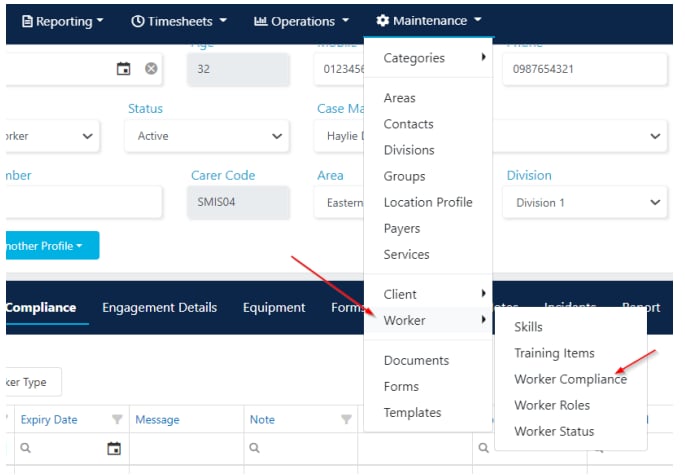
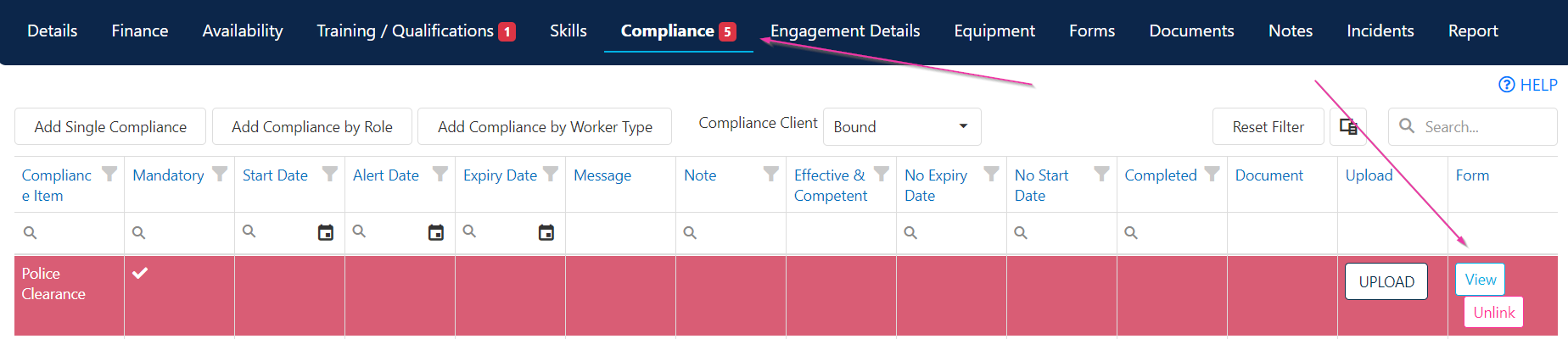
Open the worker's profile and navigate to the **Compliance** tab. Compliance items flow through automatically from the Maintenance area based on your organisation's configuration.
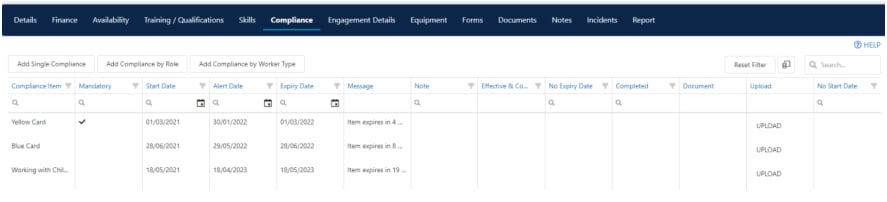 Each compliance item shows:
| Column | Description |
| --------------- | ------------------------------------------------------------------- |
| **Description** | The name of the compliance item |
| **Start Date** | When the item was completed or commenced |
| **Alert Date** | When the system sends a warning that the item is approaching expiry |
| **Expiry Date** | When the item expires and needs renewal |
| **Required** | Whether the item is mandatory |
## Updating compliance items
When you edit the **Start Date** on a compliance item, the **Alert Date** and **Expiry Date** update automatically based on the warning days and expiry days configured in Maintenance. These dates are overridable if needed.
If the **Required** field is ticked, the item is mandatory and needs to be completed.
Each compliance item shows:
| Column | Description |
| --------------- | ------------------------------------------------------------------- |
| **Description** | The name of the compliance item |
| **Start Date** | When the item was completed or commenced |
| **Alert Date** | When the system sends a warning that the item is approaching expiry |
| **Expiry Date** | When the item expires and needs renewal |
| **Required** | Whether the item is mandatory |
## Updating compliance items
When you edit the **Start Date** on a compliance item, the **Alert Date** and **Expiry Date** update automatically based on the warning days and expiry days configured in Maintenance. These dates are overridable if needed.
If the **Required** field is ticked, the item is mandatory and needs to be completed.
 ## Compliance and rostering
When selecting a worker for a shift, the rostering view highlights only workers who are fully compliant by default.
## Compliance and rostering
When selecting a worker for a shift, the rostering view highlights only workers who are fully compliant by default.
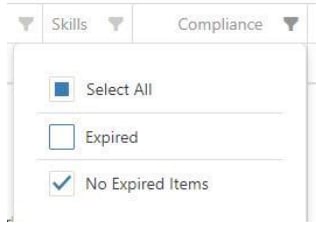 To see workers with expired compliance items during rostering, select the filter and click **Expired**.
## Forms compliance
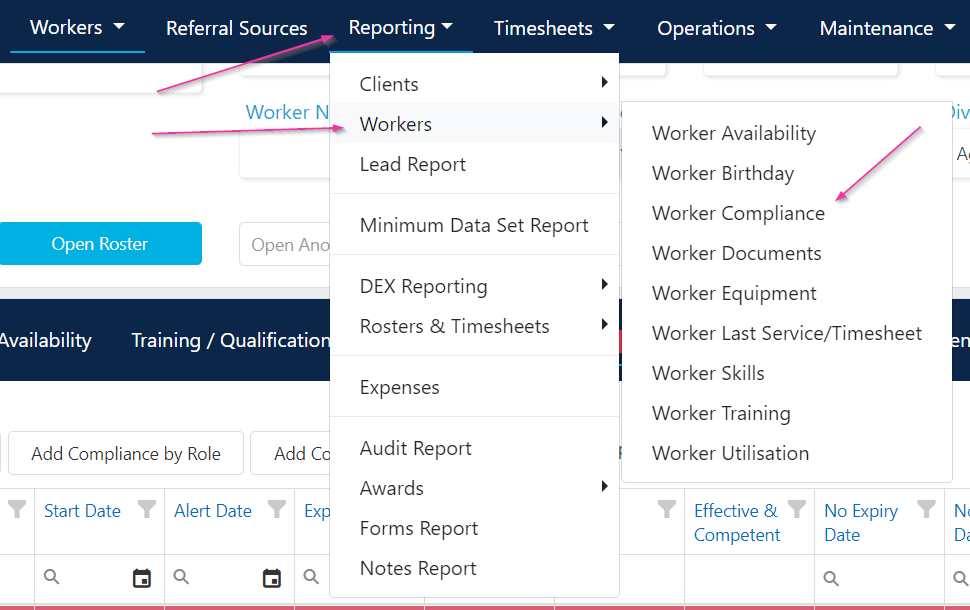
Linked forms appear under the compliance tab and in the worker compliance report.
* Click **View** to open a linked form
* Click **Unlink** to remove a form from a compliance item
To see workers with expired compliance items during rostering, select the filter and click **Expired**.
## Forms compliance
Linked forms appear under the compliance tab and in the worker compliance report.
* Click **View** to open a linked form
* Click **Unlink** to remove a form from a compliance item

 ## Running into issues?
See [Worker management troubleshooting](/troubleshooting/general) for common errors and fixes.
## Related articles
How compliance items flow from Maintenance to profiles
Configure compliance items in Maintenance
Set up a new worker in Visualcare
## Running into issues?
See [Worker management troubleshooting](/troubleshooting/general) for common errors and fixes.
## Related articles
How compliance items flow from Maintenance to profiles
Configure compliance items in Maintenance
Set up a new worker in Visualcare