> ## Documentation Index
> Fetch the complete documentation index at: https://help.visualcare.com.au/llms.txt
> Use this file to discover all available pages before exploring further.
# Creating a worker profile
> How to add a new worker to Visualcare and populate their profile with personal and employment details
A worker profile stores all the key information about a team member, from personal details to compliance items, pay rates, and availability. Every worker in your organisation needs a profile before they appear in rostering or receive access to mobile apps.
## What you'll need
* Access to the **Workers** module in VCore
* The worker's first and last name (at minimum)
## Instructions
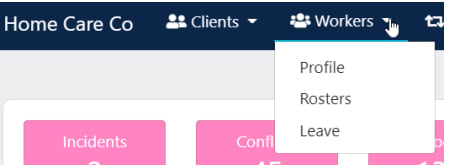
Go to **Workers** → **Profile** to open the worker list. You'll see all current workers listed here.
 Use the **Search** box in the top left corner to quickly find an existing worker by name, or search by specific fields such as first name and last name.
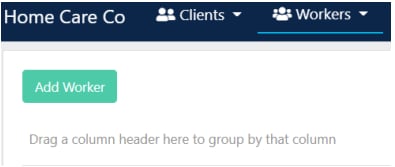
Click **Add Worker** at the top of the list.
Use the **Search** box in the top left corner to quickly find an existing worker by name, or search by specific fields such as first name and last name.
Click **Add Worker** at the top of the list.
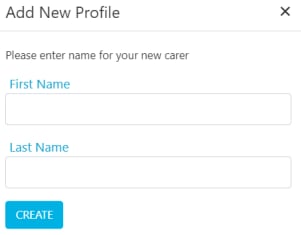
 Enter the worker's first and last name, then click **Create**.
 The worker profile opens with tabs and basic information at the top of the screen, along with additional tabs and more detailed subsections at the bottom.
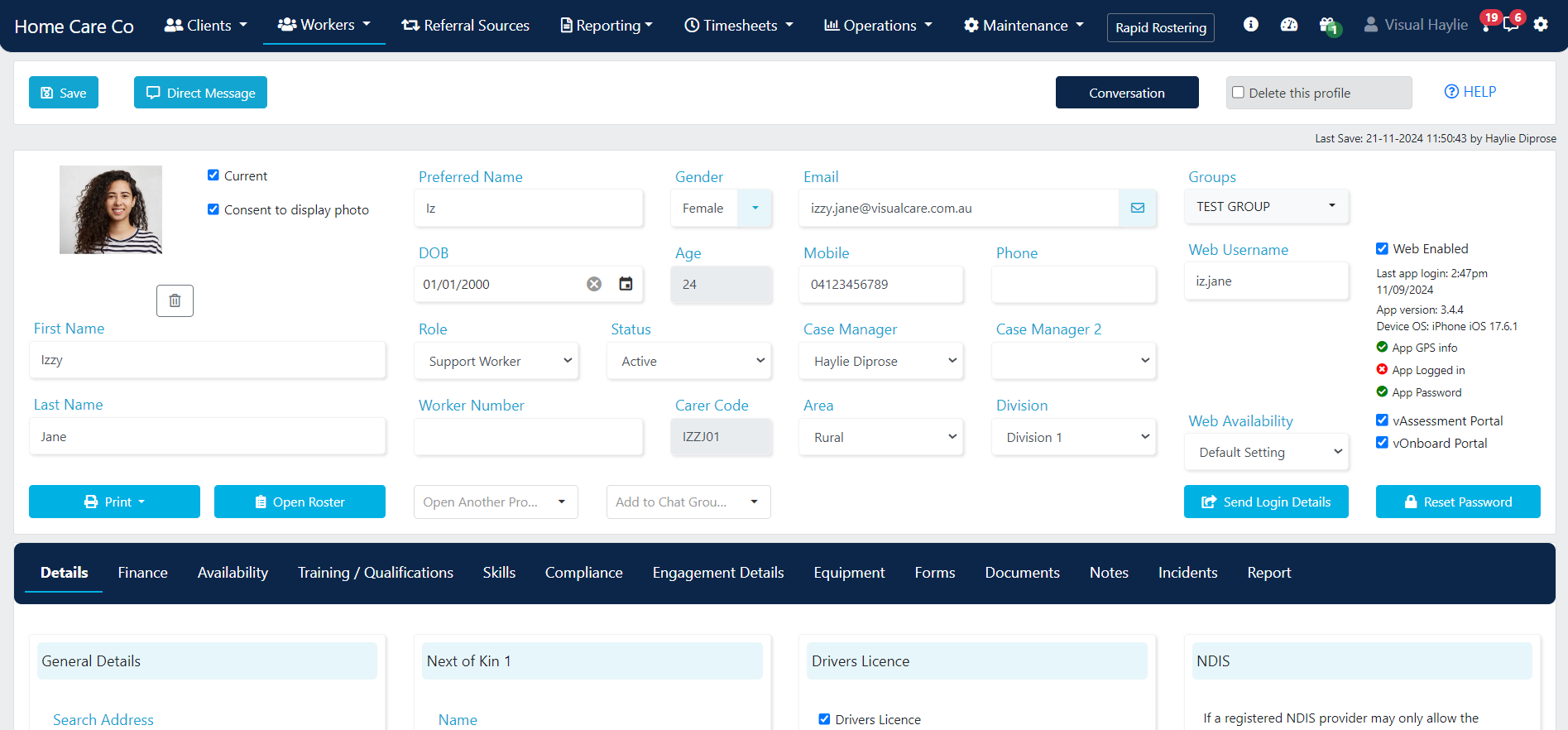 To add or edit information, click in the field to type or select from the drop-down, then click **Save**. The page prompts you with a pop-up if you try to leave without saving.
Some profile fields are customisable for your organisation:
* **Areas** - configured in **Maintenance** → **Areas**
* **Divisions** - configured in **Maintenance** → **Divisions**
* **Groups** - configured in **Maintenance** → **Groups**
* **Payers** - configured in **Maintenance** → **Payers**
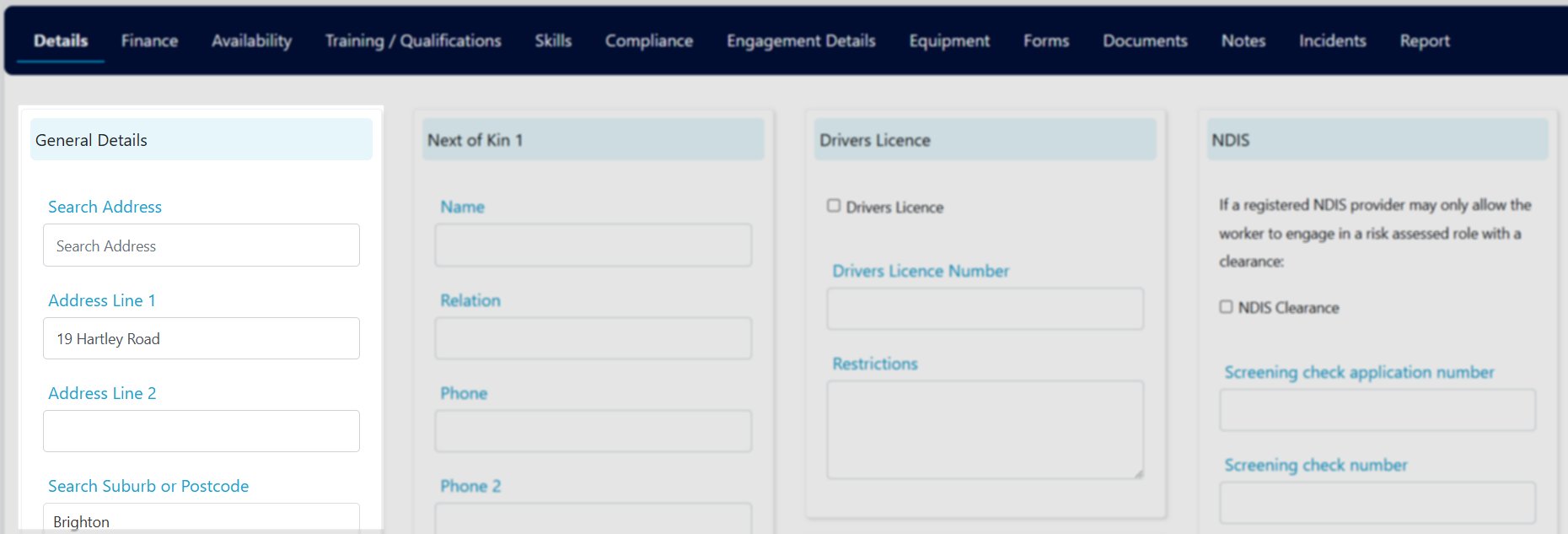
Open the **Details** tab to enter the worker's general information such as address, languages, and allergies.
To add or edit information, click in the field to type or select from the drop-down, then click **Save**. The page prompts you with a pop-up if you try to leave without saving.
Some profile fields are customisable for your organisation:
* **Areas** - configured in **Maintenance** → **Areas**
* **Divisions** - configured in **Maintenance** → **Divisions**
* **Groups** - configured in **Maintenance** → **Groups**
* **Payers** - configured in **Maintenance** → **Payers**
Open the **Details** tab to enter the worker's general information such as address, languages, and allergies.
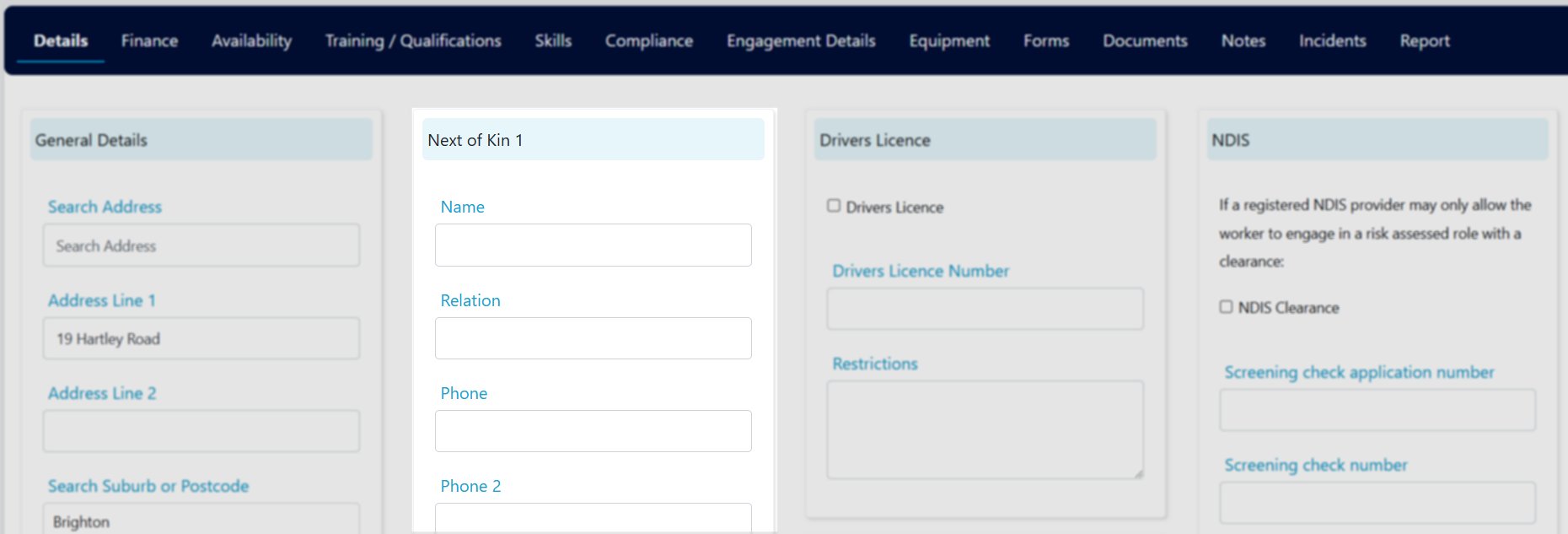
 In the **Next of Kin** section, enter contact details for up to two next of kin contacts.
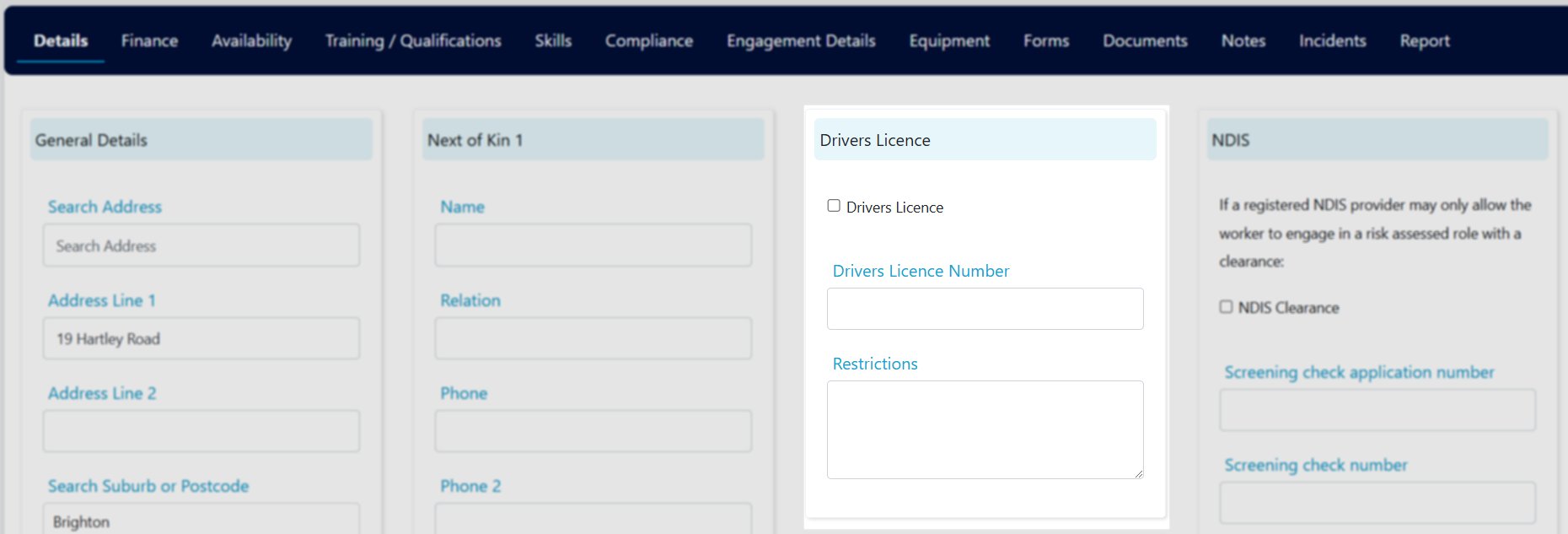
 If the worker holds a driver's licence, tick **Drivers Licence** and enter the relevant details.
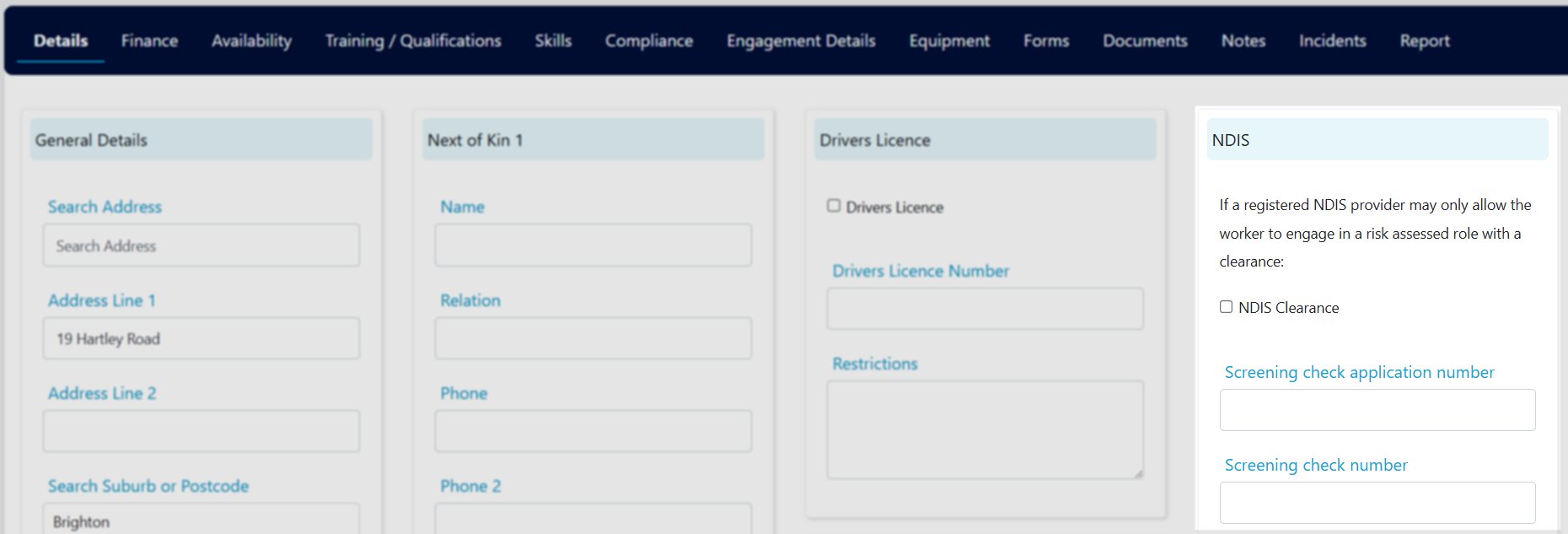
 Enter the worker's National Disability Insurance Scheme (NDIS) clearance details.
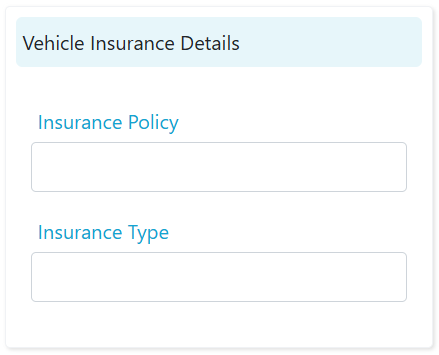
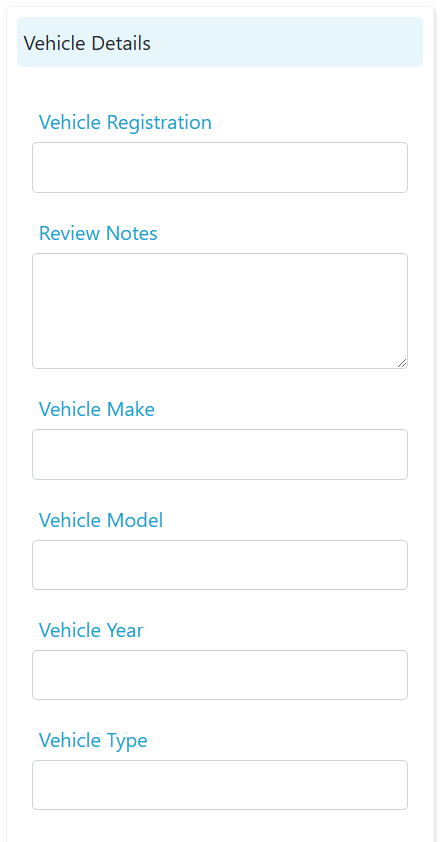
 If applicable, fill in the worker's vehicle insurance details (policy number and insurance type) and vehicle details (including registration number).
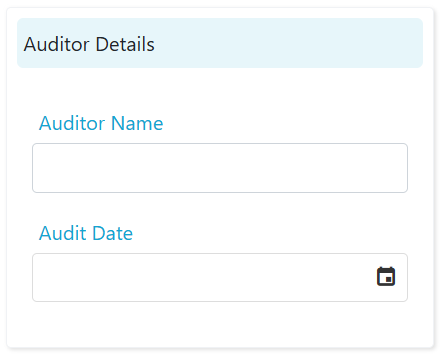
 Enter auditor details including name and date where relevant.
 Click **Save** at the top of the profile to save all changes. Continue populating the remaining tabs (skills, training, compliance, finance, and so on) as needed.
## Worker type, role, and employment type
Three fields on the worker profile serve different purposes:
| Field | Customisable? | Notes |
| ------------------- | ------------------------------------------------------ | ------------------------------------------------------------------------ |
| **Worker Type** | No - values are fixed and cannot be changed by clients | Adding new Worker Type values requires a developer request to Visualcare |
| **Role** | Yes - your organisation can edit the available options | Configured in the worker profile |
| **Employment Type** | Yes - free text field | Enter any value that suits your organisation |
## Customising the worker list
You have several options for customising how the worker list displays.
### Column chooser
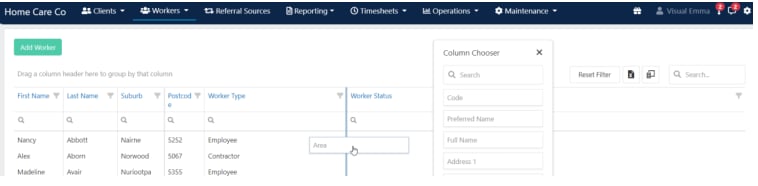
Click the **column chooser** icon in the top right corner to add additional headings to the worker list.
Click **Save** at the top of the profile to save all changes. Continue populating the remaining tabs (skills, training, compliance, finance, and so on) as needed.
## Worker type, role, and employment type
Three fields on the worker profile serve different purposes:
| Field | Customisable? | Notes |
| ------------------- | ------------------------------------------------------ | ------------------------------------------------------------------------ |
| **Worker Type** | No - values are fixed and cannot be changed by clients | Adding new Worker Type values requires a developer request to Visualcare |
| **Role** | Yes - your organisation can edit the available options | Configured in the worker profile |
| **Employment Type** | Yes - free text field | Enter any value that suits your organisation |
## Customising the worker list
You have several options for customising how the worker list displays.
### Column chooser
Click the **column chooser** icon in the top right corner to add additional headings to the worker list.
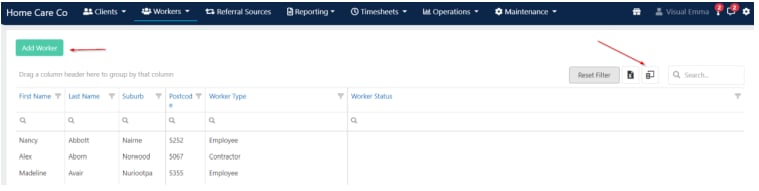 Drag additional headers into the header row. Change the sequence of columns by dragging and dropping headings.
 ### Export to Excel
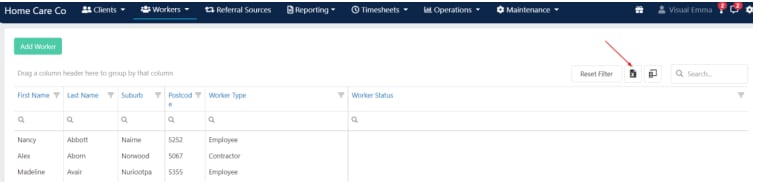
Export the worker list data to Excel by clicking the **Excel** icon.
### Export to Excel
Export the worker list data to Excel by clicking the **Excel** icon.
 ## Populating profiles via vOnboard
Worker details don't need to be entered manually. Workers complete their own details through the vOnboard portal.
To give a worker access to vOnboard, make sure their profile includes:
* **First Name**
* **Last Name**
* **Web Username**
* **Email**
* **Web Enabled** ticked
* **vOnboard Portal** ticked
Click **Send Login Details** to email an invite to the worker. They log in to the onboarding portal and fill in their information directly.
## Populating profiles via vOnboard
Worker details don't need to be entered manually. Workers complete their own details through the vOnboard portal.
To give a worker access to vOnboard, make sure their profile includes:
* **First Name**
* **Last Name**
* **Web Username**
* **Email**
* **Web Enabled** ticked
* **vOnboard Portal** ticked
Click **Send Login Details** to email an invite to the worker. They log in to the onboarding portal and fill in their information directly.
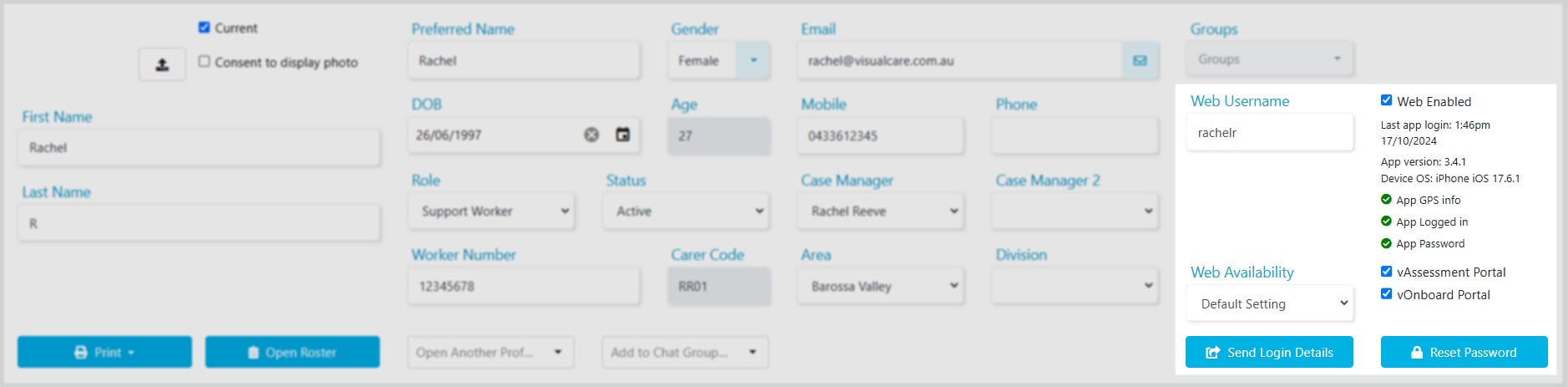 The **Case Manager** assigned in the worker profile receives an email alert when the worker makes changes in the onboarding portal.
## Running into issues?
See [Worker management troubleshooting](/troubleshooting/general) for common errors and fixes.
## Related articles
Set up award details and employment information
Add skills to a worker profile
Configure bank details and pay rate levels
Set up worker access to onboarding and mobile apps
The **Case Manager** assigned in the worker profile receives an email alert when the worker makes changes in the onboarding portal.
## Running into issues?
See [Worker management troubleshooting](/troubleshooting/general) for common errors and fixes.
## Related articles
Set up award details and employment information
Add skills to a worker profile
Configure bank details and pay rate levels
Set up worker access to onboarding and mobile apps