> ## Documentation Index
> Fetch the complete documentation index at: https://help.visualcare.com.au/llms.txt
> Use this file to discover all available pages before exploring further.
# Budget hours
> Set daily budget hours on a worker profile to prevent over-rostering in Visualcare
Budget hours per day define how many hours a worker is allocated across a seven-day week. This value flows through to rostering and helps prevent you from rostering a worker beyond their allocated hours.
## Setting budget hours
Open the worker's profile and navigate to the **Finance** tab. Locate the **Budget Hours per Day** field in the **Worker Details** section.
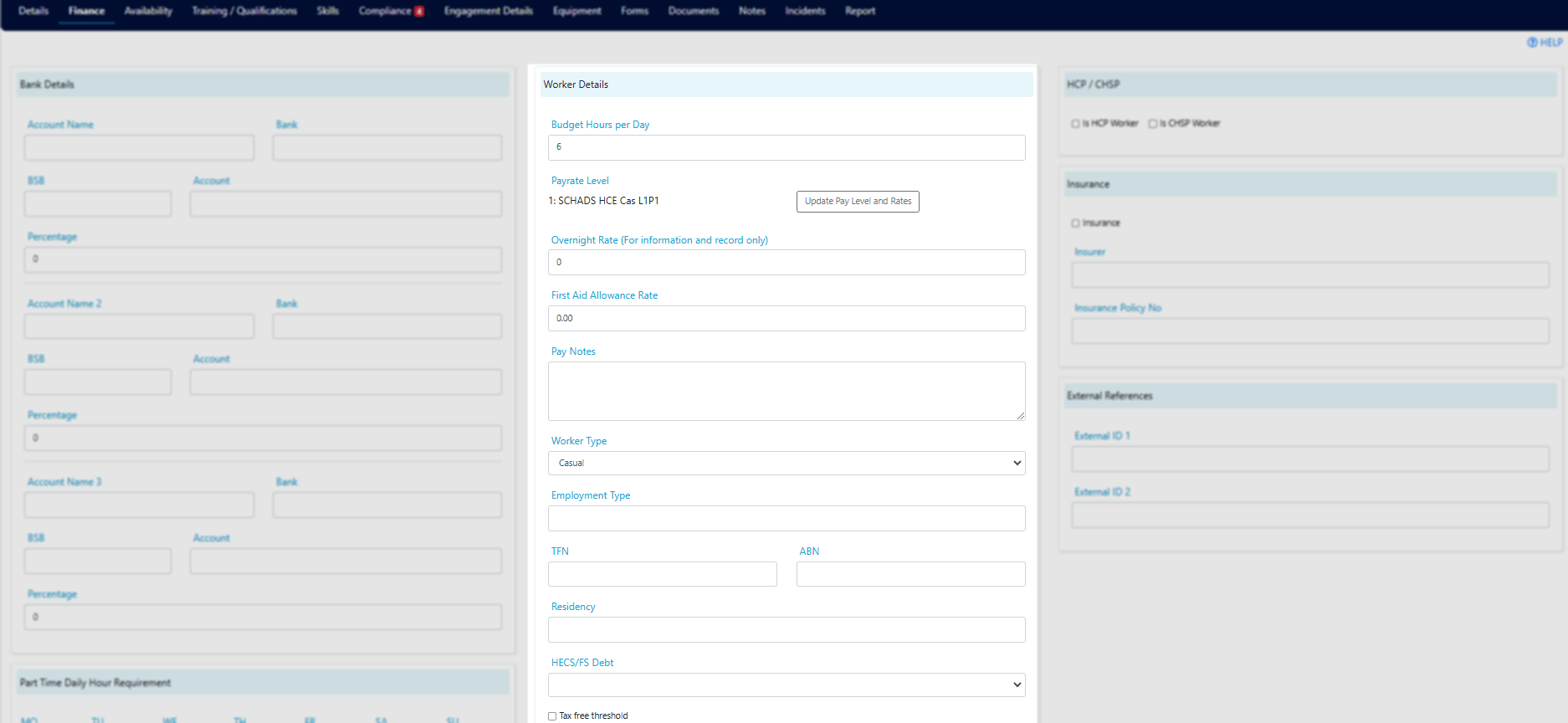 Enter the hours per day based on a seven-day week. For example, for a worker on 36 hours per week, divide by seven days to get 5.14 hours per day.
The budget hours value is used in rostering to flag when a worker is approaching or exceeding their allocated weekly hours. Keep this field up to date when a worker's contracted hours change.
## How it works
| Scenario | Calculation |
| ----------------------------- | --------------------------- |
| 38 hours per week | 38 / 7 = 5.43 hours per day |
| 36 hours per week | 36 / 7 = 5.14 hours per day |
| 25 hours per week (part-time) | 25 / 7 = 3.57 hours per day |
The system uses this daily figure multiplied across seven days to determine the worker's total weekly allocation. When rostering, you'll see a warning if a shift allocation would push the worker over their budgeted hours.
## Running into issues?
See [Worker management troubleshooting](/troubleshooting/general) for common errors and fixes.
## Related articles
Configure bank details and pay rate levels
Set when a worker is available for shifts
Configure award details and employment information
Enter the hours per day based on a seven-day week. For example, for a worker on 36 hours per week, divide by seven days to get 5.14 hours per day.
The budget hours value is used in rostering to flag when a worker is approaching or exceeding their allocated weekly hours. Keep this field up to date when a worker's contracted hours change.
## How it works
| Scenario | Calculation |
| ----------------------------- | --------------------------- |
| 38 hours per week | 38 / 7 = 5.43 hours per day |
| 36 hours per week | 36 / 7 = 5.14 hours per day |
| 25 hours per week (part-time) | 25 / 7 = 3.57 hours per day |
The system uses this daily figure multiplied across seven days to determine the worker's total weekly allocation. When rostering, you'll see a warning if a shift allocation would push the worker over their budgeted hours.
## Running into issues?
See [Worker management troubleshooting](/troubleshooting/general) for common errors and fixes.
## Related articles
Configure bank details and pay rate levels
Set when a worker is available for shifts
Configure award details and employment information