> ## Documentation Index
> Fetch the complete documentation index at: https://help.visualcare.com.au/llms.txt
> Use this file to discover all available pages before exploring further.
# Vworker: Logging in
> Step-by-step guide for workers to download, log in and configure the Vworker app
This guide covers how workers download the Vworker app, log in with their credentials and configure the app settings they need.
## System requirements
| Platform | Minimum version |
| -------- | --------------- |
| Android | 10 or above |
| iOS | iOS 11 or above |
## Instructions
Download **Vworker** from the **App Store** (for iPhone) or **Google Play** (for Android).
Open Vworker by tapping the app icon. Enter the login details that were emailed to the worker.
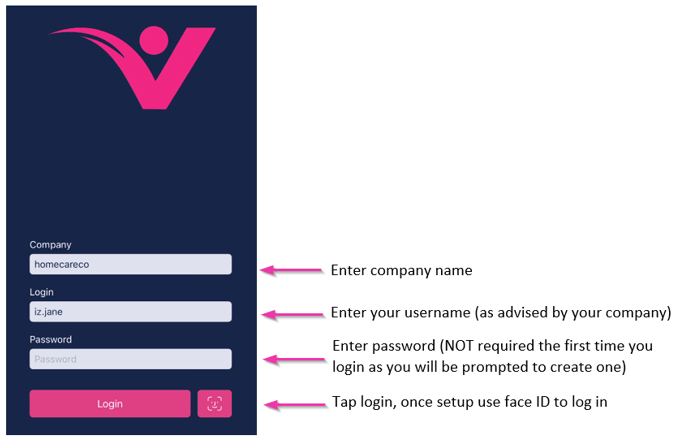 Once logged in, the worker needs to stay logged in to receive shift notifications. Logging out of the app stops all notifications.
When the app opens for the first time, select **Allow** when asked for notification and location permissions. These permissions can be changed later in the phone's settings under **Notifications** → **Vworker**.
Once logged in, the worker needs to stay logged in to receive shift notifications. Logging out of the app stops all notifications.
When the app opens for the first time, select **Allow** when asked for notification and location permissions. These permissions can be changed later in the phone's settings under **Notifications** → **Vworker**.
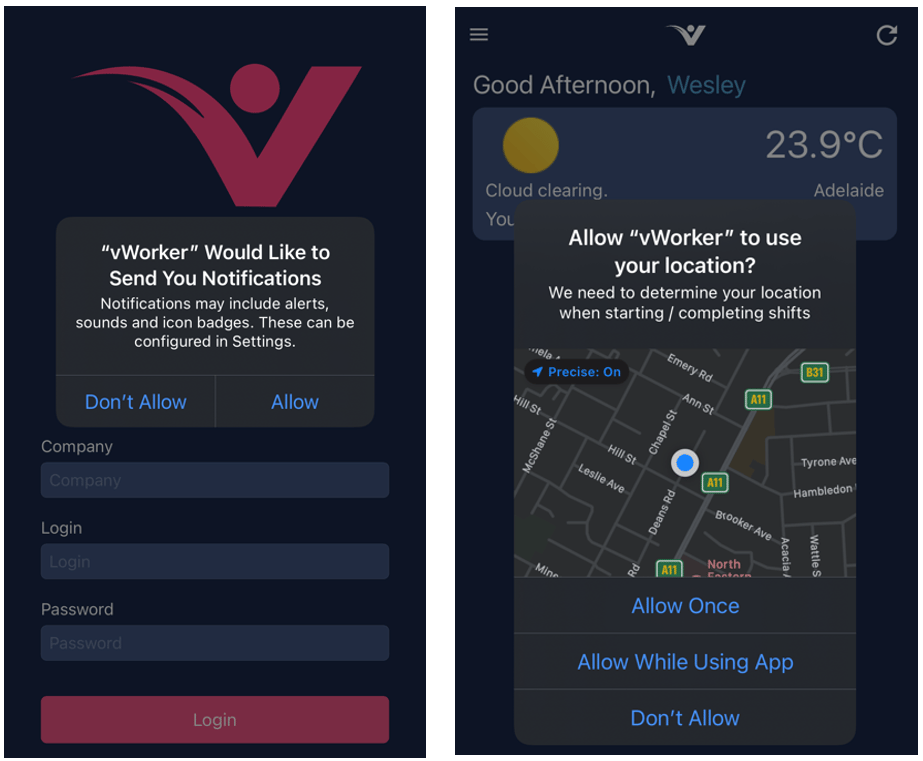 Some organisations require location services to be turned on at all times. Workers should check with their organisation's policy and procedures.
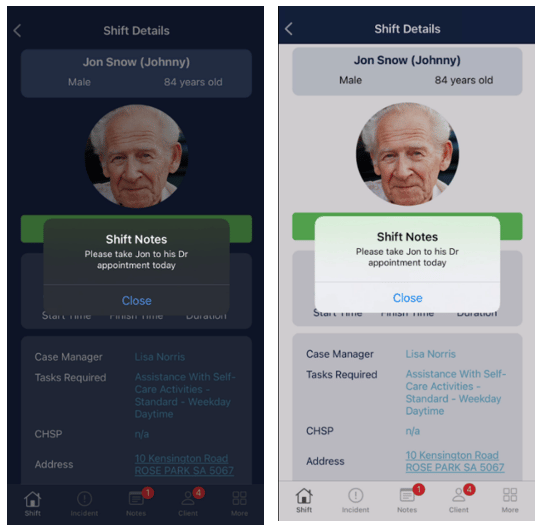
Vworker supports both dark and light mode. To change the display mode, go to the phone's **Display and Brightness** settings. The display mode can also be set to switch automatically based on daylight hours or a custom schedule.
Some organisations require location services to be turned on at all times. Workers should check with their organisation's policy and procedures.
Vworker supports both dark and light mode. To change the display mode, go to the phone's **Display and Brightness** settings. The display mode can also be set to switch automatically based on daylight hours or a custom schedule.
 For security and privacy, workers should have a password or screen lock on their phone. If a worker's phone is lost or stolen, they need to alert the office immediately so their access can be disconnected.
## Switching between companies
Workers who work for more than one organisation can switch between company accounts in Vworker without logging out.
The worker needs to have logged in to each company individually at least once before switching between them.
Tap **Menu** → **Switch Company**.
Tap the **pencil** icon, enter the name of the other company, then toggle **Add company directly** on.
Enter the username and password for the other company account, then tap **Send**.
If the worker doesn't know their password for the other company, they'll need to contact that organisation's office to have it reset.
## Running into issues?
See [Timesheet troubleshooting](/troubleshooting/timesheet-issues) for common errors and fixes.
## Related articles
Set up and send Vworker login details to workers from VCore
How workers start and complete shifts through the app
Overview of all features available in the Vworker app menu
For security and privacy, workers should have a password or screen lock on their phone. If a worker's phone is lost or stolen, they need to alert the office immediately so their access can be disconnected.
## Switching between companies
Workers who work for more than one organisation can switch between company accounts in Vworker without logging out.
The worker needs to have logged in to each company individually at least once before switching between them.
Tap **Menu** → **Switch Company**.
Tap the **pencil** icon, enter the name of the other company, then toggle **Add company directly** on.
Enter the username and password for the other company account, then tap **Send**.
If the worker doesn't know their password for the other company, they'll need to contact that organisation's office to have it reset.
## Running into issues?
See [Timesheet troubleshooting](/troubleshooting/timesheet-issues) for common errors and fixes.
## Related articles
Set up and send Vworker login details to workers from VCore
How workers start and complete shifts through the app
Overview of all features available in the Vworker app menu