> ## Documentation Index
> Fetch the complete documentation index at: https://help.visualcare.com.au/llms.txt
> Use this file to discover all available pages before exploring further.
# Worker select button
> How to use the worker select button to filter and find the right worker for a shift
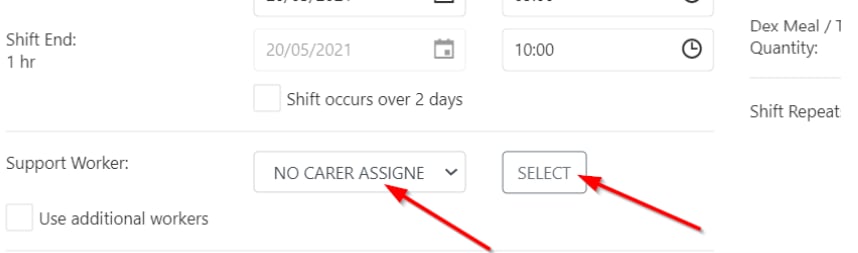
When creating or editing a shift, you can either choose a worker from the drop-down list or use the **Select** button to open a filtered search window. The select button helps you find the most suitable worker by filtering for compliance, availability, preferences, and distance.
## Using the select button
In the shift form, click the **Select** button next to the **Support Worker** field.
 This opens a new window that automatically filters for workers who are:
* Compliant with relevant requirements
* Not already rostered on another shift at that time
* Available on the day or at the time of the shift
* Preferred by the client (highlighted), while excluding non-preferred workers
## Filtering and searching
The select window provides several ways to find the right worker:
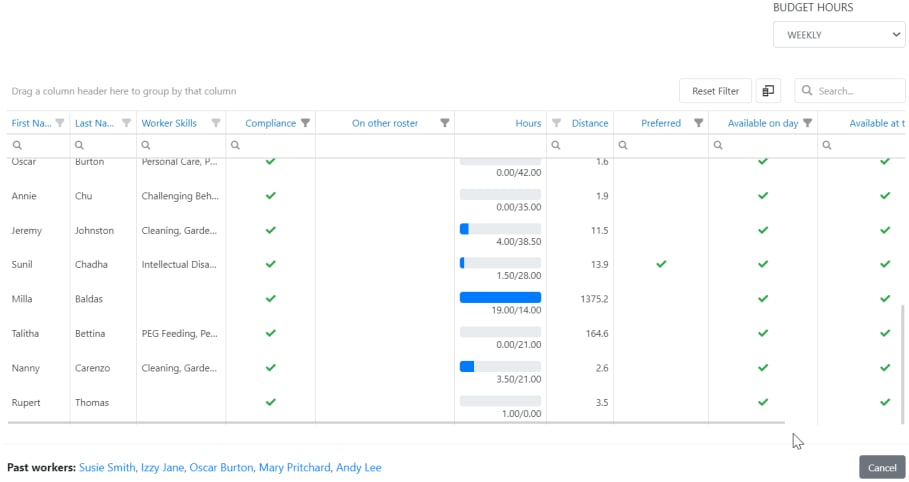
This opens a new window that automatically filters for workers who are:
* Compliant with relevant requirements
* Not already rostered on another shift at that time
* Available on the day or at the time of the shift
* Preferred by the client (highlighted), while excluding non-preferred workers
## Filtering and searching
The select window provides several ways to find the right worker:
 | Feature | Description |
| --------------------------- | --------------------------------------------------------------------------------------------------- |
| **Skills filter** | Search for workers with specific skills or qualifications |
| **Column filters** | Use the column headers to sort and filter by any visible field |
| **Distance (KM)** | View the distance in kilometres from the client's address to the worker's address |
| **Previous shift distance** | See the distance from the worker's previous shift location |
| **Previous workers** | View a list of workers who have previously been assigned to this client at the bottom of the window |
The drop-down list in the shift form shows all workers and is not filtered for compliance or availability. Use the **Select** button whenever you need to verify a worker is suitable for the shift.
## Multiple workers
If you need to assign more than one worker to a shift, tick **Use additional workers** in the shift form. This lets you assign up to four workers to one client for the same shift.
## Running into issues?
See [Scheduling troubleshooting](/troubleshooting/rostering-issues) for common errors and fixes.
## Related articles
Set up a client roster and create individual shifts
Identify and resolve shift conflicts
Send shift invitations to available workers
| Feature | Description |
| --------------------------- | --------------------------------------------------------------------------------------------------- |
| **Skills filter** | Search for workers with specific skills or qualifications |
| **Column filters** | Use the column headers to sort and filter by any visible field |
| **Distance (KM)** | View the distance in kilometres from the client's address to the worker's address |
| **Previous shift distance** | See the distance from the worker's previous shift location |
| **Previous workers** | View a list of workers who have previously been assigned to this client at the bottom of the window |
The drop-down list in the shift form shows all workers and is not filtered for compliance or availability. Use the **Select** button whenever you need to verify a worker is suitable for the shift.
## Multiple workers
If you need to assign more than one worker to a shift, tick **Use additional workers** in the shift form. This lets you assign up to four workers to one client for the same shift.
## Running into issues?
See [Scheduling troubleshooting](/troubleshooting/rostering-issues) for common errors and fixes.
## Related articles
Set up a client roster and create individual shifts
Identify and resolve shift conflicts
Send shift invitations to available workers