> ## Documentation Index
> Fetch the complete documentation index at: https://help.visualcare.com.au/llms.txt
> Use this file to discover all available pages before exploring further.
# Rostering workflows
> How to set up automated notification workflows for rostering events
Workflows let you set up automated notifications and task creation based on rostering events. When a trigger occurs (for example, a shift is updated or a worker is changed), the system can automatically send emails or create tasks for your team.
## Setting up a workflow
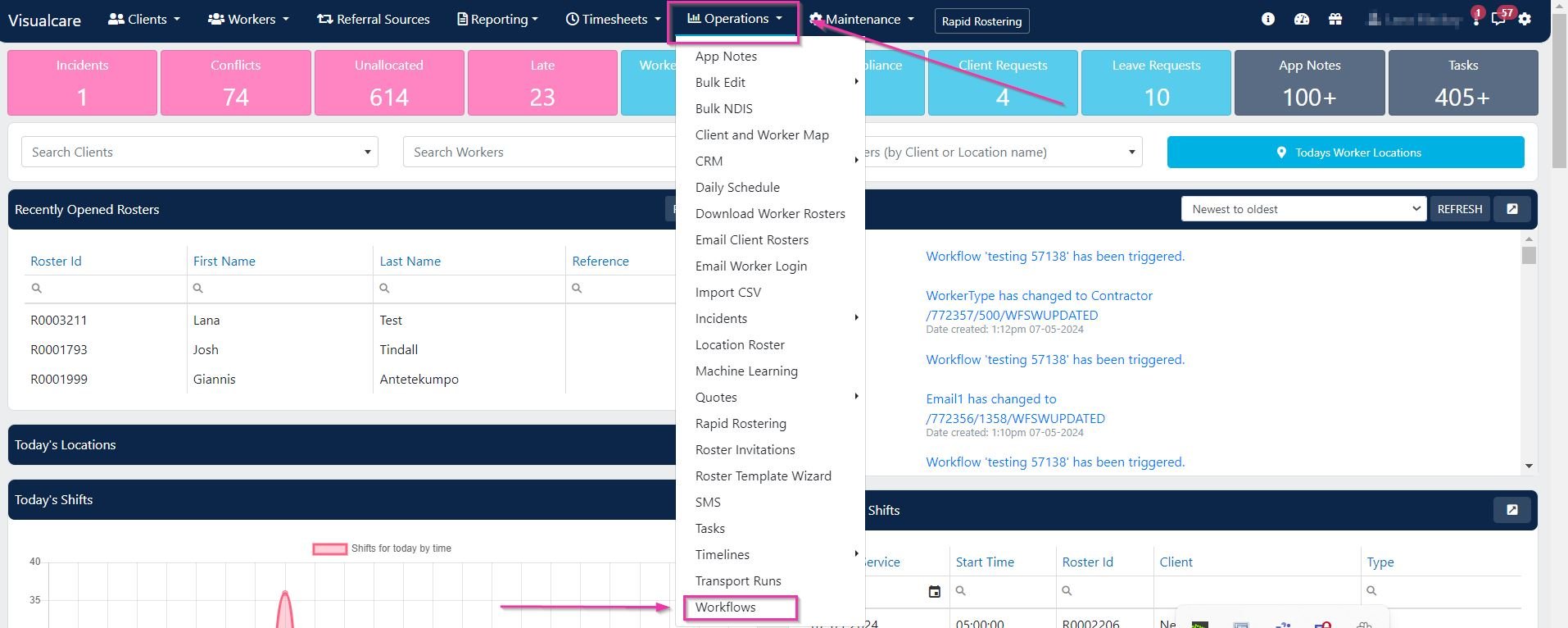
Go to **Operations** → **Workflows**.
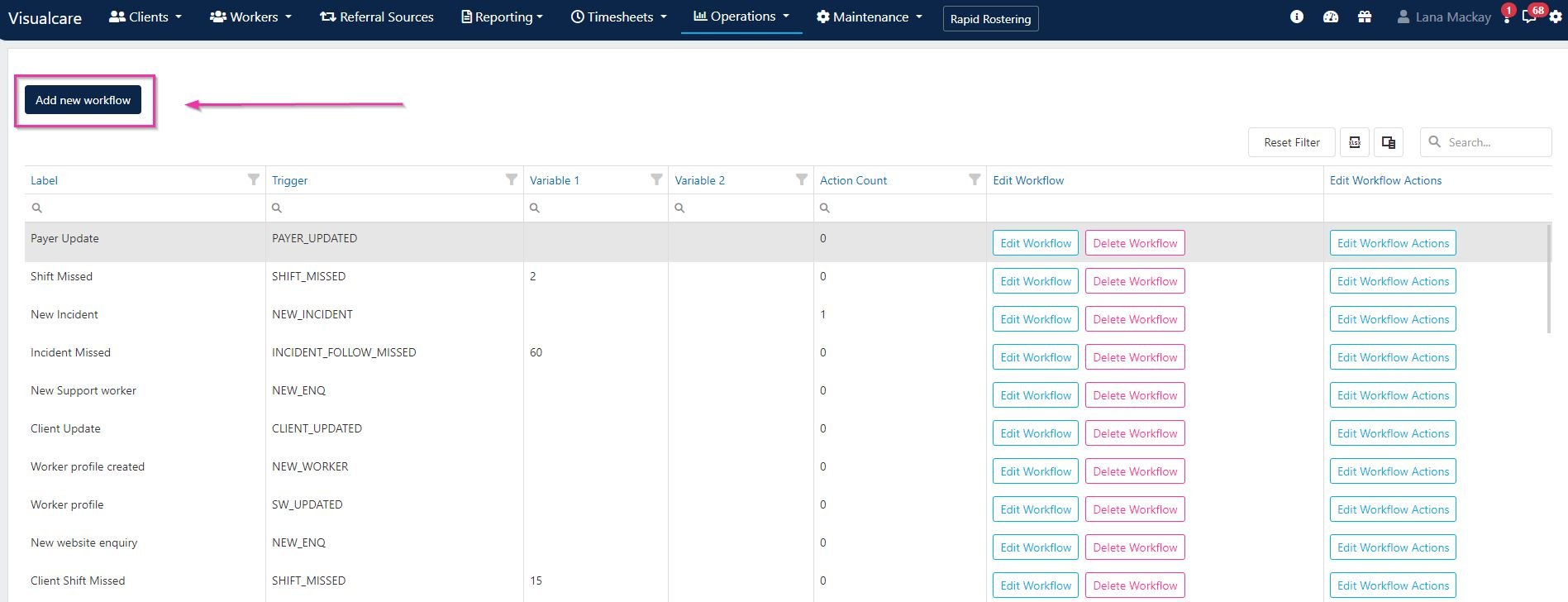
 Click **Add New Workflow**.
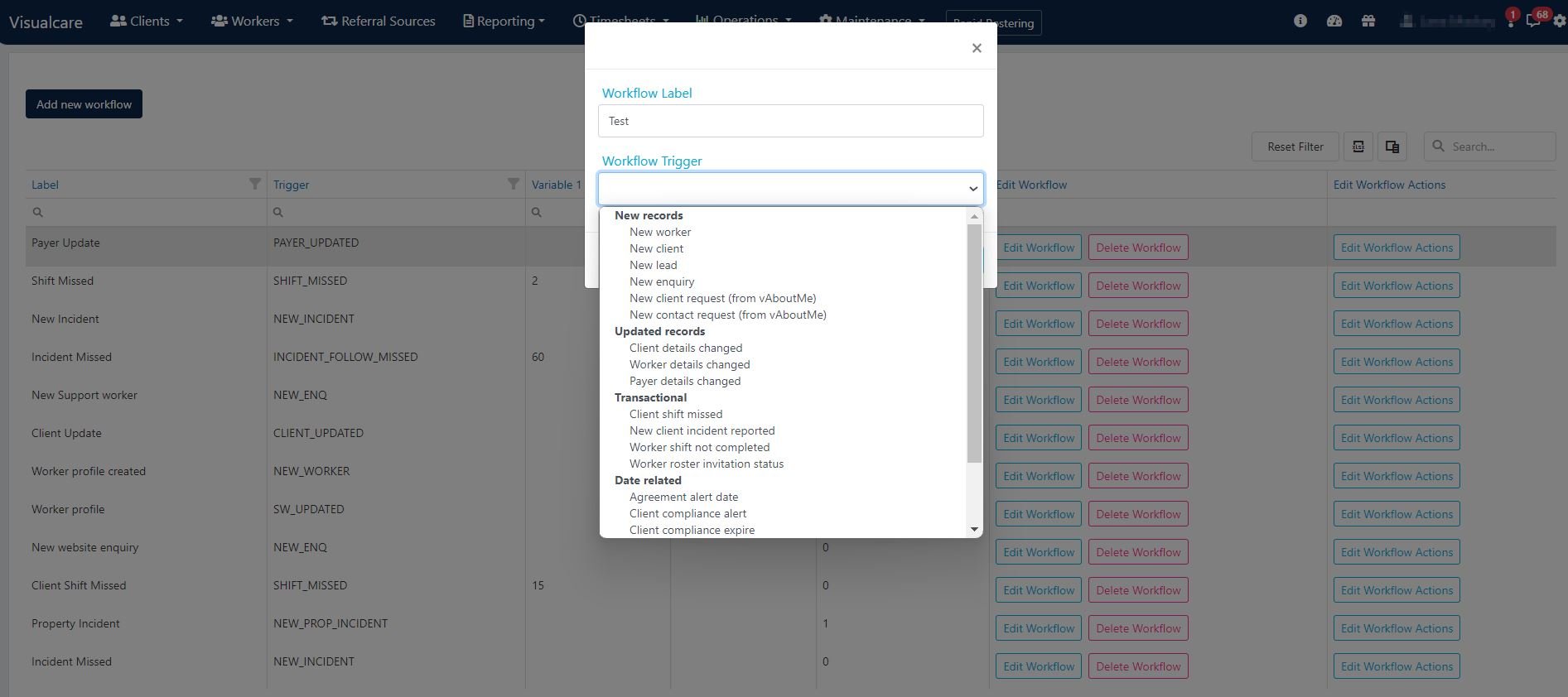
 Enter a name in the **Workflow Label** field and select a workflow trigger from the drop-down menu.
 Click **Edit Workflow Actions**, then click **Add Action**.
 Choose an action from the drop-down menu:
| Action | Description |
| ----------------------------------------- | ---------------------------------------------------------------------------------------------------------- |
| **Send an email to up to two recipients** | Enter email addresses in **Variable 1** and **Variable 2**. At least one email in **Variable 1** is needed |
| **Send an email to Case Manager 1** | Automatically emails the client's first case manager |
| **Send an email to Case Manager 2** | Automatically emails the client's second case manager |
| **Create a task** | Choose up to two users from the drop-down menus in **Variable 1** and **Variable 2** |
| **Create a task for Case Manager 1** | Creates a task for the client's first case manager |
| **Create a task for Case Manager 2** | Creates a task for the client's second case manager |
Choose an action from the drop-down menu:
| Action | Description |
| ----------------------------------------- | ---------------------------------------------------------------------------------------------------------- |
| **Send an email to up to two recipients** | Enter email addresses in **Variable 1** and **Variable 2**. At least one email in **Variable 1** is needed |
| **Send an email to Case Manager 1** | Automatically emails the client's first case manager |
| **Send an email to Case Manager 2** | Automatically emails the client's second case manager |
| **Create a task** | Choose up to two users from the drop-down menus in **Variable 1** and **Variable 2** |
| **Create a task for Case Manager 1** | Creates a task for the client's first case manager |
| **Create a task for Case Manager 2** | Creates a task for the client's second case manager |
 ## Managing workflows
Existing workflows can be edited or deleted from the workflows page.
## Managing workflows
Existing workflows can be edited or deleted from the workflows page.
 Workflows are useful for keeping case managers informed about roster changes without the need for manual communication. Set up a workflow to automatically notify case managers when shifts are added, changed, or cancelled.
## Running into issues?
See [Scheduling troubleshooting](/troubleshooting/rostering-issues) for common errors and fixes.
## Related articles
Configure general rostering settings
Send shift invitations to available workers
Edit one-off shifts, series, and manage leave
Workflows are useful for keeping case managers informed about roster changes without the need for manual communication. Set up a workflow to automatically notify case managers when shifts are added, changed, or cancelled.
## Running into issues?
See [Scheduling troubleshooting](/troubleshooting/rostering-issues) for common errors and fixes.
## Related articles
Configure general rostering settings
Send shift invitations to available workers
Edit one-off shifts, series, and manage leave