> ## Documentation Index
> Fetch the complete documentation index at: https://help.visualcare.com.au/llms.txt
> Use this file to discover all available pages before exploring further.
# Rostering configuration
> How to configure rostering settings including shift colours, time rules, display options, and more
Rostering settings control how shifts are displayed, how time rules are applied, and how various roster features behave across your organisation. To access these settings, click the cog icon in the top right of the page and go to **Settings** → **Rostering** tab.
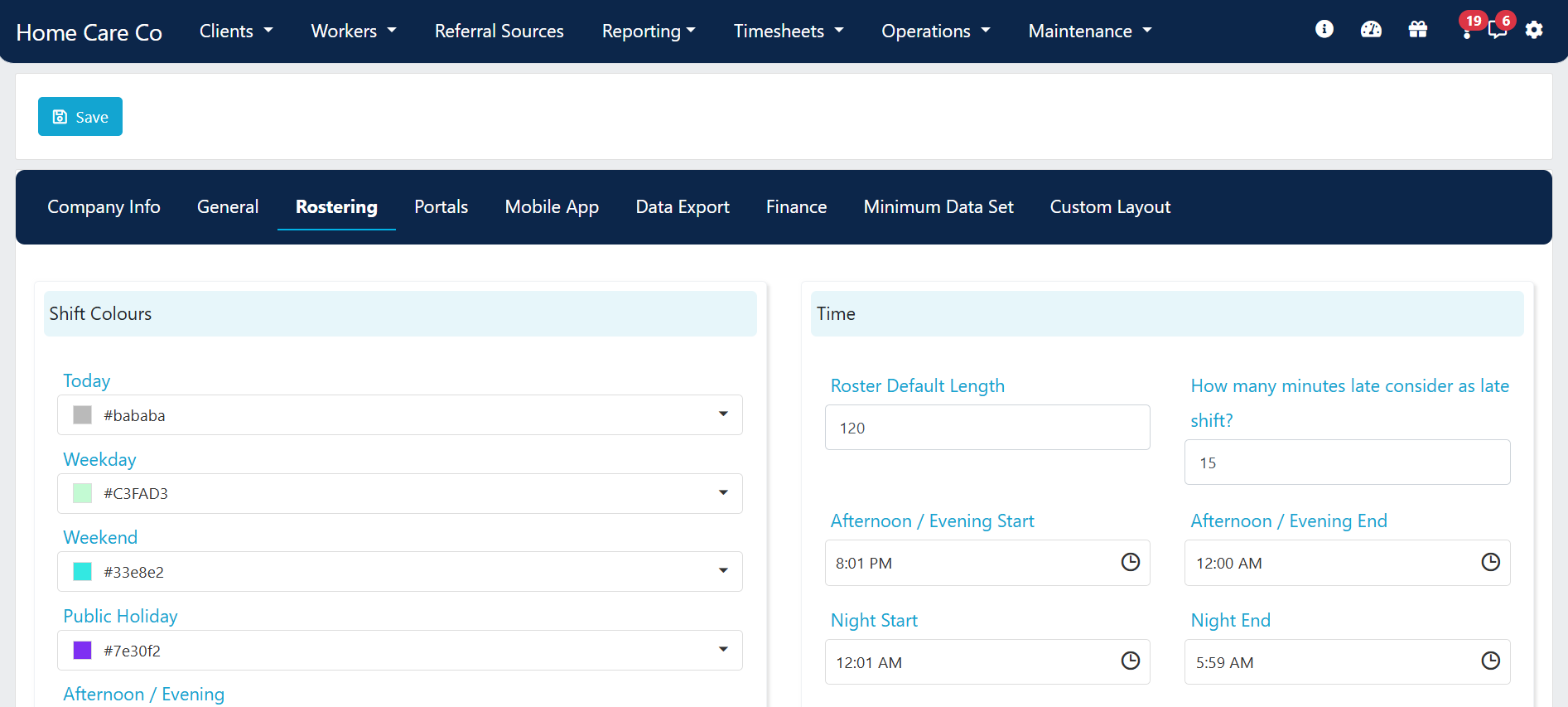 ## Shift colours
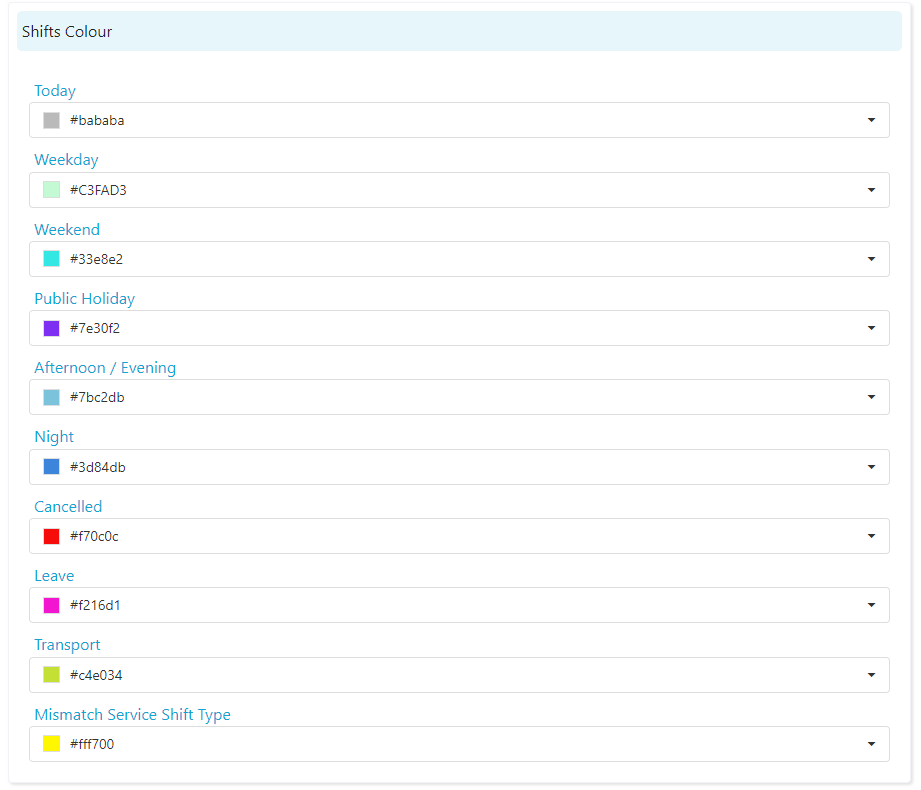
Customise the colour of each shift type displayed on your rosters. Click the drop-down list for each item type to select a colour.
## Shift colours
Customise the colour of each shift type displayed on your rosters. Click the drop-down list for each item type to select a colour.
 ## Time settings
Configure how shift times and durations are handled.
## Time settings
Configure how shift times and durations are handled.
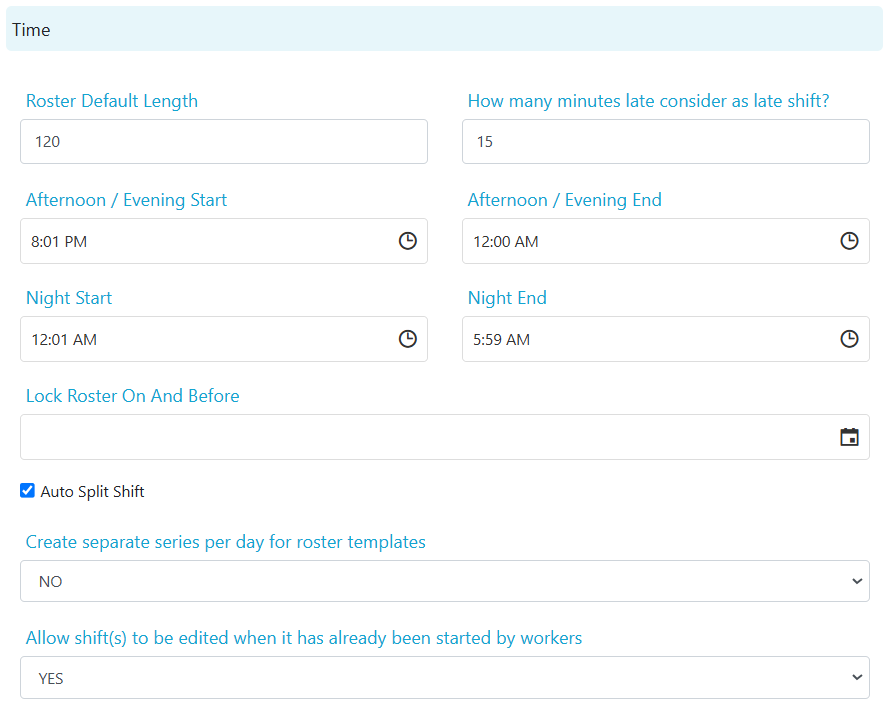 | Setting | Description |
| --------------------------------------------------------------- | ------------------------------------------------------------------------------------------------------------------------------------------------------------------------------------------------------------------------------------------ |
| **Roster default length** | Sets the default shift end time based on start time plus this value (in minutes) |
| **How many minutes late consider as late shift** | After this number of minutes, an unstarted shift appears in the late KPI on the home page |
| **Shift start/end times** | Define the start and end times for afternoon and night shifts. The rate link functionality (in **Maintenance** → **Services**) uses these values to automatically update the service code if a shift doesn't fall in the correct time slot |
| **Lock roster on and before** | Prevents changes to rosters and stops new shifts being added before a specific date. Useful at the end of financial year after all claiming, billing, and payroll is complete |
| **Auto split shift** | When ticked, the system automatically splits overnight shifts at midnight when they cross a pay rate boundary (for example, weekday to weekend or public holiday). Only applies to boundary-crossing shifts |
| **Create separate series per day for roster templates** | When on, the roster wizard creates a separate series for each day. When off, a single series is created for multiple days with the same shift details |
| **Allow shift(s) to be edited when already started by workers** | Allows editing of shifts on client and location rosters after a worker has started the shift. If the shift is completed, edits need to be made at the timesheet level instead |
## Display settings
Configure how rosters look and behave.
| Setting | Description |
| --------------------------------------------------------------- | ------------------------------------------------------------------------------------------------------------------------------------------------------------------------------------------------------------------------------------------ |
| **Roster default length** | Sets the default shift end time based on start time plus this value (in minutes) |
| **How many minutes late consider as late shift** | After this number of minutes, an unstarted shift appears in the late KPI on the home page |
| **Shift start/end times** | Define the start and end times for afternoon and night shifts. The rate link functionality (in **Maintenance** → **Services**) uses these values to automatically update the service code if a shift doesn't fall in the correct time slot |
| **Lock roster on and before** | Prevents changes to rosters and stops new shifts being added before a specific date. Useful at the end of financial year after all claiming, billing, and payroll is complete |
| **Auto split shift** | When ticked, the system automatically splits overnight shifts at midnight when they cross a pay rate boundary (for example, weekday to weekend or public holiday). Only applies to boundary-crossing shifts |
| **Create separate series per day for roster templates** | When on, the roster wizard creates a separate series for each day. When off, a single series is created for multiple days with the same shift details |
| **Allow shift(s) to be edited when already started by workers** | Allows editing of shifts on client and location rosters after a worker has started the shift. If the shift is completed, edits need to be made at the timesheet level instead |
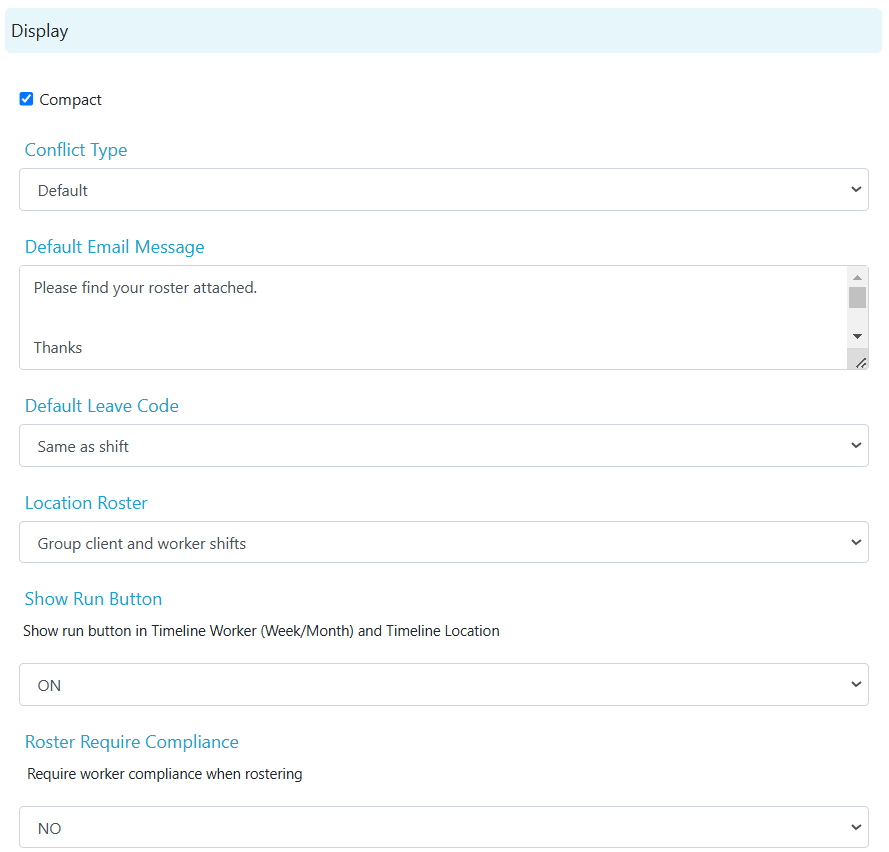
## Display settings
Configure how rosters look and behave.
 | Setting | Description |
| ------------------------- | --------------------------------------------------------------------------------------------------------------------------------------------------------------------------------------------------------------------------------------------------- |
| **Compact** | When ticked, each shift appears on one line in the client roster. When unticked, shifts expand into the available space for that day |
| **Conflict type** | **Default** highlights all conflicting shifts including overlapping end/start times. **Ignore back to back shifts** ignores conflicts where shifts are rostered consecutively (for example, one ending at 10:00am and the next starting at 10:00am) |
| **Default email message** | The default message included when you email a client their roster, either from the client roster or from **Operations** → **Email Client Rosters** |
| **Default leave code** | When marking a shift on leave: **No code** applies no leave code (no charge or pay, does not flow to timesheets). **Same as shift** uses the service code assigned to the shift as the default leave code |
| **Location roster** | Choose between **Group client and worker shifts** (green bar showing count of clients and workers) or **List client and worker shifts** (individual list with workers in pink and clients in blue) |
| **Show run button** | Enables or disables the **Run** button in **Operations** → **Timeline Worker (Week/Month)** and **Operations** → **Timeline Location**. The run button lets you set filters before loading data |
| Setting | Description |
| ------------------------- | --------------------------------------------------------------------------------------------------------------------------------------------------------------------------------------------------------------------------------------------------- |
| **Compact** | When ticked, each shift appears on one line in the client roster. When unticked, shifts expand into the available space for that day |
| **Conflict type** | **Default** highlights all conflicting shifts including overlapping end/start times. **Ignore back to back shifts** ignores conflicts where shifts are rostered consecutively (for example, one ending at 10:00am and the next starting at 10:00am) |
| **Default email message** | The default message included when you email a client their roster, either from the client roster or from **Operations** → **Email Client Rosters** |
| **Default leave code** | When marking a shift on leave: **No code** applies no leave code (no charge or pay, does not flow to timesheets). **Same as shift** uses the service code assigned to the shift as the default leave code |
| **Location roster** | Choose between **Group client and worker shifts** (green bar showing count of clients and workers) or **List client and worker shifts** (individual list with workers in pink and clients in blue) |
| **Show run button** | Enables or disables the **Run** button in **Operations** → **Timeline Worker (Week/Month)** and **Operations** → **Timeline Location**. The run button lets you set filters before loading data |
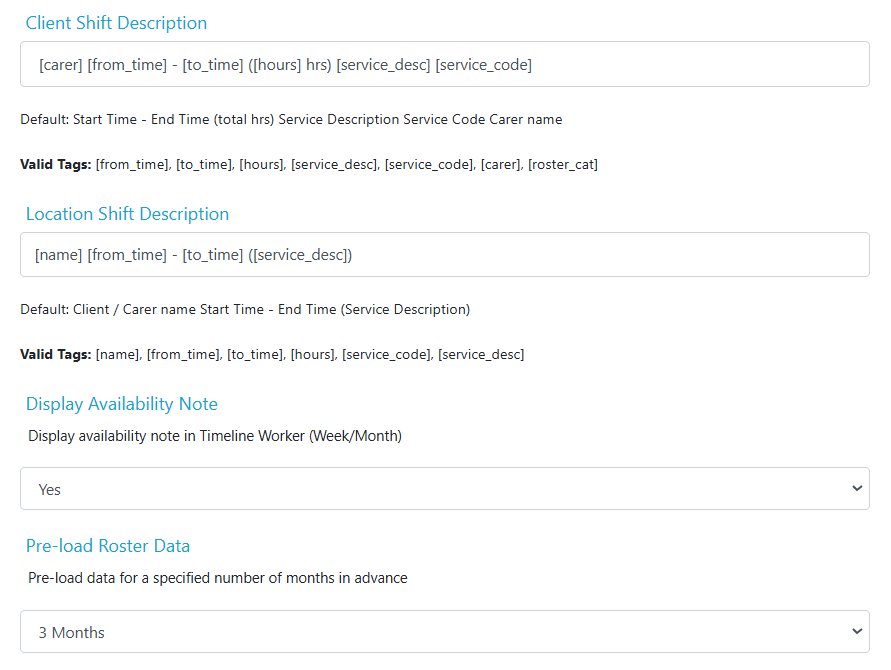 | Setting | Description |
| ----------------------------------------------- | --------------------------------------------------------------------------------------------------------------------------------------- |
| **Client shift and location shift description** | Customise how shifts appear on rosters. Copy valid tags from the list and paste them into the text box to change the description format |
| **Display availability note** | Switch on or off the display of availability notes in **Operations** → **Timeline Worker (Week/Month)** |
| **Pre-load roster data** | Set how much data loads at once when viewing a roster, from one to six months |
## Shift type boundary behaviour
When a shift falls exactly on a time boundary between two shift types (for example, evening and night), Visualcare classifies it based on the shift's **start time**. A shift that starts before the night period begins is classified as an evening shift, even if it runs entirely within night hours.
For example, if night is set to start at 12:01 AM and morning at 6:00 AM, a shift from 12:00 AM to 6:00 AM is classified as evening because it starts one minute before the night period. Adjusting the night start to include 12:00 AM would fix this specific shift but may affect how other shifts are classified.
If your organisation regularly rosters shifts that fall on a boundary (for example, 12:00 AM to 6:00 AM), consider turning off rate links for the affected night service to prevent incorrect automatic rate changes.
## Running into issues?
See [Scheduling troubleshooting](/troubleshooting/rostering-issues) for common errors and fixes.
## Related articles
Set up a client roster and create shifts
Identify and resolve shift conflicts
View and manage rosters across workers and clients
Send roster summaries to clients
| Setting | Description |
| ----------------------------------------------- | --------------------------------------------------------------------------------------------------------------------------------------- |
| **Client shift and location shift description** | Customise how shifts appear on rosters. Copy valid tags from the list and paste them into the text box to change the description format |
| **Display availability note** | Switch on or off the display of availability notes in **Operations** → **Timeline Worker (Week/Month)** |
| **Pre-load roster data** | Set how much data loads at once when viewing a roster, from one to six months |
## Shift type boundary behaviour
When a shift falls exactly on a time boundary between two shift types (for example, evening and night), Visualcare classifies it based on the shift's **start time**. A shift that starts before the night period begins is classified as an evening shift, even if it runs entirely within night hours.
For example, if night is set to start at 12:01 AM and morning at 6:00 AM, a shift from 12:00 AM to 6:00 AM is classified as evening because it starts one minute before the night period. Adjusting the night start to include 12:00 AM would fix this specific shift but may affect how other shifts are classified.
If your organisation regularly rosters shifts that fall on a boundary (for example, 12:00 AM to 6:00 AM), consider turning off rate links for the affected night service to prevent incorrect automatic rate changes.
## Running into issues?
See [Scheduling troubleshooting](/troubleshooting/rostering-issues) for common errors and fixes.
## Related articles
Set up a client roster and create shifts
Identify and resolve shift conflicts
View and manage rosters across workers and clients
Send roster summaries to clients