> ## Documentation Index
> Fetch the complete documentation index at: https://help.visualcare.com.au/llms.txt
> Use this file to discover all available pages before exploring further.
# Email client rosters
> How to email roster summaries to clients individually or in bulk
You can email rosters to clients individually or in bulk. Rosters are sent as PDF or CSV attachments with a customisable message.
## Emailing client rosters
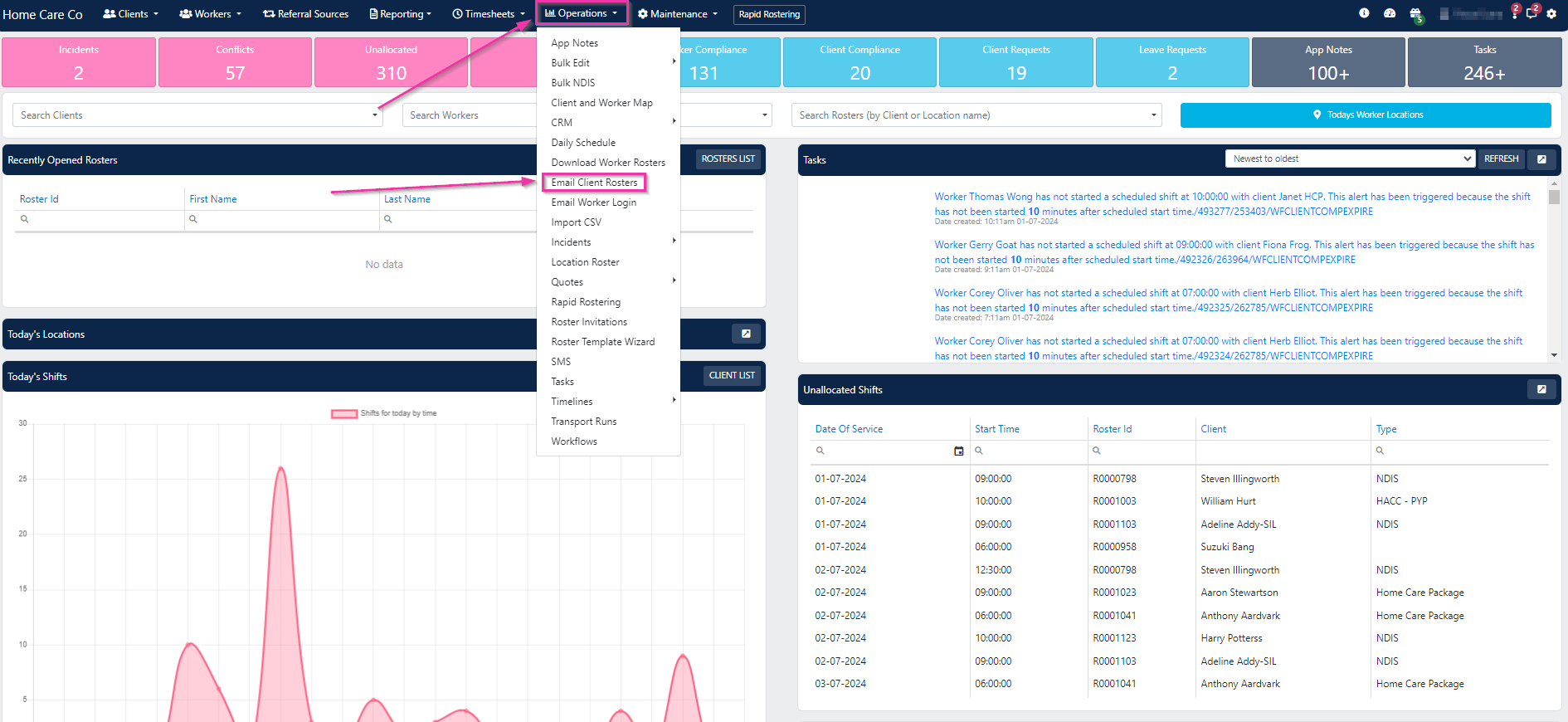
Go to **Operations** → **Email Client Rosters**.
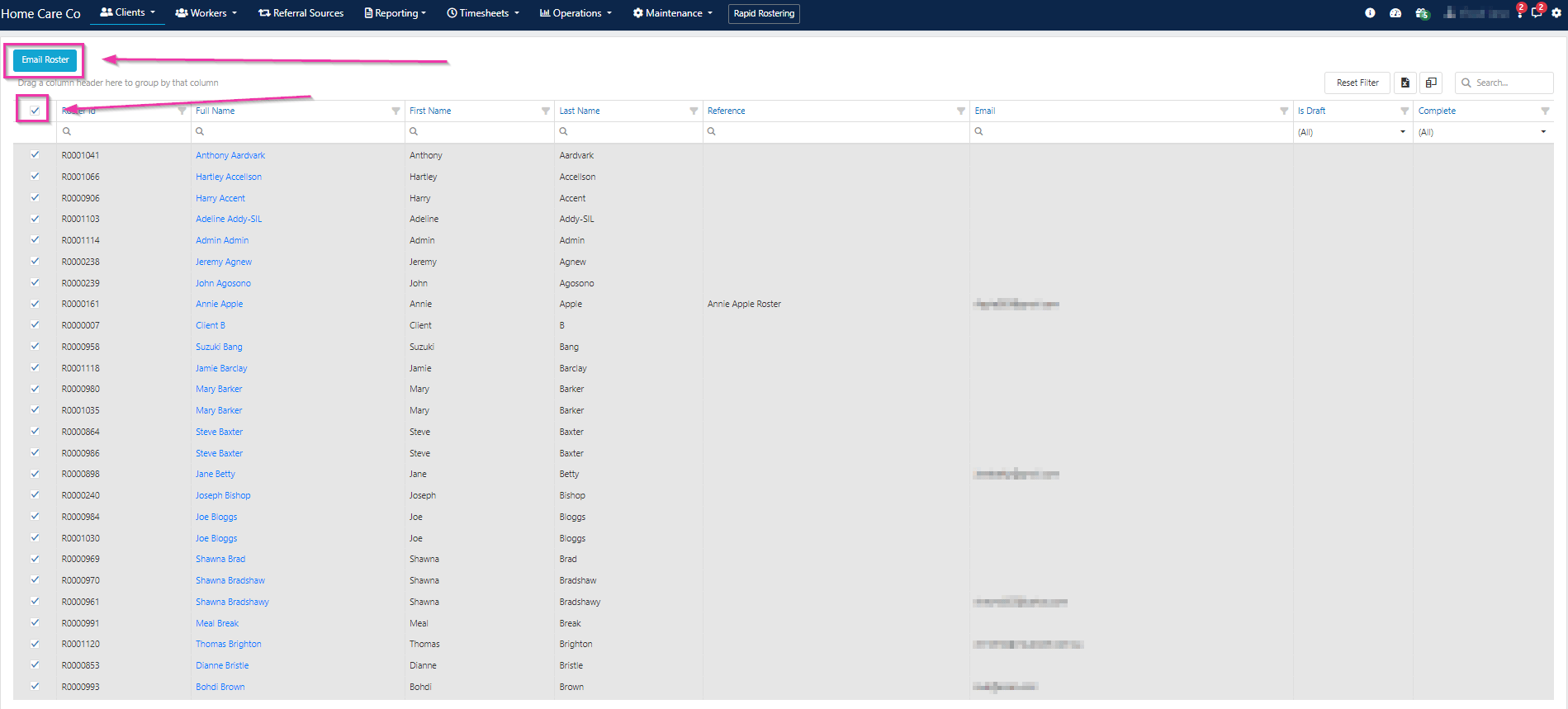
 All current clients appear in the list. Use the column filters to narrow down the list, then tick the clients you want to send rosters to. Use **Select All** to send to all active clients.
Click **Email Roster**.
All current clients appear in the list. Use the column filters to narrow down the list, then tick the clients you want to send rosters to. Use **Select All** to send to all active clients.
Click **Email Roster**.
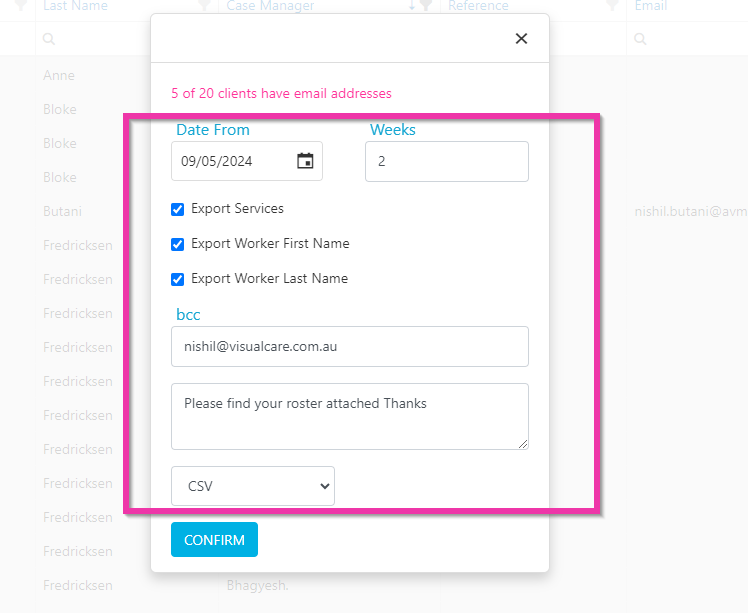
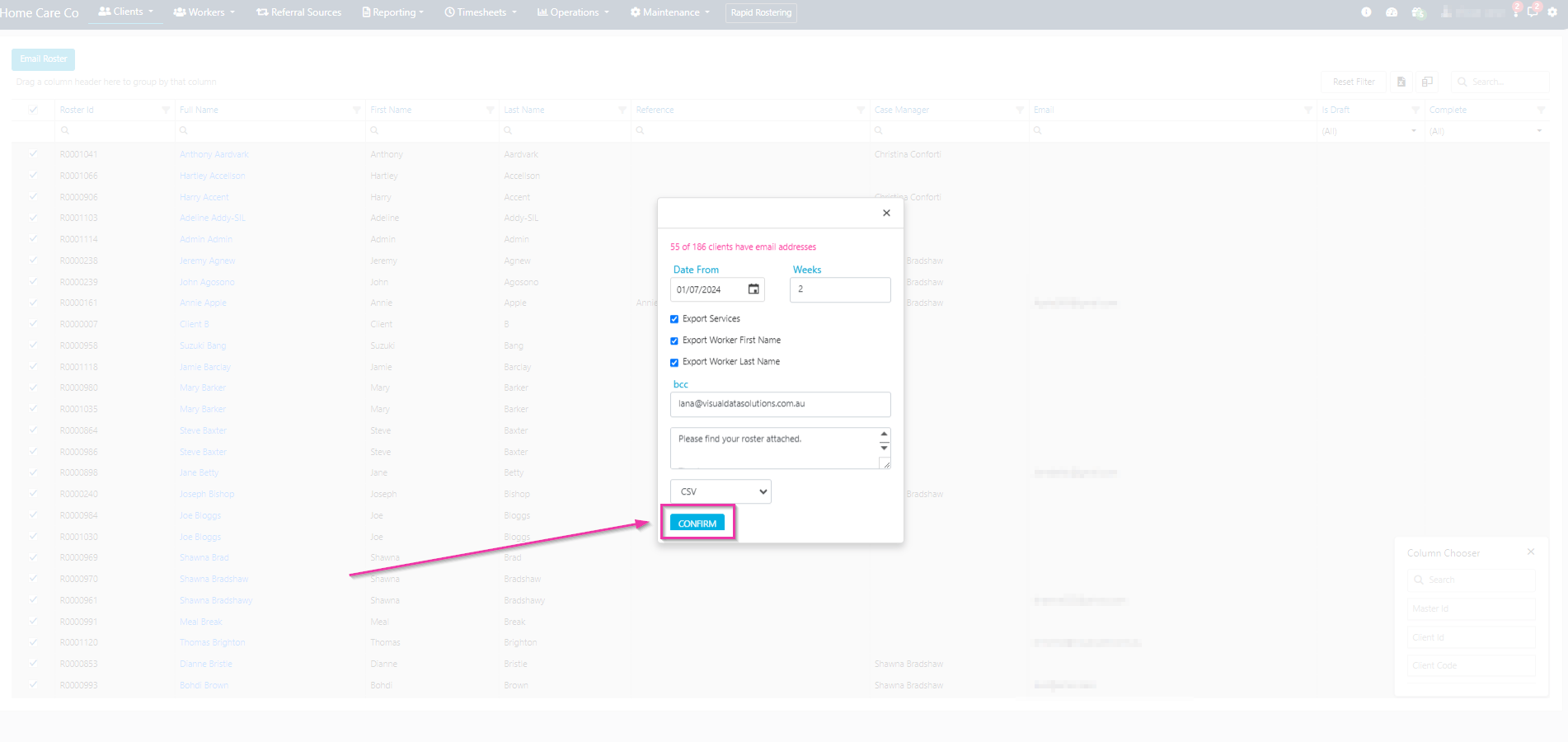
 In the confirmation dialogue, set the following:
| Field | Description |
| ------------------- | ---------------------------------------- |
| **Start date** | Beginning of the date range |
| **Number of weeks** | How many weeks of roster data to include |
| **Services** | Include service details |
| **Worker details** | Include worker information |
| **Format** | PDF or CSV |
| **Message** | Customisable email message to the client |
In the confirmation dialogue, set the following:
| Field | Description |
| ------------------- | ---------------------------------------- |
| **Start date** | Beginning of the date range |
| **Number of weeks** | How many weeks of roster data to include |
| **Services** | Include service details |
| **Worker details** | Include worker information |
| **Format** | PDF or CSV |
| **Message** | Customisable email message to the client |
 The system shows how many of the selected clients have an email address on their profile. Only clients with an email address can receive the roster.
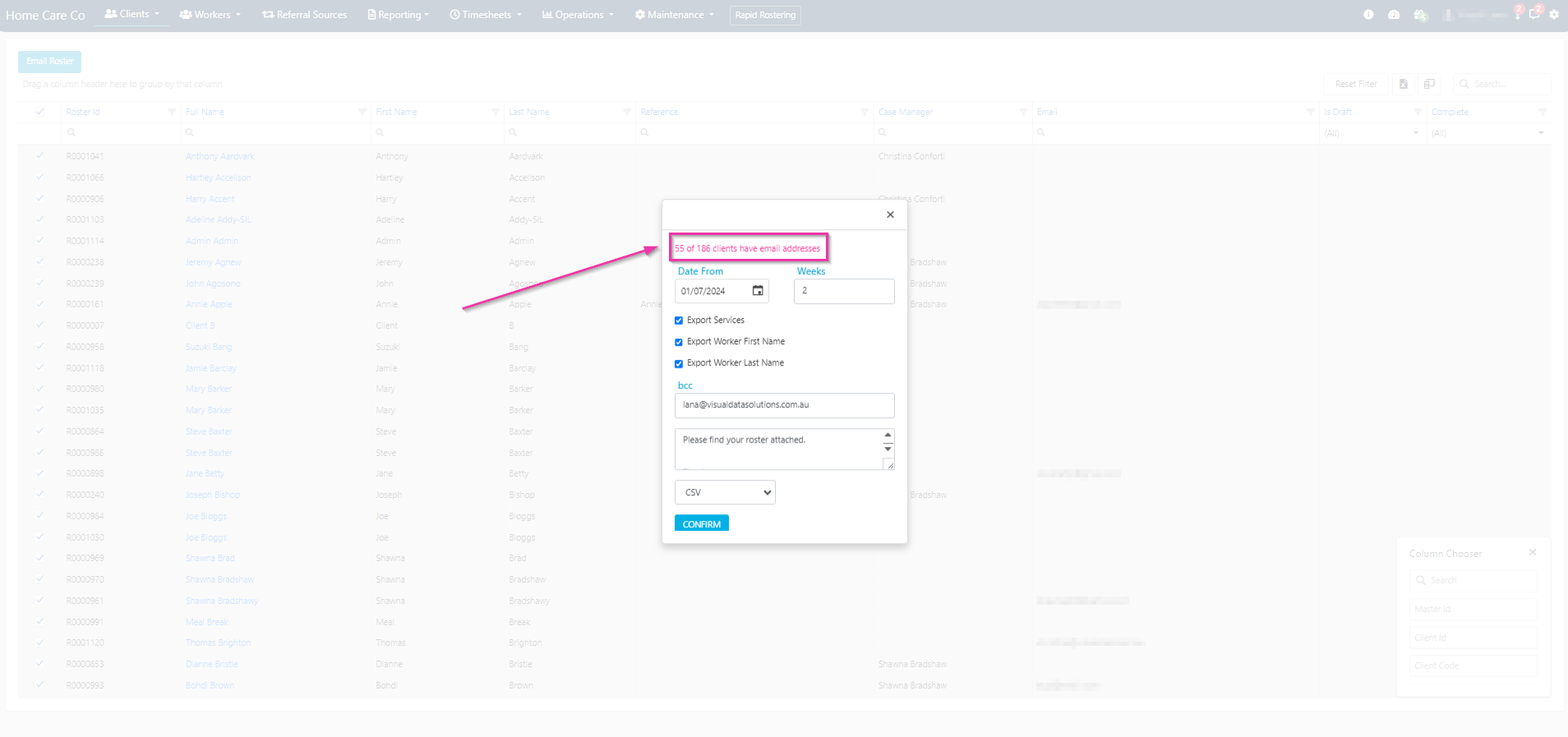 If a client doesn't have an email address, add one to their client profile before sending.
Click **Confirm** to send the client rosters.
If a client doesn't have an email address, add one to their client profile before sending.
Click **Confirm** to send the client rosters.
 The default email message can be configured in **Settings** → **Rostering** → **Display** → **Default Email Message**. This message is used whenever you send a client their roster via email.
## Running into issues?
See [Scheduling troubleshooting](/troubleshooting/rostering-issues) for common errors and fixes.
## Related articles
Bulk download worker rosters as PDF or Excel
Configure default email message and other settings
The default email message can be configured in **Settings** → **Rostering** → **Display** → **Default Email Message**. This message is used whenever you send a client their roster via email.
## Running into issues?
See [Scheduling troubleshooting](/troubleshooting/rostering-issues) for common errors and fixes.
## Related articles
Bulk download worker rosters as PDF or Excel
Configure default email message and other settings