> ## Documentation Index
> Fetch the complete documentation index at: https://help.visualcare.com.au/llms.txt
> Use this file to discover all available pages before exploring further.
# Editing shifts
> How to edit existing shifts, manage series, handle leave, and navigate the client roster
Once a roster has been created, edit individual shifts, single items in a series, or entire series. This page also covers roster navigation, leave management, and other roster tools.
## Roster navigation
The client roster screen includes several quick-access features at the top of the page.
### Hyperlinks
Click on the hyperlinks at the top of the roster screen to quickly access related information:
* **Client Name** - opens the client profile page
* **Address** - shows the location on Google Maps
* **Email** - opens a new email to the client
 ### Toolbar
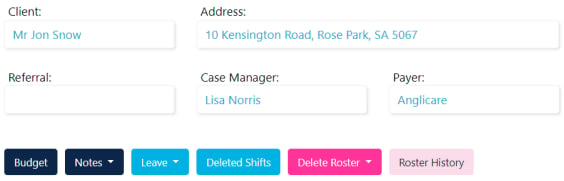
The toolbar provides access to budget, notes, leave, deleted shifts, and roster history.
### Toolbar
The toolbar provides access to budget, notes, leave, deleted shifts, and roster history.
 ### Publish toggle
* **Publish ON** - workers see their shifts and get notifications as shifts are updated, added, or deleted
* **Publish OFF** - workers don't see any shifts on their phone. Make changes without triggering notifications
### Complete a roster
When a roster is finished (for example, the client has ceased services), click **Complete**. Then filter out completed rosters in your roster list.
### Publish toggle
* **Publish ON** - workers see their shifts and get notifications as shifts are updated, added, or deleted
* **Publish OFF** - workers don't see any shifts on their phone. Make changes without triggering notifications
### Complete a roster
When a roster is finished (for example, the client has ceased services), click **Complete**. Then filter out completed rosters in your roster list.
 ## Editing a recurring roster
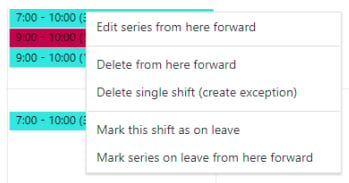
Right-click on a recurring roster item to see the available options:
## Editing a recurring roster
Right-click on a recurring roster item to see the available options:
 | Option | What it does |
| ------------------------------------------ | ---------------------------------------------------------------------------- |
| **Edit series from here forward** | Make changes and click **Save** to update all future shifts in the series |
| **Delete from here forward** | Deletes the entire series from that day forward |
| **Delete single shift (create exception)** | Deletes one rostered item in a series and creates an exception |
| **Mark this shift as on leave** | Opens leave options for this shift. Apply this to multiple entries as needed |
| **Mark series on leave from here forward** | Marks the series on leave from that date forward |
| Option | What it does |
| ------------------------------------------ | ---------------------------------------------------------------------------- |
| **Edit series from here forward** | Make changes and click **Save** to update all future shifts in the series |
| **Delete from here forward** | Deletes the entire series from that day forward |
| **Delete single shift (create exception)** | Deletes one rostered item in a series and creates an exception |
| **Mark this shift as on leave** | Opens leave options for this shift. Apply this to multiple entries as needed |
| **Mark series on leave from here forward** | Marks the series on leave from that date forward |
 ## Editing a one-off or single item in a series
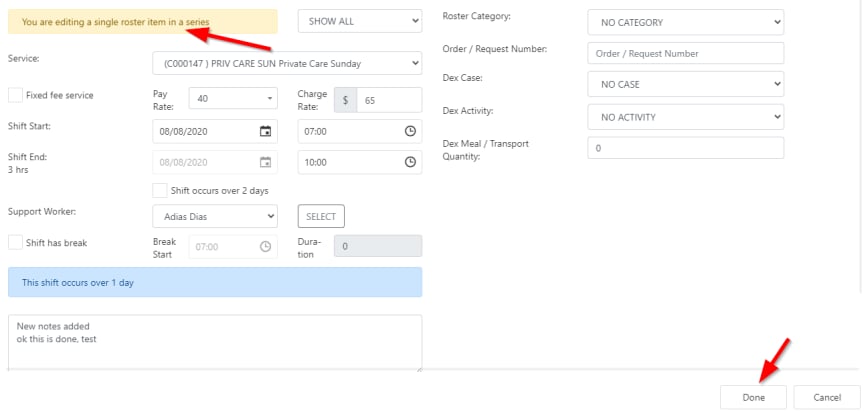
Double-click on the item and change the details. A message at the top of the screen confirms you're editing a single roster item.
## Editing a one-off or single item in a series
Double-click on the item and change the details. A message at the top of the screen confirms you're editing a single roster item.
 ## Editing an entire series
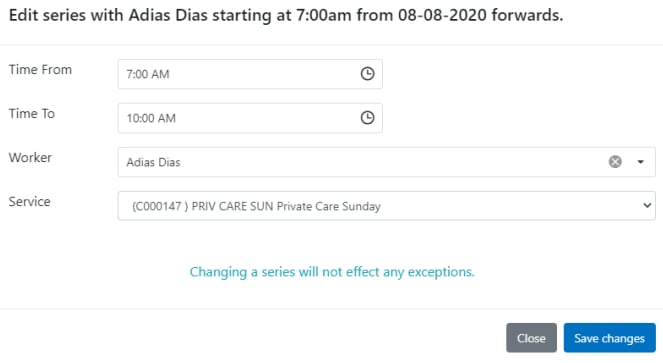
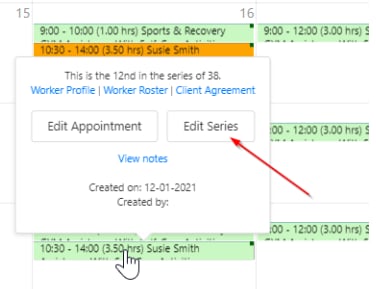
Left-click on one of the roster items in the series and select **Edit Series**.
## Editing an entire series
Left-click on one of the roster items in the series and select **Edit Series**.
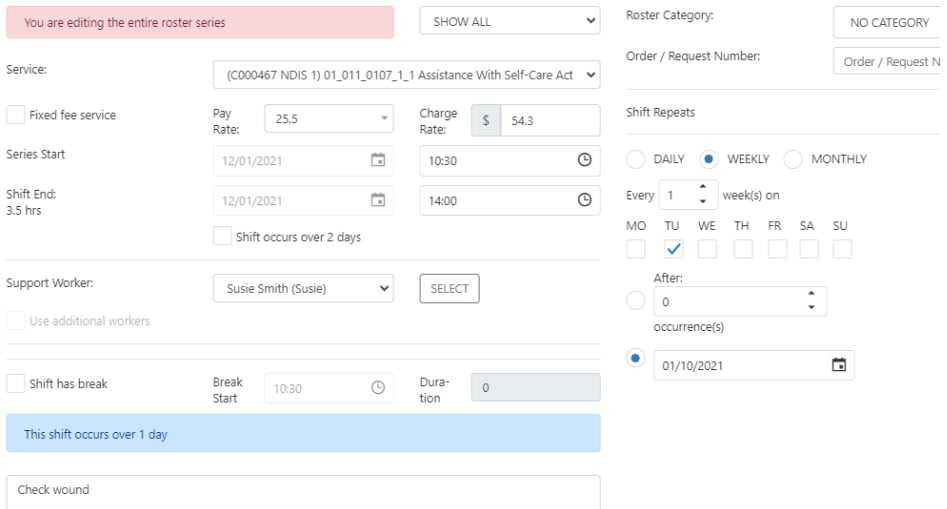
 A message at the top of the screen confirms "You are editing the entire roster series".
 ## Managing leave and cancellations
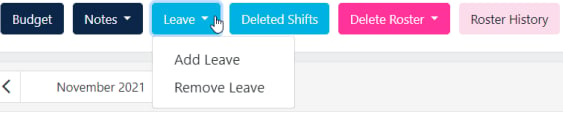
To enter leave or a cancellation for a client, select the **Leave** button at the top left of the roster. Select a date range or multiple individual items at once. Alternatively, right-click on a shift or series to add leave directly.
## Managing leave and cancellations
To enter leave or a cancellation for a client, select the **Leave** button at the top left of the roster. Select a date range or multiple individual items at once. Alternatively, right-click on a shift or series to add leave directly.
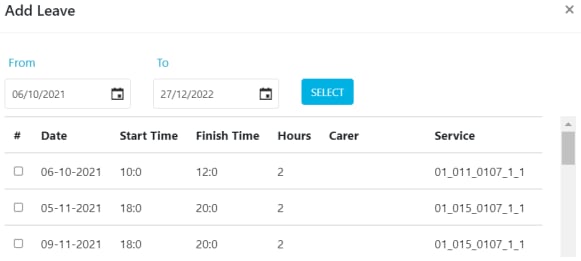
 Select the date range to highlight tick boxes, or select items individually, then click **Next**.
 Select the type of leave or cancellation and configure the relevant charge and pay settings, then click **Save**.
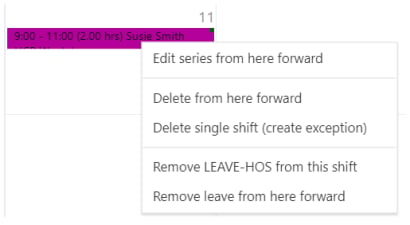
 Right-click on a shift to see the leave type and to remove leave from the shift or series if needed.
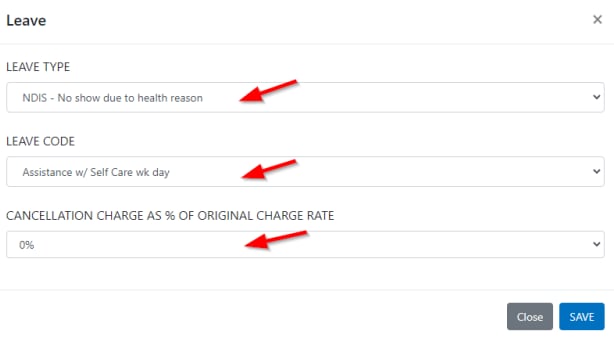
 ### Leave charge and pay options
The client is not charged but the worker is paid.
* Select **Leave Type** and **Leave Code**
* Reduce **Cancellation Charge %** to 0%
* Leave **Pay Hours** as is (defaults to full shift pay hours, or enter reduced hours as per your policies)
### Leave charge and pay options
The client is not charged but the worker is paid.
* Select **Leave Type** and **Leave Code**
* Reduce **Cancellation Charge %** to 0%
* Leave **Pay Hours** as is (defaults to full shift pay hours, or enter reduced hours as per your policies)
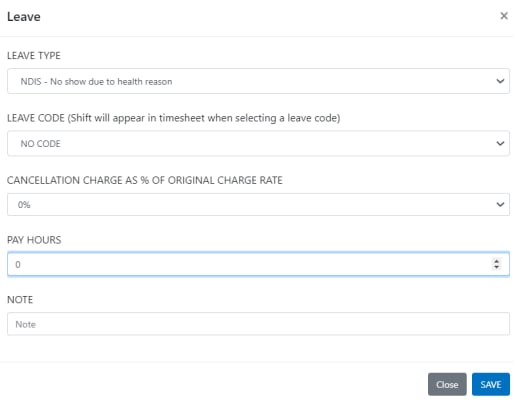
 Neither the client nor the worker is paid.
* Set **Leave Code** to **No Code** to make sure the leave is not sent to timesheets for invoicing or payroll
Neither the client nor the worker is paid.
* Set **Leave Code** to **No Code** to make sure the leave is not sent to timesheets for invoicing or payroll
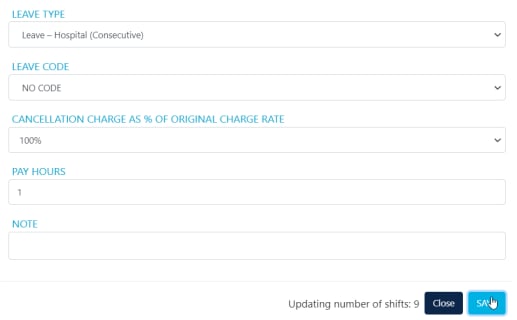
 Both the client is charged and the worker is paid.
* Select **Leave Type** and **Leave Code**
* Set **Cancellation Charge %** to 100% (or a reduced percentage as per your arrangement)
* Leave **Pay Hours** as is (defaults to full shift pay hours, or enter reduced hours as per your policies)
Both the client is charged and the worker is paid.
* Select **Leave Type** and **Leave Code**
* Set **Cancellation Charge %** to 100% (or a reduced percentage as per your arrangement)
* Leave **Pay Hours** as is (defaults to full shift pay hours, or enter reduced hours as per your policies)
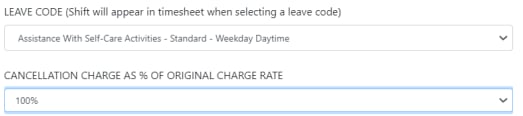 The client is charged but the worker is not paid.
* Select **Leave Code** and set **Cancellation Charge %** to 100% (or a reduced percentage)
* Update **Pay Hours** to zero (or enter reduced hours as per your policies)
The client is charged but the worker is not paid.
* Select **Leave Code** and set **Cancellation Charge %** to 100% (or a reduced percentage)
* Update **Pay Hours** to zero (or enter reduced hours as per your policies)
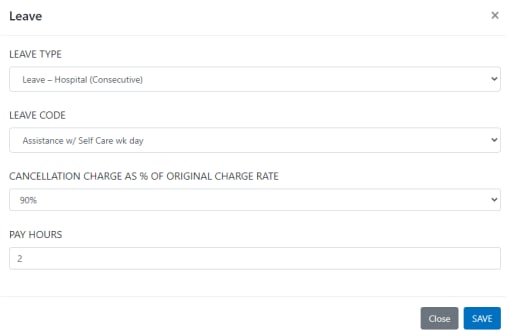 ## Roster notes
Click the **Notes** icon in the toolbar to view notes in the roster area.
## Roster notes
Click the **Notes** icon in the toolbar to view notes in the roster area.
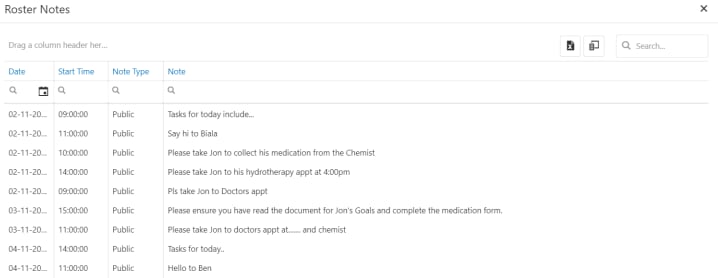
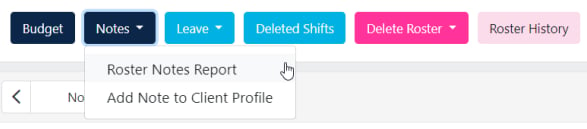 Produce a roster notes report by selecting a date range and clicking **Submit**.
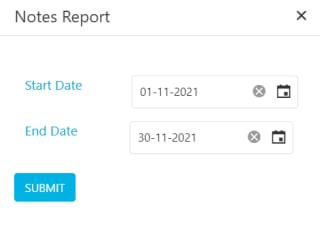 The report lists all roster notes entered when creating a shift or shift repeat. Export to Excel if needed.
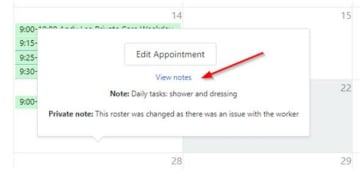
 To view notes for a specific shift, left-click on the shift and select **View Notes**.
 ## Deleting shifts and rosters
### Delete shifts from a date
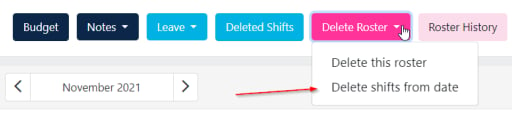
Select **Delete Roster** then **Delete shifts from date** to remove all shifts from a specific date.
## Deleting shifts and rosters
### Delete shifts from a date
Select **Delete Roster** then **Delete shifts from date** to remove all shifts from a specific date.
 ### Recover deleted shifts
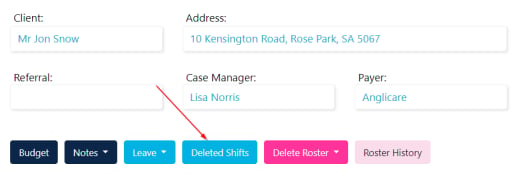
Go to **Deleted Shifts** in the top left corner of the roster and select shifts to reinstate.
### Recover deleted shifts
Go to **Deleted Shifts** in the top left corner of the roster and select shifts to reinstate.
 Deleting a roster removes it permanently. Use the **Complete** function instead if the client has simply ceased services.
## Running into issues?
See [Scheduling troubleshooting](/troubleshooting/rostering-issues) for common errors and fixes.
## Related articles
Set up a client roster and create individual shifts
Set up repeating shift patterns and split shifts
View budget details while working in the roster
Identify and resolve shift conflicts
Deleting a roster removes it permanently. Use the **Complete** function instead if the client has simply ceased services.
## Running into issues?
See [Scheduling troubleshooting](/troubleshooting/rostering-issues) for common errors and fixes.
## Related articles
Set up a client roster and create individual shifts
Set up repeating shift patterns and split shifts
View budget details while working in the roster
Identify and resolve shift conflicts