> ## Documentation Index
> Fetch the complete documentation index at: https://help.visualcare.com.au/llms.txt
> Use this file to discover all available pages before exploring further.
# Expenses report
> Run reports on all expenses created in Visualcare within a selected date range
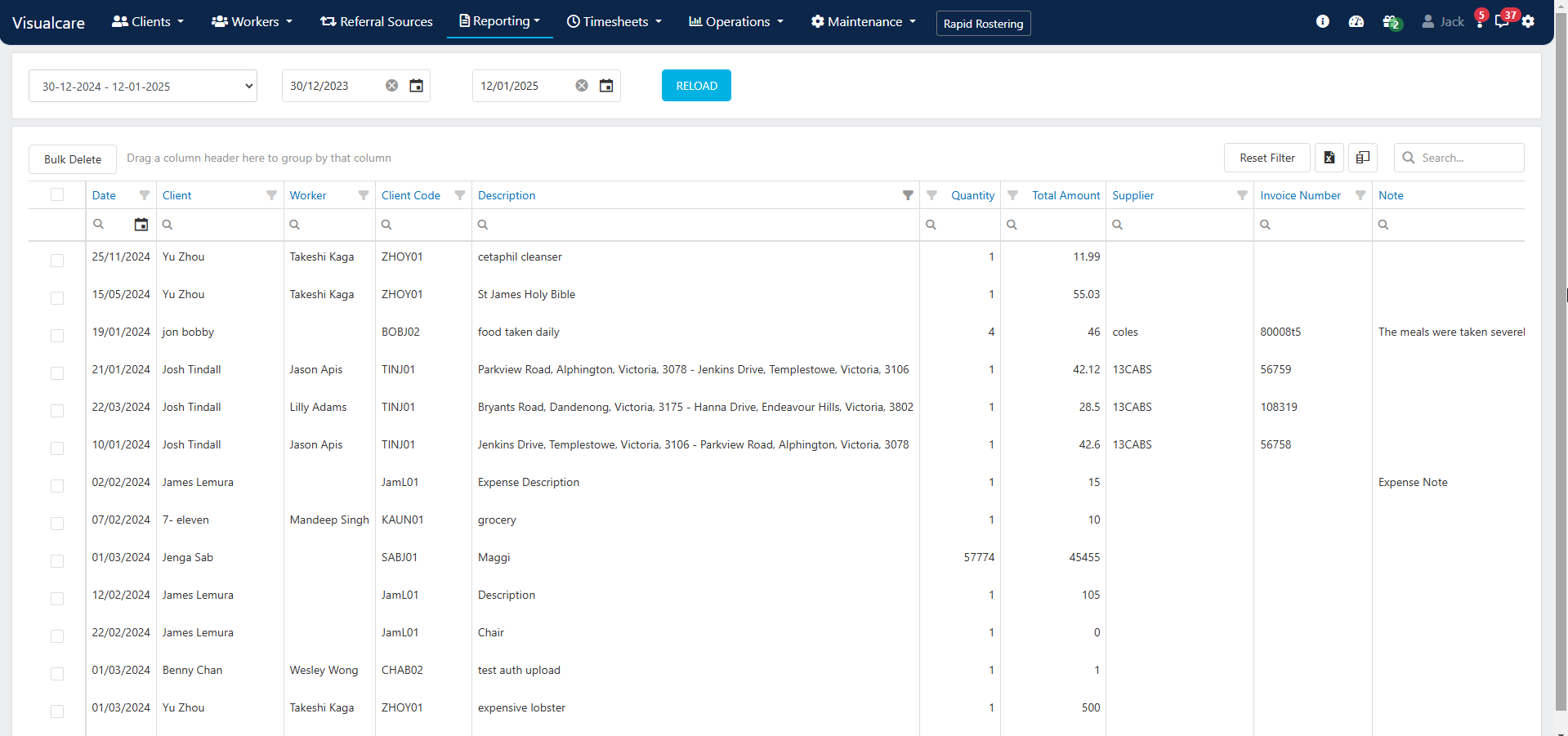
The expenses report covers all expenses created in Visualcare within a selected date range. Access the report from **Reports** → **Expenses**.
## Running an expenses report
1. Use the date drop-down in the top left to select a predefined date range, or choose a custom date range
2. Click **Reload**
3. Information related to expenses displays in the columns, with additional column options available via the **Column Chooser**
4. Apply filters to columns to narrow down specific data
5. Export the table to Excel for further analysis
 ## Running into issues?
See [General troubleshooting](/troubleshooting/general) for common errors and fixes.
## Related articles
Add and manage expenses on client profiles
Run reports on client data
Overview of billing and export options
## Running into issues?
See [General troubleshooting](/troubleshooting/general) for common errors and fixes.
## Related articles
Add and manage expenses on client profiles
Run reports on client data
Overview of billing and export options