> ## Documentation Index
> Fetch the complete documentation index at: https://help.visualcare.com.au/llms.txt
> Use this file to discover all available pages before exploring further.
# Word templates
> Upload and manage Word document templates with export tags to generate pre-filled documents
Word templates in Visualcare let you upload customised Microsoft Word documents that automatically populate with data from VCore. These templates are commonly used for agreements, client profiles, worker profiles, transport runs, quotes, HCP quotes, and HCP statements.
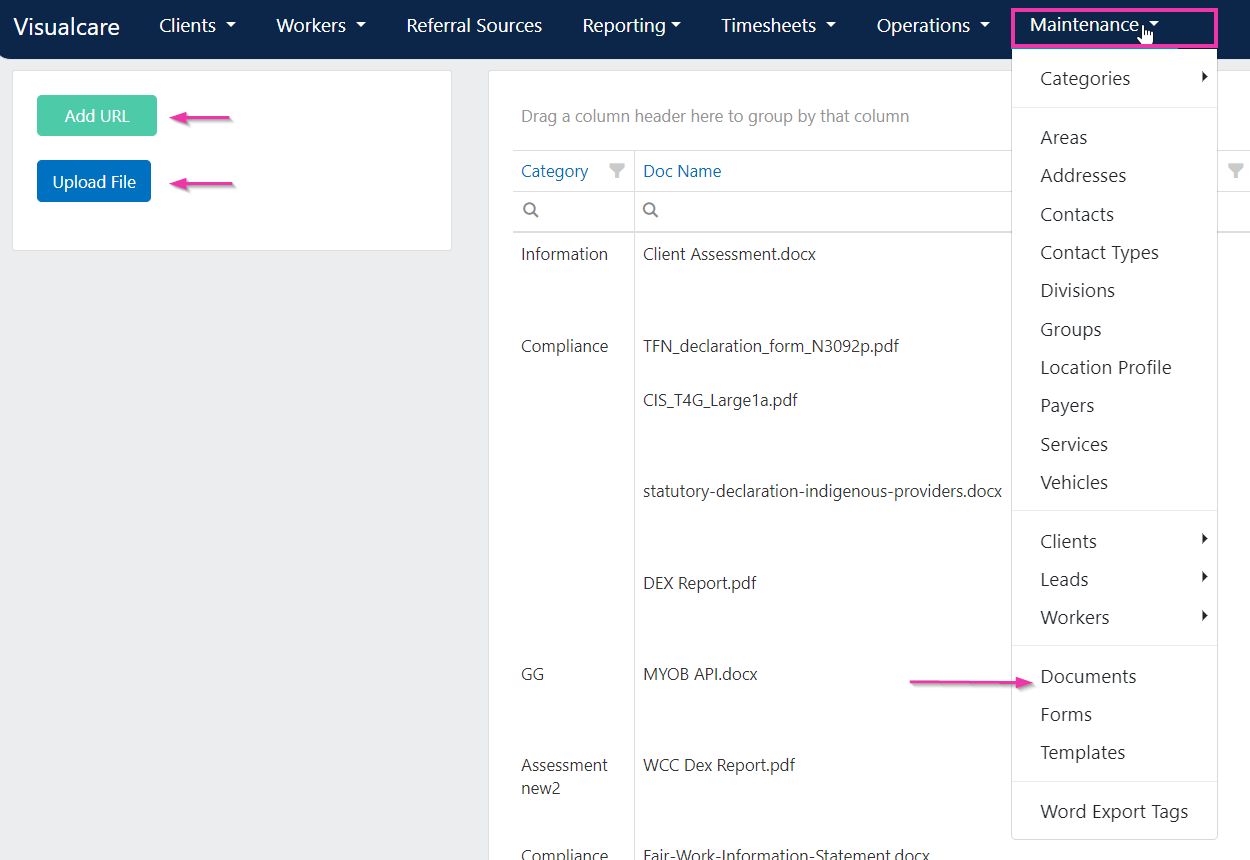
Navigate to **Maintenance** → **Documents** to manage your Word templates and uploaded files.
 ## Uploading a Word template
To upload a file or add a URL, select the relevant option from the documents page.
Common Word template types include:
* Agreement
* Client or worker profile
* Transport run
* Quotes and HCP quotes
* HCP statements
Once uploaded, click **Manage** to set the template type as needed.
## Uploading a Word template
To upload a file or add a URL, select the relevant option from the documents page.
Common Word template types include:
* Agreement
* Client or worker profile
* Transport run
* Quotes and HCP quotes
* HCP statements
Once uploaded, click **Manage** to set the template type as needed.
 ## Template settings
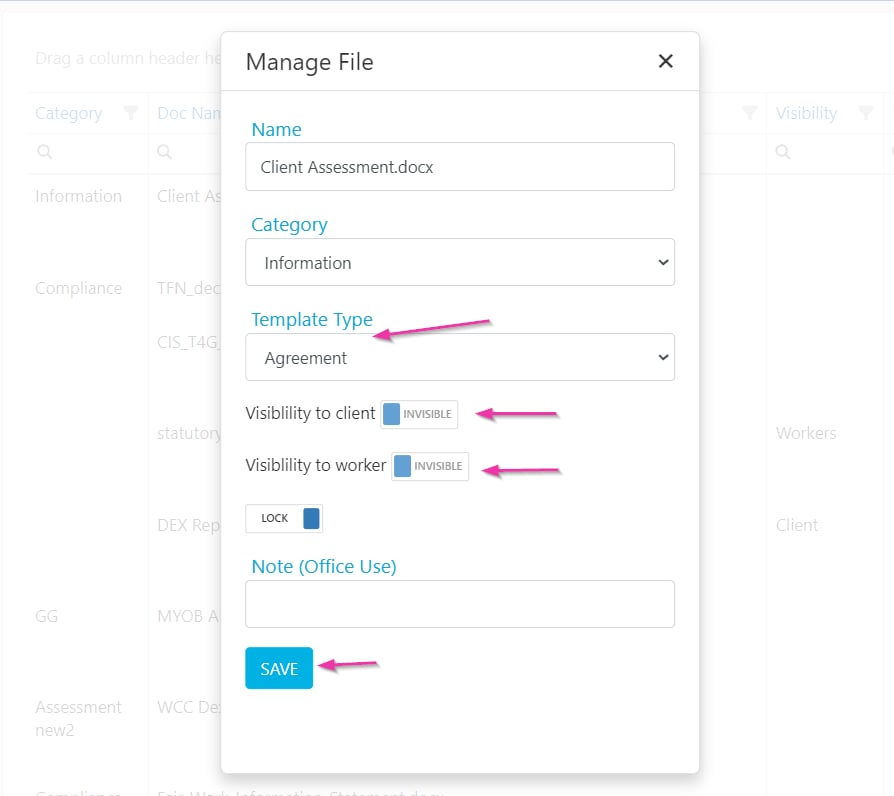
When managing a document, you can configure the following options:
| Setting | Description |
| ------------------------ | --------------------------------------------------------------------------------------------------- |
| **Template type** | Sets the context in which the template is used (for example, agreement, client profile) |
| **Visible to worker** | Makes the document accessible to workers on their mobile app |
| **Visible to client** | Makes the document accessible to clients on their app |
| **Word Export Template** | Marks the document as a Word export template. Multiple Word export templates can be used for export |
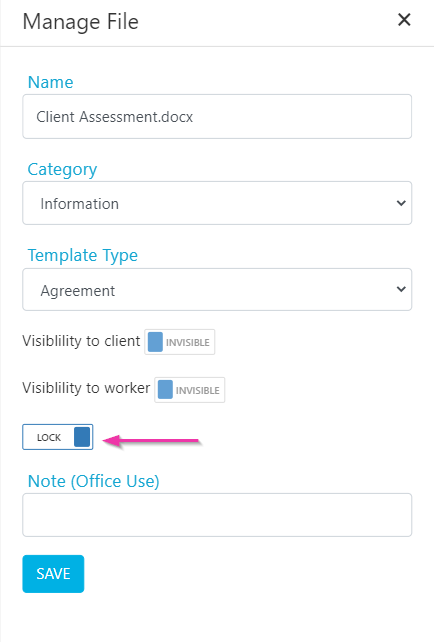
| **Lock** | Prevents the document from being deleted. When locked, the delete button is disabled |
## Template settings
When managing a document, you can configure the following options:
| Setting | Description |
| ------------------------ | --------------------------------------------------------------------------------------------------- |
| **Template type** | Sets the context in which the template is used (for example, agreement, client profile) |
| **Visible to worker** | Makes the document accessible to workers on their mobile app |
| **Visible to client** | Makes the document accessible to clients on their app |
| **Word Export Template** | Marks the document as a Word export template. Multiple Word export templates can be used for export |
| **Lock** | Prevents the document from being deleted. When locked, the delete button is disabled |
 ## Word export tags
Word export tags allow you to insert placeholders into your Word document that automatically fill with data when exported from VCore. These tags pull information from completed forms and profile data.
Field definitions in form templates contain word export tags that export information from a completed form into a Word document.
### Available funds tags
The "Available Funds" concept is called **Unallocated Package** in Visualcare. Use the following export tags in the Summary Section of your Word export template to display available funds data:
| Description | Word export tag |
| ---------------------------- | --------------- |
| Unallocated package daily | `${UP_Daily}` |
| Unallocated package monthly | `${UP_Mon}` |
| Unallocated package annually | `${UP_An}` |
Two similar-sounding values are easy to confuse: **Unspent Funds** is the HCA balance - the opening balance at the start of the quote - while **Unallocated Package** is the available funds at the end of the quote period, after all charges and costs are applied.
## Document categories
If the setting **User Must Select Document Category When Uploading** is enabled (in **Settings** → **General**), you need to select a document category before uploading a file to the documents page or to a client/worker profile.
Users will only have access to documents for which they are granted permission. Document permissions are managed under **Maintenance** → **Categories** → **Document Categories**.
## Running into issues?
See [General troubleshooting](/troubleshooting/general) for common errors and fixes.
## Related articles
Store and manage documents at the organisation level
How form templates are built and configured
Manage template visibility and role access
## Word export tags
Word export tags allow you to insert placeholders into your Word document that automatically fill with data when exported from VCore. These tags pull information from completed forms and profile data.
Field definitions in form templates contain word export tags that export information from a completed form into a Word document.
### Available funds tags
The "Available Funds" concept is called **Unallocated Package** in Visualcare. Use the following export tags in the Summary Section of your Word export template to display available funds data:
| Description | Word export tag |
| ---------------------------- | --------------- |
| Unallocated package daily | `${UP_Daily}` |
| Unallocated package monthly | `${UP_Mon}` |
| Unallocated package annually | `${UP_An}` |
Two similar-sounding values are easy to confuse: **Unspent Funds** is the HCA balance - the opening balance at the start of the quote - while **Unallocated Package** is the available funds at the end of the quote period, after all charges and costs are applied.
## Document categories
If the setting **User Must Select Document Category When Uploading** is enabled (in **Settings** → **General**), you need to select a document category before uploading a file to the documents page or to a client/worker profile.
Users will only have access to documents for which they are granted permission. Document permissions are managed under **Maintenance** → **Categories** → **Document Categories**.
## Running into issues?
See [General troubleshooting](/troubleshooting/general) for common errors and fixes.
## Related articles
Store and manage documents at the organisation level
How form templates are built and configured
Manage template visibility and role access