> ## Documentation Index
> Fetch the complete documentation index at: https://help.visualcare.com.au/llms.txt
> Use this file to discover all available pages before exploring further.
# Managing tasks
> Find, filter, customise, and manage tasks assigned to office users
Once a note is assigned to an office user, it becomes a task. The tasks list gives you a centralised view to find, filter, and manage all tasks across your organisation.
## Finding tasks
Tasks can be accessed from two locations:
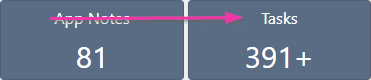
1. **Home page dashboard** - click the **Tasks** KPI tile, which displays the number of incomplete tasks and incidents assigned to you
2. **Tasks list** - navigate to the full tasks page for detailed filtering and management
 ## Filtering tasks
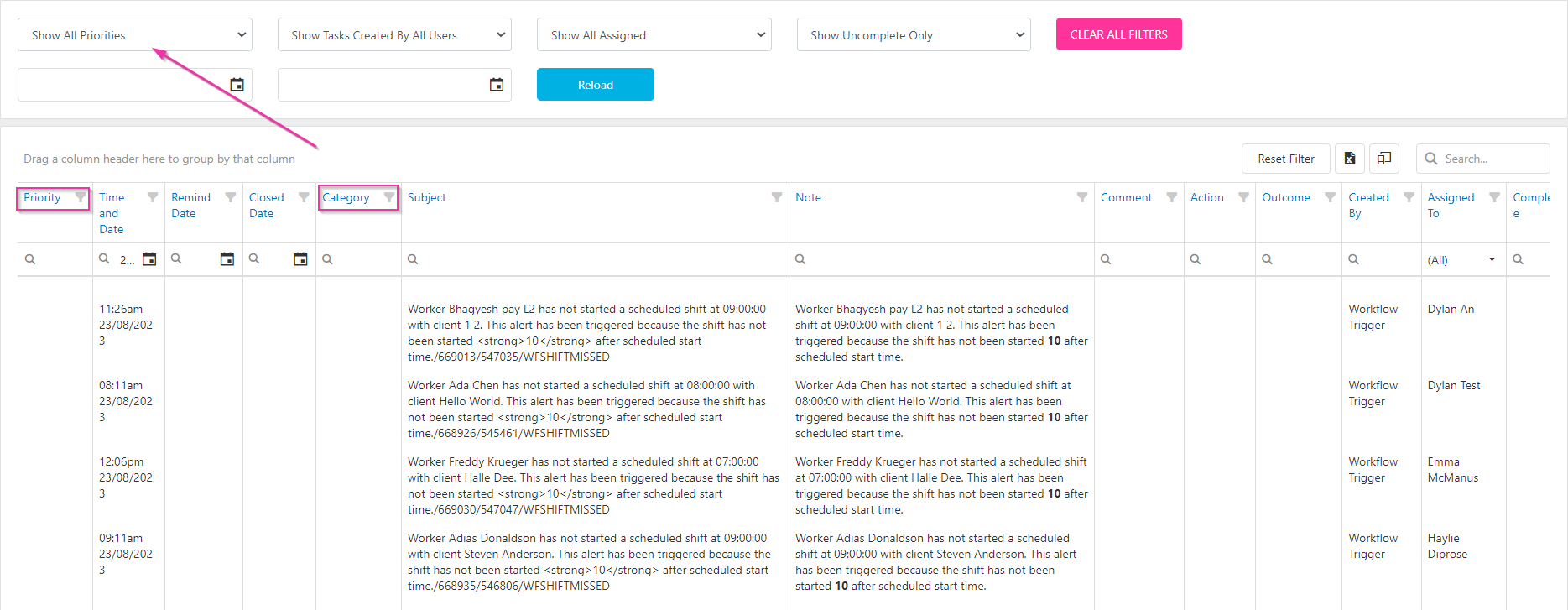
Use the search features at the top of the tasks page to narrow down your view:
| Filter | Description |
| ------------------------------------ | --------------------------------------------------------------------------------------------------------------------- |
| **Show All Priorities** | Displays tasks for all priorities, or select a specific priority (Low, Medium, High, Urgent) |
| **Shows Tasks Created By All Users** | Displays all tasks, or filter to tasks created by a specific user |
| **Show All Assigned** | Displays all tasks, or filter to tasks assigned to a specific user |
| **Show Uncomplete Only** | Displays incomplete tasks. Switch to **Show All Status** for all tasks, or **Show Complete Only** for completed tasks |
| **Date From / Date To** | Select the date range |
| **Clear All Filters** | Resets all filters to the default view |
| **Reload** | Refreshes the data after making filter selections |
## Filtering tasks
Use the search features at the top of the tasks page to narrow down your view:
| Filter | Description |
| ------------------------------------ | --------------------------------------------------------------------------------------------------------------------- |
| **Show All Priorities** | Displays tasks for all priorities, or select a specific priority (Low, Medium, High, Urgent) |
| **Shows Tasks Created By All Users** | Displays all tasks, or filter to tasks created by a specific user |
| **Show All Assigned** | Displays all tasks, or filter to tasks assigned to a specific user |
| **Show Uncomplete Only** | Displays incomplete tasks. Switch to **Show All Status** for all tasks, or **Show Complete Only** for completed tasks |
| **Date From / Date To** | Select the date range |
| **Clear All Filters** | Resets all filters to the default view |
| **Reload** | Refreshes the data after making filter selections |
 ## Customising the task view
The task grid can be customised to suit how you work. Once you've set up a particular view, it becomes your default the next time you access the screen.
### Column chooser
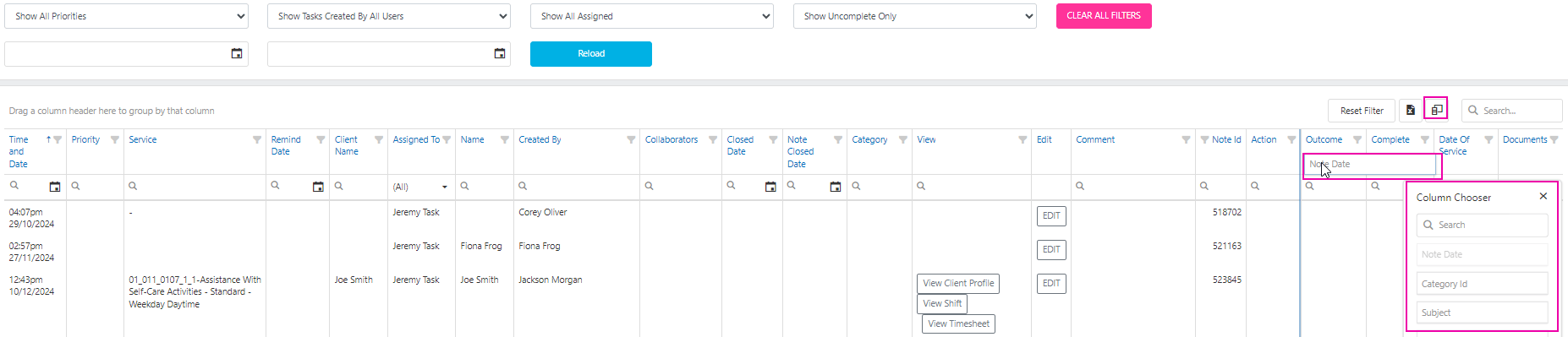
All available data fields not currently displayed are in the **Column Chooser**. Click the column chooser icon, search for the field you need, and drag it into the grid. To remove a column, drag it back into the column chooser.
## Customising the task view
The task grid can be customised to suit how you work. Once you've set up a particular view, it becomes your default the next time you access the screen.
### Column chooser
All available data fields not currently displayed are in the **Column Chooser**. Click the column chooser icon, search for the field you need, and drag it into the grid. To remove a column, drag it back into the column chooser.
 ### Column positions
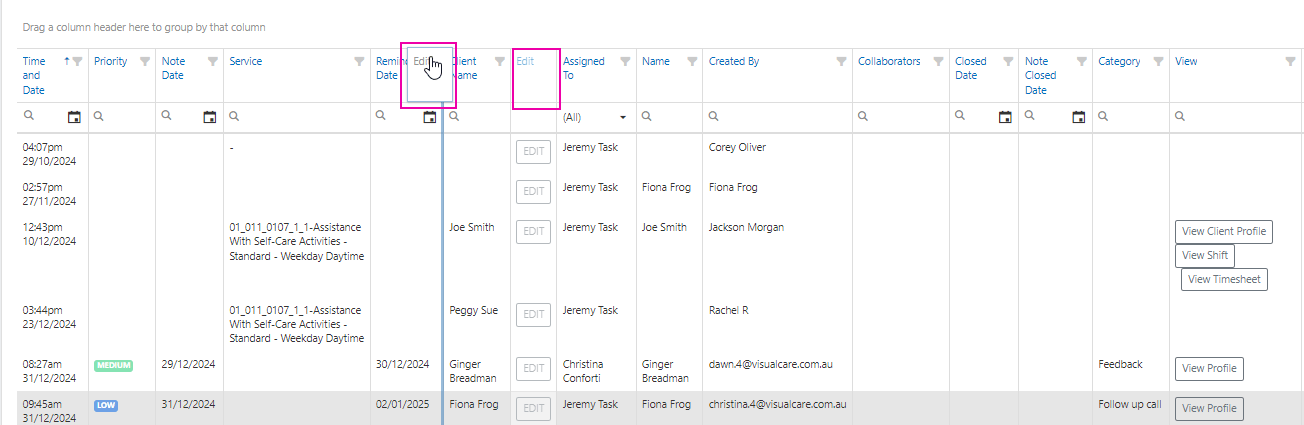
Rearrange columns by dragging and dropping them to your preferred position (for example, moving the **Edit** button to the start of the grid).
### Column positions
Rearrange columns by dragging and dropping them to your preferred position (for example, moving the **Edit** button to the start of the grid).
 ### Grouping columns
Group tasks by a column by dragging the column header to the area labelled **Drag a column header here to group by that column** (for example, grouping tasks by date). To clear the grouping, drag the column back into the grid.
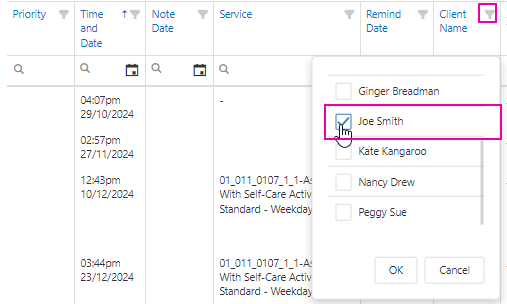
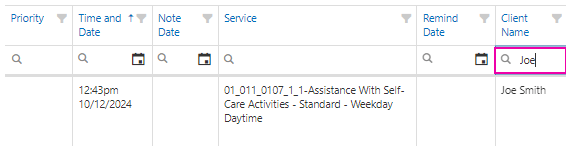
### Filtering columns
Columns can be filtered in three ways:
* Using the funnel icon next to the column heading
* Entering search text into the search bar within the column
* Using the search bar at the top of the grid
### Grouping columns
Group tasks by a column by dragging the column header to the area labelled **Drag a column header here to group by that column** (for example, grouping tasks by date). To clear the grouping, drag the column back into the grid.
### Filtering columns
Columns can be filtered in three ways:
* Using the funnel icon next to the column heading
* Entering search text into the search bar within the column
* Using the search bar at the top of the grid
 ## Managing a task
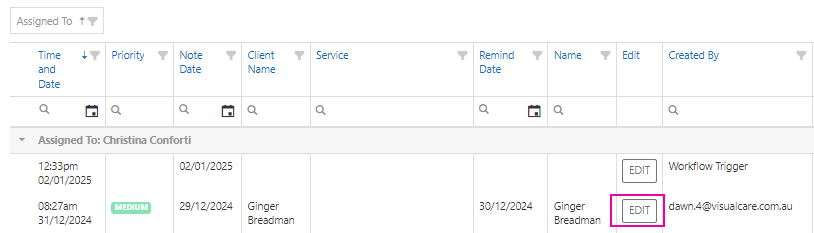
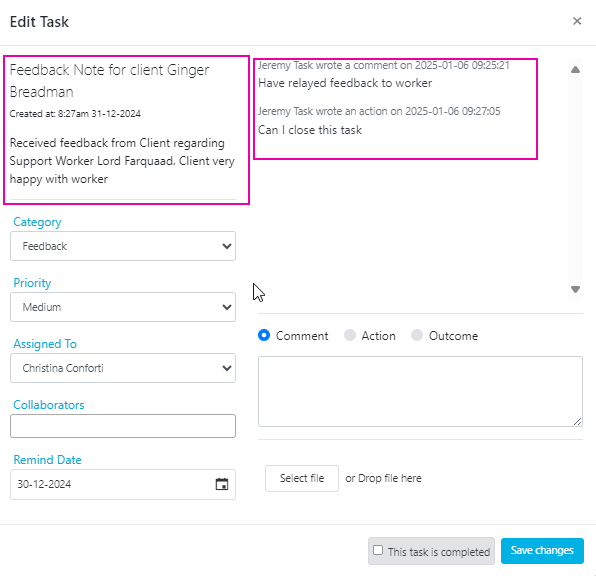
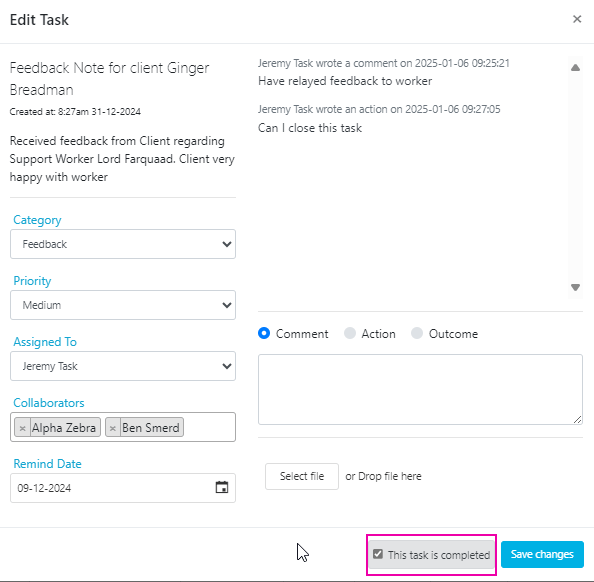
To manage a task, click the **Edit** button on the task row. The task window opens with the following fields:
## Managing a task
To manage a task, click the **Edit** button on the task row. The task window opens with the following fields:
 | Field | Description |
| ------------------------------ | -------------------------------------------------------------------------------------------------------------------------------------------------------------------------------------------------------------------------------------------------------------- |
| **Subject** | Generated when the note/task is created. References the source of the note (for example, "Feedback Note for Client Jane Smith"). Editing can be restricted for specific user groups in **Settings** → **User Group Security** → **Clients** → **Note Editing** |
| **Category** | Assign a category for reporting purposes. Categories are maintained in **Maintenance** → **Categories** → **Note Categories**. Access to tasks in a specific category can be restricted by user group |
| **Priority** | Low, Medium, High, or Urgent |
| **Assigned To** | Reassign the task to another user for further action. This creates a new task for that user. Don't mark the task as completed if reassigning |
| **Collaborators** | Add collaborators who can view the notes but not update them. Multiple collaborators can be assigned |
| **Remind Date** | Set a reminder date for follow-up |
| **Comment / Action / Outcome** | Categorises the note by type |
| **Comment Note** | Add notes (timestamped against the user entering the note) |
| **Select File** | Attach files or documents to the note |
| **This task is completed** | Tick when all actions for the task are done |
| Field | Description |
| ------------------------------ | -------------------------------------------------------------------------------------------------------------------------------------------------------------------------------------------------------------------------------------------------------------- |
| **Subject** | Generated when the note/task is created. References the source of the note (for example, "Feedback Note for Client Jane Smith"). Editing can be restricted for specific user groups in **Settings** → **User Group Security** → **Clients** → **Note Editing** |
| **Category** | Assign a category for reporting purposes. Categories are maintained in **Maintenance** → **Categories** → **Note Categories**. Access to tasks in a specific category can be restricted by user group |
| **Priority** | Low, Medium, High, or Urgent |
| **Assigned To** | Reassign the task to another user for further action. This creates a new task for that user. Don't mark the task as completed if reassigning |
| **Collaborators** | Add collaborators who can view the notes but not update them. Multiple collaborators can be assigned |
| **Remind Date** | Set a reminder date for follow-up |
| **Comment / Action / Outcome** | Categorises the note by type |
| **Comment Note** | Add notes (timestamped against the user entering the note) |
| **Select File** | Attach files or documents to the note |
| **This task is completed** | Tick when all actions for the task are done |
 ## Completing a task
When all actions for a task are finished:
1. Locate the task and click **Edit**
2. Tick **This task is completed**
3. Click **Save Changes**
## Completing a task
When all actions for a task are finished:
1. Locate the task and click **Edit**
2. Tick **This task is completed**
3. Click **Save Changes**
 ## Automated workflows
Automated workflows let you trigger actions in Visualcare based on a set condition, without manual intervention. For example, you can automatically create a task or send an email when a client agreement reaches its alert date.
Workflows are managed from **Operations** → **Workflows**.
### Creating a workflow
1. Click **Add New Workflow**
2. Enter a name for the workflow
3. Choose a trigger - this is the condition that starts the workflow (for example, "Client Agreement has reached its Alert Date")
4. Click **Save**
### Adding actions to a workflow
Once the workflow is saved, click **Edit Workflow Actions** → **Add Action** to define what happens when the trigger fires.
* **Send an email** - sends an automated email notification to a specified recipient
* **Create a task** - creates a task and assigns it to a specified user
* **Send an email and create a task** - combines both actions in a single workflow
Configure the action details and click **Save**. Once active, the workflow runs automatically each time the trigger condition is met.
## Running into issues?
See [General troubleshooting](/troubleshooting/general) for common errors and fixes.
## Related articles
Create and assign tasks from notes
Edit multiple client or worker records at once
## Automated workflows
Automated workflows let you trigger actions in Visualcare based on a set condition, without manual intervention. For example, you can automatically create a task or send an email when a client agreement reaches its alert date.
Workflows are managed from **Operations** → **Workflows**.
### Creating a workflow
1. Click **Add New Workflow**
2. Enter a name for the workflow
3. Choose a trigger - this is the condition that starts the workflow (for example, "Client Agreement has reached its Alert Date")
4. Click **Save**
### Adding actions to a workflow
Once the workflow is saved, click **Edit Workflow Actions** → **Add Action** to define what happens when the trigger fires.
* **Send an email** - sends an automated email notification to a specified recipient
* **Create a task** - creates a task and assigns it to a specified user
* **Send an email and create a task** - combines both actions in a single workflow
Configure the action details and click **Save**. Once active, the workflow runs automatically each time the trigger condition is met.
## Running into issues?
See [General troubleshooting](/troubleshooting/general) for common errors and fixes.
## Related articles
Create and assign tasks from notes
Edit multiple client or worker records at once