> ## Documentation Index
> Fetch the complete documentation index at: https://help.visualcare.com.au/llms.txt
> Use this file to discover all available pages before exploring further.
# Import CSV
> Step-by-step guide to importing client, worker, or expense records in bulk using a CSV file
The **Import CSV** feature lets you add new client, worker, or expense records into your database in bulk using a CSV file.
This feature creates new records only. It cannot be used to update existing records (for example, adding new data to an existing client profile).
Navigate to **Operations** → **Import CSV**.
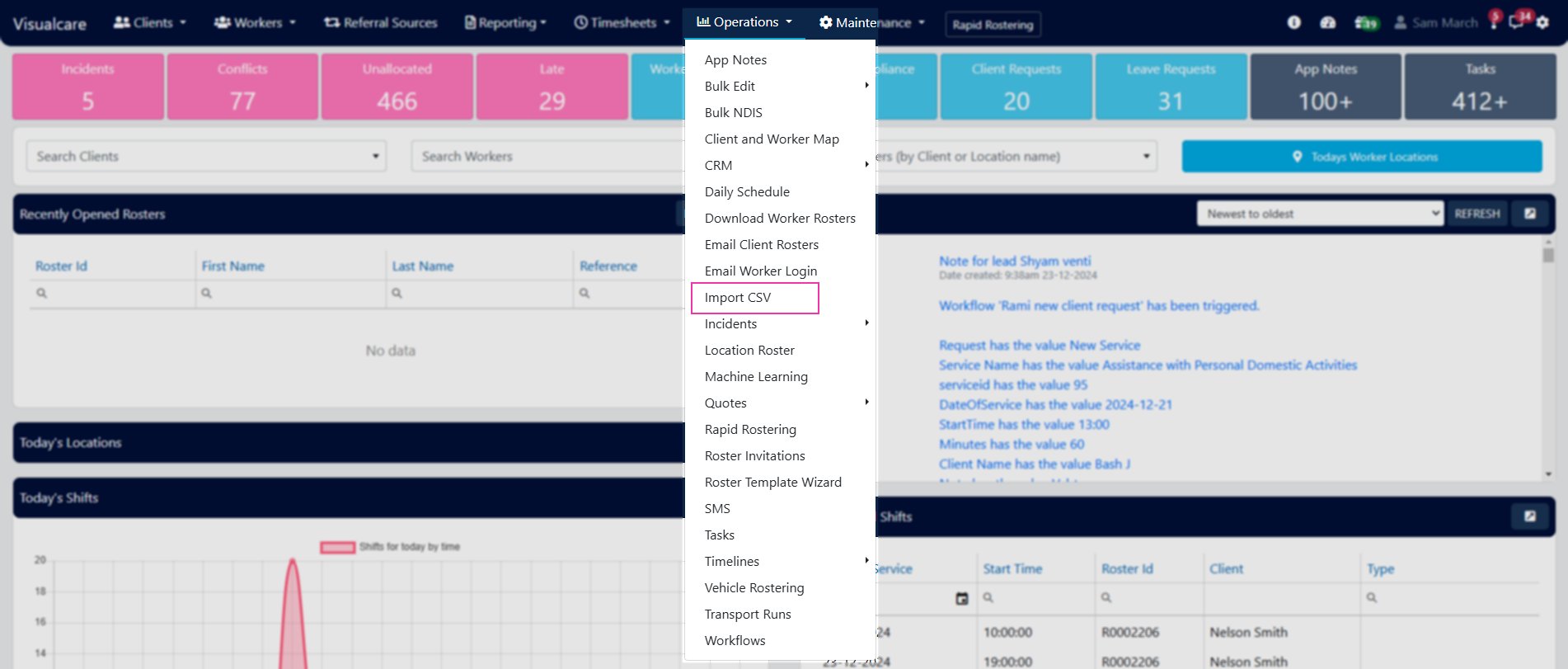 ## Instructions
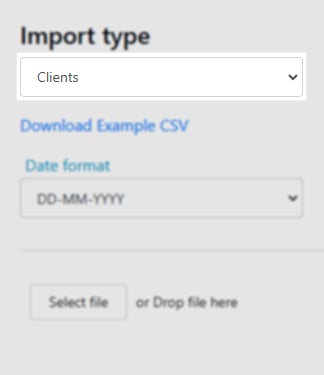
Choose from the drop-down: **Clients**, **Workers**, or **Expenses**.
## Instructions
Choose from the drop-down: **Clients**, **Workers**, or **Expenses**.
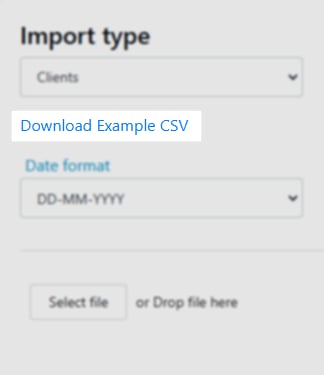
 Click **Download Example CSV** to get a file with the correct column formatting. Edit the CSV externally with your data.
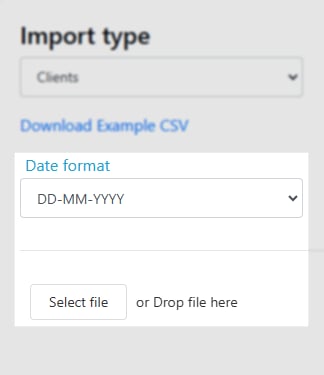
 Select the **Date Format** that matches the format used in your CSV file. Click **Select file**, choose your CSV, and click **Upload**.
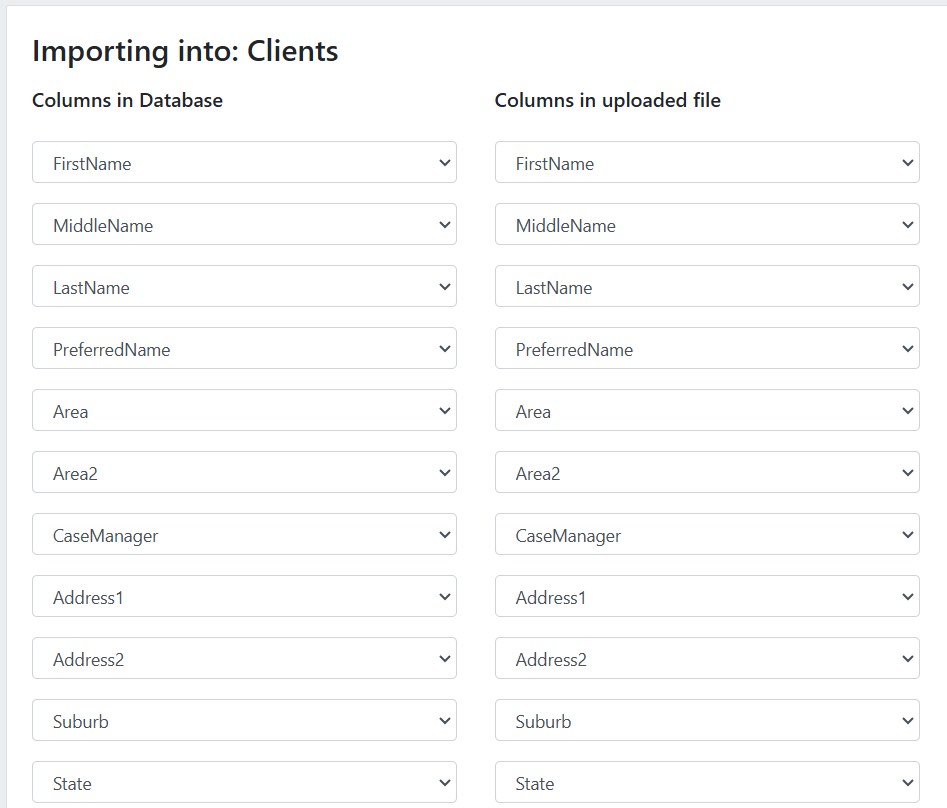
 Match the **Columns in Database** to the **Columns in uploaded file**. Once all columns are mapped, click **Preview Import**.
If bulk importing HCP expenses, ensure the **Agreement** and **Client Number** columns in the CSV match the clients' HCP agreement and client number on their profile.
Match the **Columns in Database** to the **Columns in uploaded file**. Once all columns are mapped, click **Preview Import**.
If bulk importing HCP expenses, ensure the **Agreement** and **Client Number** columns in the CSV match the clients' HCP agreement and client number on their profile.
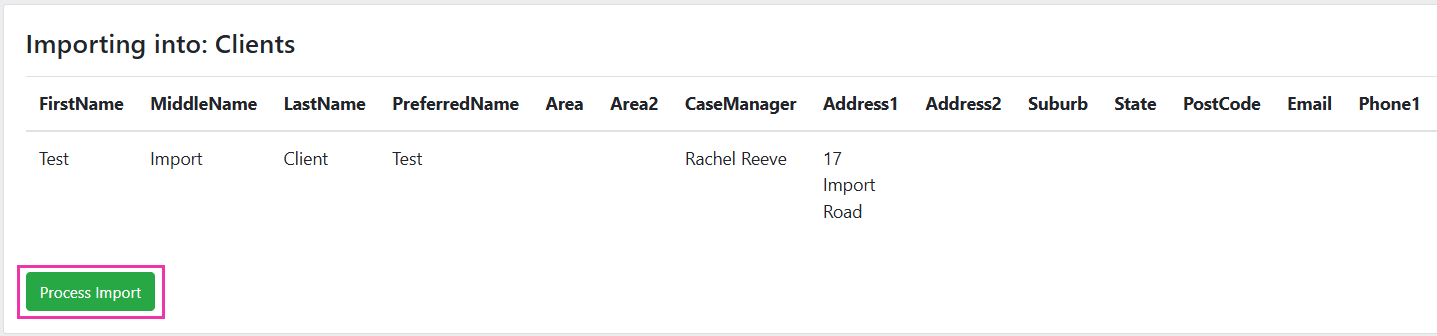
 Review the preview of records that are about to be created. Click **Process Import** to create the records.
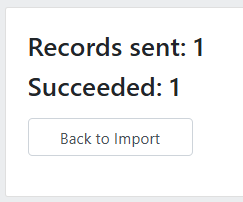
 The summary shows the number of records sent and how many were successfully created. Click **Back to Import** to import another CSV file.
 ## Importing services via CSV
The **All Services** page has two CSV options for bulk service management:
* **Export CSV** - downloads the full list of existing services including their **Service ID**
* **Download CSV Template** - downloads a blank template for creating new services only. This template does not include a **Service ID** column
When editing services in an exported CSV, the **Service ID** column must not be modified. Service codes must remain unique across your services list.
Two additional columns are available in the services CSV:
| Column | Description |
| --------------- | --------------------------------------------------------- |
| **SAH Service** | SAH service code for the service (for example, SERV-0001) |
| **Type** | Service funding type |
After importing an updated CSV with new charge or pay rates, apply the rate changes by navigating to **Maintenance** → **Services** → click **Update Charge Rates** or **Update Pay Rates** → select **Current Service Selected** or **All Services**.
## Running into issues?
See [General troubleshooting](/troubleshooting/general) for common errors and fixes.
## Related articles
Edit multiple client or worker records at once
Manage services, charge rates, and pay rates
## Importing services via CSV
The **All Services** page has two CSV options for bulk service management:
* **Export CSV** - downloads the full list of existing services including their **Service ID**
* **Download CSV Template** - downloads a blank template for creating new services only. This template does not include a **Service ID** column
When editing services in an exported CSV, the **Service ID** column must not be modified. Service codes must remain unique across your services list.
Two additional columns are available in the services CSV:
| Column | Description |
| --------------- | --------------------------------------------------------- |
| **SAH Service** | SAH service code for the service (for example, SERV-0001) |
| **Type** | Service funding type |
After importing an updated CSV with new charge or pay rates, apply the rate changes by navigating to **Maintenance** → **Services** → click **Update Charge Rates** or **Update Pay Rates** → select **Current Service Selected** or **All Services**.
## Running into issues?
See [General troubleshooting](/troubleshooting/general) for common errors and fixes.
## Related articles
Edit multiple client or worker records at once
Manage services, charge rates, and pay rates