> ## Documentation Index
> Fetch the complete documentation index at: https://help.visualcare.com.au/llms.txt
> Use this file to discover all available pages before exploring further.
# Dashboard layout
> Quick access panels, shift map, and daily summary on the VCore home page
The VCore home page includes quick access panels that give you a snapshot of the day's activity without navigating into individual sections. This article covers what each panel shows and how to use them.
For an overview of the header icons and KPI tiles, see [Dashboard overview](/getting-started/dashboard-overview).
## Quick access panels
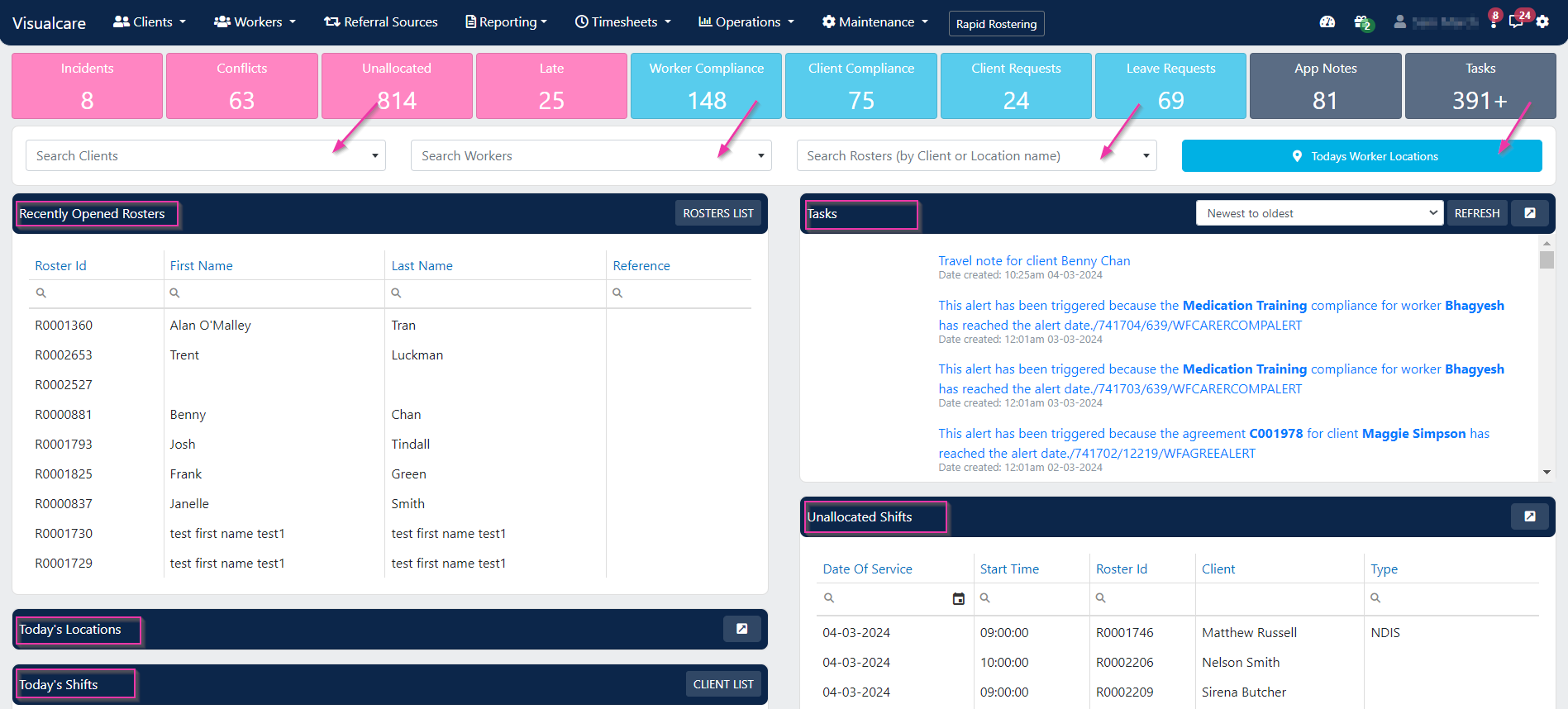 The home page provides these quick access panels:
| Panel | What it shows |
| ---------------------- | ------------------------------------------------------------------------- |
| **Search** | Search directly for a worker, client, or client roster from the home page |
| **Shift map** | A map of today's shift locations |
| **Tasks** | Tasks assigned to you or your team that need follow-up |
| **Unallocated shifts** | Shifts for today that don't have a worker assigned yet |
| **Running shifts** | Shifts currently in progress |
| **Shift information** | A summary of the day's shifts |
## Shift map
The shift map shows the location of today's shifts on a map. Each shift appears as a coloured pin:
The home page provides these quick access panels:
| Panel | What it shows |
| ---------------------- | ------------------------------------------------------------------------- |
| **Search** | Search directly for a worker, client, or client roster from the home page |
| **Shift map** | A map of today's shift locations |
| **Tasks** | Tasks assigned to you or your team that need follow-up |
| **Unallocated shifts** | Shifts for today that don't have a worker assigned yet |
| **Running shifts** | Shifts currently in progress |
| **Shift information** | A summary of the day's shifts |
## Shift map
The shift map shows the location of today's shifts on a map. Each shift appears as a coloured pin:
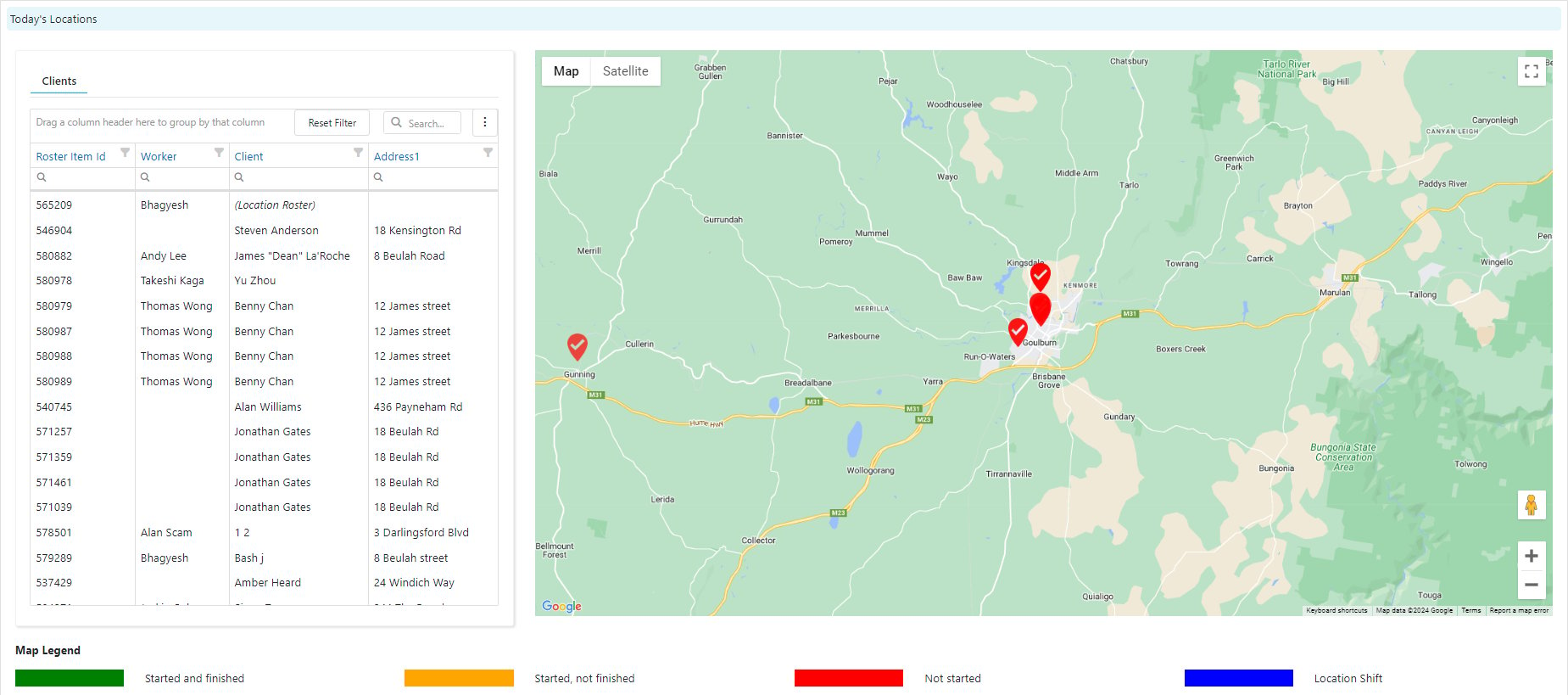 * Pins are colour-coded by shift status: not started, completed, or not finished
* Hover over a pin to see the shift details, including the client, worker, and shift time
* Use the map to quickly identify shifts that haven't started or workers who are running behind
The shift map is especially useful for coordinators managing field workers across a region. Check it during the day to monitor shift progress.
## Search
The search panel on the home page lets you jump directly to a worker, client, or client roster without navigating through the menu. Start typing a name and select from the results.
## Tasks and unallocated shifts
The **Tasks** panel shows outstanding tasks assigned to you or your team. Click a task to open it and take action.
The **Unallocated shifts** panel shows shifts that still need a worker. This helps schedulers identify gaps in today's roster that need attention.
## Running into issues?
See [Login and access troubleshooting](/troubleshooting/login-and-access) for common login and access problems.
## Related articles
Header icons, KPI tiles, and product feedback
Customise which columns appear in table views
Find and assign shifts that don't have a worker
* Pins are colour-coded by shift status: not started, completed, or not finished
* Hover over a pin to see the shift details, including the client, worker, and shift time
* Use the map to quickly identify shifts that haven't started or workers who are running behind
The shift map is especially useful for coordinators managing field workers across a region. Check it during the day to monitor shift progress.
## Search
The search panel on the home page lets you jump directly to a worker, client, or client roster without navigating through the menu. Start typing a name and select from the results.
## Tasks and unallocated shifts
The **Tasks** panel shows outstanding tasks assigned to you or your team. Click a task to open it and take action.
The **Unallocated shifts** panel shows shifts that still need a worker. This helps schedulers identify gaps in today's roster that need attention.
## Running into issues?
See [Login and access troubleshooting](/troubleshooting/login-and-access) for common login and access problems.
## Related articles
Header icons, KPI tiles, and product feedback
Customise which columns appear in table views
Find and assign shifts that don't have a worker