> ## Documentation Index
> Fetch the complete documentation index at: https://help.visualcare.com.au/llms.txt
> Use this file to discover all available pages before exploring further.
# Claiming and invoicing overview
> How billing, claiming, and invoicing work in Visualcare across NDIS, CHSP, SAH, and HCP funding types
Visualcare connects your service delivery to your accounting and claiming systems. Once timesheets are confirmed, you export them as invoices (to bill clients or payers) or as payroll data (to pay workers). The export process varies depending on the funding type and your accounting software.
## Setting up for invoicing
Before you can export invoices, client profiles and services need to be linked to their matching records in your accounting software. This mapping tells Visualcare where to send each invoice and which inventory item to bill against.
### Client setup
Each client profile needs an **Accounting Code** that maps to a contact in your accounting software (for example, a Xero contact).
1. Open the client's profile and go to the **Finance** tab.
2. Click the **Accounting Code** drop-down and select the matching contact.
3. If the client doesn't appear in the list, click **Send Contact to Xero** to create the contact in Xero and link it automatically.
To set up a payer for a client:
1. Go to **Maintenance** → **Payers** and create the payer record.
2. Assign an **Accounting Code** to the payer so invoices route to the correct contact in your accounting software.
3. Open the client's profile and assign the payer under their funding agreement or profile settings.
If a client has both plan-managed and agency-managed services, create separate agreements for each funding type. Set the payer on the agency-managed agreement only and leave the plan-managed agreement's payer blank.
### Service setup
Each service also needs an **Accounting Code** linking it to an inventory item in your accounting software.
1. Go to **Maintenance** → **Services**.
2. Select the service you want to configure.
3. Click the **Accounting Code** drop-down and select the matching inventory item from your accounting software.
Visualcare's charge rate overrides the price listed on the inventory item in your accounting software. The price on the inventory item is not used for billing. Visualcare's charge rate is what gets sent.
## How data export works
All billing and payroll exports start from the **Timesheets** tab in VCore. The **Data Export** page is your central hub for sending confirmed timesheet data to your accounting software, the National Disability Insurance Scheme (NDIS) portal, or other claiming systems.
### Payer lookup order
When you export invoices, Visualcare determines who to bill using this order:
1. **Agreement payer** - the payer listed on the client's agreement
2. **Client profile payer** - the payer set in the client's profile
3. **Client accounting code** - the accounting code on the client's profile
If none of these are set, the export summary shows an error for that timesheet entry.
Set up payers at the agreement level for the most accurate billing. This gives you the flexibility to have different payers for different service agreements under the same client.
### Getting to data export
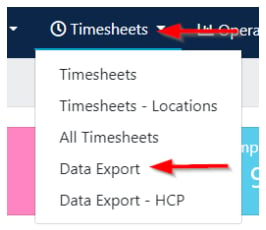
Navigate to **Timesheets** → **Data Export**.
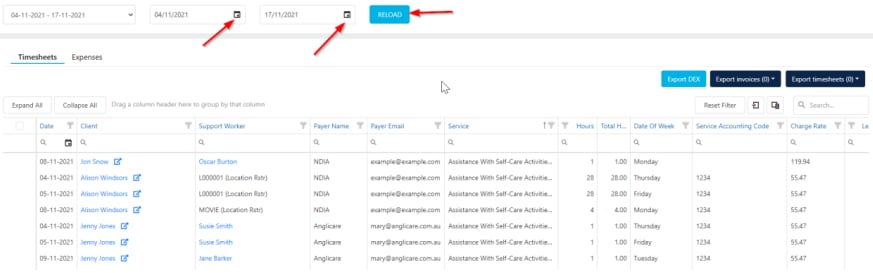
 The dates default to the current payroll period. To export invoicing on a different cycle (for example, weekly invoicing with fortnightly payroll), set a specific date range at the top of the screen and click **Reload**. All confirmed shifts for that period display at the bottom.
 ### Selecting and exporting timesheets
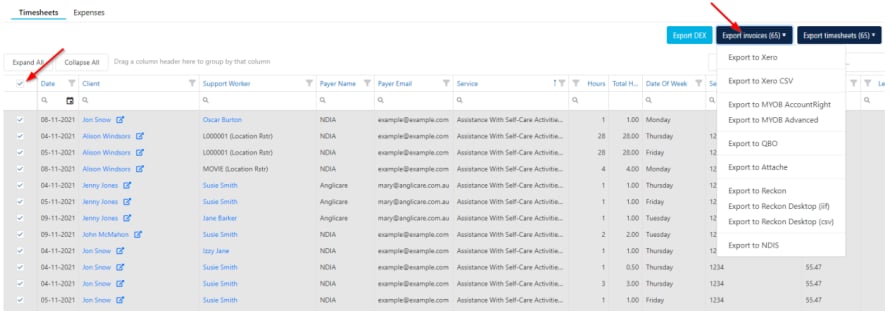
Select the items you want to export using the tick boxes on the left. Then click the relevant export button:
* **Export Invoices** - sends invoice data to your accounting software or downloads a CSV
* **Export Timesheets** - sends payroll data to your accounting software
* **Export KMs** - an option under the **Export Timesheets** and **Export Invoices** drop-downs that exports kilometre data (after timesheets have been approved)
* **Export to NDIS** - exports a CSV for NDIS claiming
### Selecting and exporting timesheets
Select the items you want to export using the tick boxes on the left. Then click the relevant export button:
* **Export Invoices** - sends invoice data to your accounting software or downloads a CSV
* **Export Timesheets** - sends payroll data to your accounting software
* **Export KMs** - an option under the **Export Timesheets** and **Export Invoices** drop-downs that exports kilometre data (after timesheets have been approved)
* **Export to NDIS** - exports a CSV for NDIS claiming
 Both the invoice and timesheet export buttons display an **Export Summary** that highlights any errors and explains why specific items won't export. You can filter to show only failures or only successful items, and download the failures as a CSV to correct missing codes.
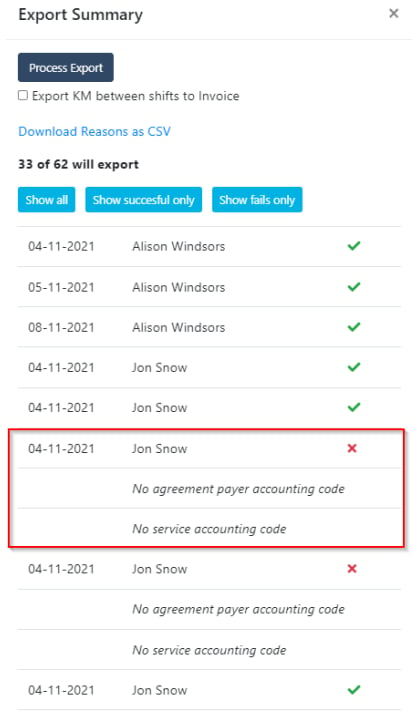 Resolve all errors before processing the export. Missing accounting codes, payer details, or service configurations are the most common causes of export failures.
After a successful invoice export, invoices appear as drafts in your accounting software's draft section. Visualcare auto-populates the **Description**, **Quantity** (from hours worked), **Price** (from the charge rate), and **Reference** fields. Review the drafts before approving them in your accounting software.
### How payroll export matching works
When you export timesheets for payroll, Visualcare matches the **Accounting Code** on the worker's profile to the employee or supplier contact in your accounting software. The worker's **Pay Level** (set in their Finance section) determines which pay item to export against based on the service's pay level configuration.
Pay rates entered in Visualcare are not exported. The pay rate configured on the pay item or pay template in your accounting software is the rate that gets paid. Visualcare only sends the hours and the pay item code.
## Export types at a glance
| Export type | What it does | Where to find it |
| --------------------- | -------------------------------------------------------- | ------------------------------------------------------------------------------------------------ |
| Invoice export | Bills clients or payers for services delivered | **Timesheets** → **Data Export** → **Export Invoices** |
| Payroll export | Sends pay data to your accounting or payroll software | **Timesheets** → **Data Export** → **Export Timesheets** |
| Expense invoicing | Bills clients for expenses marked as chargeable | **Timesheets** → **Data Export** → **Expenses** tab |
| Expense reimbursement | Reimburses workers for out-of-pocket expenses | **Timesheets** → **Data Export** → **Expenses** tab |
| KM export | Exports kilometre charges and reimbursements | **Timesheets** → **Data Export** → **Export Timesheets** or **Export Invoices** → **Export KMs** |
| NDIS claiming | Exports claim data for the NDIS portal | **Timesheets** → **Data Export** → **Export to NDIS** |
| CHSP/DEX claiming | Generates claim data for the Data Exchange (DEX) portal | **Timesheets** → **Data Export** |
| SAH claiming | Submits claims to Services Australia for Support at Home | **Timesheets** → **SAH Claiming** |
| HCP statements | Generates Home Care Package statements and claim files | **Timesheets** → **Data Export - HCP** |
## Client billing tab
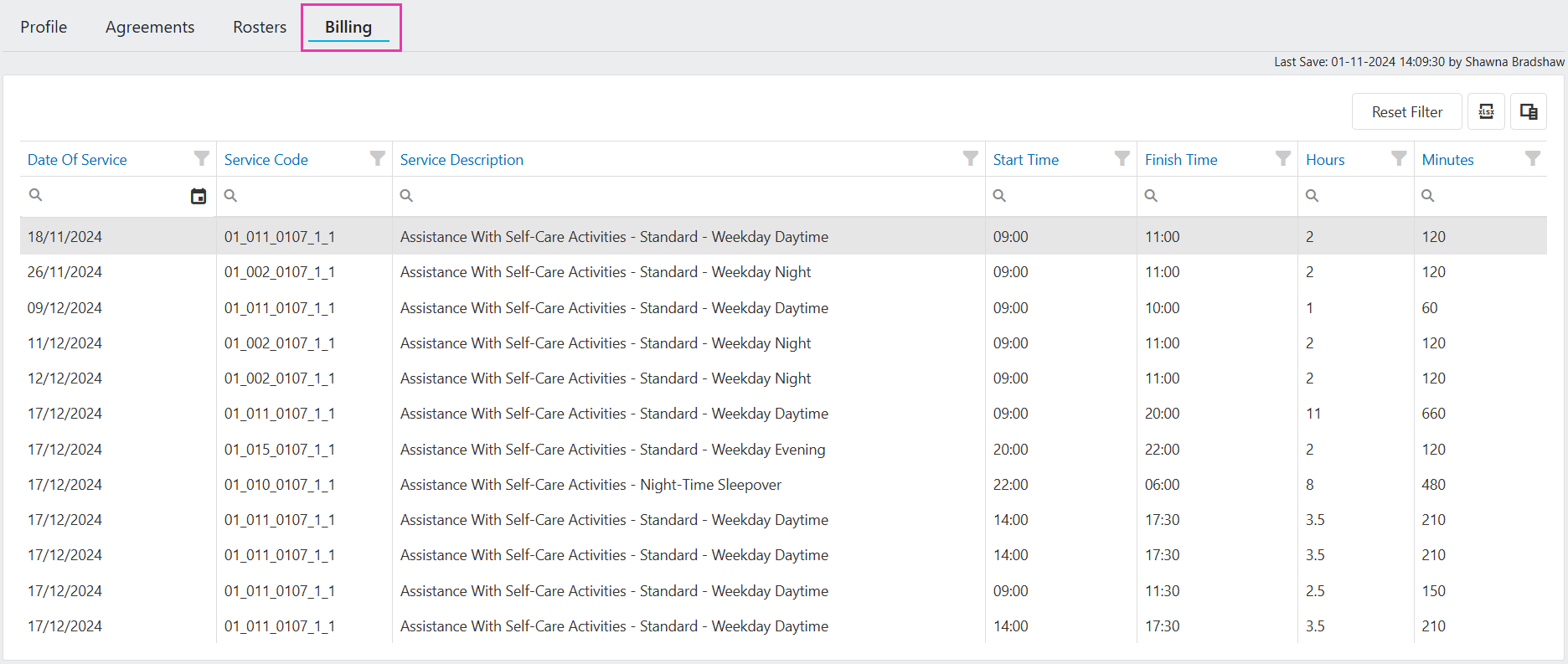
You can view recent billing activity for individual clients from their profile. Navigate to **Clients** → **Profile**, open the client, and select the **Billing** tab to see shifts from the past 30 days.
Resolve all errors before processing the export. Missing accounting codes, payer details, or service configurations are the most common causes of export failures.
After a successful invoice export, invoices appear as drafts in your accounting software's draft section. Visualcare auto-populates the **Description**, **Quantity** (from hours worked), **Price** (from the charge rate), and **Reference** fields. Review the drafts before approving them in your accounting software.
### How payroll export matching works
When you export timesheets for payroll, Visualcare matches the **Accounting Code** on the worker's profile to the employee or supplier contact in your accounting software. The worker's **Pay Level** (set in their Finance section) determines which pay item to export against based on the service's pay level configuration.
Pay rates entered in Visualcare are not exported. The pay rate configured on the pay item or pay template in your accounting software is the rate that gets paid. Visualcare only sends the hours and the pay item code.
## Export types at a glance
| Export type | What it does | Where to find it |
| --------------------- | -------------------------------------------------------- | ------------------------------------------------------------------------------------------------ |
| Invoice export | Bills clients or payers for services delivered | **Timesheets** → **Data Export** → **Export Invoices** |
| Payroll export | Sends pay data to your accounting or payroll software | **Timesheets** → **Data Export** → **Export Timesheets** |
| Expense invoicing | Bills clients for expenses marked as chargeable | **Timesheets** → **Data Export** → **Expenses** tab |
| Expense reimbursement | Reimburses workers for out-of-pocket expenses | **Timesheets** → **Data Export** → **Expenses** tab |
| KM export | Exports kilometre charges and reimbursements | **Timesheets** → **Data Export** → **Export Timesheets** or **Export Invoices** → **Export KMs** |
| NDIS claiming | Exports claim data for the NDIS portal | **Timesheets** → **Data Export** → **Export to NDIS** |
| CHSP/DEX claiming | Generates claim data for the Data Exchange (DEX) portal | **Timesheets** → **Data Export** |
| SAH claiming | Submits claims to Services Australia for Support at Home | **Timesheets** → **SAH Claiming** |
| HCP statements | Generates Home Care Package statements and claim files | **Timesheets** → **Data Export - HCP** |
## Client billing tab
You can view recent billing activity for individual clients from their profile. Navigate to **Clients** → **Profile**, open the client, and select the **Billing** tab to see shifts from the past 30 days.
 ## Expenses
Expenses fall into two categories during export:
* **Charge to client** - expenses marked with **Is Charge** are exported as invoices to the client or payer
* **Reimburse to worker** - expenses marked with **Is Reimbursement** are exported through the payroll export process
Both types are accessed from the **Expenses** tab at the top of the Data Export page.
## Running into issues?
See [Finance troubleshooting](/troubleshooting/general) for common errors and fixes.
## Related articles
Step-by-step guide to exporting invoices and payroll to Xero, MYOB, and other accounting platforms
Export timesheet data to your payroll software
Export and manage kilometre data for billing and reimbursement
## Expenses
Expenses fall into two categories during export:
* **Charge to client** - expenses marked with **Is Charge** are exported as invoices to the client or payer
* **Reimburse to worker** - expenses marked with **Is Reimbursement** are exported through the payroll export process
Both types are accessed from the **Expenses** tab at the top of the Data Export page.
## Running into issues?
See [Finance troubleshooting](/troubleshooting/general) for common errors and fixes.
## Related articles
Step-by-step guide to exporting invoices and payroll to Xero, MYOB, and other accounting platforms
Export timesheet data to your payroll software
Export and manage kilometre data for billing and reimbursement