> ## Documentation Index
> Fetch the complete documentation index at: https://help.visualcare.com.au/llms.txt
> Use this file to discover all available pages before exploring further.
# Billing to CHSP
> How to set up and submit Commonwealth Home Support Programme claims using DEX data in Visualcare
Visualcare supports claiming for the Commonwealth Home Support Programme (CHSP) through the Data Exchange (DEX) framework. To claim CHSP funding for a client shift, the **DEX Case** and **DEX Activity** need to be attached to each shift. These details flow into the claim file that you upload to the DEX portal.
## How CHSP claiming works
CHSP claiming uses DEX cases and activities to categorise services. The process follows this flow:
1. Set up the client's CHSP agreement with DEX cases and activities
2. Roster shifts with the correct DEX details attached
3. Confirm timesheets
4. Export the claim data from **Timesheets** → **Data Export**
5. Upload the exported file to the DEX portal
## DEX case and activity on shifts
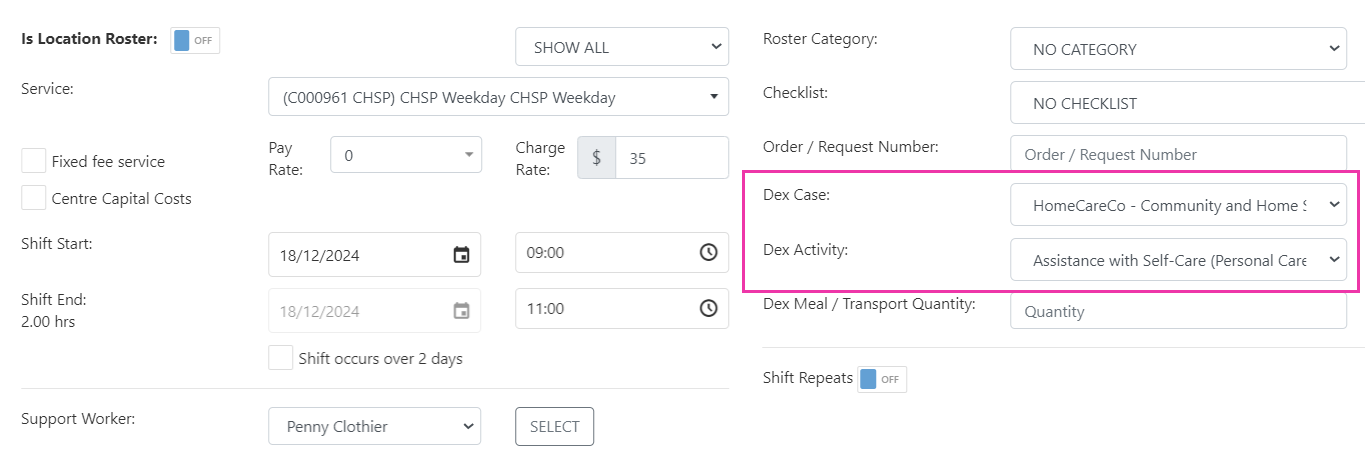
When you add or edit a shift in the **Client Roster**, the **DEX Case** and **DEX Activity** fields appear on the right-hand side after you select a service. These pre-populate based on the agreement setup.
If the agreement service doesn't have a DEX case or activity assigned, or if the item needs updating, select the correct values from the drop-down menus.
 Link the DEX case and activity directly to the service on the client agreement. This way, they pre-populate automatically on every shift, reducing manual entry and errors.
## DEX meal and transport quantities
The **DEX Meal / Transport Quantity** field lets you include additional claims for meals and transport alongside a service shift.
The related **DEX Case** and **DEX Activity** need to be selected for the meal or transport item to flow into the DEX claim file. In some scenarios, this means creating an additional shift for the claim - for example, where there is a personal care component as well as a meal or transport claim.
### Meals
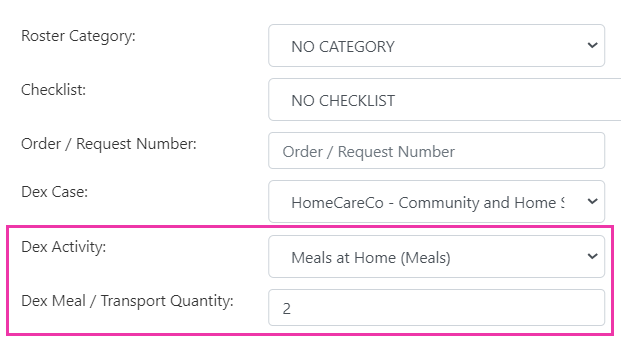
For a meal claim on a client shift, select the applicable **DEX Activity** and enter the number of meals in the **Quantity** field. For example, a quantity of two means two meals are claimed.
Link the DEX case and activity directly to the service on the client agreement. This way, they pre-populate automatically on every shift, reducing manual entry and errors.
## DEX meal and transport quantities
The **DEX Meal / Transport Quantity** field lets you include additional claims for meals and transport alongside a service shift.
The related **DEX Case** and **DEX Activity** need to be selected for the meal or transport item to flow into the DEX claim file. In some scenarios, this means creating an additional shift for the claim - for example, where there is a personal care component as well as a meal or transport claim.
### Meals
For a meal claim on a client shift, select the applicable **DEX Activity** and enter the number of meals in the **Quantity** field. For example, a quantity of two means two meals are claimed.
 ### Transport
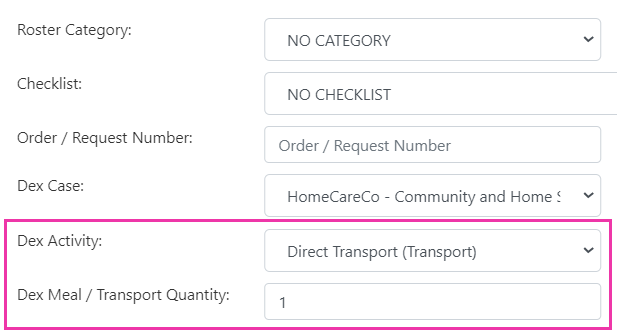
To claim transport on a client shift, select the appropriate **DEX Activity** and enter the number of transport trips in the **Quantity** field. For example, a quantity of one means one trip is claimed.
### Transport
To claim transport on a client shift, select the appropriate **DEX Activity** and enter the number of transport trips in the **Quantity** field. For example, a quantity of one means one trip is claimed.
 ## DEX reporting
Visualcare provides several reports to help you review and manage your CHSP/DEX data:
| Report | What it shows |
| -------------------------- | ------------------------------------------------------------ |
| **Service Summary Report** | Summarised list of DEX service types and cases by date range |
| **Client DEX Sessions** | All DEX sessions listed by date range |
| **DEX Rostered Shifts** | Support worker services, pay rates, and client contributions |
Access these reports from **Reporting** in VCore.
## Exporting CHSP claims
CHSP claims are exported from **Timesheets** → **Data Export** in VCore. Select the confirmed shifts for the relevant period and use the export function to generate the claim file for upload to the DEX portal.
Before you export CHSP claims, make sure these items are configured:
* **Client CHSP/DEX setup** - the client profile needs CHSP details configured under the **CHSP and HACC** tab
* **Client agreement** - the agreement needs to be set up as a CHSP agreement type with DEX cases and activities assigned to services
* **Group activities** - if the client receives CHSP services in a group setting, these are set up through the location roster with CHSP/DEX rostering
* **Home modification expenses** - if home modification expenses need to be included in the CHSP claim, add these in **Timesheets** after the shift has been confirmed
## Running into issues?
See [Finance troubleshooting](/troubleshooting/general) for common errors and fixes.
## Related articles
Overview of all billing and export options in Visualcare
Submit Support at Home claims to Services Australia
Export invoices to your accounting platform
## DEX reporting
Visualcare provides several reports to help you review and manage your CHSP/DEX data:
| Report | What it shows |
| -------------------------- | ------------------------------------------------------------ |
| **Service Summary Report** | Summarised list of DEX service types and cases by date range |
| **Client DEX Sessions** | All DEX sessions listed by date range |
| **DEX Rostered Shifts** | Support worker services, pay rates, and client contributions |
Access these reports from **Reporting** in VCore.
## Exporting CHSP claims
CHSP claims are exported from **Timesheets** → **Data Export** in VCore. Select the confirmed shifts for the relevant period and use the export function to generate the claim file for upload to the DEX portal.
Before you export CHSP claims, make sure these items are configured:
* **Client CHSP/DEX setup** - the client profile needs CHSP details configured under the **CHSP and HACC** tab
* **Client agreement** - the agreement needs to be set up as a CHSP agreement type with DEX cases and activities assigned to services
* **Group activities** - if the client receives CHSP services in a group setting, these are set up through the location roster with CHSP/DEX rostering
* **Home modification expenses** - if home modification expenses need to be included in the CHSP claim, add these in **Timesheets** after the shift has been confirmed
## Running into issues?
See [Finance troubleshooting](/troubleshooting/general) for common errors and fixes.
## Related articles
Overview of all billing and export options in Visualcare
Submit Support at Home claims to Services Australia
Export invoices to your accounting platform