> ## Documentation Index
> Fetch the complete documentation index at: https://help.visualcare.com.au/llms.txt
> Use this file to discover all available pages before exploring further.
# Award interpretation and pay rules
> How Visualcare interprets awards, applies pay rate overrides, and handles service-level pay rules
Visualcare includes award interpretation features that help you manage pay conditions, broken shifts, overtime, and service-level pay rate overrides. These settings determine how payroll data is calculated and exported to your accounting or payroll software.
## Worker engagement details
The **Engagement Details** tab on a worker's profile is where you configure award and pay rate information. If a worker is no longer current, enter their end-of-engagement details here.
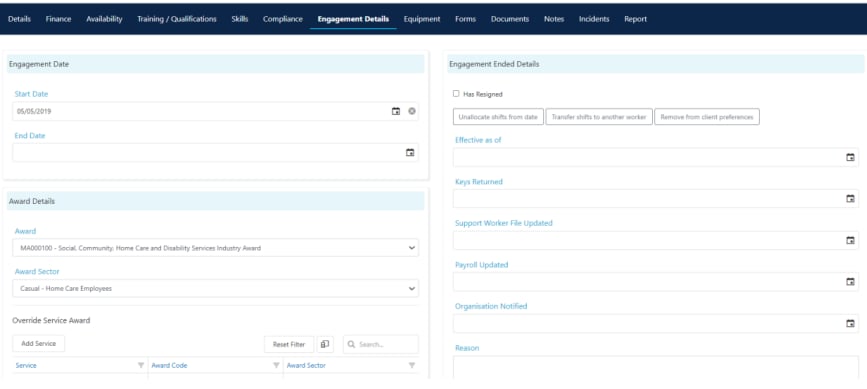 To stop a former worker from appearing in rostering selection, untick the **Current** box in their worker profile and save.
### Award details
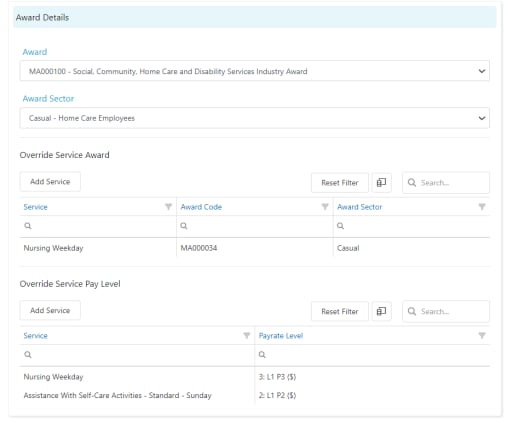
The **Award Details** section is where you select the specific award the worker is on. This determines which conditions and rules apply when calculating pay.
### Pay rate overrides
The **Overrides** section lets you set overrides for both award and pay rate levels on a per-service basis. This is useful when a worker is typically on one pay rate level but receives a higher level for specific services.
For example, if a worker is usually on pay rate level one (under the **Finance** tab) but jumps to level two or three for certain services, you set this up by clicking **Add Service** and selecting the pay rate level they receive when providing that service.
To stop a former worker from appearing in rostering selection, untick the **Current** box in their worker profile and save.
### Award details
The **Award Details** section is where you select the specific award the worker is on. This determines which conditions and rules apply when calculating pay.
### Pay rate overrides
The **Overrides** section lets you set overrides for both award and pay rate levels on a per-service basis. This is useful when a worker is typically on one pay rate level but receives a higher level for specific services.
For example, if a worker is usually on pay rate level one (under the **Finance** tab) but jumps to level two or three for certain services, you set this up by clicking **Add Service** and selecting the pay rate level they receive when providing that service.
 ## Award interpreter settings
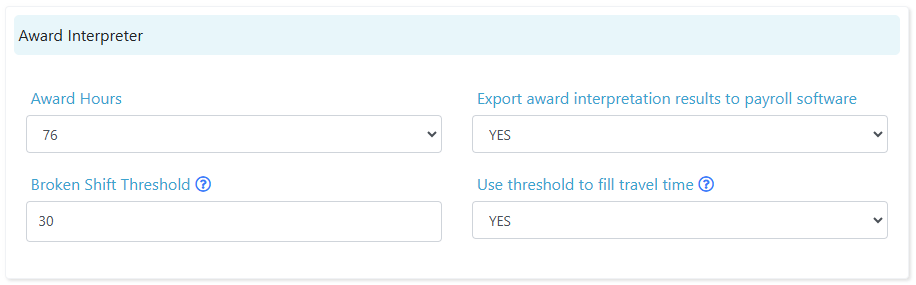
The award interpreter settings are configured in **Settings** → **Data Export** → **Award Interpreter**.
## Award interpreter settings
The award interpreter settings are configured in **Settings** → **Data Export** → **Award Interpreter**.
 | Setting | What it does |
| ----------------------------------------------------------- | --------------------------------------------------------------------------------------------------------------------------------------------------------------------------------------------------------------------------------------------------------------------------------------------------------------- |
| **Award Hours** | Tells the software to pick up weekly or fortnightly overtime. Select **38** for weekly pay cycles or **76** for fortnightly |
| **Export award interpretation results to payroll software** | When set to **No**, no conditions are exported during payroll processing. The conditions still appear in the **Awards - Calculate on Roster** report. Set this to **No** if using KeyPay as your payroll software |
| **Broken Shift Threshold** | Only applies for **Use Rosters** in the **Awards - Calculate on Roster** report. When there is a gap between shifts for a worker, the system won't pick up a broken shift if the gap is equal to or less than the threshold amount. For **Use Timesheets**, the system works from the travel time of the shifts |
| **Use threshold to fill travel time** | When set to **Yes**, if the gap between shifts is equal to or less than the broken shift threshold amount, the system fills the entire gap with travel time when using the **Calc KM** button on the timesheets page. When set to **No**, travel time is filled with data from the Google Maps API |
If you use KeyPay for payroll, set **Export award interpretation results to payroll software** to **No**. KeyPay handles its own award interpretation, so exporting conditions from Visualcare causes conflicts.
## How award interpretation works
When you process a payroll export, Visualcare applies the following logic:
1. The worker's **award** determines the base conditions (overtime thresholds, penalty rates, broken shift rules)
2. The worker's **pay level** (from their Finance tab) determines the base pay rate tier
3. Any **service-level overrides** (from Engagement Details) adjust the pay level for specific services
4. The **award interpreter settings** control how conditions like overtime and broken shifts are calculated
The calculated conditions appear in the **Awards - Calculate on Roster** report, giving you visibility before you export. The actual dollar amounts paid are determined by your payroll software's pay templates, not Visualcare.
## Running into issues?
See [Finance troubleshooting](/troubleshooting/general) for common errors and fixes.
## Related articles
Step-by-step guide to exporting timesheet data to your payroll software
Overview of all billing and export options in Visualcare
Export and manage kilometre data for billing and reimbursement
Export invoices to your accounting platform
| Setting | What it does |
| ----------------------------------------------------------- | --------------------------------------------------------------------------------------------------------------------------------------------------------------------------------------------------------------------------------------------------------------------------------------------------------------- |
| **Award Hours** | Tells the software to pick up weekly or fortnightly overtime. Select **38** for weekly pay cycles or **76** for fortnightly |
| **Export award interpretation results to payroll software** | When set to **No**, no conditions are exported during payroll processing. The conditions still appear in the **Awards - Calculate on Roster** report. Set this to **No** if using KeyPay as your payroll software |
| **Broken Shift Threshold** | Only applies for **Use Rosters** in the **Awards - Calculate on Roster** report. When there is a gap between shifts for a worker, the system won't pick up a broken shift if the gap is equal to or less than the threshold amount. For **Use Timesheets**, the system works from the travel time of the shifts |
| **Use threshold to fill travel time** | When set to **Yes**, if the gap between shifts is equal to or less than the broken shift threshold amount, the system fills the entire gap with travel time when using the **Calc KM** button on the timesheets page. When set to **No**, travel time is filled with data from the Google Maps API |
If you use KeyPay for payroll, set **Export award interpretation results to payroll software** to **No**. KeyPay handles its own award interpretation, so exporting conditions from Visualcare causes conflicts.
## How award interpretation works
When you process a payroll export, Visualcare applies the following logic:
1. The worker's **award** determines the base conditions (overtime thresholds, penalty rates, broken shift rules)
2. The worker's **pay level** (from their Finance tab) determines the base pay rate tier
3. Any **service-level overrides** (from Engagement Details) adjust the pay level for specific services
4. The **award interpreter settings** control how conditions like overtime and broken shifts are calculated
The calculated conditions appear in the **Awards - Calculate on Roster** report, giving you visibility before you export. The actual dollar amounts paid are determined by your payroll software's pay templates, not Visualcare.
## Running into issues?
See [Finance troubleshooting](/troubleshooting/general) for common errors and fixes.
## Related articles
Step-by-step guide to exporting timesheet data to your payroll software
Overview of all billing and export options in Visualcare
Export and manage kilometre data for billing and reimbursement
Export invoices to your accounting platform