> ## Documentation Index
> Fetch the complete documentation index at: https://help.visualcare.com.au/llms.txt
> Use this file to discover all available pages before exploring further.
# vAboutMe app access
> Set up client access to the vAboutMe mobile app, including VCore configuration and device setup
The vAboutMe app gives clients visibility of their services, documents, and messaging. This article covers how to enable access in VCore and set up the app on a client's device.
## Enabling access in VCore
To give a client access to vAboutMe, update their client profile in VCore with the following fields, then click **Save**:
| Field | What to enter |
| -------------------- | ----------------------------------------------------------------------------------------------- |
| **Email** | The client's email address |
| **Web Username** | The client's email address is recommended. An alternative username is acceptable (avoid spaces) |
| **Web Enabled** | Tick this box |
| **vAboutMe Enabled** | Tick this box |
Click **Send Login Details** to email the client instructions on how to log in.
You customise which vAboutMe features are available to each client under the **Details** → **vAboutMe** section on their profile. Tick or untick features to switch them on or off.
## App setup
### System requirements
The client's device needs one of the following:
* **Android**: version 10 or above
* **iOS**: version 11 or above
### Installing the app
Download vAboutMe from the App Store (iPhone) or Google Play (Android). Search for **vAboutMe** and select **Install**.
 ### Logging in
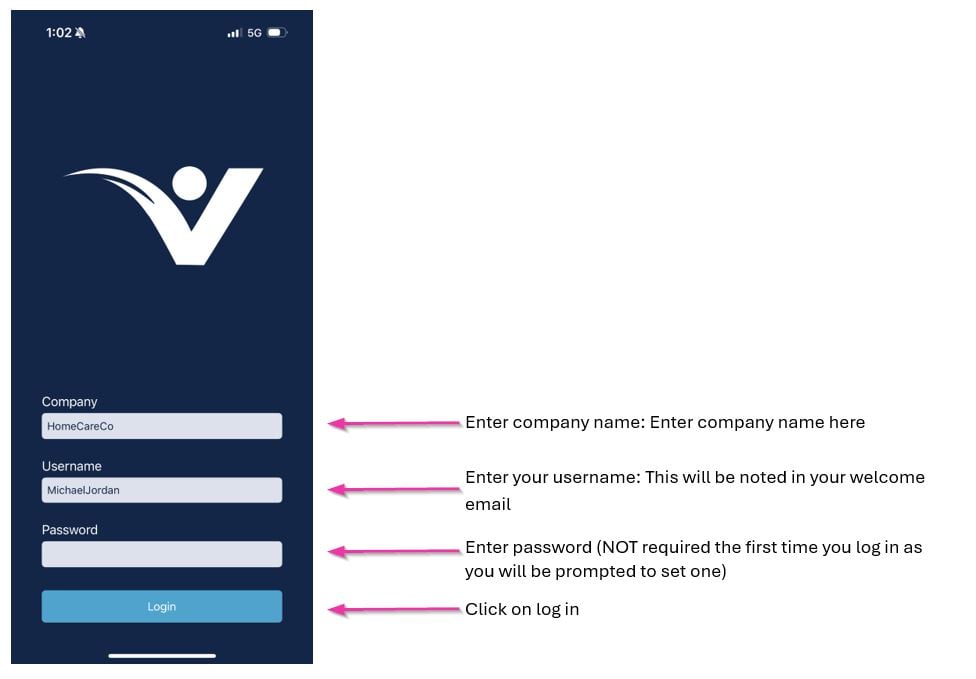
Open vAboutMe by selecting the icon on the device home screen. Once logged in, the app stays logged in.
### Logging in
Open vAboutMe by selecting the icon on the device home screen. Once logged in, the app stays logged in.
 ## Running into issues?
See [Client management troubleshooting](/troubleshooting/general) for common errors and fixes.
## Related articles
Configure the client profile fields needed for vAboutMe access
Send messages to clients through the messaging module
## Running into issues?
See [Client management troubleshooting](/troubleshooting/general) for common errors and fixes.
## Related articles
Configure the client profile fields needed for vAboutMe access
Send messages to clients through the messaging module