> ## Documentation Index
> Fetch the complete documentation index at: https://help.visualcare.com.au/llms.txt
> Use this file to discover all available pages before exploring further.
# Managing client compliance
> View, edit, and track compliance items on individual client profiles in Visualcare
Once compliance items are configured in Maintenance, they appear on individual client profiles for day-to-day management. This article covers how to view and update compliance on a client's profile.
## Viewing compliance items
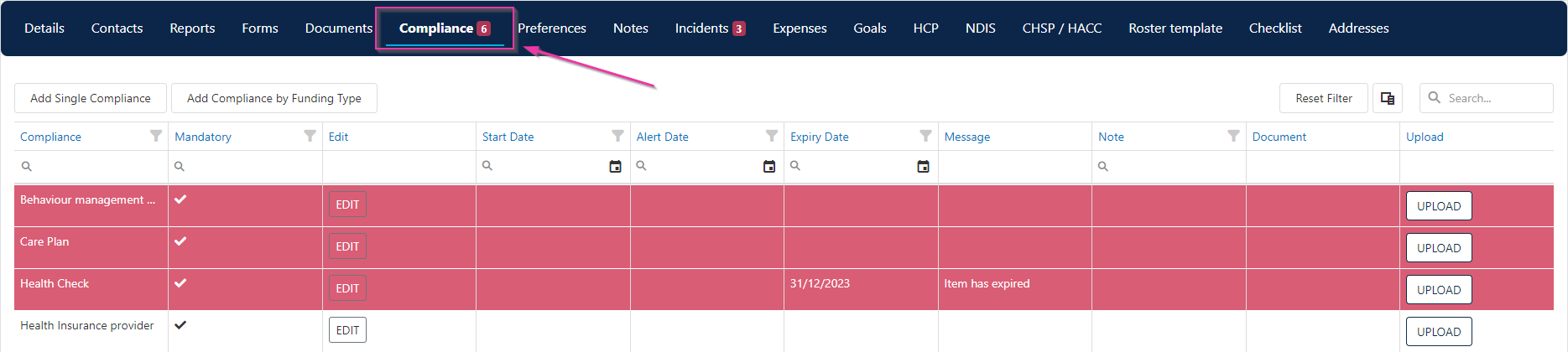
Open the client profile and navigate to the **Compliance** tab. All compliance items assigned to the client are listed here, linked by the client's funding type.
 ## Editing a compliance item
Click the **Edit** button on any compliance item to update its details, including dates, status, and any attached documentation.
## Editing a compliance item
Click the **Edit** button on any compliance item to update its details, including dates, status, and any attached documentation.
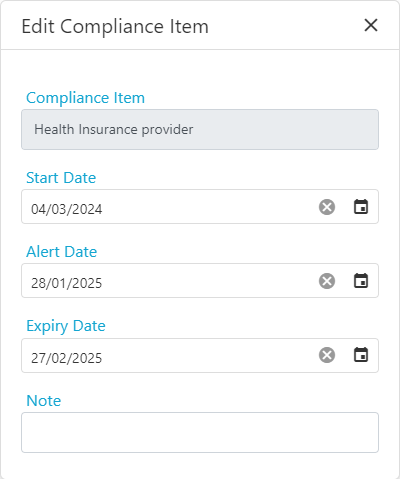
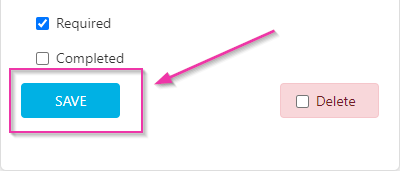 Update the relevant fields and save your changes.
## Compliance status indicators
Compliance items show their current status based on expiry and warning dates:
* Items approaching expiry display a warning based on the configured warning days
* Overdue mandatory items flag the client as non-compliant
* Completed items show a green status
Use the client list column chooser to add compliance columns for a quick overview of compliance status across all clients.
## Running into issues?
See [Client management troubleshooting](/troubleshooting/general) for common errors and fixes.
## Related articles
Set up compliance items and link to funding types
Configure compliance items and templates
Set up a new client profile
Update the relevant fields and save your changes.
## Compliance status indicators
Compliance items show their current status based on expiry and warning dates:
* Items approaching expiry display a warning based on the configured warning days
* Overdue mandatory items flag the client as non-compliant
* Completed items show a green status
Use the client list column chooser to add compliance columns for a quick overview of compliance status across all clients.
## Running into issues?
See [Client management troubleshooting](/troubleshooting/general) for common errors and fixes.
## Related articles
Set up compliance items and link to funding types
Configure compliance items and templates
Set up a new client profile