> ## Documentation Index
> Fetch the complete documentation index at: https://help.visualcare.com.au/llms.txt
> Use this file to discover all available pages before exploring further.
# Creating agreements for rostering
> How to create client agreements, add services, and set up rosters in Visualcare
Agreements define the services, funding type, and billing details for a client. Every client needs at least one agreement before you start rostering their shifts. This article covers how to create a new agreement, add services to it, and link it to a roster.
## Creating a new agreement
Navigate to the **Agreement** tab at the top of the client profile and click **New Agreement**.
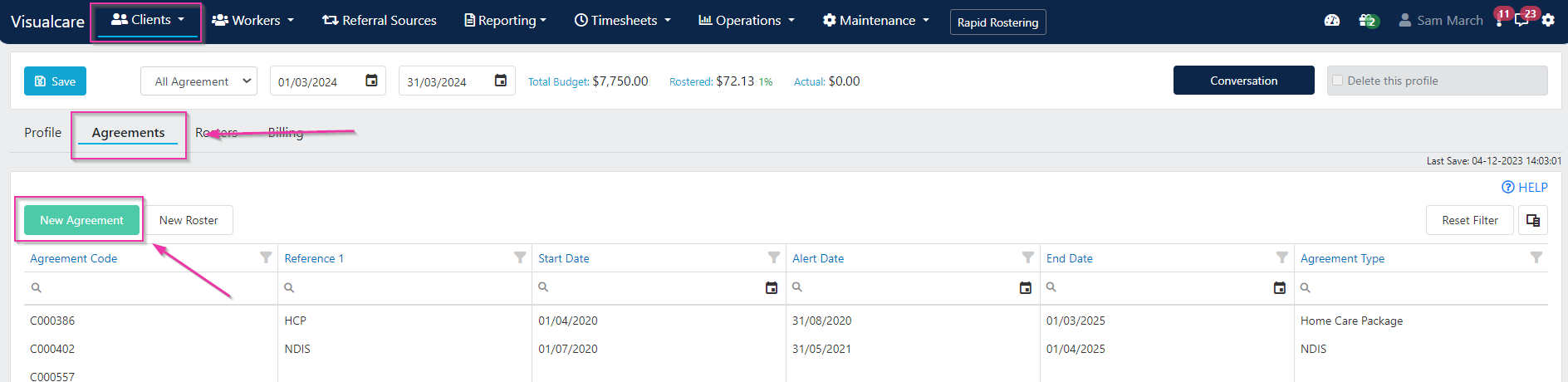 Enter the agreement details in the form that opens.
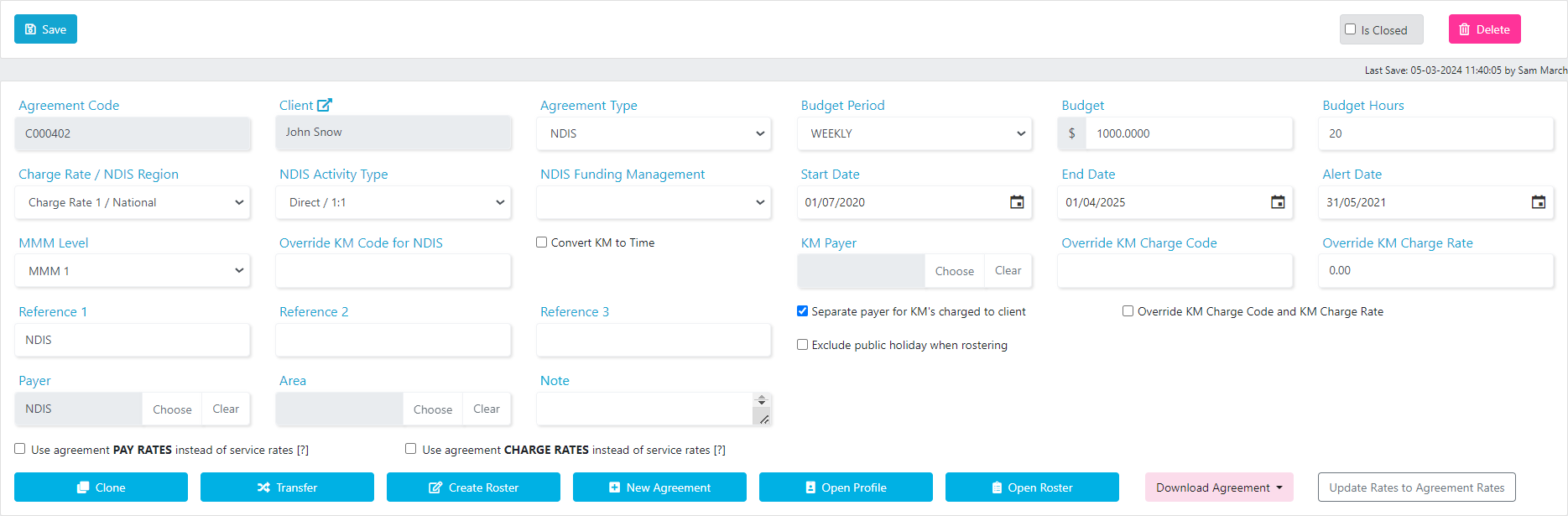 ### Agreement fields
| Field | Description |
| --------------------------------------------------------------------- | -------------------------------------------------------------------------------------------------------------- |
| **Agreement Code** | System-generated and not editable |
| **Client** | Auto-populates if the agreement is created from within the client profile |
| **Agreement Type** | Select the type of agreement, for example Private, HCP, CHSP, or NDIS |
| **NDIS Activity Type** | Appears when you select NDIS as the agreement type. These activity types apply to Location Roster shifts only |
| **Charge Rate / NDIS Region** | Select the NDIS charge rate for remote or very remote areas (if applicable) |
| **Reference** | Use this to label the agreement if the client has multiple agreements, for example HCP, Private, CHSP, or NDIS |
| **Payer** | If the client is not the payer, select the payer here. Create new payers in **Maintenance** → **Payers** |
| **Area** | Optionally define the agreement by area if your organisation works in multiple areas |
| **Budget Period** | Select the budget period, for example daily, weekly, or monthly |
| **Budget Hours** | Enter the budget hours for the selected period |
| **Start Date** | Agreement start date (required) |
| **End Date** | Agreement end date (required) |
| **Alert Date** | Set a date to notify you when the end date is approaching |
| **Separate payer for KMs** | If a different payer covers kilometre charges, select them here |
| **Override KM charge code** | Tick this to charge a different kilometre rate from your default settings |
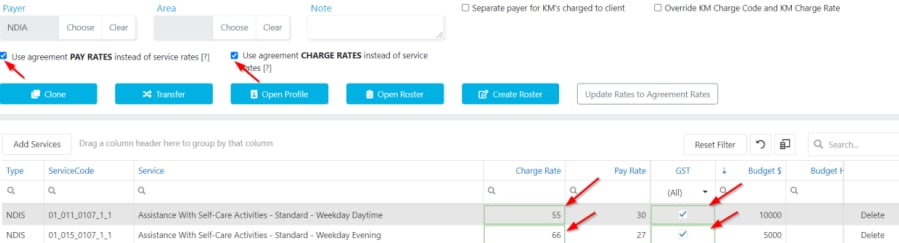
| **Use agreement pay rates and charge rates instead of service rates** | Override the standard service rates with custom rates for this agreement |
### NDIS activity types
When selecting NDIS as the agreement type, the **NDIS Activity Type** drop-down appears with these options:
* **Group** - the system divides charge rates by the number of clients rostered on the day when creating an invoice
* **Ratio** - charges are based on the agreement settings regardless of client count. A **Ratio** column appears in the Services table (for example, 1.2 means one worker to two clients, and the charge rate is divided by two for location roster services)
* **Set ratio when rostering** - allows you to add or edit the ratio within the location roster
### Agreement fields
| Field | Description |
| --------------------------------------------------------------------- | -------------------------------------------------------------------------------------------------------------- |
| **Agreement Code** | System-generated and not editable |
| **Client** | Auto-populates if the agreement is created from within the client profile |
| **Agreement Type** | Select the type of agreement, for example Private, HCP, CHSP, or NDIS |
| **NDIS Activity Type** | Appears when you select NDIS as the agreement type. These activity types apply to Location Roster shifts only |
| **Charge Rate / NDIS Region** | Select the NDIS charge rate for remote or very remote areas (if applicable) |
| **Reference** | Use this to label the agreement if the client has multiple agreements, for example HCP, Private, CHSP, or NDIS |
| **Payer** | If the client is not the payer, select the payer here. Create new payers in **Maintenance** → **Payers** |
| **Area** | Optionally define the agreement by area if your organisation works in multiple areas |
| **Budget Period** | Select the budget period, for example daily, weekly, or monthly |
| **Budget Hours** | Enter the budget hours for the selected period |
| **Start Date** | Agreement start date (required) |
| **End Date** | Agreement end date (required) |
| **Alert Date** | Set a date to notify you when the end date is approaching |
| **Separate payer for KMs** | If a different payer covers kilometre charges, select them here |
| **Override KM charge code** | Tick this to charge a different kilometre rate from your default settings |
| **Use agreement pay rates and charge rates instead of service rates** | Override the standard service rates with custom rates for this agreement |
### NDIS activity types
When selecting NDIS as the agreement type, the **NDIS Activity Type** drop-down appears with these options:
* **Group** - the system divides charge rates by the number of clients rostered on the day when creating an invoice
* **Ratio** - charges are based on the agreement settings regardless of client count. A **Ratio** column appears in the Services table (for example, 1.2 means one worker to two clients, and the charge rate is divided by two for location roster services)
* **Set ratio when rostering** - allows you to add or edit the ratio within the location roster
 ## Adding services to an agreement
Click **Add Services** and select services from the list. Use the filtering options to find specific service groups.
Tick the services you need and click **Add selected services**.
## Adding services to an agreement
Click **Add Services** and select services from the list. Use the filtering options to find specific service groups.
Tick the services you need and click **Add selected services**.
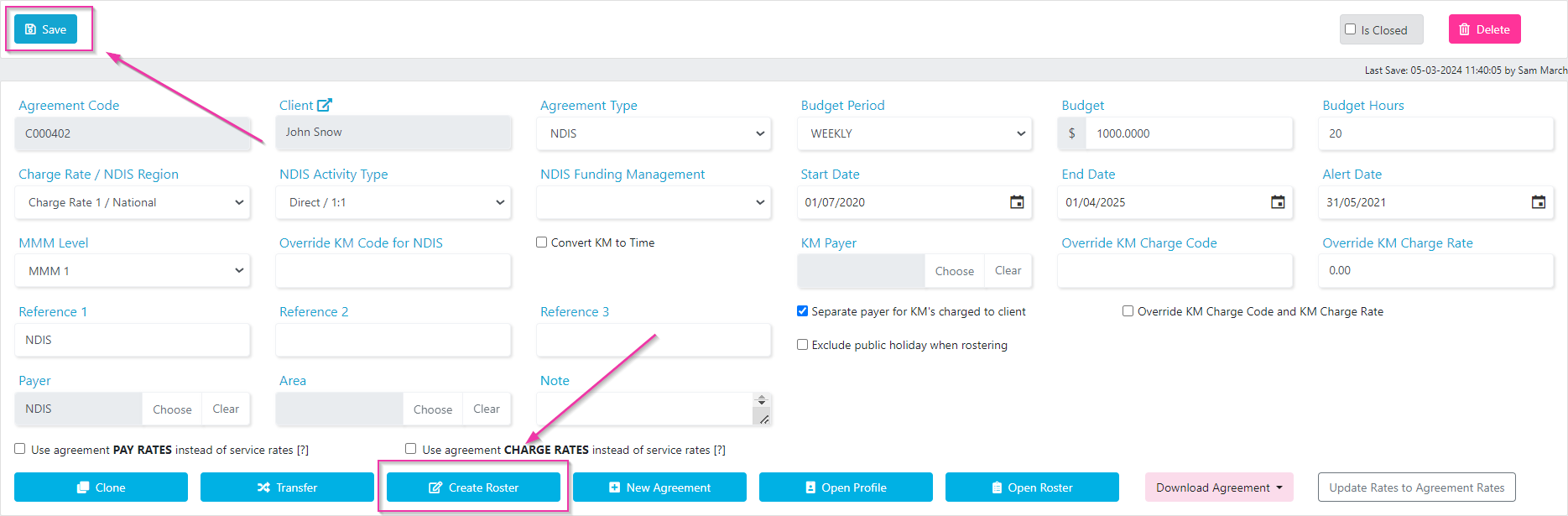
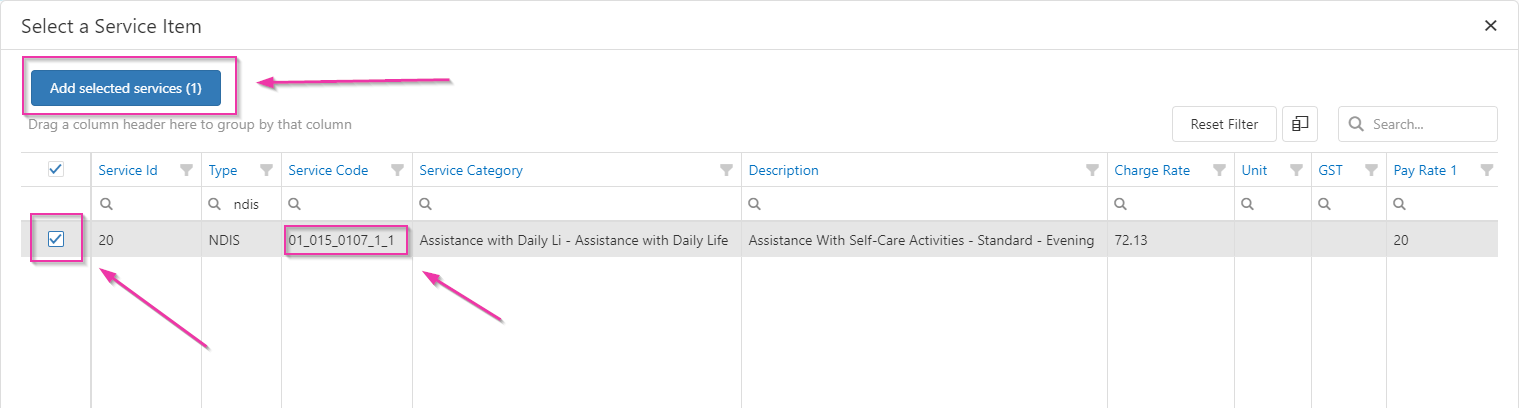 Once services are added, click **Save**.
 ## Deleting a service from an agreement
Click **Delete** next to a service to remove it.
Services that are active on a client roster cannot be deleted from the agreement.
## Deleting a service from an agreement
Click **Delete** next to a service to remove it.
Services that are active on a client roster cannot be deleted from the agreement.
 ## Creating a roster from an agreement
Create a roster directly from the agreement tab by clicking the **New Roster** icon.
## Creating a roster from an agreement
Create a roster directly from the agreement tab by clicking the **New Roster** icon.
 ## GST on agreements
If you need to add GST to specific services for a client, do this at the agreement level. This is typically used when most services are GST-free but a particular service for this client needs GST.
Tick the **GST** field for the relevant service and update the charge rate to include GST. Click **Save** when done.
## GST on agreements
If you need to add GST to specific services for a client, do this at the agreement level. This is typically used when most services are GST-free but a particular service for this client needs GST.
Tick the **GST** field for the relevant service and update the charge rate to include GST. Click **Save** when done.
 ## Agreement budgets
Four fields on an agreement drive budget calculations: **Start Date**, **End Date**, **Budget Period**, and **Budget**.
**Budget Period** determines whether the budget is per-period or total:
| Scenario | Meaning |
| -------------------------------------------------------------- | ------------------------------------------------------------------------------------------------------------------- |
| Budget Period selected (weekly, monthly, quarterly, and so on) | The budget is per-period. The system multiplies the budget by the number of periods between the start and end dates |
| Budget Period left blank | The budget is the total for the full agreement span |
For example, with a **Budget Period** of weekly, a **Budget** of A$2,000, and an agreement covering 52 weeks, the total budget is A$104,000 (2,000 × 52).
### Monitoring budget utilisation
To check whether an agreement is tracking over or under budget, go to **Client Profile** → **Agreements**:
1. Tick **Show Actual and Forecast Balance** at the top of the screen
2. Open the **Column Chooser** and add the columns you need:
| Column | Purpose |
| ----------------------- | -------------------------------------------------- |
| **Budget \$** | The budget amount and the budget period used |
| **Total Budget \$** | Total budget for the whole agreement span |
| **Rostered \$** | Total value of rostered services for the agreement |
| **Forecast Balance \$** | Total budget minus rostered |
| **Actual \$** | Confirmed timesheets allocated to the agreement |
| **Actual Balance \$** | Total budget minus actual |
These columns give fast visibility of utilisation, overspend risk, and remaining capacity. Colours at the bottom of the page indicate when dates or budgets have been exceeded.
## Cloning, transferring, and closing agreements
### Cloning an agreement
To create a copy of an existing agreement with all its service codes, open the agreement and click **Clone**, then click **Clone** again in the confirmation popup. The new agreement is created with all the same service codes as the original.
### Transferring roster items to a new agreement
When a client moves to a new agreement (for example, at the start of a new funding period), use the Transfer function to move their roster items across.
Create a new agreement or clone the existing one for the new period.
From the new agreement, click **Transfer**.
Select the **From Date** - this is the date from which roster items move to the new agreement.
The old agreement appears on the left and the new agreement on the right. The system automatically matches service codes where it can. Manually match any unmatched service codes.
Click **Apply** to complete the transfer.
### Closing an agreement
To close an agreement, set the **End Date** and tick **Is Closed**, then click **Save**.
If Visualcare won't let you update the End Date, a roster item is blocking the change. Use the Transfer function to move the blocking roster item to another agreement, or manually delete or update it before closing.
## Running into issues?
See [Client management troubleshooting](/troubleshooting/general) for common errors and fixes.
## Related articles
NDIS-specific agreement configuration
Set up agreements for CHSP-funded clients
Configure Support at Home agreements
Set up the client profile before creating agreements
## Agreement budgets
Four fields on an agreement drive budget calculations: **Start Date**, **End Date**, **Budget Period**, and **Budget**.
**Budget Period** determines whether the budget is per-period or total:
| Scenario | Meaning |
| -------------------------------------------------------------- | ------------------------------------------------------------------------------------------------------------------- |
| Budget Period selected (weekly, monthly, quarterly, and so on) | The budget is per-period. The system multiplies the budget by the number of periods between the start and end dates |
| Budget Period left blank | The budget is the total for the full agreement span |
For example, with a **Budget Period** of weekly, a **Budget** of A$2,000, and an agreement covering 52 weeks, the total budget is A$104,000 (2,000 × 52).
### Monitoring budget utilisation
To check whether an agreement is tracking over or under budget, go to **Client Profile** → **Agreements**:
1. Tick **Show Actual and Forecast Balance** at the top of the screen
2. Open the **Column Chooser** and add the columns you need:
| Column | Purpose |
| ----------------------- | -------------------------------------------------- |
| **Budget \$** | The budget amount and the budget period used |
| **Total Budget \$** | Total budget for the whole agreement span |
| **Rostered \$** | Total value of rostered services for the agreement |
| **Forecast Balance \$** | Total budget minus rostered |
| **Actual \$** | Confirmed timesheets allocated to the agreement |
| **Actual Balance \$** | Total budget minus actual |
These columns give fast visibility of utilisation, overspend risk, and remaining capacity. Colours at the bottom of the page indicate when dates or budgets have been exceeded.
## Cloning, transferring, and closing agreements
### Cloning an agreement
To create a copy of an existing agreement with all its service codes, open the agreement and click **Clone**, then click **Clone** again in the confirmation popup. The new agreement is created with all the same service codes as the original.
### Transferring roster items to a new agreement
When a client moves to a new agreement (for example, at the start of a new funding period), use the Transfer function to move their roster items across.
Create a new agreement or clone the existing one for the new period.
From the new agreement, click **Transfer**.
Select the **From Date** - this is the date from which roster items move to the new agreement.
The old agreement appears on the left and the new agreement on the right. The system automatically matches service codes where it can. Manually match any unmatched service codes.
Click **Apply** to complete the transfer.
### Closing an agreement
To close an agreement, set the **End Date** and tick **Is Closed**, then click **Save**.
If Visualcare won't let you update the End Date, a roster item is blocking the change. Use the Transfer function to move the blocking roster item to another agreement, or manually delete or update it before closing.
## Running into issues?
See [Client management troubleshooting](/troubleshooting/general) for common errors and fixes.
## Related articles
NDIS-specific agreement configuration
Set up agreements for CHSP-funded clients
Configure Support at Home agreements
Set up the client profile before creating agreements