> ## Documentation Index
> Fetch the complete documentation index at: https://help.visualcare.com.au/llms.txt
> Use this file to discover all available pages before exploring further.
# Client compliance configuration
> Set up compliance items, link them to funding types, and configure compliance tracking for client profiles in Visualcare
Client compliance items are configured in the Maintenance area and then appear on individual client profiles. This article covers how to create compliance items, link them to funding types, and understand how compliance tracking works.
## Creating compliance items
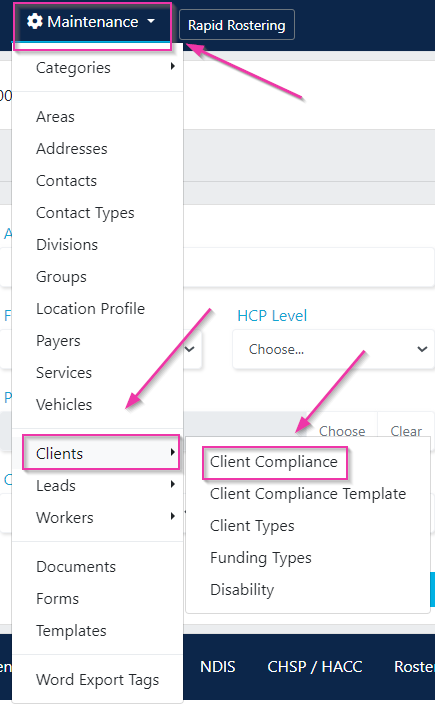
Navigate to **Maintenance** → **Clients** → **Client Compliance**.
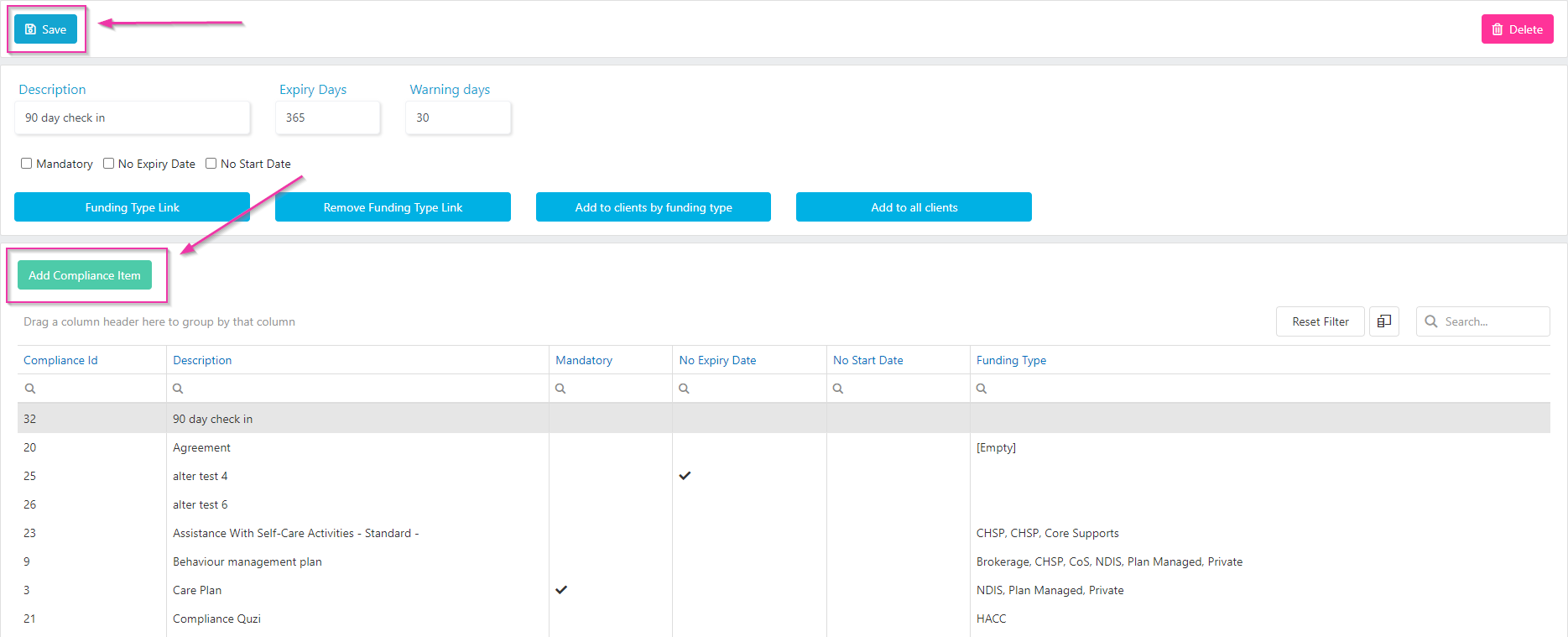
 Click **Add Compliance Item** to create a new item. Enter the following details:
| Field | Description |
| ---------------- | ------------------------------------------------- |
| **Description** | The name of the compliance item |
| **Expiry Days** | Number of days before the item expires |
| **Warning Days** | Number of days before expiry to trigger a warning |
| **Mandatory** | Whether this compliance item is required |
Click **Save** when finished. To edit an existing item, click on it, make changes, and click **Save**.
Click **Add Compliance Item** to create a new item. Enter the following details:
| Field | Description |
| ---------------- | ------------------------------------------------- |
| **Description** | The name of the compliance item |
| **Expiry Days** | Number of days before the item expires |
| **Warning Days** | Number of days before expiry to trigger a warning |
| **Mandatory** | Whether this compliance item is required |
Click **Save** when finished. To edit an existing item, click on it, make changes, and click **Save**.
 ## Linking compliance items to funding types
You link compliance items to specific funding types so that only relevant items appear on client profiles. There are several ways to make this connection:
* **Link directly to a funding type** - the compliance item only appears for clients with that funding type
* **Add by funding type** - bulk-add the compliance item to all existing clients with a specific funding type
* **Add to all clients** - add the compliance item regardless of funding type
If compliance items are not linked to any funding types, all compliance items are automatically added to new client profiles when they're created.
## Compliance status tracking
Compliance items on client profiles track:
* **Expiry dates** - when the compliance item is due for renewal
* **Warning dates** - when a warning is triggered before expiry (based on the warning days set during configuration)
* **Mandatory status** - whether the item is required for the client to remain compliant
Compliance items with expiry and warning dates generate alerts as the expiry approaches. Mandatory items that are overdue flag the client as non-compliant. Compliance status is visible across client lists and reports for organisational oversight.
## Running into issues?
See [Client management troubleshooting](/troubleshooting/general) for common errors and fixes.
## Related articles
View and update compliance on individual client profiles
Configure compliance items, templates, and funding types in Maintenance
## Linking compliance items to funding types
You link compliance items to specific funding types so that only relevant items appear on client profiles. There are several ways to make this connection:
* **Link directly to a funding type** - the compliance item only appears for clients with that funding type
* **Add by funding type** - bulk-add the compliance item to all existing clients with a specific funding type
* **Add to all clients** - add the compliance item regardless of funding type
If compliance items are not linked to any funding types, all compliance items are automatically added to new client profiles when they're created.
## Compliance status tracking
Compliance items on client profiles track:
* **Expiry dates** - when the compliance item is due for renewal
* **Warning dates** - when a warning is triggered before expiry (based on the warning days set during configuration)
* **Mandatory status** - whether the item is required for the client to remain compliant
Compliance items with expiry and warning dates generate alerts as the expiry approaches. Mandatory items that are overdue flag the client as non-compliant. Compliance status is visible across client lists and reports for organisational oversight.
## Running into issues?
See [Client management troubleshooting](/troubleshooting/general) for common errors and fixes.
## Related articles
View and update compliance on individual client profiles
Configure compliance items, templates, and funding types in Maintenance