> ## Documentation Index
> Fetch the complete documentation index at: https://help.visualcare.com.au/llms.txt
> Use this file to discover all available pages before exploring further.
# CHSP agreements
> Configure Commonwealth Home Support Programme agreements with DEX case and activity information for claiming
CHSP agreements include specific fields that feed into rostering and DEX export for claiming. This article covers the additional configuration needed when setting up a CHSP client agreement.
For the basics of creating any agreement, see [Creating agreements for rostering](/client-management/creating-agreements-for-rostering).
## Setting up a CHSP agreement
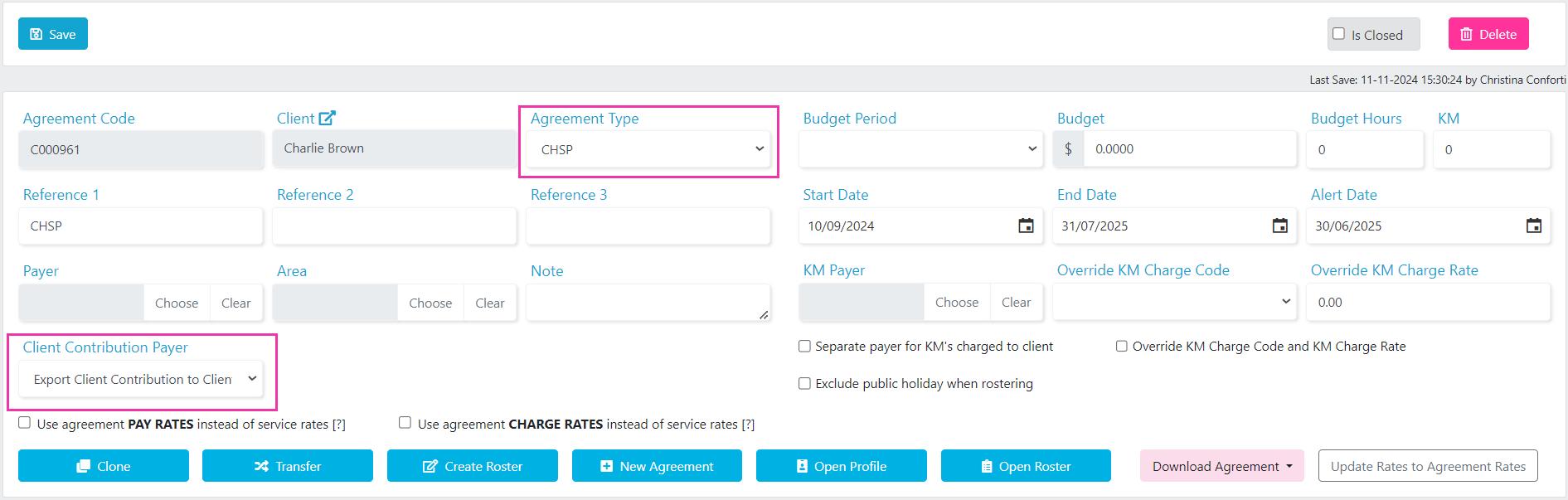
Ensure the **Agreement Type** is set to **CHSP**, then click **Save**.
 ### Client contribution payer
Under **Client Contribution Payer**, indicate where the client contribution for each service exports to. The options are:
| Option | What it does |
| -------------------------------------------------------- | ------------------------------------------------------------------------------------ |
| **Not Exporting Client Contribution** | Excludes the client contribution amount from any export |
| **Export Client Contribution to Payer** | Exports the client contribution to the **Payer** selected within the agreement |
| **Export Client Contribution to Client Payer** | Exports the client contribution to the **Payer** selected within the client profile |
| **Export Client Contribution to Client Accounting Code** | Exports the client contribution to the client's **Accounting Code** on their profile |
## Adding CHSP services
Add services in the bottom section of the agreement screen. Click **Add Services**, find the CHSP services, tick them, and click **Add Selected Services**.
If a service is not listed, add it in **Maintenance** → **Services**.
### Client contribution payer
Under **Client Contribution Payer**, indicate where the client contribution for each service exports to. The options are:
| Option | What it does |
| -------------------------------------------------------- | ------------------------------------------------------------------------------------ |
| **Not Exporting Client Contribution** | Excludes the client contribution amount from any export |
| **Export Client Contribution to Payer** | Exports the client contribution to the **Payer** selected within the agreement |
| **Export Client Contribution to Client Payer** | Exports the client contribution to the **Payer** selected within the client profile |
| **Export Client Contribution to Client Accounting Code** | Exports the client contribution to the client's **Accounting Code** on their profile |
## Adding CHSP services
Add services in the bottom section of the agreement screen. Click **Add Services**, find the CHSP services, tick them, and click **Add Selected Services**.
If a service is not listed, add it in **Maintenance** → **Services**.
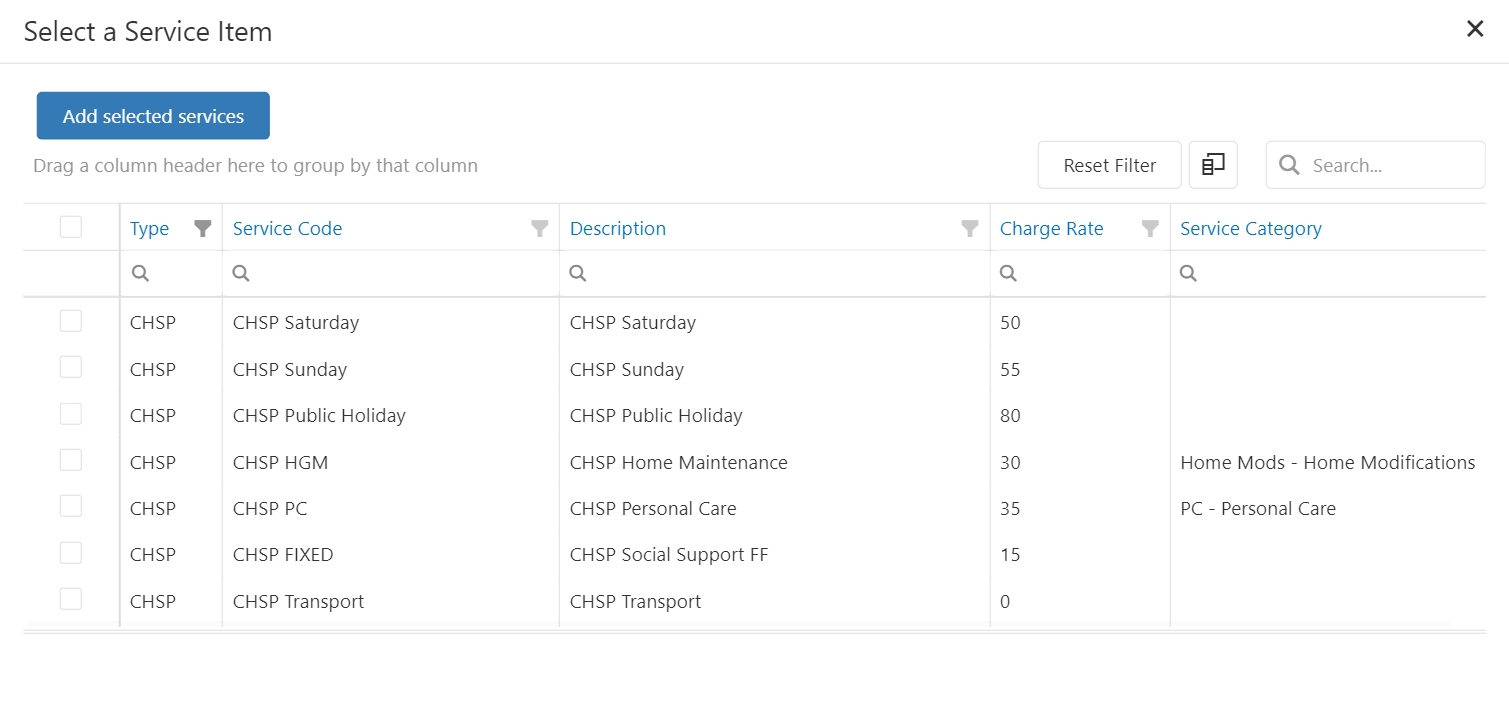 Once services are added, update the CHSP-specific columns for each service line:
* **Client Contribution**
* **CHSP Payment Type**
* **CHSP Deduction Code**
* **DEX Case**
* **DEX Activity**
If these columns are not visible, open the **Column Chooser**, search for them, and drag them into the grid layout.
Once services are added, update the CHSP-specific columns for each service line:
* **Client Contribution**
* **CHSP Payment Type**
* **CHSP Deduction Code**
* **DEX Case**
* **DEX Activity**
If these columns are not visible, open the **Column Chooser**, search for them, and drag them into the grid layout.
 ### CHSP payment type
The payment type links to the **Client Contribution** column. For each service line, click within the **CHSP Payment Type** column and choose either **UNIT** or **SHIFT** from the drop-down.
### DEX case and activity
To enable CHSP claiming, assign a **DEX Case** and **DEX Activity** to each service line in the agreement (or alternatively when rostering).
Click within the **DEX Case** and **DEX Activity** columns and select the correct values from the drop-downs.
If nothing appears in the drop-down, the DEX Case may not be set on the client profile. Ensure the client is correctly configured for CHSP funding under **Client Profile** → **CHSP/HACC** tab. See [CHSP and HACC configuration](/client-management/chsp-hacc-configuration) for details.
## Next steps
Once the CHSP agreement is set up, start rostering CHSP services:
* For **client shifts**, see the client roster CHSP and DEX rostering guide
* For **group activity shifts**, see the location roster CHSP and DEX rostering guide
## Running into issues?
See [Client management troubleshooting](/troubleshooting/general) for common errors and fixes.
## Related articles
Set up the client profile for CHSP or HACC funding
General guide to creating client agreements
### CHSP payment type
The payment type links to the **Client Contribution** column. For each service line, click within the **CHSP Payment Type** column and choose either **UNIT** or **SHIFT** from the drop-down.
### DEX case and activity
To enable CHSP claiming, assign a **DEX Case** and **DEX Activity** to each service line in the agreement (or alternatively when rostering).
Click within the **DEX Case** and **DEX Activity** columns and select the correct values from the drop-downs.
If nothing appears in the drop-down, the DEX Case may not be set on the client profile. Ensure the client is correctly configured for CHSP funding under **Client Profile** → **CHSP/HACC** tab. See [CHSP and HACC configuration](/client-management/chsp-hacc-configuration) for details.
## Next steps
Once the CHSP agreement is set up, start rostering CHSP services:
* For **client shifts**, see the client roster CHSP and DEX rostering guide
* For **group activity shifts**, see the location roster CHSP and DEX rostering guide
## Running into issues?
See [Client management troubleshooting](/troubleshooting/general) for common errors and fixes.
## Related articles
Set up the client profile for CHSP or HACC funding
General guide to creating client agreements