> ## Documentation Index
> Fetch the complete documentation index at: https://help.visualcare.com.au/llms.txt
> Use this file to discover all available pages before exploring further.
# vGo
> Use the vGo mobile app to manage shifts, clients, and rosters while away from VCore
vGo is a mobile app designed for office users who need to manage shifts, clients, and rosters while away from their computer. It gives coordinators and managers on-the-go access to key VCore functions, including viewing and editing shifts, managing client information, communicating with workers and clients, and reviewing incidents.
### What you can do with vGo
* View, create, edit, and delete rostered shifts
* Check shift status (not started, started, or completed)
* Mark a client shift as on leave
* Change or unassign workers on shifts
* Add or edit roster notes and roster categories
* View basic client profile information including contacts
* Add a new client, create agreements, and set up rosters
* View and edit shifts in client, worker, and location rosters
* View worker contact details and rosters
* Access unallocated shifts and assign workers
* Review incident forms submitted by workers, and mark incidents as read or closed
* Communicate with workers (on Vworker) or clients (on vAboutMe) using private or group messages
* Set permissions from VCore for certain user groups
## Setting up vGo
Download vGo from the App Store (for iPhone) or Google Play (for Android).
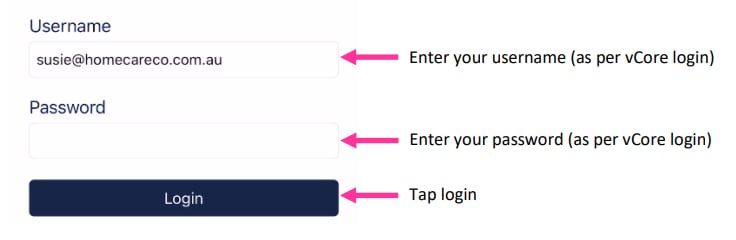
 Open vGo by tapping the icon on your phone. Log in using your office username and password, the same details you use to log into VCore.
 ## Home page
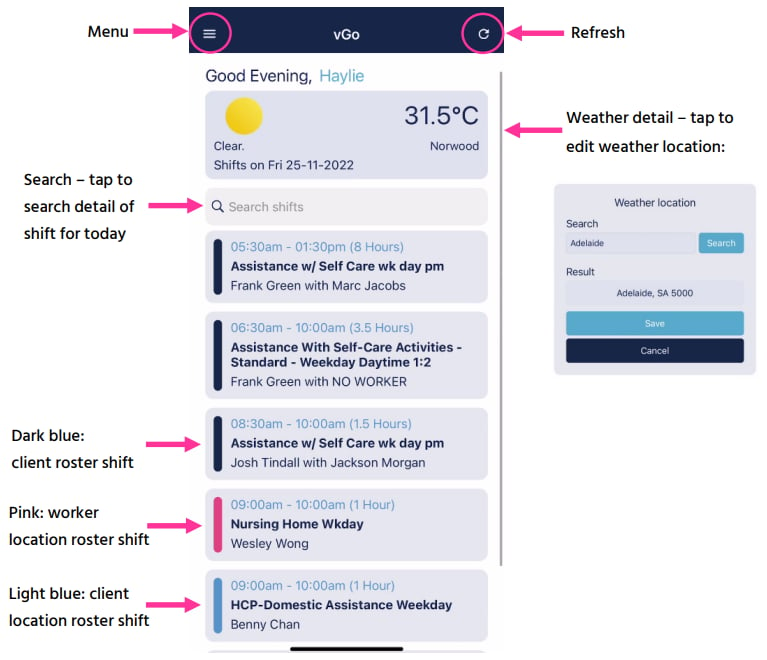
When you log in, the home page displays the weather forecast for your location, all shifts for the day, and the menu and refresh buttons.
## Home page
When you log in, the home page displays the weather forecast for your location, all shifts for the day, and the menu and refresh buttons.
 ## Menu
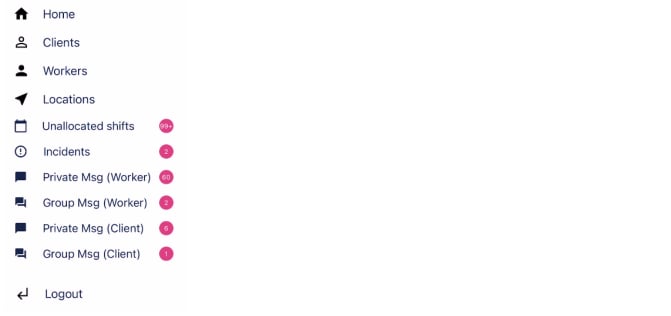
The menu in the top left-hand corner gives you access to additional features beyond the home page.
## Menu
The menu in the top left-hand corner gives you access to additional features beyond the home page.
 ## Clients
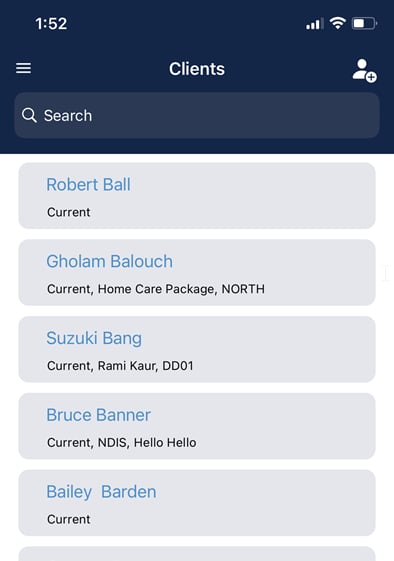
Tap **Clients** from the menu to access the list of clients. Use the search bar at the top of the page to quickly find a specific client. Only current clients appear in vGo.
## Clients
Tap **Clients** from the menu to access the list of clients. Use the search bar at the top of the page to quickly find a specific client. Only current clients appear in vGo.
 ### Adding a client
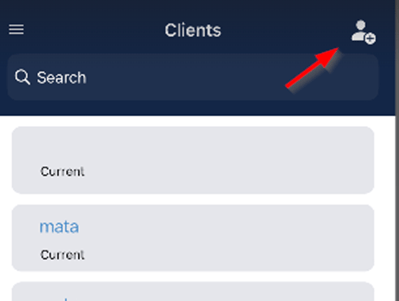
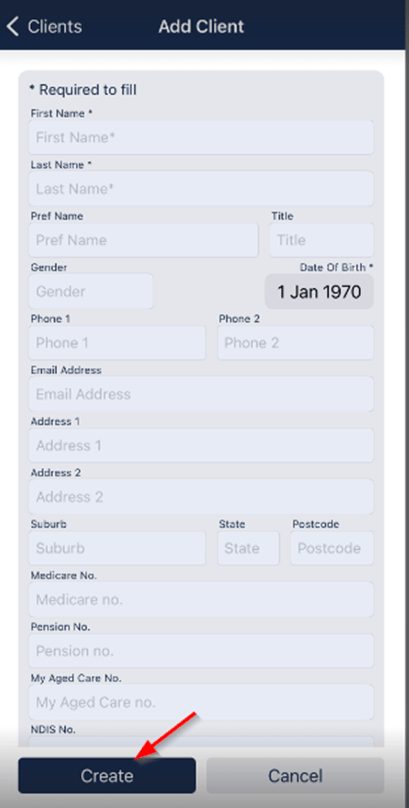
To add a new client, go to the client list from the menu and tap the icon in the top right-hand corner. Fill in all the required details and tap **Create**.
### Adding a client
To add a new client, go to the client list from the menu and tap the icon in the top right-hand corner. Fill in all the required details and tap **Create**.
 ### Viewing a client
Select a client to view their details. In the bottom section of the page, you can access **Profile**, **Contacts**, and **Roster**.
### Viewing a client
Select a client to view their details. In the bottom section of the page, you can access **Profile**, **Contacts**, and **Roster**.
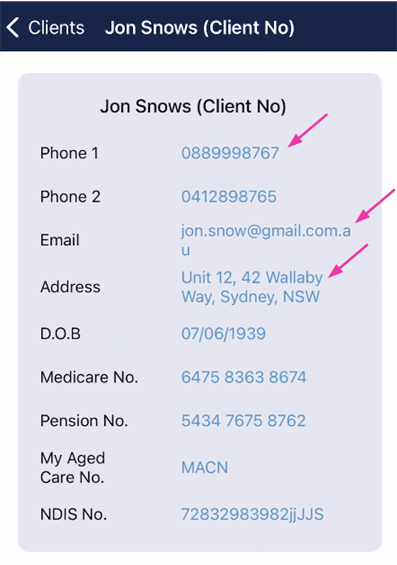
 Within the client profile, you can tap phone numbers to call the client, tap the email to start writing an email, and tap the address to open the pinpoint location in maps. Each of these opens the relevant app on your phone.
 ## Rosters
To edit a client roster, tap on the client and select **View shift details**. Here you can change the date, time, service, and worker on the shift. You can also delete the shift and see the status indicating whether the shift has been started or completed.
## Rosters
To edit a client roster, tap on the client and select **View shift details**. Here you can change the date, time, service, and worker on the shift. You can also delete the shift and see the status indicating whether the shift has been started or completed.
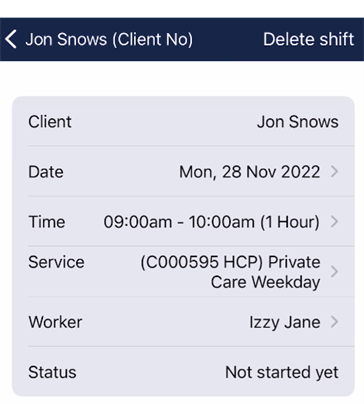 The worker list shows all workers regardless of availability. Any changes to a shift assigned to a worker send a notification to their Vworker app.
### Adding a new client roster
To add a new client roster:
Go to the client list from the menu, tap the client profile, then select the **Roster** tab.
Tap the three dots in the top right-hand corner and select **Rosters**.
The worker list shows all workers regardless of availability. Any changes to a shift assigned to a worker send a notification to their Vworker app.
### Adding a new client roster
To add a new client roster:
Go to the client list from the menu, tap the client profile, then select the **Roster** tab.
Tap the three dots in the top right-hand corner and select **Rosters**.
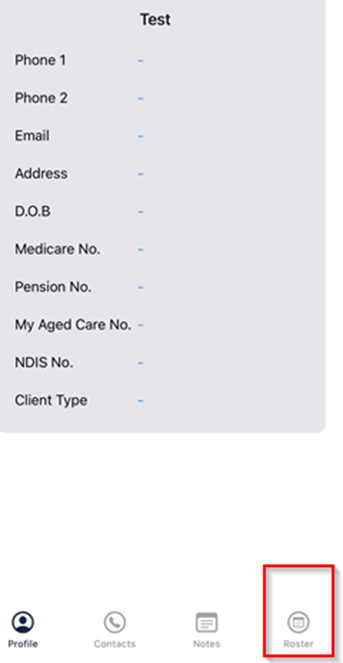
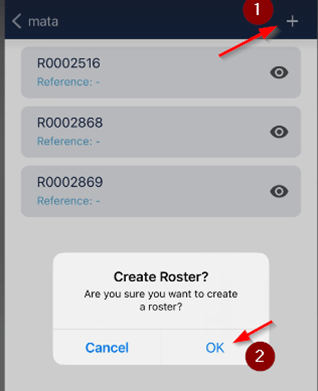
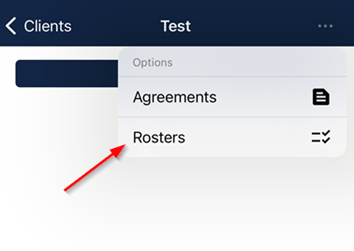 Tap the **+** icon in the top right-hand corner to add a new roster. Once you confirm, the new roster is created for the client.
 ## Agreements
You can add new client agreements directly from vGo.
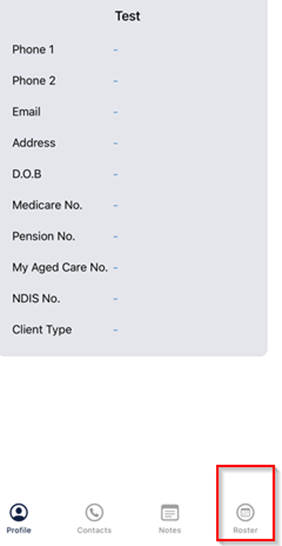
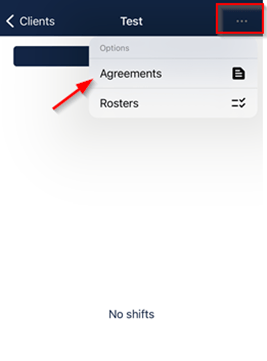
Go to the client list from the menu, tap the client profile, then select the **Roster** tab. Tap the three dots in the top right-hand corner and select **Agreements**.
## Agreements
You can add new client agreements directly from vGo.
Go to the client list from the menu, tap the client profile, then select the **Roster** tab. Tap the three dots in the top right-hand corner and select **Agreements**.
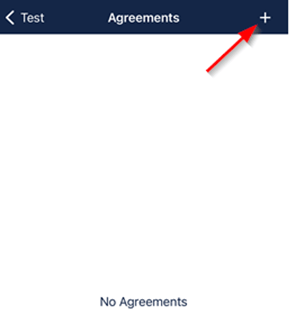
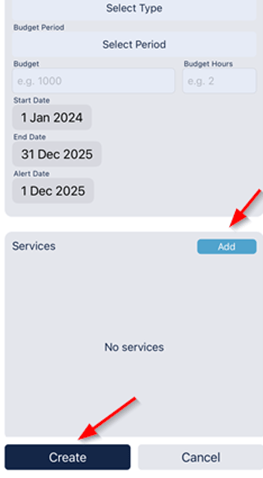
 Tap the **+** icon to add a new agreement. Enter the agreement details, add services, and tap **Create**.
 ## Leave
To add a client cancellation, select **Mark this shift on leave**. Here you can add the leave type, leave code, cancellation charge percentage, any pay hours, and notes.
## Leave
To add a client cancellation, select **Mark this shift on leave**. Here you can add the leave type, leave code, cancellation charge percentage, any pay hours, and notes.
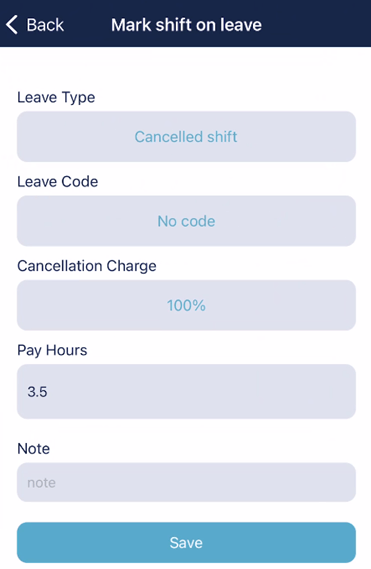 If any charge or pay is required for the cancelled or leave shift, you need to select a leave code. No code means there is no timesheet line item for this shift.
## Running into issues?
See [General troubleshooting](/troubleshooting/general) for common errors and fixes.
## Related articles
The client-facing app for rosters, budgets, and communication
The worker onboarding portal
The broker portal for managing subcontracted shifts
The assessment portal for workers conducting client assessments
If any charge or pay is required for the cancelled or leave shift, you need to select a leave code. No code means there is no timesheet line item for this shift.
## Running into issues?
See [General troubleshooting](/troubleshooting/general) for common errors and fixes.
## Related articles
The client-facing app for rosters, budgets, and communication
The worker onboarding portal
The broker portal for managing subcontracted shifts
The assessment portal for workers conducting client assessments