> ## Documentation Index
> Fetch the complete documentation index at: https://help.visualcare.com.au/llms.txt
> Use this file to discover all available pages before exploring further.
# vAssessment
> Set up and use the vAssessment portal for workers to conduct client assessments, manage rosters, and create quotes
vAssessment is a web-based portal that allows workers to access client information, conduct assessments, manage rosters, create templates, and generate quotes. Workers log in with their Visualcare credentials and can view and edit client details, with changes flowing directly back to VCore.
## Setting up vAssessment access
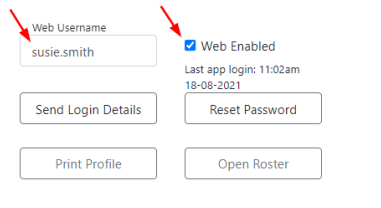
A web username login is required for the worker to access the vAssessment portal. This is set up on the worker profile in VCore.
Open the worker profile in VCore. The worker's email address can be used as the web username. Ensure **Web Enabled** is ticked. These login details are the same as those used for the Vworker mobile app.
 The vAssessment portal is accessed at [assessment.visualcare.com.au](https://assessment.visualcare.com.au).
## Signing in
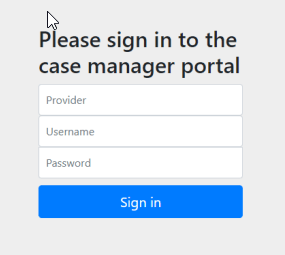
Workers sign into the vAssessment portal using:
| Field | Details |
| ----------------- | ------------------------------------------------------------------------------------------------------------------------------------------ |
| **Provider name** | Provided to the worker, or included in the "Send login details" email |
| **Username** | The web username or worker email address set up in VCore |
| **Password** | On first login, the worker is prompted to create a password. If they forget their password, it can be reset on the worker profile in VCore |
The vAssessment portal is accessed at [assessment.visualcare.com.au](https://assessment.visualcare.com.au).
## Signing in
Workers sign into the vAssessment portal using:
| Field | Details |
| ----------------- | ------------------------------------------------------------------------------------------------------------------------------------------ |
| **Provider name** | Provided to the worker, or included in the "Send login details" email |
| **Username** | The web username or worker email address set up in VCore |
| **Password** | On first login, the worker is prompted to create a password. If they forget their password, it can be reset on the worker profile in VCore |
 ## Home page
The home page displays a list of the worker's clients.
## Home page
The home page displays a list of the worker's clients.
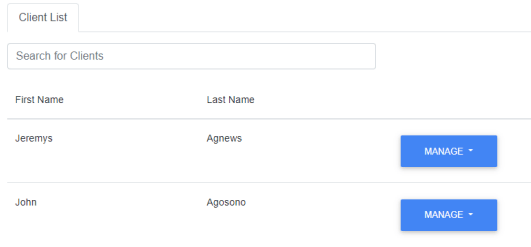 Use the **Search for Clients** field to find a specific client.
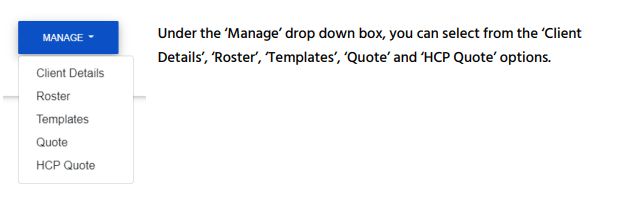
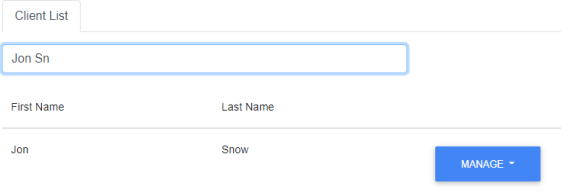 Under the **Manage** drop-down, you can select from the following options:
* **Client Details** - view and edit client information
* **Roster** - view and manage the client's roster
* **Templates** - access assessment templates
* **Quote** - create and manage quotes
* **HCP Quote** - create and manage Home Care Package quotes
Under the **Manage** drop-down, you can select from the following options:
* **Client Details** - view and edit client information
* **Roster** - view and manage the client's roster
* **Templates** - access assessment templates
* **Quote** - create and manage quotes
* **HCP Quote** - create and manage Home Care Package quotes
 ## Navigation
Once you're in one of the sections listed above, you can switch between the other sections for the same client using the tabs at the top of the screen.
## Navigation
Once you're in one of the sections listed above, you can switch between the other sections for the same client using the tabs at the top of the screen.
 ## Client details
Under the **Client Details** tab, you can view and edit client information. When you save this information, it's sent to the Visualcare client profile in VCore.
## Client details
Under the **Client Details** tab, you can view and edit client information. When you save this information, it's sent to the Visualcare client profile in VCore.
 ## Running into issues?
See [General troubleshooting](/troubleshooting/general) for common errors and fixes.
## Related articles
The worker onboarding portal
The broker portal for managing subcontracted shifts
Setting up a new worker in VCore
The mobile app for office users managing shifts on the go
## Running into issues?
See [General troubleshooting](/troubleshooting/general) for common errors and fixes.
## Related articles
The worker onboarding portal
The broker portal for managing subcontracted shifts
Setting up a new worker in VCore
The mobile app for office users managing shifts on the go